Windows updated. Now your PIN doesn’t work. You type it correctly. “That PIN is incorrect.” But it’s the same PIN you’ve been using for months.
Happens after almost every major Windows update. The PIN data gets corrupted during the update process.
Why This Happens
Short version: Windows stores PIN data in a folder called NGC. Updates sometimes corrupt the files in there. Your PIN didn’t change. But the encrypted data that Windows checks against got messed up. So it rejects the correct PIN.
Work and school accounts have an extra issue. A registry key called AllowDomainPINLogon might be missing after the update. Without it, domain-joined PCs will not accept PIN login at all. So yeah.
Fix 1 – Sign In with Your Password Instead
First step — get into Windows so you can fix things.
1 – On the login screen, click Sign-in options (below the PIN field).
2 – Click the key icon (password option).
3 – Enter your Microsoft account password.
If you forgot it, click “I forgot my password” to reset it through Microsoft’s website.
Fix 2 – Delete the NGC Folder and Re-create PIN
This clears the corrupted PIN data so you can set up a fresh one.
1 – Press Windows + R to open the Run dialog.
2 – Paste this path and press Enter:
%windir%\ServiceProfiles\LocalService\AppData\Local\Microsoft\NGC
3 – Delete everything inside the NGC folder.
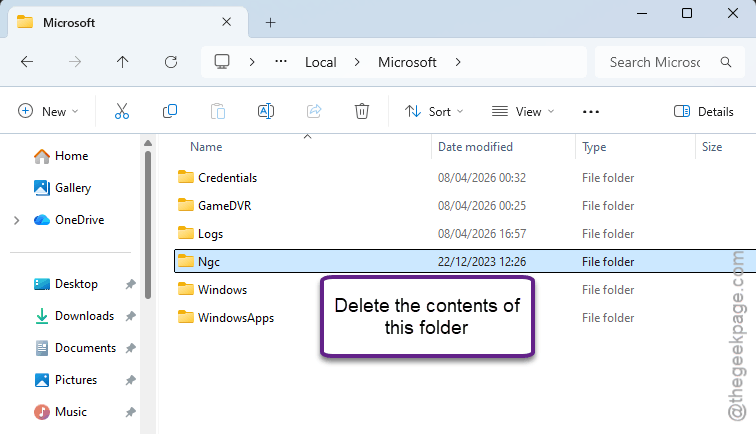
You may need admin rights — click Continue if prompted.
4 – Now press Windows + I to open Settings.
5 – Click Accounts from the left sidebar.
6 – Click Sign-in options on the right side.
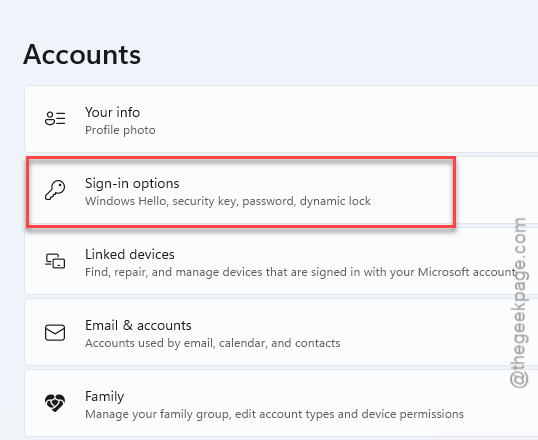
7 – Under PIN (Windows Hello), click Set up or Add.
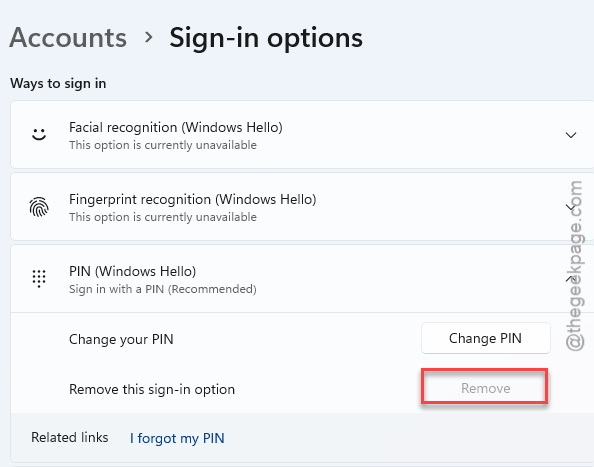
8 – Follow the prompts to create a new PIN.
And that should fix it. Old corrupted data is gone. The new PIN works fresh.
Fix 3 – Reset NGC Permissions via Command Prompt
Can’t delete the NGC folder because of permission errors? Reset them first.
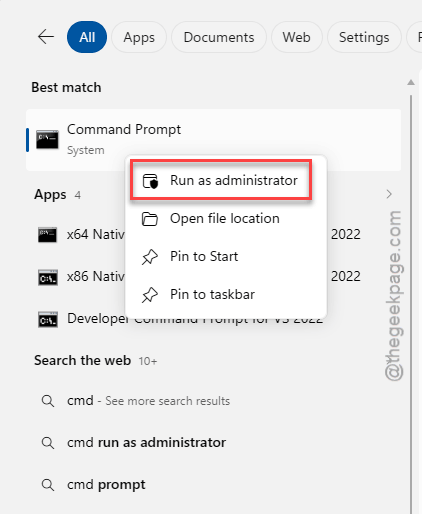
1 – Click Start and type cmd in the search bar.
2 – Right-click Command Prompt in the results.
3 – Click Run as administrator.
4 – Type this command and press Enter:
icacls C:\Windows\ServiceProfiles\LocalService\AppData\Local\Microsoft\Ngc /T /Q /C /RESET
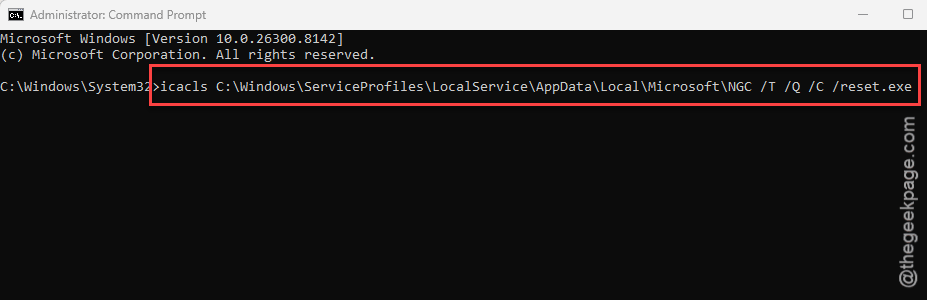
5 – Now try deleting the NGC folder contents again (same path as Fix 2).
6 – Restart your PC.
7 – Set up a new PIN through Settings.
Fix 4 – Add AllowDomainPINLogon for Work/School PCs
If you’re on a domain-joined system, a missing registry key might be blocking PIN login entirely.
1 – On the login screen, hold Shift and click Power > Restart to boot into recovery.
2 – Click Troubleshoot.
3 – Click Advanced Options.
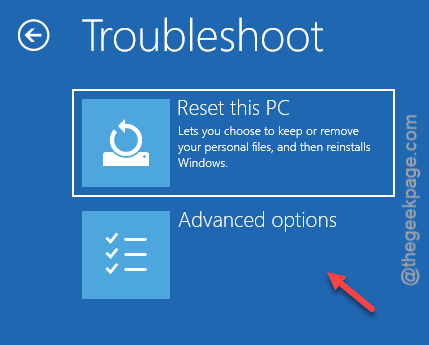
4 – Click Command Prompt.
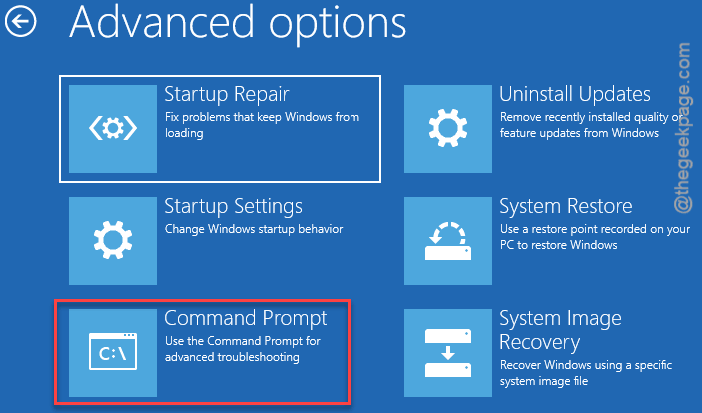
5 – Type regedit and press Enter.
6 – In the left panel, go to:
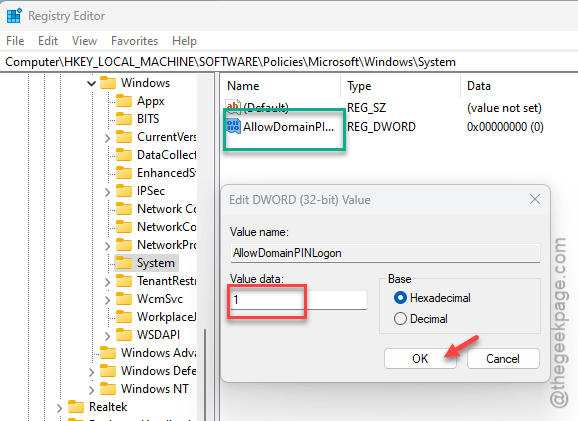
HKEY_LOCAL_MACHINE\SOFTWARE\Policies\Microsoft\Windows\System
7 – Right-click empty space on the right side.
8 – Select New.
9 – Select DWORD (32-bit) Value.
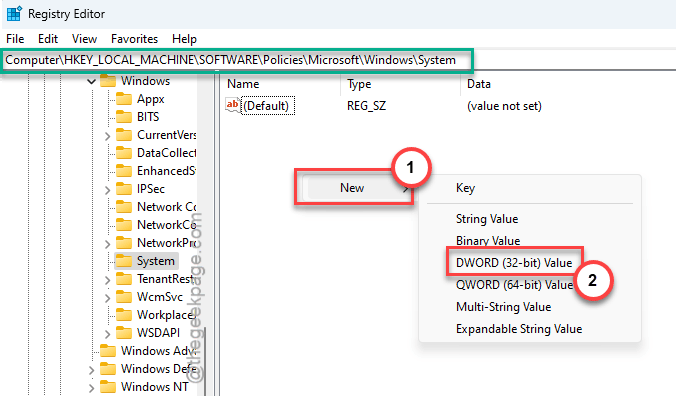
10 – Name it AllowDomainPINLogon
11 – Double-click it.
12 – Set the value to 1.
13 – Click OK.
14 – Close everything and restart.
Fix 5 – Clear TPM
If deleting NGC didn’t help, the TPM chip’s stored credentials might be corrupted.
1 – Press Windows + I to open Settings.
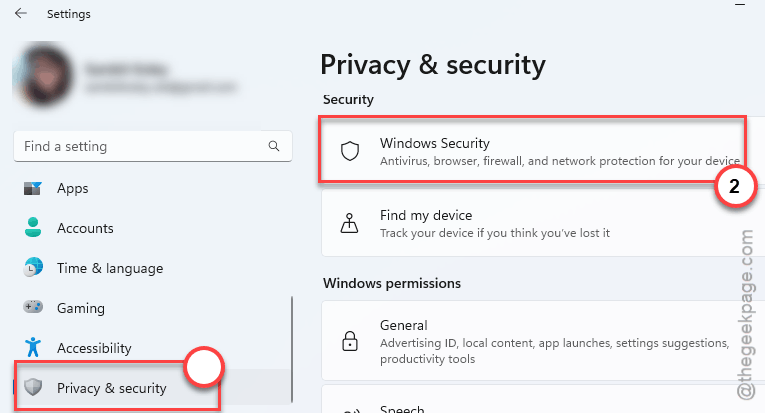
2 – Click Privacy & security from the left sidebar.
3 – Click Windows Security on the right side.
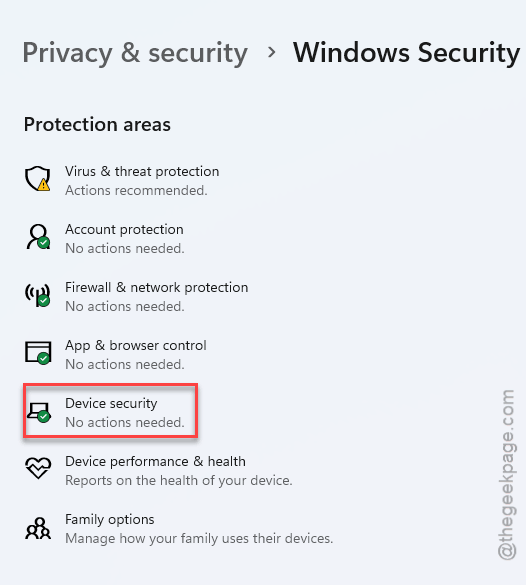
4 – Click Device security.
5 – Click Security processor details.
6 – Click Security processor troubleshooting.
7 – Click Clear TPM.
8 – Restart.
9 – Set up a new PIN.
Warning: clearing TPM removes all stored keys. You’ll need to reset up Windows. Hello, BitLocker recovery keys, etc. Not ideal. But if nothing else works, this resets everything.
How to Prevent This
- Always have your Microsoft account password memorized as a backup.
- After major updates, test your PIN immediately. Don’t wait until you reboot.
- Keep a note of your BitLocker recovery key somewhere safe.
- If you’re on a domain, ask IT to make sure AllowDomainPINLogon is set.
People Also Ask
How to fix Windows Hello PIN not working?
Usually corrupted NGC folder data. Sign in with your password, then delete everything inside the NGC folder and set up a new PIN. If you can’t delete it due to permission errors, run the icacls reset command in an admin Command Prompt first.
What is 0x80090010 nte_perm?
A permission error on the NGC folder where Windows stores PIN data. Run this command in an admin Command Prompt to fix it: icacls C:\Windows\ServiceProfiles\LocalService\AppData\Local\Microsoft\Ngc /T /Q /C /RESET. Then delete the folder contents and create a new PIN.
How to reset hello PIN in Windows 11?
Go to Settings > Accounts > Sign-in options. Under PIN (Windows Hello), click Remove, then Add to create a new one. If Remove doesn’t work, delete the NGC folder manually first and restart before trying again.