You click Claude Desktop. Nothing happens. Or it flashes and closes. Or it sits in the taskbar doing nothing. Won’t start. Won’t open.
Known bug in version 1.1.4173. And the fix is straightforward.
Why This Happens
Basically? Version 1.1.4173 of Claude Desktop has a bug where the app fails to launch on Windows. The process starts. But the window never appears. Or it crashes silently before rendering anything.
Anthropic has released newer versions that fix this. But if your app is stuck on 1.1.4173 and can’t auto-update — because it can’t even start — you need to manually fix it. So yeah.
Fix 1 – Download and Reinstall the Latest Version
Easiest fix. Just get the new version.
1 – Open your web browser.
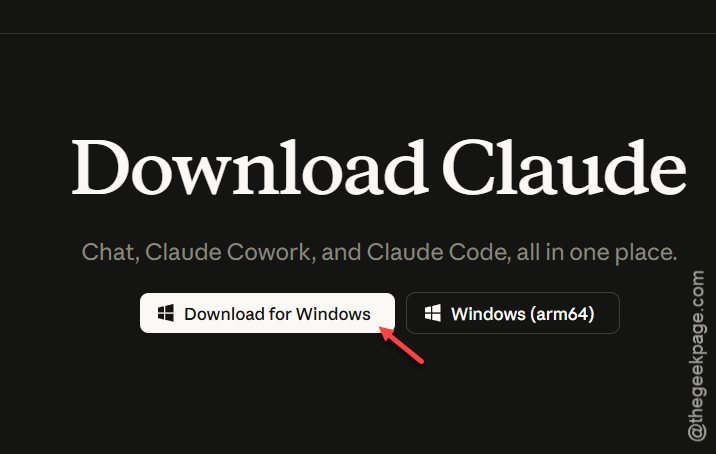
2 – Go to claude.ai/download
3 – Download the latest installer for Windows.
4 – Run the downloaded file.
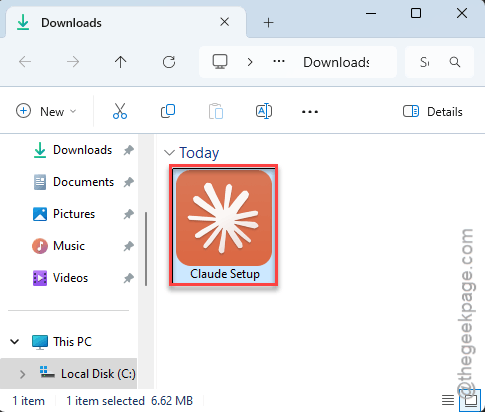
5 – Follow the install prompts.
The new version installs over the old one. No need to uninstall first. And the bug is fixed in newer versions. Done.
Fix 2 – Delete the Buggy Version Folder
If you do not want to reinstall, you can delete just the broken version. Claude will fall back to a previous working version.
1 – Press Ctrl + Shift + Esc to open Task Manager.
2 – In the Processes tab, look for any process with “Claude” in the name. Type “claude” in the search box at the top to find it faster.
3 – Right-click each Claude process.
4 – Click End task.
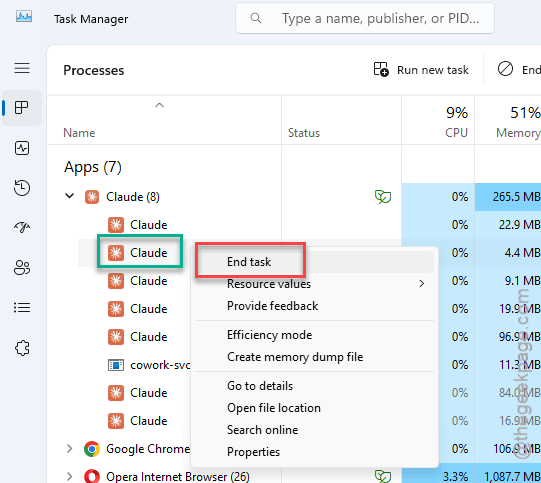
5 – Also look for chrome-native-host. End that too if it’s there.
6 – Open File Explorer (press Windows + E).
7 – In the address bar at the top, paste this path and press Enter:
%LOCALAPPDATA%\AnthropicClaude
[ If youcan’t find it there, look in this location –
C:\Program Files\WindowsApps\Claude_1.1062.0.0_x64__pzs8sxrjxfjjc\app
]
8 – Find the folder called app-1.1.4173.
9 – Delete it.

10 – Open Claude Desktop again from the Start menu or desktop shortcut.
It should fall back to an older working version. And then auto-update to the latest fixed version. If there is no older version folder, use Fix 1 instead.
Fix 3 – Run an Older Version Directly
If you have an older version folder still on your system, you can launch it directly.
1 – Open File Explorer (press Windows + E).
2 – Go to:
C:\Program Files\WindowsApps
3 – Look for a folder like Claude app-1.1.4010 or any Claude app folder version number older than 1.1.4173.
4 – Open it.
5 – Double-click claude.exe.
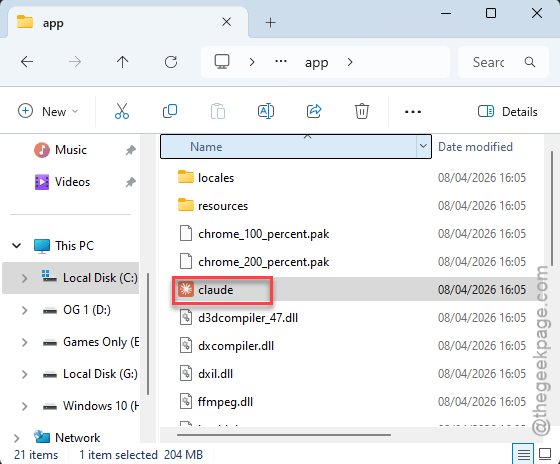
The old version launches. And it should auto-update to the latest fixed version from there.
Fix 4 – Delete the Buggy Folder via PowerShell
Same as Fix 2, but automated with a script. Good if you want to copy-paste and be done.
1 – Click Start and type PowerShell.
2 – Open Windows PowerShell (no need for admin).
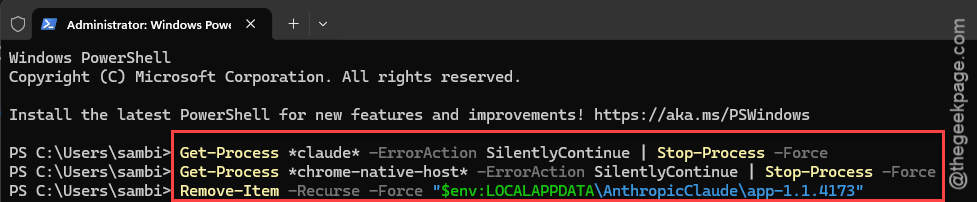
3 – Paste this command and press Enter:
Get-Process *claude* -ErrorAction SilentlyContinue | Stop-Process -Force
4 – Paste this and press Enter:
Get-Process *chrome-native-host* -ErrorAction SilentlyContinue | Stop-Process -Force
5 – Wait a couple seconds. Then paste this and press Enter:
Remove-Item -Recurse -Force "$env:LOCALAPPDATA\AnthropicClaude\app-1.1.4173"
[The third code may not work if Claude is using the Microsoft Store channel on your machine. In that case, use this code –
Remove-Item -Recurse -Force "$env:C:\Program Files\WindowsApps\Claude_1.1062.0.0_x64__pzs8sxrjxfjjc\app"
]
6 – Open Claude Desktop.
And it should launch normally on a working version.
How to Prevent This
- Keep Claude Desktop updated. Newer versions fix the launch bug.
- If Claude ever stops opening, check the AnthropicClaude folder for the version number.
- Bookmark claude.ai/download for quick reinstalls if needed.
People Also Ask
Why won’t Claude Desktop open on Windows?
Probably stuck on version 1.1.4173 which has a known launch bug. Download the latest version from claude.ai/download and install it. Or delete the app-1.1.4173 folder from %LOCALAPPDATA%\AnthropicClaude and relaunch.
How do I update Claude Desktop?
It normally auto-updates when you open it. But if it can’t start at all, download the latest installer directly from claude.ai/download. Running the installer updates the existing installation without losing your settings.
Where is Claude Desktop installed on Windows?
It installs to %LOCALAPPDATA%\AnthropicClaude on your system drive. Each version has its own folder inside that directory, like app-1.1.4173. You can access it by pasting the path into File Explorer’s address bar.