Having some issues with the cellular service after updating to the iOS 26? The iPhone users have started to face a lot of issues since upgrading to the iOS 26, cellular service is one of them. A group of users has reported of getting extremely low cellular reception, while the other set has complained of getting almost no reception on their devices. One of the key solution to this problem is just to detach the SIM card from your primary SIM slot, and use the SIM in the other slot. However, there are additional solutions that you may apply to resolve this cellular problem.
Latest Update –
As of 30th September 2025, Apple has reportedly patched this cellular service issue with a quick bug-fix update, iOS 26.0.1 or later. So, we recommend you to follow these steps to install the patch immediately on your device ~
1. Load up the General tab.
2. Next, open the Software Update section.
3. Tap the Update Now option to install the latest available patch of the iOS 26 on your iPhone.
This will surely take care of the cellular service at your end.
Quick Fixes –
1. Restart the iPhone. Sometimes, all it takes, a simple reboot of the iPhone can restore the cellular service issue.
2. Turn on the AirPlane mode once. Wait for a bit and then, turn off the Airplane mode to refresh the cellular services on your device. See if this helps.
Fix 1 – Eject and re-insert the SIM into another slot
The primary workaround to this problem is to use the SIM card in another slot of your iPhone.
NOTE – Not all the iPhones comes with the dual SIM card slots. If your iPhone doesn’t have dual SIM option, still you should detach the SIM card tray and re-insert it. This simple workaround has fixed this issue for many users.
Step 1 – Use the SIM ejector pin to eject the SIM card tray from the iPhone.
Step 2 – Next, put the SIM card into the slot (known as the SIM 2) that is on the other side of the SIM card tray.
Step 3 – After this, re-insert the SIM card tray.
Now, wait for a few seconds for the cellular service to be restored on the device. You can use the cellular service once again.
Fix 2 – Turn off the Lockdown mode (if applicable)
Disable the Lockdown mode, if you are using it on your device.
Step 1 – Open the iPhone Settings.
Step 2 – Go to the Privacy & Security module.
Step 3 – Then, scroll down to find the Lockdown mode in there. Open it up.
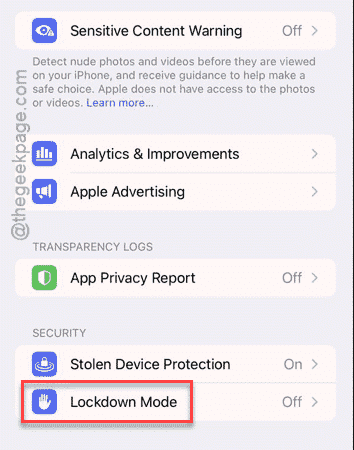
Step 4 – Turn if off from there.
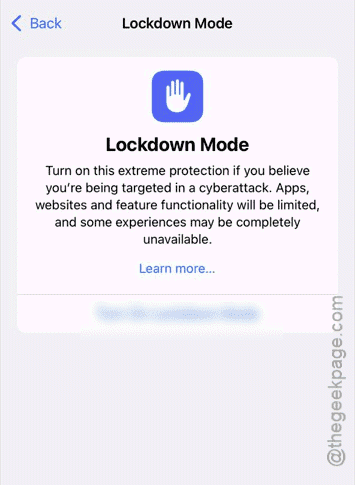
You will get a prompt to turn off the Lockdown mode and restart the device. After restarting the
Fix 3 – Disable and re-enable Roaming mode and change Network type
Another workaround to this issue is to turn off the Roaming mode and refresh it.
Step 1 – In the iPhone Settings, load up the Cellular services.
Step 2 – Next, open up the SIM card that you are using from there.
Step 3 – Then, turn off the Data Roaming option in there.
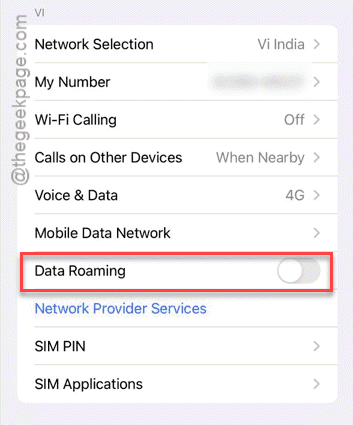
Step 4 – Wait for a bit and re-enable the Roaming mode.
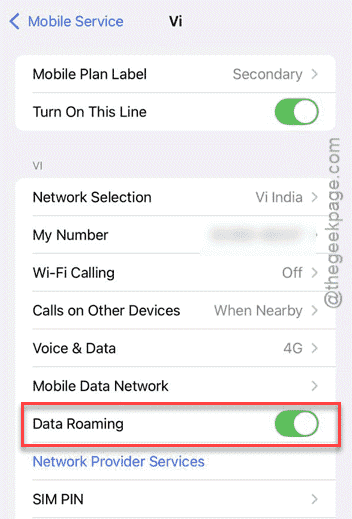
Step 5 – Then, go to the Voice & Data section. Toggle it to 4G mode.
Later, check the cellular service and test if this works out.
Fix 4 – Reset the Network Settings
If you are still having the cellular service issues on your iPhone, you should reset the Network settings completely.
Step 1 – At first, open up the General settings on the iPhone.
Step 2 – Next, go this way –
General > Transfer or Reset iPhone
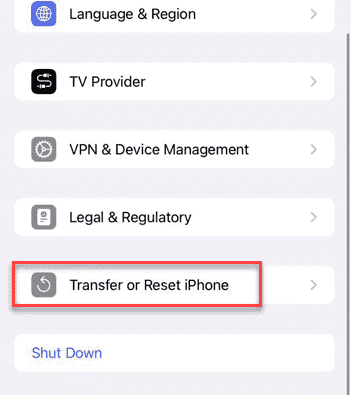
Step 3 – Later, go with the Reset option in the following page.
Step 4 – Finally, tap the Reset Network Settings option to reset all the network settings on your iPhone.
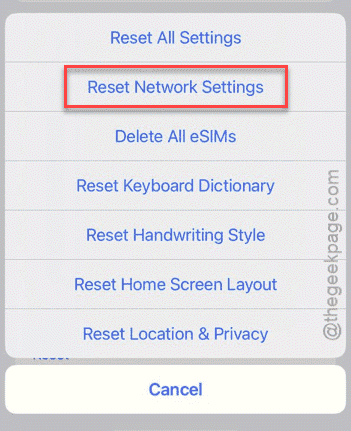
Once you have reset all the network settings, your iPhone will restart normally. After this, the cellular services will be restored to normalcy.
Check if this works for you!
FAQs –
1. Why the Cellular Service is not working after the iOS 26 update?
Some users may encounter issues with the cellular services after the iOS 26 update can be due to temporary iOS 26 bug, outdated SIM settings, or a simple carrier settings mismatch. It can be resolved with a simple switch for the SIM card in the SIM slot, or, by resetting the network configuration of the iPhone.
2. How can I fix ‘No Service’ issue after iOS 26 update?
If you are getting ‘No Service’ error after upgrading to the iOS 26 update, it can be resolved simply by using the SIM card in the other slot, refreshing the roaming settings. However, if you are still not getting any cellular reception, resetting the iPhone’s network settings should resolve the issue.