You try to update Windows 11 to the latest June updates. It runs for a bit. Then it dies with one of these codes – 0x800f0993 or 0x80073712. Every single time.
Annoying, right? But these two errors are actually fixable.
Why This Happens
Short version: your update system got its files tangled up.
The 0x80073712 and 0x800f0993 error code? That one’s about a stuck transaction. An earlier update didn’t finish cleanly. The file system locked the leftover, and now new updates trip over it.
Both come down to the same thing, really. Something got corrupted or half-finished. The good news is Windows has built-in tools to scrub it out.
Fix 1 – Repair the Component Store With DISM
This is the main fix for 0x80073712. You’ll clean out the broken parts, then pull fresh copies from Microsoft. It takes a while — be patient.
1 – Right-click the Start button and pick Terminal (Admin) or Command Prompt (Admin).
2 – Type this and press Enter to strip out the broken leftover components:
dism /online /cleanup-image /startcomponentcleanup
3 – Wait for it to finish. Now run the deep repair to grab clean files from Microsoft’s servers:
dism /online /cleanup-image /restorehealth
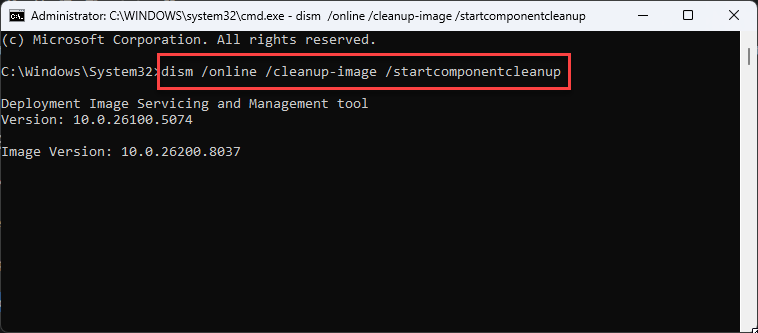
4 – This one can sit at 20% for several minutes. That’s normal. Don’t close the window.
5 – Once it’s done, run a file check:
sfc /scannow
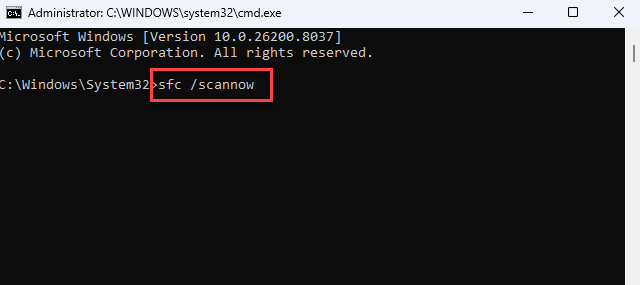
6 – Restart your PC and try the update again.
For a lot of people, that’s the whole fix right there.
Fix 2 – Restart Twice, On Purpose
Sounds too simple. But it has actually worked out for many affected users.
Restarting the PC twice — fully, not sleep — gives that engine two passes to catch and patch the problem on its own. Do it, then check for updates.
Fix 3 – Reset the Stuck Transaction
This one targets 0x800f0993 — the locked, half-finished update. You’ll reset the file system’s logger and clear out the blocked queue.
1 – Open Command Prompt (Admin) again, like in Fix 1.
2 – Type this and press Enter:
fsutil resource setautoreset true C:\
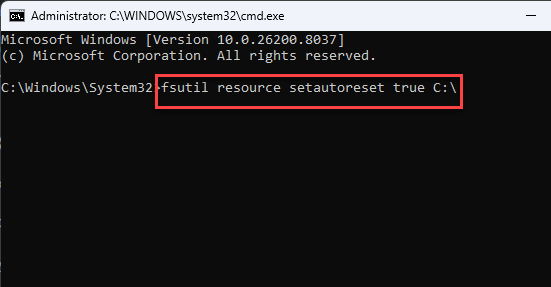
3 – Later, press Windows + R.
4 – Type services.msc in there, and press Enter.
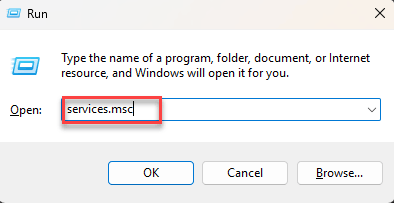
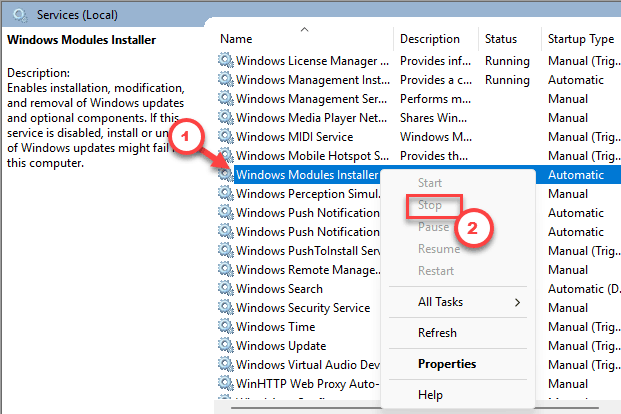
5 – Scroll down to Windows Modules Installer. Right-click it and choose Stop.
6 – Open File Explorer and go to C:\Windows\Logs\CBS.
7 – Delete everything inside that CBS folder.
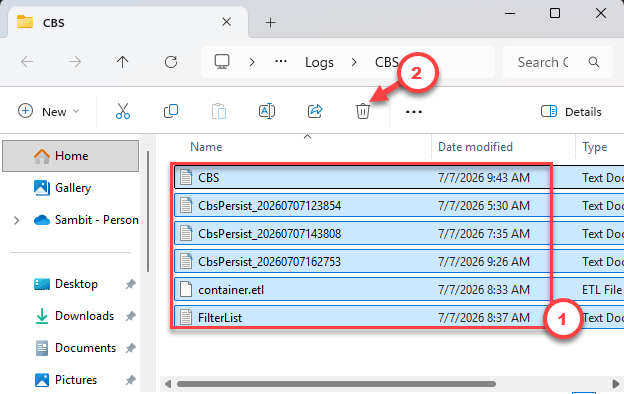
These are just log files — clearing them wipes the blocked servicing queue.
8 – Restart your PC.
Check if this works.
Fix 3 – Wipe the Update Cache
Sometimes the downloaded update files themselves are corrupt. Your PC keeps retrying the same bad copy. This clears it so Windows downloads fresh.
1 – Open Command Prompt (Admin).
2 – Stop the update services by running these four lines, one at a time:
net stop wuauserv
net stop cryptsvc
net stop bits
net stop msiserver
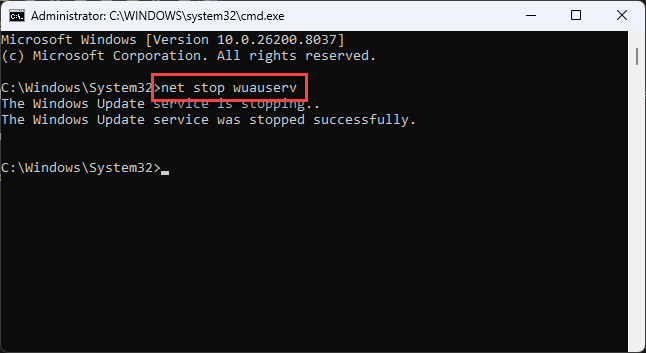
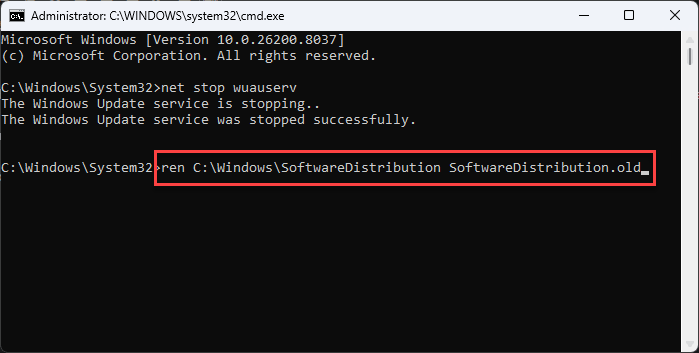
3 – Now rename the two cache folders so Windows rebuilds them:
ren C:\Windows\SoftwareDistribution SoftwareDistribution.old
ren C:\Windows\System32\catroot2 catroot2.old
4 – Start the services back up:
net start wuauserv
net start cryptsvc
net start bits
net start msiserver
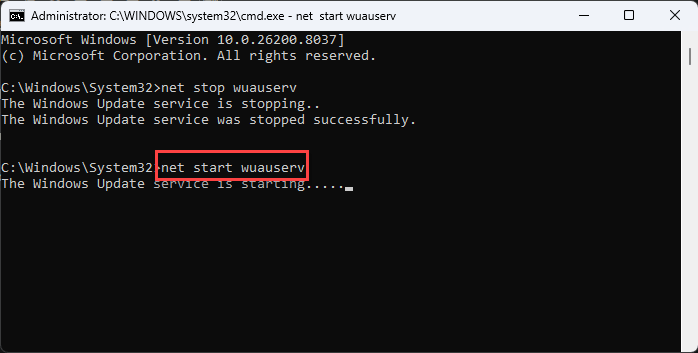
5 – Close the window and run Windows Update again.
Fix 5 – Run an In-Place Repair Install
If nothing above worked, this is the heavy hitter. It reinstalls Windows over itself and rebuilds the whole update structure. Your files, apps, and settings stay put.
1 – Go to Microsoft’s website and download the official Windows 11 ISO — or the Media Creation Tool.
2 – Once you have downloaded the file, double-click the downloaded ISO file to open it.
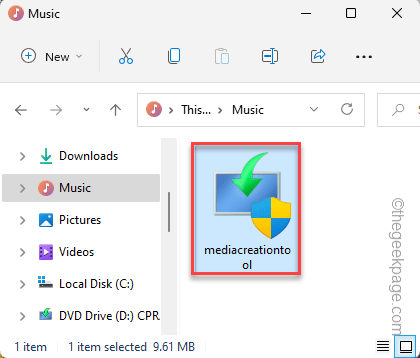
It shows up as a new drive in File Explorer.
3 – Open that drive and run setup.exe.
4 – When it asks, choose to keep your personal files and apps. This part matters — don’t skip past it.
5 – Let it run.
This should resolve your issue.
How to Prevent This
– Use the sfc /scannow every couple of months. It catches small corruption before it blocks an update. Cheap insurance.
– Keep 20 GB or so free on your C: drive. Updates need room to unpack, and a full disk fails in weird ways.
– Let big updates finish overnight. Rushing them is how this whole mess starts.
People Also Ask
How do I fix error code 0x80073712 on Windows 11?
You can perform a system repair check to fix this problem. Otherwise, you can use the Fix now button in the Windows update to fix this sort of issues on your own.
What if none of the commands fix the update error?
Go for an in-place repair install. You can use the Windows 11 ISO to fix this. It reinstalls Windows over itself and rebuilds the update system. Nothing gets deleted, and it fixes errors the command-line tools can’t.