You unpin Copilot from the taskbar. And it comes back. After a restart. After an update. Sometimes just randomly. It keeps pinning itself. Microsoft really wants you to use Copilot. But you can stop it permanently.
Why This Happens
Basically? Windows updates and feature rollouts keep re-pinning Copilot. Microsoft treats it as a “recommended” app that gets re-enabled during system updates. Unpinning through the taskbar only removes it temporarily; the next update brings it back.
The simple right-click unpin doesn’t stick. You need to disable it at a deeper level, through Settings, Group Policy, or the registry. So yeah.
Fix 1 – Disable Through Taskbar Settings
Quick fix. May not survive major updates. But try this first.
1 – Right-click the taskbar.
2 – Click Taskbar settings.
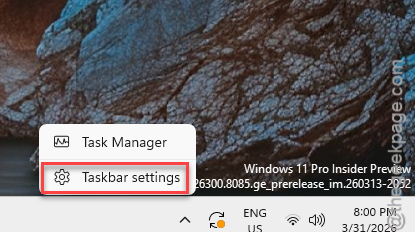
3 – On the right side, find the Copilot toggle.
4 – Turn it off.
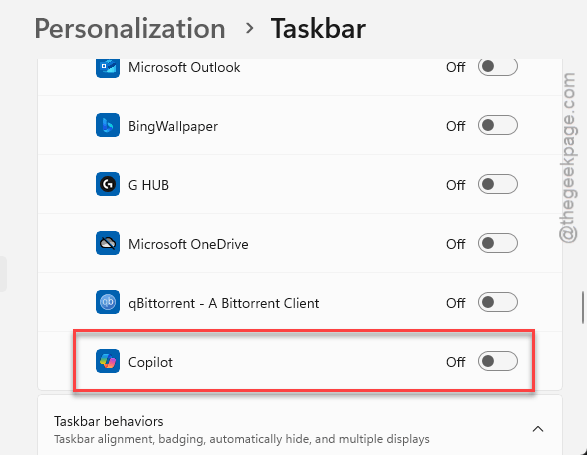
Done. Copilot disappears. But check again after Windows updates — it tends to re-enable.
Fix 2 – Disable via Group Policy (Permanent)
Permanent fix for Pro and Enterprise users. Survives updates.
1 – Press Windows + R to open Run.
2 – Type gpedit.msc and press Enter.
3 – In the left panel, go to User Configuration.
4 – Expand Administrative Templates.
5 – Expand Windows Components.
6 – Click Windows Copilot.
7 – On the right side, double-click Turn off Windows Copilot.
8 – Select Enabled.
9 – Click Apply.
10 – Click OK.
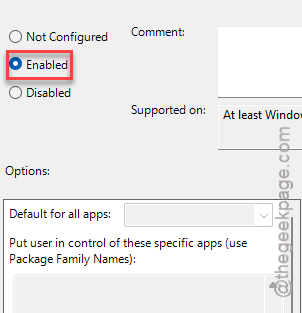
11 – Restart.
Copilot is gone. Permanently. Updates will not bring it back.
Fix 3 – Disable via Registry (Home Users)
Same effect as Group Policy, but works on Windows Home.
1 – Press Windows + R to open Run.
2 – Type regedit and press Enter.
3 – In the left panel, go to:
HKEY_CURRENT_USER\Software\Policies\Microsoft\Windows
4 – Right-click Windows.
5 – Select New.
6 – Select Key.
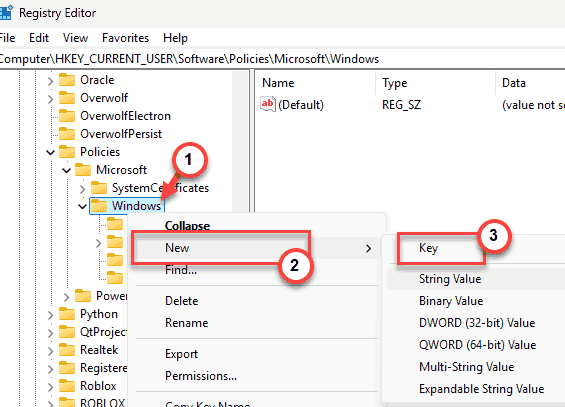
7 – Name it WindowsCopilot
8 – Click the new WindowsCopilot key.
9 – Right-click empty space on the right side.
10 – Select New.
11 – Select DWORD (32-bit) Value.
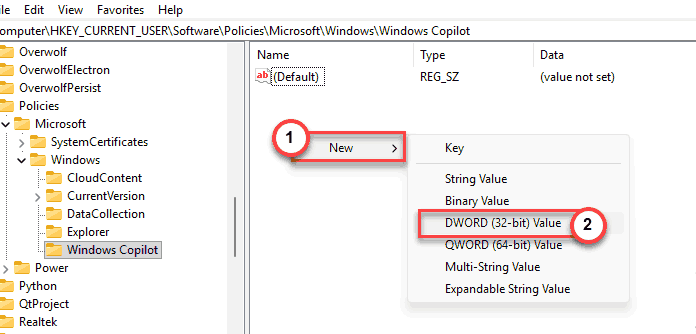
12 – Name it TurnOffWindowsCopilot
13 – Double-click it.
14 – Set the value to 1.
15 – Click OK.
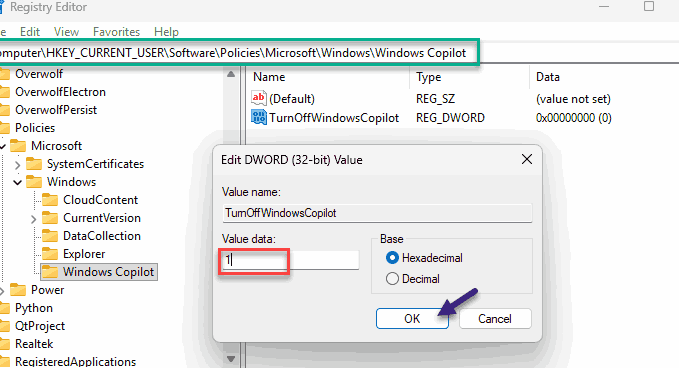
16 – Restart.
Permanent. Survives updates. Want Copilot back? Change the value to 0.
Fix 4 – Uninstall Copilot via PowerShell
You can completely remove the Copilot app from your system.
1 – Click Start and type PowerShell.
2 – Right-click Windows PowerShell in the results.
3 – Click Run as administrator.
4 – Paste this command and press Enter:
Get-AppxPackage -Name "Microsoft.Copilot" | Remove-AppxPackage
5 – Restart.
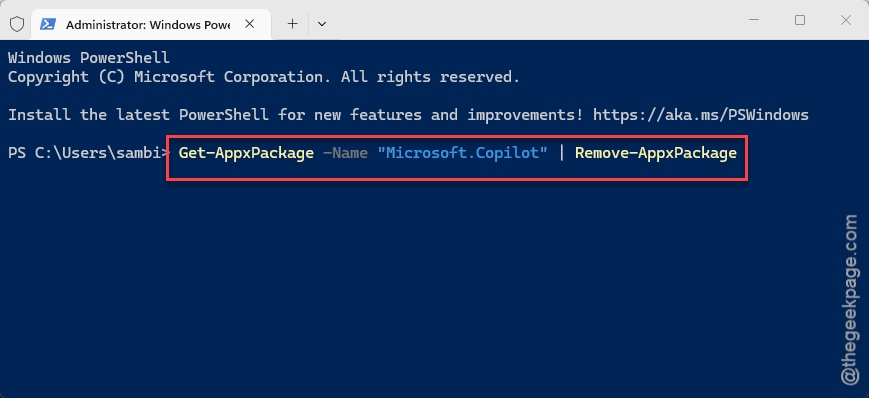
Copilot is gone. Can’t pin what doesn’t exist. But Windows updates might reinstall it. Combine this with the registry fix for best results.
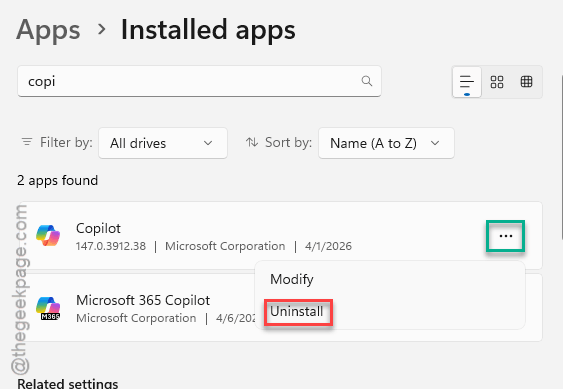
Fix 5 – Uninstall via Settings (Enterprise Users)
Enterprise editions let you uninstall Copilot through the normal app list.
1 – Press Windows + I to open Settings.
2 – Click Apps from the left sidebar.
3 – Click Installed apps on the right side.
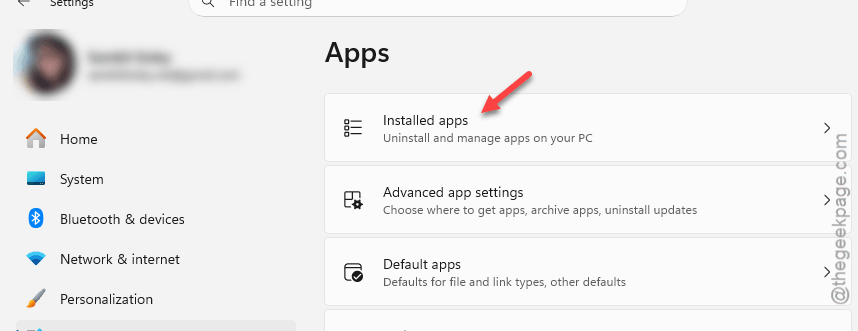
4 – Type “Copilot” in the search box at the top.
5 – Click the three dots (⋯) next to it.
6 – Click Uninstall.
How to Prevent This
- Use the Group Policy or registry fix. Taskbar settings alone do not stick after updates.
- After Windows updates, check if Copilot re-appeared.
- Combine the registry disable with PowerShell uninstall for maximum effectiveness.
- If you’re on Enterprise, just uninstall it through Settings.
People Also Ask
Why does Copilot keep pinning to the taskbar?
Usually because Windows updates re-enable it. The simple unpin from the taskbar is only temporary. For a permanent fix, use the registry (create TurnOffWindowsCopilot DWORD set to 1) or Group Policy to disable it at the system level.
How to permanently unpin Copilot from taskbar?
Open the Registry Editor and go to HKCU > Policies > Microsoft > Windows. Create a key called WindowsCopilot. Inside it, create a DWORD named TurnOffWindowsCopilot and set it to 1. Restart. This survives updates.
How do I stop programs from automatically pinning to the taskbar?
For Copilot specifically, use the registry or Group Policy fix. For other apps, check Settings > Personalization > Taskbar and disable “Show recommendations” or similar toggles. Some apps re-pin themselves after updates — registry-level fixes are more permanent.