Screen Time not showing all apps on your iPhone? Screen time is an important metric for iPhone users to track their online activities on their iPhone. Affected users have complained of seeing just the websites, not the name of the actual apps. So, if you are also having issues seeing the screen time of separate apps on your iPhone, don’t worry. Normally, it is just a one-time glitch that restricts the users from getting the proper screen time information on the affected devices. There is a very simple tested resolution for this issue, and you can solve the problem easily, if you just implement these steps at your end.
Quick Fix table –
Here is a quick step guide, if you just need the workflow, follow this –
| Issue Cause | Quick Fix |
|---|---|
| Temporary iOS glitch | Close all the background apps → Restart your iPhone |
| Seeing broad app categories | Settings → Screen Time → See All Apps & Website activity → Show Apps & Websites |
Fix 1 – Close all the background apps and Restart the iPhone
The proven solution that has worked out for users is to just close the background apps on the iPhone and, restart the device.
Step 1 – Swipe up across the iPhone to view the background apps running on your iPhone.
Step 2 – Then, close all the apps on the device.
Step 3 – After closing all the background apps, restart the iPhone normally. Simply, hold the Volume Down button and the Power button of the device for a few seconds.
Step 4 – You will see the ‘Slide to power off‘ to turn off the iPhone.

Step 5 – After turning off the iPhone, restart it normally.
Once the device restarts, go ahead and check the Screen Time settings. Load up the ‘See All App & Website Activity’ to load up the complete list of data for all the apps.
NOTE – If this still does not work, try running a force-restart procedure to fix it ~
Step 1 – Close all the other apps. Then, press-release these two buttons ~
Volume Up
Volume Down
Step 2 – Hold the Power button and don’t stop pressing that button until the device restarts.
After executing the force-restart procedure, you can easily track the apps screen time.
Fix 2 – Display Apps and websites category
Seeing only the app categories like Social, Games on the Screen Time page? You can view the individual apps and websites screen time with a simple modification.
Step 1 – Load up the Screen Time settings on iPhone.
Step 2 – Then, proceed to the ‘See All App & Website Activity‘ tab there.
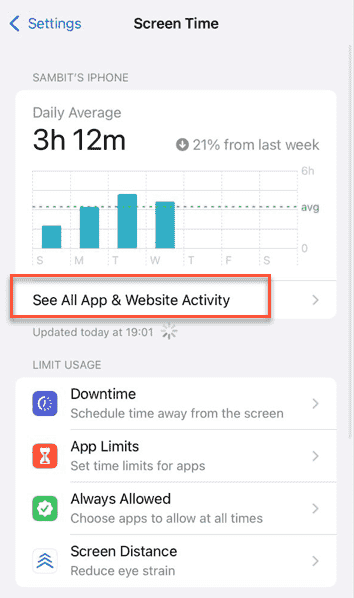
Step 3 – In the broad Screen Time view, if only the categories are showing up, tap the ‘Show apps & websites’ option there.
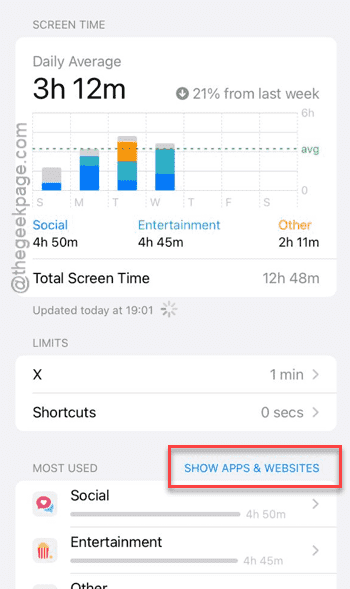
Now, the individual apps will show up along with the screen time data. Your problem should be solved.
FAQs –
1. Why do I only see websites and not app names in Screen Time?
This Screen Time feature sometimes glitches out to show the websites, not the name of the individual apps. However, if the ‘Show Apps & Websites’ activity is toggled to ‘Categories’, you won’t be seeing the individual apps. A simple restart or the change of view in the Screen Time should resolve the issue.
2. Can I see track individual app screen time?
Yes. The Screen Time page on iOS showcases the screen time of the detailed information of the app categories (like Games, Social). You can toggle the view to ‘Apps & Websites’ to view all screen time usage of all the individual apps. Use the ‘Show More’ option to view the entire list of apps and access their screen time statistics directly from there.