Fingerprint works fine during the session. But after a reboot? Nothing. The sensor doesn’t respond. Or Windows says, “Couldn’t recognize your fingerprint.” Every single restart. Usually a driver or power management issue. More common than it should be after Windows updates.
Why This Happens
Here’s the deal. Windows 11 has a power management feature that turns off USB devices to save power. Including your fingerprint sensor. After a reboot, the sensor doesn’t wake up properly.
There’s also Enhanced Sign-In Security (ESS). If your hardware doesn’t fully support it, Windows blocks biometric login after reboots as a “security” measure. And driver conflicts from Windows updates make it worse.
Multiple things breaking at once. Annoying. So yeah.
Fix 1 – Restart the Windows Biometric Service
Quick fix. The biometric service sometimes doesn’t start properly after boot.
1 – Click Start and type cmd in the search bar.
2 – Right-click Command Prompt in the results.
3 – Click Run as administrator.
4 – Type this command and press Enter:
net stop wbiosrvc && net start wbiosrvc
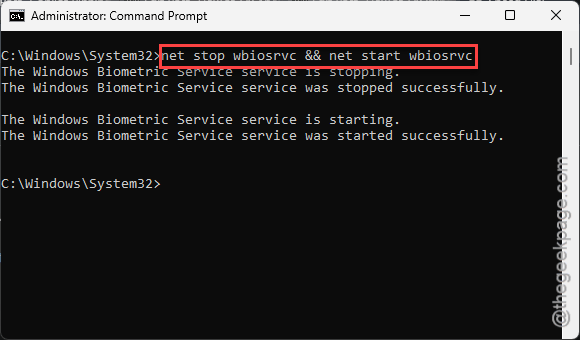
5 – Try your fingerprint now.
Works after this? The service just needed a kick. But you’d need to do this every boot unless you fix the root cause below.
Fix 2 – Reinstall the Fingerprint Driver
Driver conflicts after updates are the most common root cause.
1 – Right-click Start.
2 – Click Device Manager.
3 – In the list, expand Biometric devices by clicking the arrow next to it.
4 – Right-click your fingerprint sensor.
5 – Click Uninstall device.
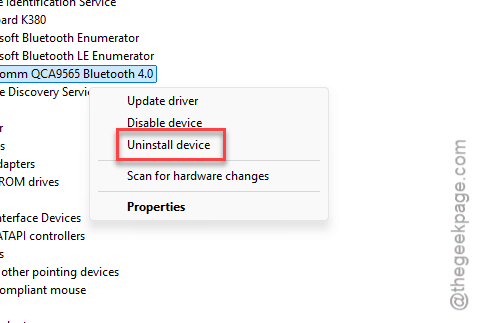
6 – Check Attempt to remove the driver if that option appears.
7 – Click Uninstall.
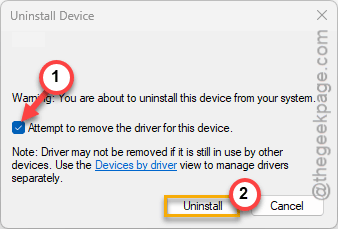
8 – Restart your PC. Windows reinstalls the driver automatically.
9 – Test your fingerprint after reboot.
And if it still fails, download the latest fingerprint driver from your laptop manufacturer’s website. Their driver is usually more compatible.
Fix 3 – Disable Power Management for the Sensor
Windows turns off the sensor to save power. Then it doesn’t wake up after reboot.
1 – Right-click Start.
2 – Click Device Manager.
3 – Expand Biometric devices.
4 – Right-click your fingerprint sensor.
5 – Click Properties.
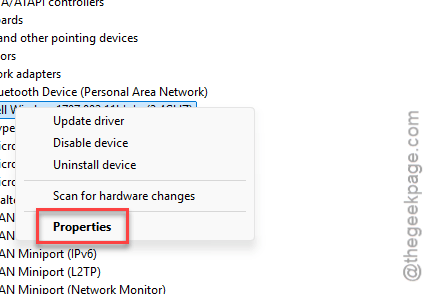
6 – Click the Power Management tab at the top.
7 – Uncheck Allow the computer to turn off this device to save power.
8 – Click OK.
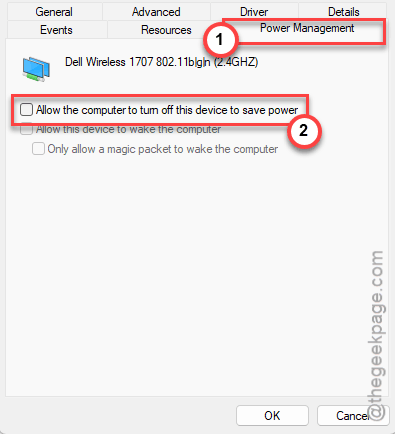
9 – Restart.
This keeps the sensor powered on at all times. Fixes the “works during session but not after reboot” problem.
Fix 4 – Disable Enhanced Sign-In Security
ESS can block fingerprint login if your hardware doesn’t meet its requirements.
1 – Press Windows + I to open Settings.
2 – Click Accounts from the left sidebar.
3 – Click Sign-in options on the right side.
4 – Scroll down to Additional settings.
5 – Find the Enhanced Sign-In Security setting.
6 – Turn it off.
7 – Restart.
If this setting isn’t visible in Settings, you can adjust it via the registry. Go to HKLM\SOFTWARE\Microsoft\Windows\CurrentVersion\WinBio and look for SupportPeripheralsWithEnhancedSignInSecurity.
Fix 5 – Re-register Your Fingerprints
Sometimes the enrolled fingerprints themselves get corrupted. Starting fresh helps.
1 – Press Windows + I to open Settings.
2 – Click Accounts from the left sidebar.
3 – Click Sign-in options on the right side.
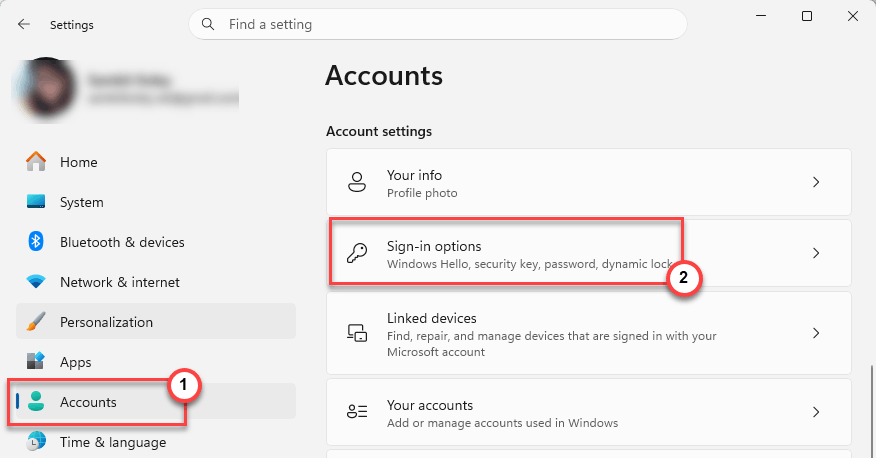
4 – Expand Fingerprint recognition by clicking it.
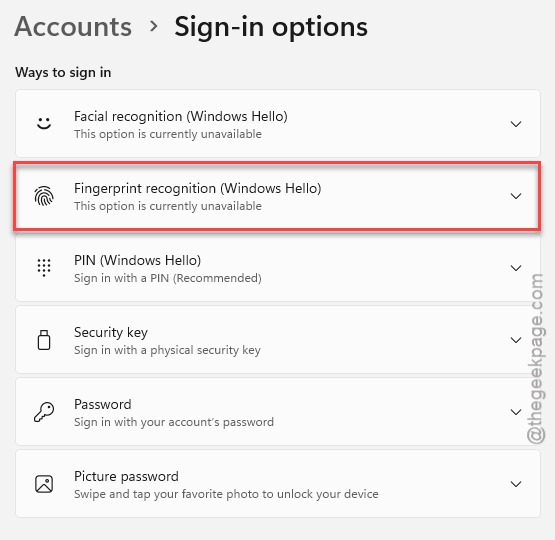
5 – Remove all existing fingerprints.
6 – Click Set up to re-enroll your fingerprints.
7 – Restart and test.
How to Prevent This
- Disable power management for the fingerprint sensor. Prevents the wake-up issue.
- After Windows updates, test fingerprint login immediately.
- Keep firmware and chipset drivers updated from your manufacturer’s website.
- If ESS causes problems, keep it disabled.
People Also Ask
How to fix Windows Hello fingerprint not working in Windows 11?
Usually a driver or power management issue. Restart the biometric service first with net stop/start wbiosrvc. If that’s temporary, reinstall the driver from Device Manager and disable “Allow the computer to turn off this device” in the sensor’s Power Management tab.
Why is my fingerprint not working on Windows 11 24H2?
Probably a driver conflict or Enhanced Sign-In Security blocking it. Reinstall the fingerprint driver from your manufacturer’s website (not Windows Update). Also try disabling ESS in Settings > Accounts > Sign-in options > Additional settings.
Why did my fingerprint sensor suddenly stop working?
Most likely a Windows update broke the driver or power management turned off the sensor. Reinstall the driver in Device Manager. Uncheck the power management option that lets Windows turn off the device. Restart and re-enroll your fingerprints.