You launch Warzone. The intro plays. And then — crash. “DirectX encountered an unrecoverable error.” Boot. Repeat. Brutal.
Why This Happens
DX12 is unforgiving for some of the COD Warzone games. Any tiny driver glitch, RAM overclock issue, or shader corruption causes an instant crash. No graceful recovery. Just a hard boot to desktop.
What sets it off? A few things. Outdated GPU drivers. Or new ones with regressions. Overclocked RAM running at unstable timings. Corrupt game shaders. Or just background apps eating memory and triggering a buffer issue.
And honestly — the error message is useless. “Unrecoverable” tells you nothing. So the troubleshooting is partly trial and error. Annoying. But the fixes below cover almost every cause.
Fix 1 – Update or Roll Back Your GPU Driver
Most common cause. Either your driver is too old, or the latest one has a regression. Try the latest first. If it crashes worse, roll back.
1 – Right-click Start and pick Device Manager.
2 – Expand Display adapters.
3 – Right-click your GPU. Pick Update driver.
4 – Click Search automatically for drivers.
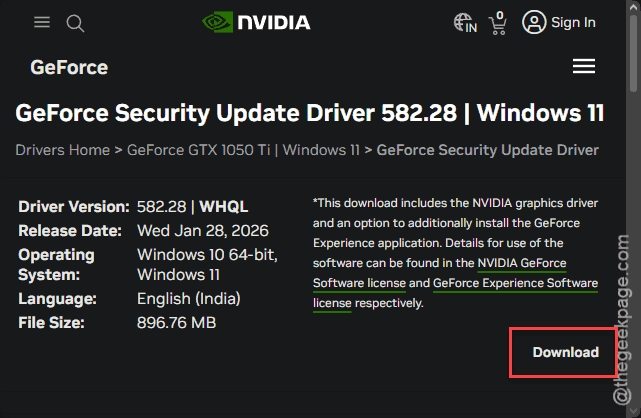
5 – If you don’t see any pending updates there, go to your GPU vendor directly:
Download the latest driver package from the respective webpages.
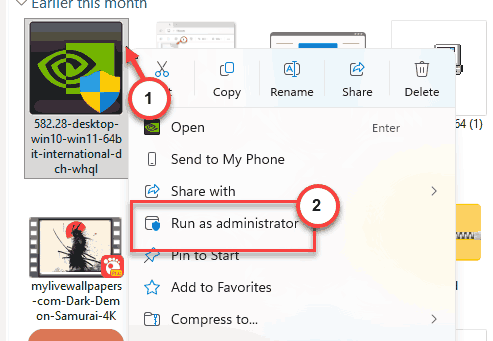
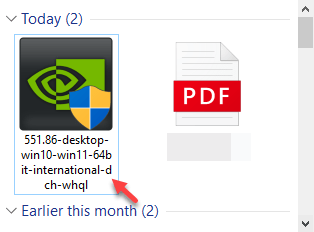
6 – Run the installer.
7 – Restart your PC.
Still crashing? Roll back. In Device Manager, right-click your GPU. Pick Properties. Go to the Driver tab. Click Roll Back Driver. Restart.
Fix 2 – Use DDU for a Clean Driver Install
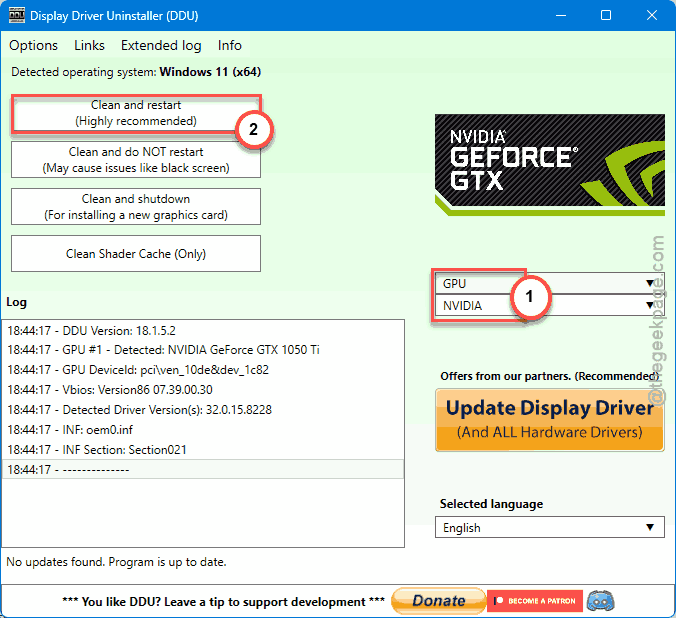
If basic updates aren’t working for you, do a full clean install with Display Driver Uninstaller (DDU). This tool kills weird leftover conflicts.
1 – Download Display Driver Uninstaller.

2 – Download your GPU driver from NVIDIA or AMD. Save it. Don’t install yet.
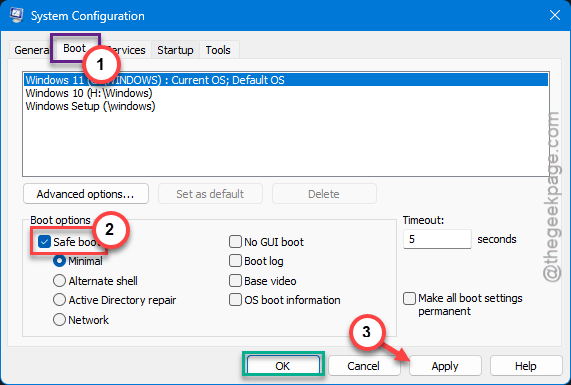
3 – Boot Windows into Safe Mode. Press Windows + R, type msconfig, go to Boot, tick Safe boot, click OK, restart.
4 – Run DDU. Pick GPU and your vendor.
5 – Click Clean and restart.
6 – Once you’re back in normal Windows, install your fresh GPU driver.
7 – Don’t forget to undo Safe boot in msconfig.
Tedious? Yes. But this fixes more crash issues than people think.
Fix 3 – Force DirectX 11 Mode
If DX12 keeps crashing, switch to DX11. Older but stable. Some users have zero issues after this.
On Steam:
1 – Open Steam. Go to your Library.
2 – Right-click Call of Duty. Pick Properties.
3 – Under General > Launch Options, type -d3d11.
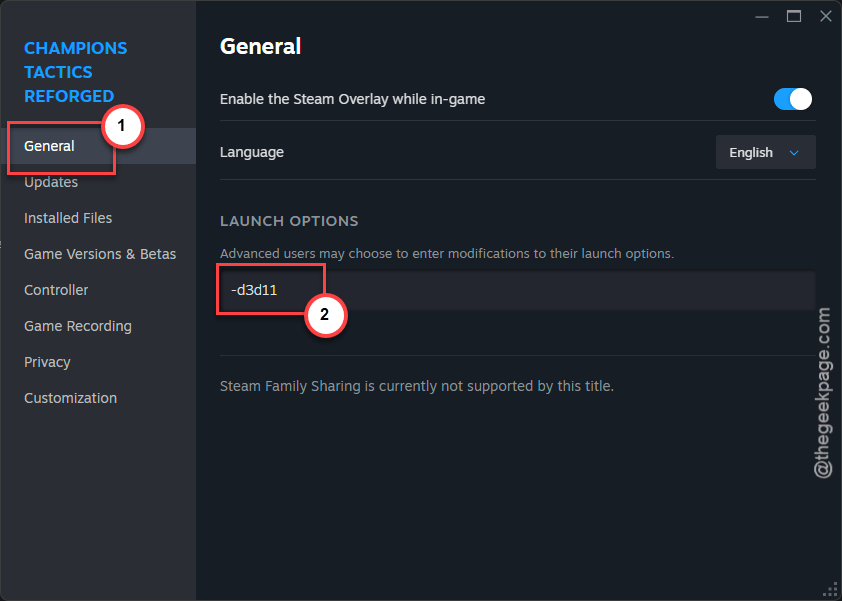
4 – Close the window. Launch the game.
On Xbox Game Pass:
1 – Hit the Windows + S keys together and start to write cmd.
2 – As soon as the Command Prompt term appears, right-click it and pick Run as administrator.
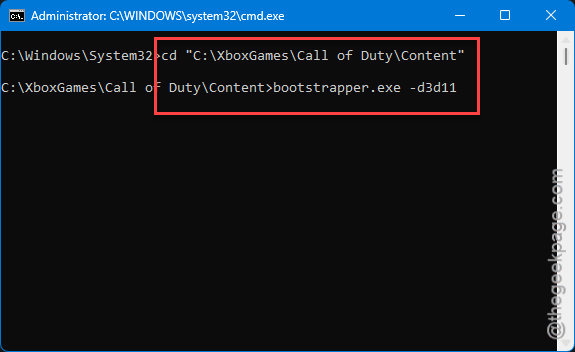
3 – Type this code and press Enter to execute these two commands from shell.
cd "C:\XboxGames\Call of Duty\Content"
bootstrapper.exe -d3d11
[The installation diretory can be different on your machine. Double-check it and use the correct instatllation path in the code.]
Performance drops slightly. But no crashes. Worth the trade if DX12 is borked on your system.
Fix 4 – Verify Game Files
Corrupt files cause this exact crash. Verify them. Each launcher does it differently.
Steam:
1 – Right-click Call of Duty in your Library.
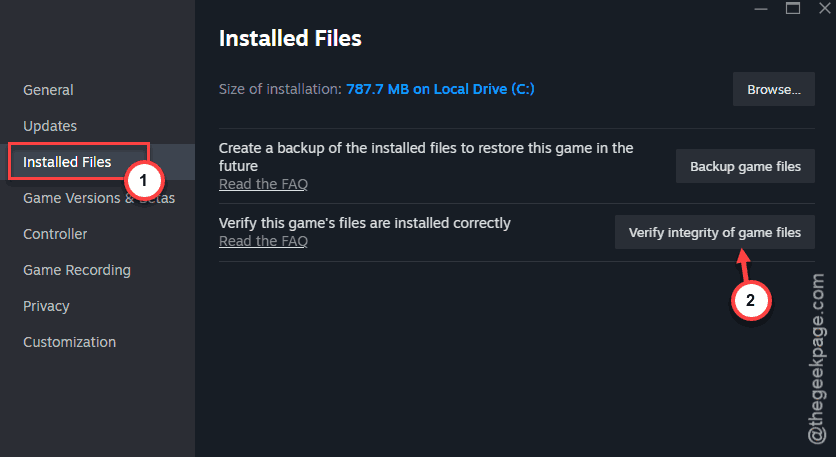
2 – Pick Properties > Installed Files.
3 – Click Verify integrity of game files.
Xbox Game Pass:
1 – Right-click Call of Duty in your library.
2 – Pick Manage > Files > Verify and Repair.
Battle.net:
1 – Open Battle.net. Click Call of Duty.
2 – Click the gear icon next to the Play button.
3 – Pick Scan and Repair > Begin Scan.
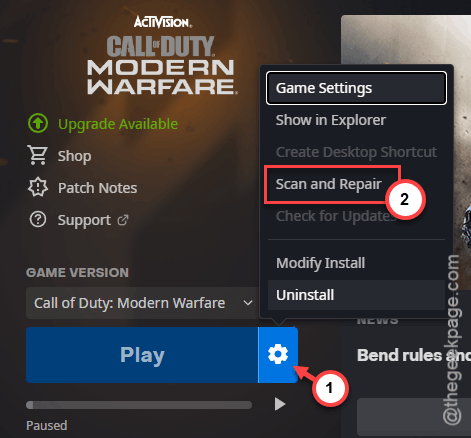
Take a coffee break. The scan takes a while.
Fix 5 – Disable XMP and Underclock RAM
Big one. If you’re running XMP on RAM that wasn’t built for it? Warzone exposes that instability instantly. DirectX errors are a classic symptom of bad memory timings.
1 – Restart your PC. Press Delete or F2 (or whatever your motherboard uses) to enter BIOS.
2 – Look for XMP or DOCP (AMD) in the BIOS settings. Often under “AI Tweaker” or “Overclocking”.
3 – Set it to Disabled.
4 – If your RAM was running 4000+ MHz, manually drop it to 3200 MHz or 3600 MHz. Set DRAM frequency in BIOS.
5 – Save and exit. Boot into Windows. Test Warzone.
And if it works at lower speeds? Your RAM is unstable at the rated XMP profile. That’s common. Especially with 4-stick configs.
Some people fix it by enabling XMP and just dropping the frequency one notch. Worth experimenting.
Fix 6 – Reduce VRAM Usage In-Game
If you can actually load into a match before the crash, lower VRAM use. Warzone is greedy. It’ll eat every byte and crash trying for more.
1 – Launch Warzone. Get to the main menu.
2 – Open Settings > Graphics.
3 – Find VRAM Scale Target.
4 – Drop it from 90% to 70% or even 60%.
5 – Lower texture quality one notch.
6 – Save and play.
Especially helpful on 6 GB or 8 GB GPUs. Warzone wants more than that and crashes when it can’t get it.
Fix 7 – Restart Shader Compilation
Corrupted shader cache is a sneaky cause. Warzone caches shaders to speed up loading. If they get corrupted? DirectX panics.
1 – Launch Warzone. Open Settings.
2 – Go to Graphics > Display.
3 – Scroll down. Find Restart Shader Preloading.
4 – Click it. Confirm.
Wait a few minutes. Shaders rebuild. Try again.
Fix 8 – Lower Your GPU Temps
If your GPU is hitting 85°C+ during the crash, that’s your problem. DX12 errors love hot hardware.
- Open your case. Dust off the GPU and case fans. Use canned air.
- Install MSI Afterburner to monitor GPU temps and curve fan speeds.
- If you have any GPU overclock active, undo it. Reset to stock with Afterburner.
- If your GPU is 4+ years old, consider repasting it. Worn thermal paste is real.
How to Prevent This
- Update GPU drivers monthly. But always grab the “Game Ready” version close to a Warzone patch — they’re tuned for it.
- Don’t run XMP if you can’t prove your RAM is stable under load. MemTest86 is your friend.
- Restart your PC before long Warzone sessions. Clears memory leaks and shader weirdness.
- Keep your case dust-free. GPU thermals matter more than people admit.
People Also Ask
How to fix COD Warzone DirectX error?
Update your GPU driver — or roll it back if a recent update broke things. Verify the game files in your launcher. You have to turn off the XMP in BIOS if you have overclocked your system RAM. That should be enough to tackle most of the DirectX errors in COD.
How to fix DirectX encountered an unrecoverable error?
It’s almost always a driver, RAM, or thermal issue. Run DDU to clean install your GPU driver. Disable XMP. Lower in-game VRAM usage. And check your GPU temps — anything past 85°C during the crash points to thermal instability. The error itself doesn’t tell you which one. So work through them.