You launch Warzone Or COD Modern Warfare. Suddenly, the error 0x00001338 pops up. Or sometimes 11152. Game won’t start. And even when it does? Random crashes mid-match. Every time.
Queue dodged. Rank lost. Frustrating as hell.
Why This Happens
Here’s the deal. 0x00001338 is Warzone’s catch-all network/launch error. It fires for a bunch of different reasons — and the message doesn’t tell you which.
Most common cause? Corrupted game files. A bad update got half-applied. Or Battle.net pulled prerelease content that’s broken. So Warzone can’t even finish loading.
But it’s not always the game. Third-party RGB software is a huge one. Aura Sync, Razer Synapse, Armory Crate, Alienware lighting — any of these try to hook into game events. When Warzone’s anti-cheat sees that hook? Crash. Error 0x00001338. No warning.
And on newer Intel CPUs with P-cores cranked high, Warzone chokes. The default Performance Core Ratio pushes voltages that Warzone just can’t handle. So it errors out.
Fixes below in order of quickest to most involved. Start at Fix 1.
Fix 1 – Scan and Repair Game Files
Easy one. Battle.net has a built-in scan that catches corrupted files and replaces them. Solves 0x00001338 for a lot of people.
1 – Open the Battle.net desktop client.
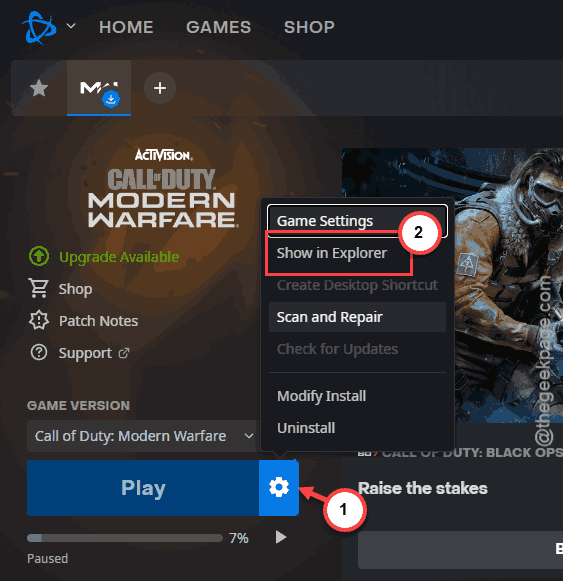
2 – Click Call of Duty in the left sidebar.
3 – Click the cogwheel icon (⚙) next to the Play button.
4 – Select Scan and Repair from the drop-down.
5 – Click Begin Scan.
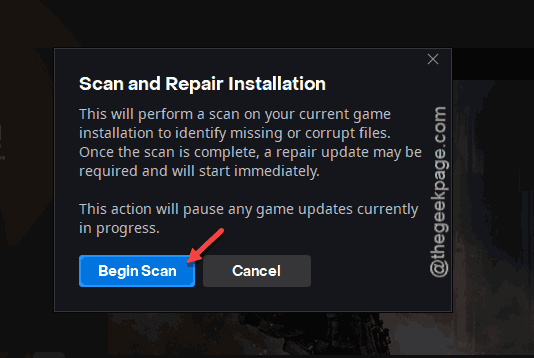
6 – Wait. Can take 10-30 minutes depending on drive speed.
Launch Warzone when it finishes. If the error is gone? Done. If not? Next fix.
Fix 2 – Switch Off Prerelease Content Updates
Battle.net has an automatic update setting that pulls prerelease builds. Those builds are buggy on purpose. They also trigger 0x00001338 constantly.
1 – Open Battle.net.
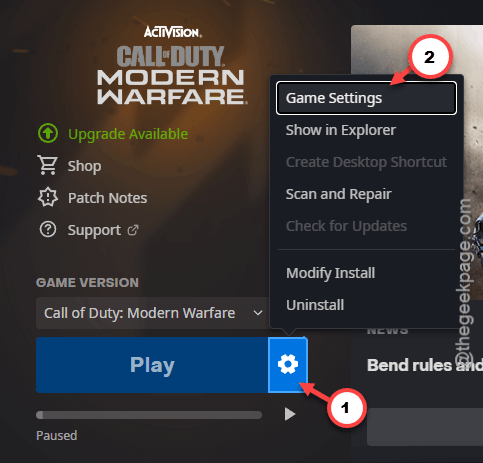
2 – Click Call of Duty in the left sidebar.
3 – Click the globe icon to the right of the Play button.
4 – Scroll to Game Settings.
5 – Next, go to the Downloads tab. Change it to Apply latest updates for recently played games.
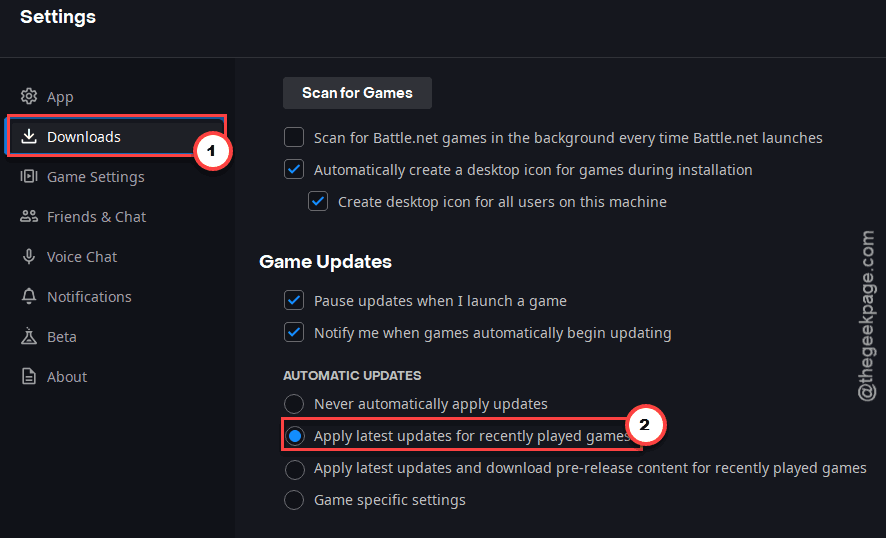
Don’t pick the option about prerelease content. That’s the one that breaks things. Close Battle.net completely, then relaunch.
Fix 3 – Disable or Uninstall RGB Lighting Software
This one catches a lot of people out. And nobody connects the dots. Your fancy RGB software is the problem.
Common culprits:
-
ASUS Aura Sync / Armory Crate -
Razer Synapse / Chroma -
Alienware Command Center (Dell bloat) -
Corsair iCUE -
MSI Mystic Light
Easy test first — disable the sync feature without uninstalling:
1 – Open Armory Crate (or whatever your RGB app is).
2 – Find the lighting sync section.
3 – Set every device to a static color mode. No sync. No game integration.
4 – Close the app. Check Task Manager (Ctrl + Shift + Esc) and end any related background processes.
5 – Launch Warzone.
If the error is gone? The RGB software was it. For a permanent fix, either uninstall it entirely or keep everything on static colors forever.
To uninstall: Press Windows + I, go to Apps → Installed apps, search for the app, click the three dots (⋯), click Uninstall.
Restart after.
Fix 4 – Lower Your CPU Performance Core Ratio
Got a newer Intel CPU? This one’s for you. Warzone hates aggressive P-core clocks. Dropping the ratio by just 1x can fix 0x00001338 immediately.
⚠️Warning: XTU changes affect CPU behavior. The tweak here is conservative and reversible, but if you’re not comfortable tweaking CPU settings, skip this fix.
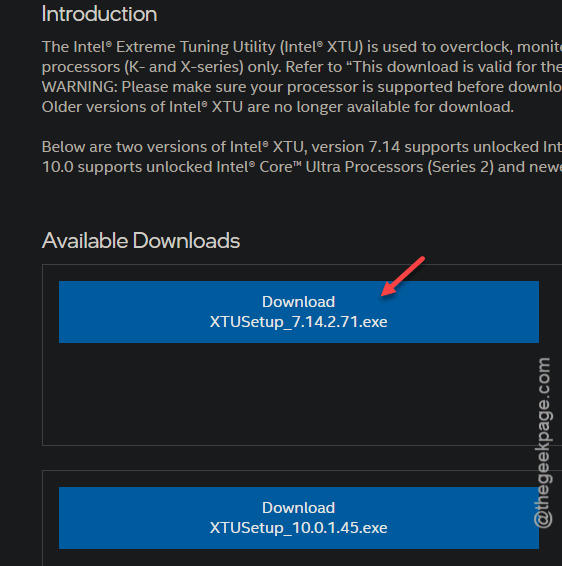
1 – Download Intel Extreme Tuning Utility (XTU) from Intel’s website.
2 – Install it.
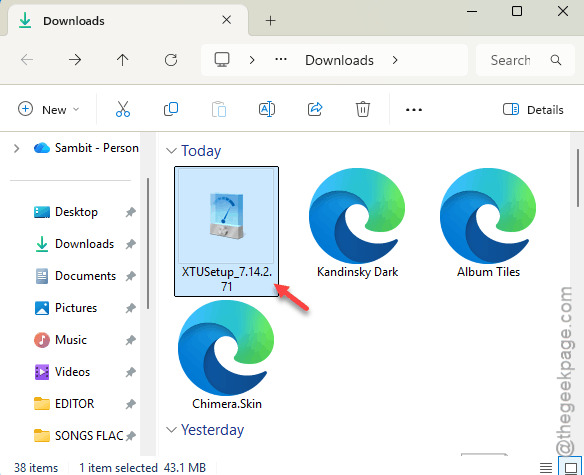
Restart your PC when prompted.
3 – Open Intel XTU.
4 – Click Advanced Tuning in the left sidebar.
5 – Find Performance Core Ratio. Note the default value (often 53x on newer chips).
6 – Drop it by 1. So 53x becomes 52x. 54x becomes 53x. Whatever yours is — minus one.
7 – Click Apply.
8 – Launch Warzone.
Tiny drop. Barely noticeable in gameplay. But it stops the crashes. If Warzone still errors, you can drop one more rung — 52x to 51x, etc.
Fix 5 – Reinstall Warzone Completely
Nuclear option. Takes hours depending on your internet. But if scan-and-repair didn’t catch the corruption, a full reinstall will.
1 – Open Battle.net.
2 – Click Call of Duty in the left sidebar.
3 – Click the cogwheel (⚙) next to Play, then click Uninstall.
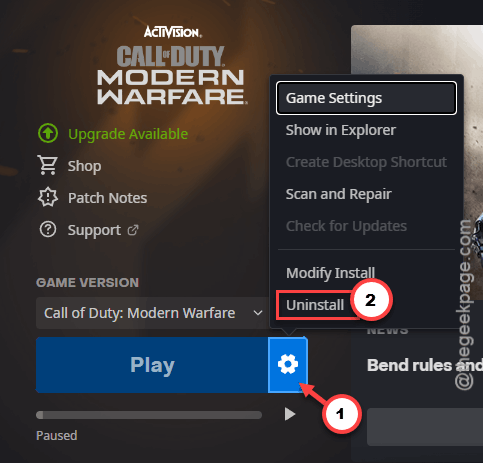
4 – Confirm. Wait for it to finish.
5 – Click Install on Call of Duty in Battle.net.
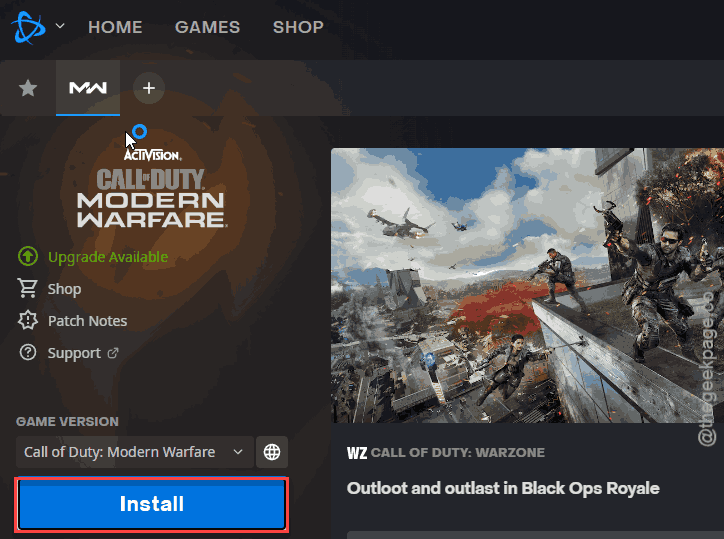
6 – The moment the download starts, click the globe icon to the right.
7 – Go to Game Settings. Thereafter, proceed to the Downloads tab and pick Apply latest updates for recently played games. Not the prerelease one.
8 – Let the download finish.
Clean install plus the right update setting = most stable path you’ve got.
Fix 6 – Update GPU Drivers
Warzone leans hard on the GPU. Outdated drivers throw random errors — 0x00001338 included.
1 – Go to nvidia.com/drivers (for Nvidia) or amd.com/support (for AMD).
2 – Enter your card model. Download the latest Game Ready or Adrenalin driver.
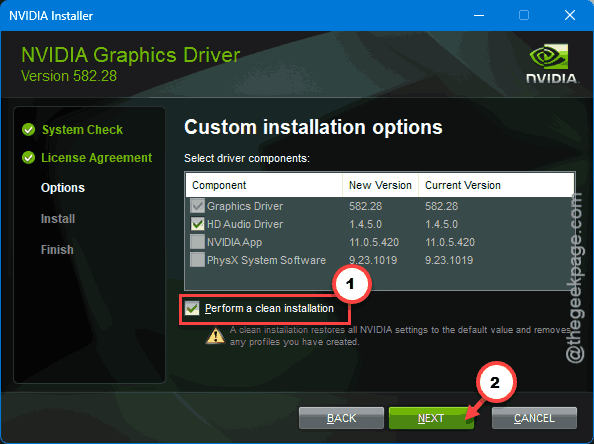
3 – Run the installer. Choose the Custom Installation path.
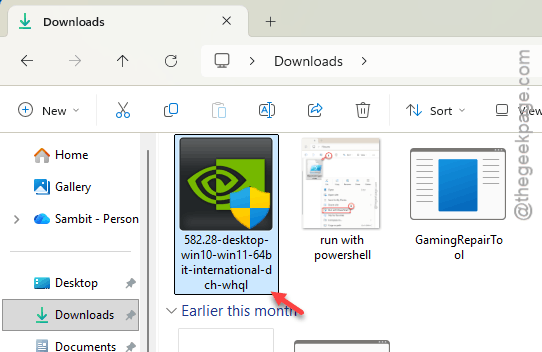
4 – Make sure the graphics driver box is checked. Then, tick mark the Perform a Clean Install box and proceed.
4 – Restart your PC.
Don’t rely on Windows Update for GPU drivers. It ships old versions. Always go direct.
How to Prevent This
- Keep Battle.net on the non-prerelease update setting. Forever. Prerelease builds are a crash magnet.
- Skip RGB game integration entirely. Static colors only. The lighting effects aren’t worth the crashes.
- Update GPU drivers monthly. Get them from Nvidia or AMD directly, not Windows Update. Trust me.
- On Intel K-series chips, don’t push the P-core ratio to its max. Leave one rung of headroom for game stability.
People Also Ask
How to fix error code 0x00001338 COD?
Start with Scan and Repair in Battle.net. Then change the automatic update setting off prerelease content. If the error still shows up, disable your RGB lighting software — Aura Sync, Razer, Armory Crate all cause this. A clean reinstall is the last resort but works when nothing else does.
How to fix error code 0x00001338 in Call of Duty Vanguard?
Same fixes apply across the COD titles. Vanguard, Warzone, MW — they all share the same error codes. Scan and Repair first. Then kill RGB software. Then update GPU drivers. If you’re on a newer Intel chip, drop the P-core ratio by 1x in Intel XTU. That fixes it for most people.
How to fix Warzone network error?
Most Warzone network errors trace back to the same issues — corrupted files, firewall blocking, bad driver. Run Scan and Repair first. Then check if your firewall is blocking Call of Duty (Windows Defender Firewall > Allow an app). Reset your router while you’re at it. Takes 30 seconds.