You click the Xbox app. It flashes for a second. Then nothing. Maybe a loading screen that just spins forever. Or it doesn’t even open at all.
Usually a Gaming Services problem. Or a broken Windows Search dependency. Weird, but true.
Why This Happens
The Xbox app relies on a bunch of background services. Gaming Services is the big one. If that’s broken or outdated, the app will not launch. It just silently fails.
And there’s a weird dependency on Windows Search too. If that service is stopped, the Xbox app sometimes refuses to start. No idea why Microsoft tied them together. But they did.
Fix 1 – Make Sure Windows Search Is Running
Yeah, this sounds unrelated. But the Xbox app checks for it.
1 – Press Windows + R to open Run.
2 – Type services.msc and press Enter.
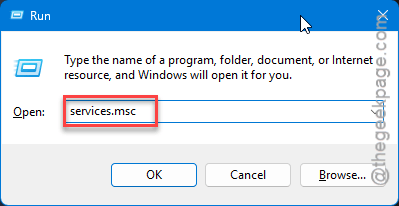
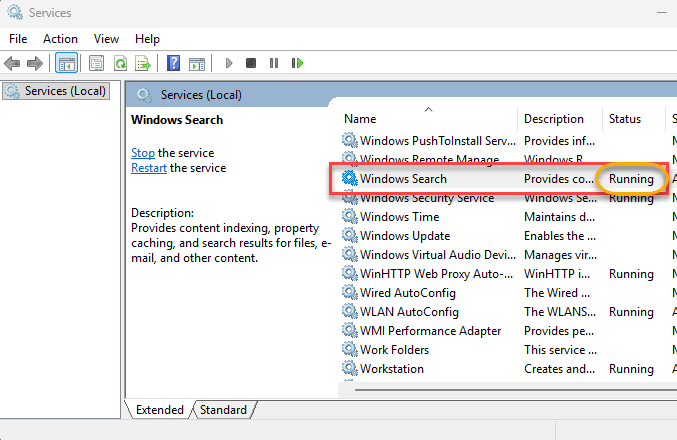
3 – Scroll down and find Windows Search in the list.
4 – Make sure it says Running in the Status column.
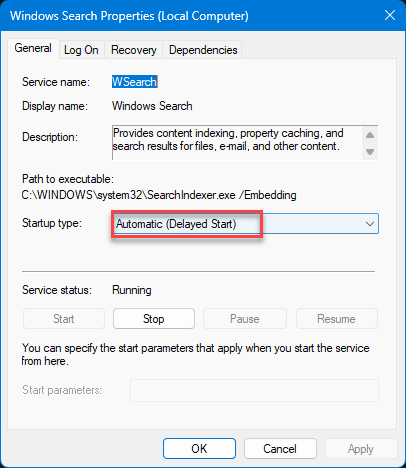
5 – Double-click it. Switch the Startup type to Automatic (Delayed Start), if it is not set to that already.
6 – Click Start if the service is stopped. Then OK.
7 – Restart your PC.
Sound familiar? It shouldn’t matter. But it does.
Fix 2 – Set All Xbox Services to Automatic
Quick one. The Xbox app needs four services running. If any of them are disabled, it won’t start.
1 – Open Services again (Windows + R > services.msc).
2 – Scroll to the bottom. Find these four:
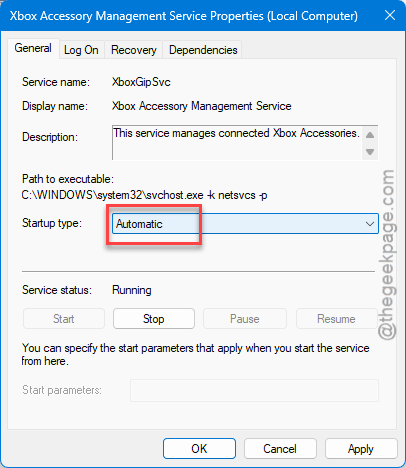
- Xbox Accessory Management Service
- Xbox Live Auth Manager
- Xbox Live Game Save
- Xbox Live Networking Service
3 – Double-click each one.
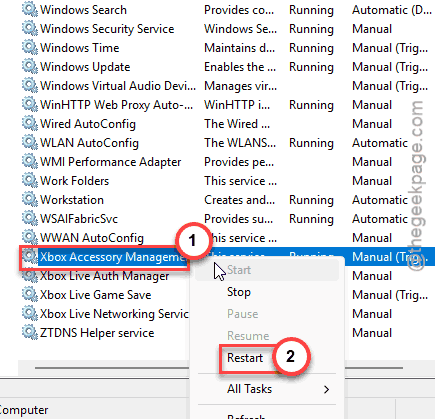
4 – Tweak the Startup type to Automatic mode from the drop-down list.
5 – Then, click the Apply button, then OK to apply and save the same
6 – Restart your PC.
Done. If the app still won’t launch, the problem is deeper.
Fix 3 – Re-register Gaming Services via PowerShell
This is the one that fixes it for most people. Gaming Services can appear “running” in the background while its registration is actually broken. So you need to fully remove it and reinstall.
1 – Open Notepad.
2 – Copy-paste these lines from here in the blank Notepad page –
Get-AppxPackage *gamingservices* -allusers | remove-appxpackage -allusers
Remove-Item -Path "HKLM:\System\CurrentControlSet\Services\GamingServices" -recurse
Remove-Item -Path "HKLM:\System\CurrentControlSet\Services\GamingServicesNet" -recurse
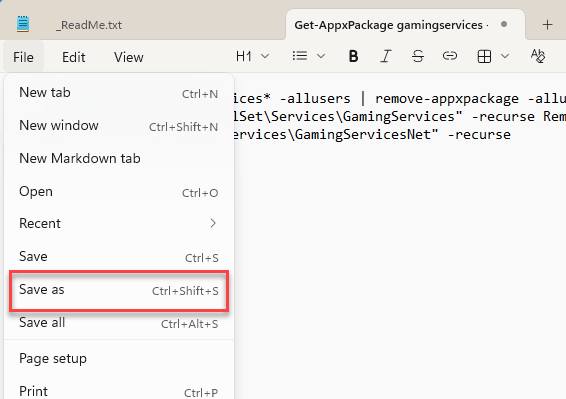
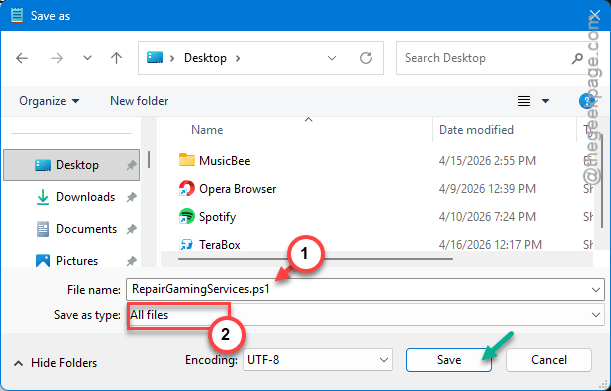
3 – Save the file as RepairGamingServices.ps1. Make sure to set the ‘Save as type:’ is All files. Save the file in your preferred location.
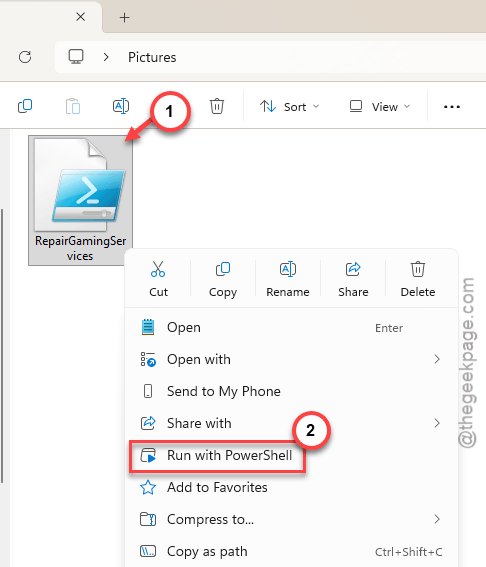
4 – Right-click the file and choose Run with powershell to execute .
5 – Restart your PC.
6 – Open the Xbox app. It should prompt you to install Gaming Services. Click Install.
And that reinstall usually clears whatever corruption was blocking the launch.
Fix 4 – Run System File Checker
Worth a shot. Corrupted system files can break Store apps in weird ways.
1 – At first, right-tap the Start button and choose Terminal (Admin).
2 – Type this code and press Enter.
sfc /scannow
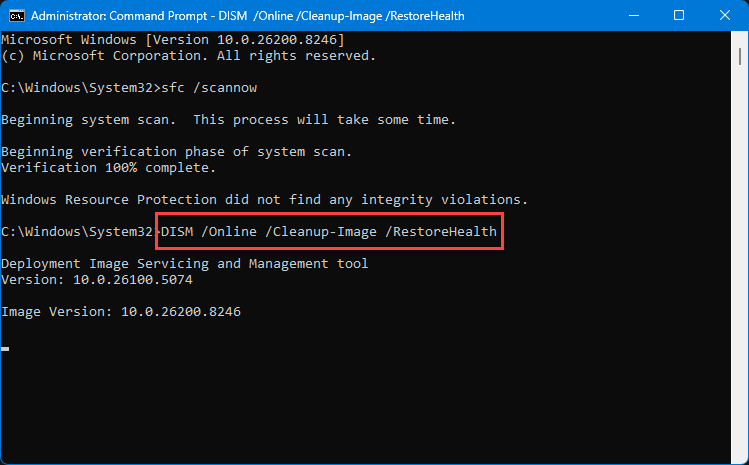
Let the scan finish.
3 – Next, run the code
DISM /Online /Cleanup-Image /RestoreHealth
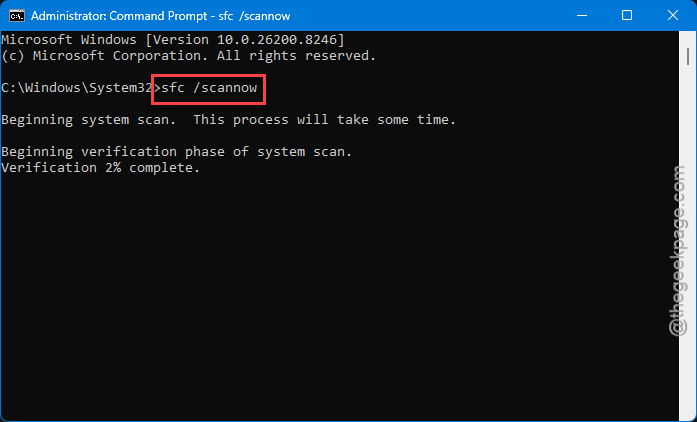
4 – Restart and try the Xbox app again.
These two elementart scans do take a while depending upon the . But if something in the system is corrupted, this catches it.
Fix 5 – Try a New User Account
If nothing works on your current account, your user profile might be the issue. Not common. But it happens.
1 – Open Settings > Accounts > Other users.
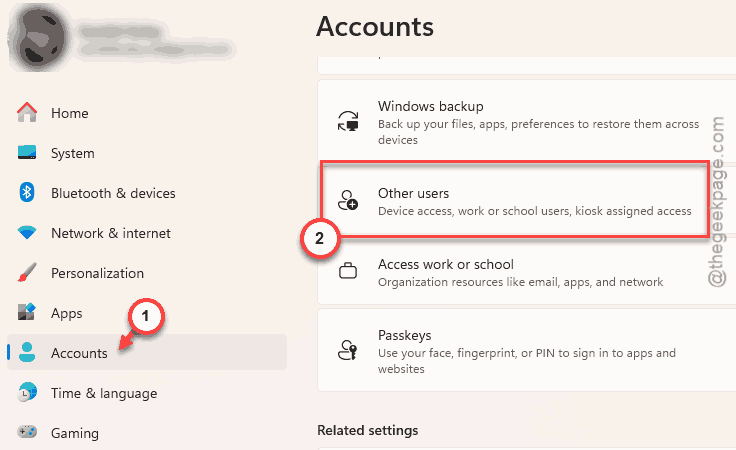
2 – Click Add account. Create a local account.
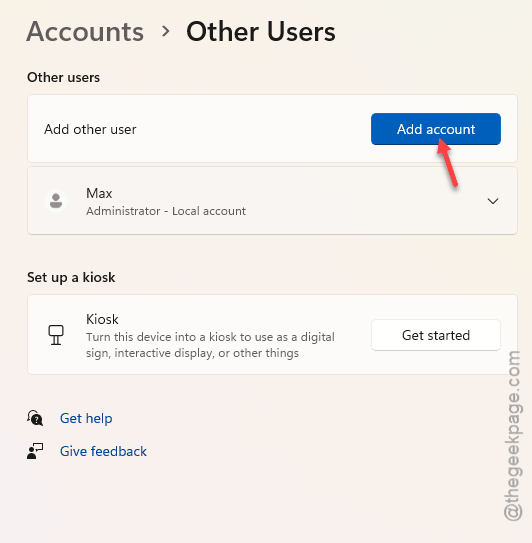
3 – Sign in to that account.
4 – Try launching the Xbox app from there.
If it works? Your original profile has something broken. You can migrate your data to the new account or try resetting the Xbox app from the old one.
How to Prevent This
- Keep Gaming Services updated through the Microsoft Store. Check for updates regularly.
- Don’t disable Windows Search. The Xbox app depends on it for some reason.
- After completing the Windows updates, load up the Services utility and confirm all four Xbox services are set to Automatic.
- Use sfc /scannow command from shell at least once in a month if you install a lot of softwares regulary.
People Also Ask
How to fix Xbox app not launching on Windows 11 after update?
You have to re-register Gaming Services. Open PowerShell as admin and uninstall the gamingservices package. Then, restart the device. Let it reinstall when you open the Xbox app. That clears the broken registration that updates sometimes cause.
Xbox app stuck on loading screen Windows 11?
Check if Windows Search is running. The Xbox app needs this service to be operational. Open services.msc. Then, look for the Windows Search service. Make sure it’s running and set to Automatic. Then restart.
Xbox app not working Windows 11?
Start with the Xbox services. Open services.msc and set all four Xbox services to Automatic. If that doesn’t help, do the Gaming Services reinstall via PowerShell. That covers about 90% of cases.