Widget panel opens. But it’s empty. No news. No weather. Just a blank white screen with a loading spinner. Or sometimes nothing at all.
This started after a Windows update and it’s tied to how Widgets depend on Microsoft Edge and the Widgets Platform Runtime.
Why This Happens
Windows 11 Widgets are basically a web view powered by Edge. The content loads through something called the Widgets Platform Runtime and the Windows Web Experience Pack. When an update corrupts either of those? The panel opens but nothing renders inside it.
And since it’s all tied to Edge, a broken Edge installation means broken widgets too. They’re that tightly linked. For some reason Microsoft decided a system feature should depend entirely on a browser engine. So when Edge breaks, widgets break.
Fix 1 – Reinstall the Widgets Platform Runtime
The runtime component lives in InboxApps. Reinstalling it fixes most loading issues.
1 – Open File Explorer.
2 – Type this in the address bar:
C:\Windows\InboxApps
3 – Look for the MSIX Bundle file for Widgets Platform Runtime. The filename contains “WidgetsPlatformRuntime“.
4 – Double-click it to reinstall.
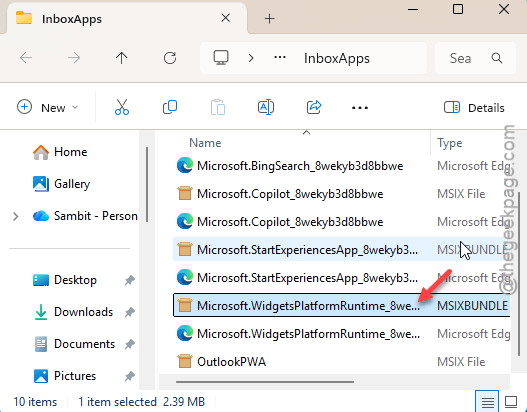
5 – Restart your PC.
6 – Try the Widgets button again.
And if the file isn’t there, the update might have removed it. Skip to Fix 3 and reinstall the Web Experience Pack instead.
Fix 2 – Repair Microsoft Edge
Widgets depend on Edge. Fix Edge and widgets follow.
1 – Open Settings (press Win + I).
2 – Click Apps on the left.
3 – Click Installed apps.
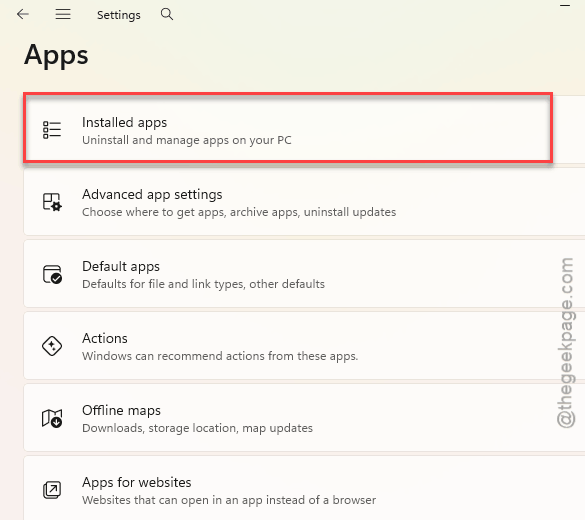
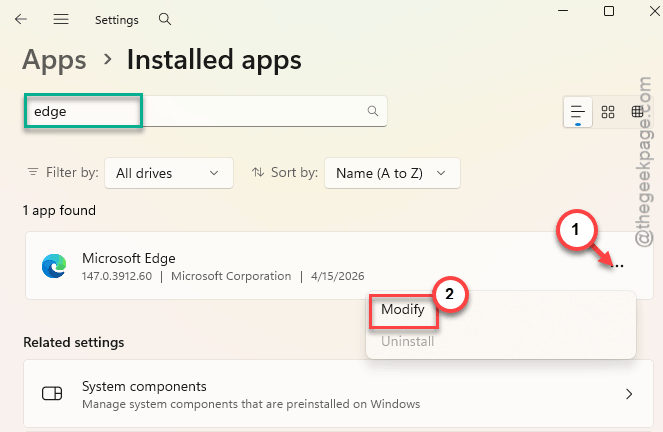
4 – Find Microsoft Edge.
5 – Click the three dots next to it.
6 – Click Modify.
7 – Click Reinstall (or Repair if that’s what shows up).
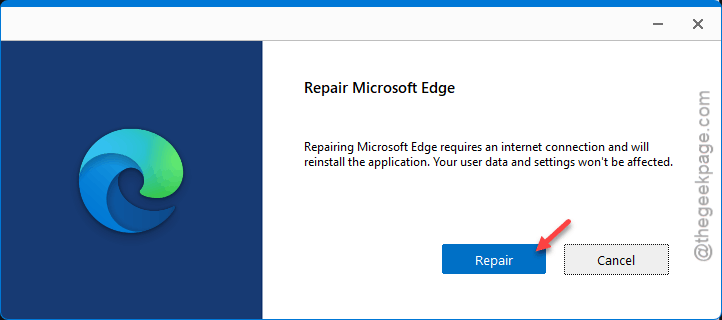
8 – Restart your computer.
One person on a forum reported: went to Modify, clicked Reinstall, restarted, checked for Store updates, and widgets came back right away. So this does work.
Fix 3 – Reinstall the Web Experience Pack
The Web Experience Pack is what actually renders widget content. Fresh install of this component fixes most problems.
1 – Click Start and type cmd.
2 – Right-click Command Prompt and select Run as administrator.
3 – Type this and press Enter:
winget uninstall "Windows Web Experience Pack"
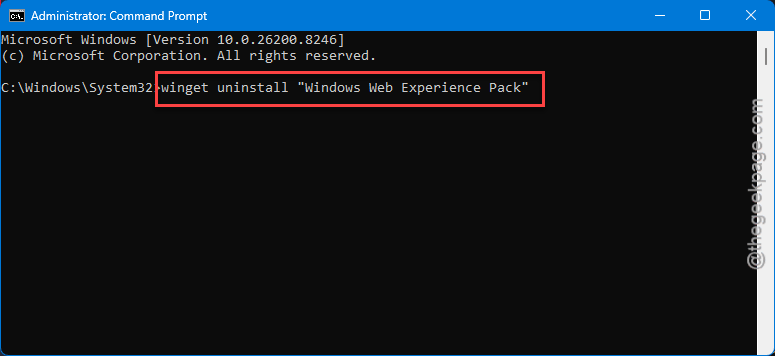
4 – Wait for uninstall to complete.
5 – Open the Microsoft Store.
6 – Search for Windows Web Experience Pack.
7 – Click Install.
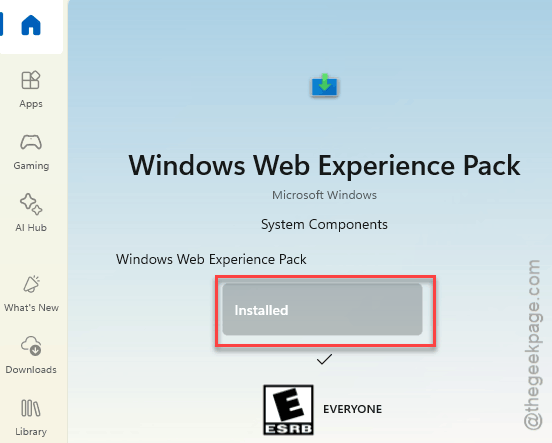
8 – Restart.
But make sure you actually restart. Don’t just close and reopen. The component needs a full reboot to register properly.
Fix 4 – Update Everything in the Microsoft Store
Widget components get updated through the Store. Outdated packages cause blank panels.
1 – Open the Microsoft Store.
2 – Click Downloads at the bottom-left corner.
3 – Click Check for updates at the top-right.
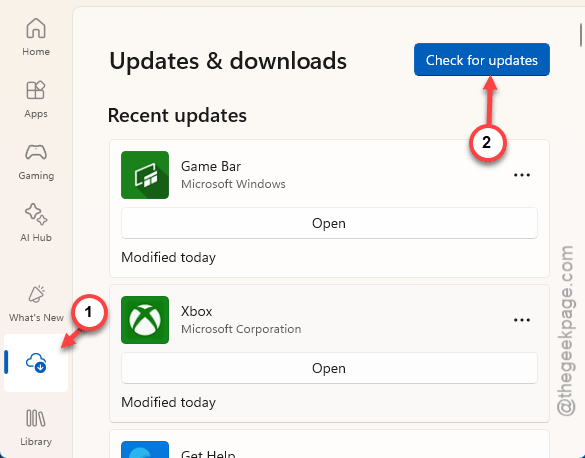
4 – Let everything update. Don’t skip any.
5 – Restart after updates finish.
Quick check. Takes two minutes. Sometimes a pending update is all that’s holding things back.
Fix 5 – Kill and Restart the Widgets Process
Simple process restart. Worth trying before the bigger fixes.
1 – Press Ctrl + Shift + Esc to open Task Manager.
2 – Find Windows Widgets in the Processes tab.
3 – Right-click it.
4 – Click End task.
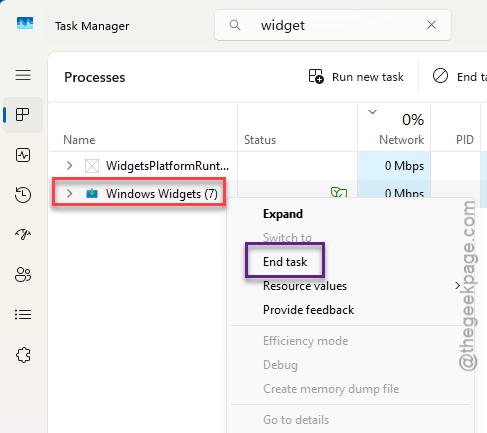
5 – Wait a few seconds. It auto-restarts.
6 – Try clicking the Widgets button on the taskbar.
Done. Sometimes the process just gets stuck and needs a kick.
How to Prevent This
- Keep Edge updated. Widgets rely on it completely.
- Check for Store updates after every major Windows update.
- Do not uninstall Microsoft Edge. Widgets will not function without it.
- If widgets stop loading, repair Edge first. That’s the root cause nine times out of ten.
People Also Ask
How to fix Windows 11 widgets not working?
You have to terminate the Widgets process in Task Manager. Then, repair Edge from Windows Settings. Later, reinstall the Web Experience Pack. One of those gets it going again.
How to fix widgets not loading?
Do Repair or reinstall Microsoft Edge. Then update everything in the Store. If that’s not enough, reinstall the Widgets Platform Runtime from C:\Windows\InboxApps.
Why is my taskbar not showing Windows 11 after update?
Probably a corrupted Explorer or shell component. Restart Windows Explorer in Task Manager. If the whole taskbar is gone, run sfc /scannow and DISM from an admin Command Prompt.