You click the Edge icon. Nothing. Or it flashes for a second and disappears. Or it sits silently in Task Manager — running but invisible.
Whatever flavor you got, it’s the same family of problem. And there are some clean fixes.
Why This Happens
Most of the time? A corrupted profile. Edge stores a file called Local State in your user folder. If that file gets corrupted, Microsoft Edge can’t read that and abruptly shuts down on your computer. And sometimes there’s a leftover msedge.exe process clinging on in the background. Click the icon, nothing happens, because the old process is blocking a new one from starting. Weirdly common.
Then there’s the extension situation. A bad extension can crash Edge on launch. Same with synced data — if your Edge sync is pulling in something corrupted, the browser dies on startup every time.
Recent Windows updates have made this worse for some folks. Not great. But fixable.
Fix 1 – Kill All Edge Processes First
Before doing anything else, make sure Edge isn’t already running in the background.
1 – Press Ctrl + Shift + Esc to open Task Manager.
2 – Click the Details tab. If you don’t see it, click the menu button (☰) on the left and pick Details.
3 – Scroll until you find msedge.exe. There may be several entries.
4 – Right-click any msedge.exe. Pick End process tree. This kills all related processes at once.
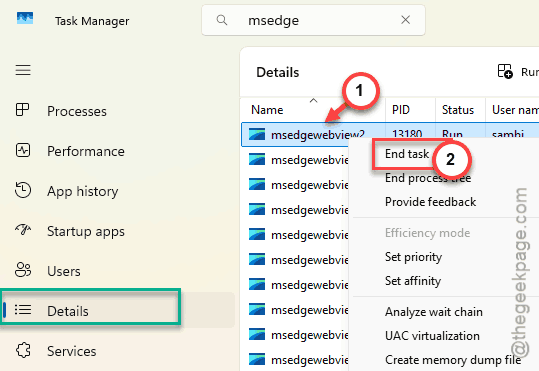
5 – Try opening Edge again.
And honestly, sometimes that’s all it takes.
Fix 2 – Delete the Local State File
This is the big one. Most people fix Edge by doing exactly this.
First — back up your User Data folder. Just in case.
1 – Make sure no msedge.exe is running (do Fix 1 first).
2 – Press Windows + R to open Run.
3 – Type this and press Enter:
%LocalAppData%\Microsoft\Edge\User Data\
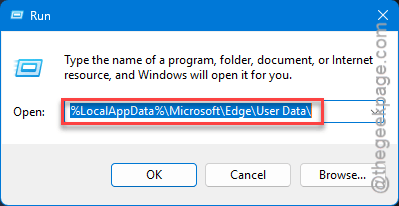
4 – You’ll land in Edge’s data folder. Find the file named Local State.
5 – Right-click it. Pick Delete (or just rename it to Local State.old if you want to be safe).
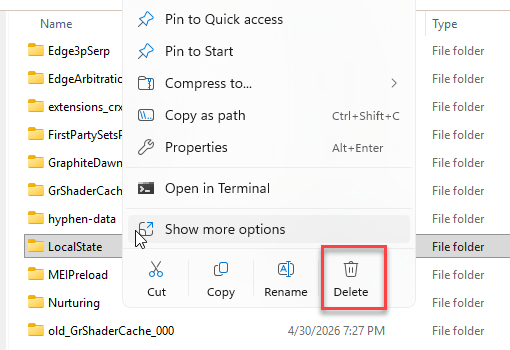
6 – Open Edge.
Worked? Great. Edge will rebuild that file from scratch on next launch. You won’t lose your bookmarks or history.
Fix 3 – Repair Edge from Windows Settings
Windows can repair Edge without losing your data. Worth a shot.
1 – Press Windows + I to open Settings.
2 – Click Apps > Installed apps.
3 – Search for Microsoft Edge in the list.
4 – Click the three dots (⋯) next to it. Pick Modify.
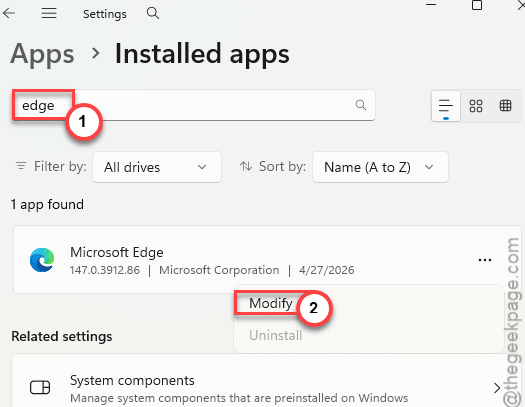
5 – Click Yes if a UAC prompt shows up.
6 – Click Repair in the window that opens.
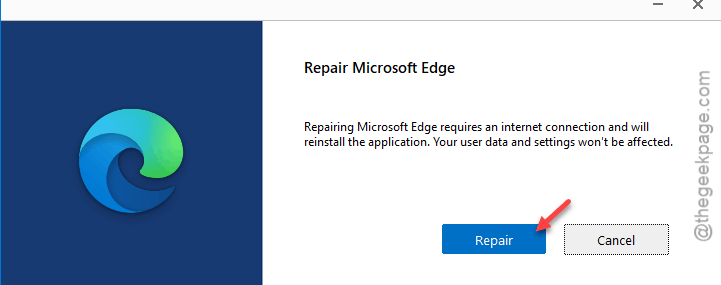
7 – Wait for it to finish. Edge launches itself when the repair is done.
And if that doesn’t fix it, your profile is probably the issue — move to Fix 4.
Fix 4 – Delete Your Edge Profile
Nuclear option. Don’t run this unless Fix 2 didn’t help. You’ll need to sign in again and your local browsing data goes with it.
Still want to keep your bookmarks? Make sure they’re synced to your Microsoft account first (or do a full backup of the User Data folder).
1 – Close Edge completely. Use Fix 1 to kill background processes.
2 – Hit the Windows + R buttons together. Then, paste this and hit Enter:
%LocalAppData%\Microsoft\Edge\User Data\
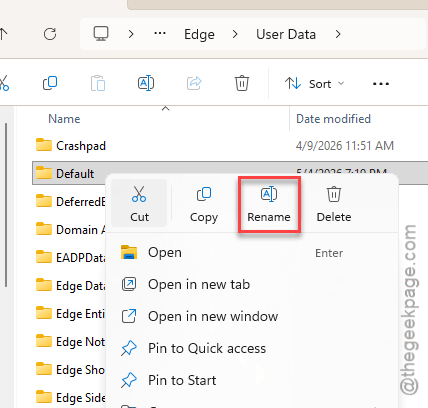
3 – Find the folder called Default. That’s your main profile.
4 – Right-click the Default folder. Pick Rename. Change it to Default.old.
5 – Open Edge.
6 – It’ll launch with a fresh profile. Sign in to sync your bookmarks back.
Fix 5 – Reinstall Edge
Last resort. If Edge still won’t budge, reinstall it.
Edge can’t be uninstalled normally on Windows 11 — Microsoft locks that down. But you can reinstall over it from the official site.
1 – Open another browser. Even a fresh Chrome works.
2 – Search download Microsoft Edge and grab it from the official Microsoft page.
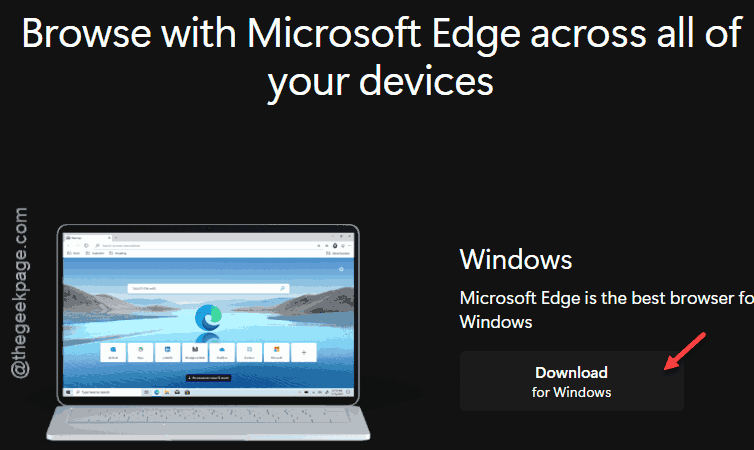
3 – Run the installer. It’ll reinstall Edge over the broken copy.
4 – Restart your PC.
5 – Try launching Edge.
Combined with deleting the User Data folder first, this fixes pretty much everything.
Fix 6 – Disable Edge Background Apps
If Edge is the kind that’s stuck in the background and won’t open a window, this stops it from auto-starting.
1 – Open Edge Settings (you might need to launch from a working profile first).
2 – Click System and performance in the left sidebar. Go to the System settings,
3 – Find Continue running background extensions and apps when Microsoft Edge is closed.
4 – Toggle it Off.
5 – Also toggle off Startup boost while you’re there.
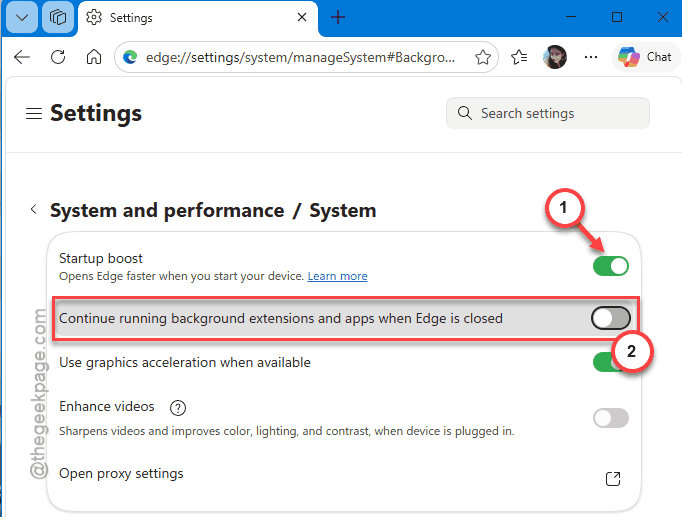
Now Edge won’t sit in the background when closed. Cleaner that way.
How to Prevent This
- Don’t force-shutdown your PC if Edge is open. That’s how Local State files get corrupted.
- Turn off Startup boost and background apps in Edge settings. Less chance of leftover processes blocking new launches.
- Disable extensions you don’t actively use. They’re a top cause of mystery crashes.
People Also Ask
How do I stop Microsoft Edge from running in the background?
Open Edge settings. Go to System and performance. Toggle off Startup boost and Continue running background extensions when Edge is closed. Done. Edge will stop sitting in your tray after you close it. You’ll lose a few seconds on cold start, but background junk goes away.
What does Ctrl + F5 do in Edge?
It forces a hard refresh of the current webpage on your browser. Bypasses the cache. Useful when a website is showing stale content or broken styling. Regular F5 reloads from the cache. Ctrl + F5 fetches everything fresh from the server. Same thing as Shift + Reload in most browsers.
Will deleting the Edge profile delete my bookmarks?
Local bookmarks? Yes. But, your cloud-synced bookmarks are saf. Sign back in after the fresh profile loads — they come right back. Worth checking sync status before nuking the profile.