Boot up your PC and bam. A pop-up about ene.sys. Or maybe a blue screen mentioning the same driver. Annoying. And it keeps coming back.
The fixes are pretty simple once you know what’s going on. Here’s how to get rid of it.
Why This Happens
Short version? ene.sys is a third-party driver. It usually ships with motherboard tools. ASUS Armoury Crate. MSI Center. MSI Mystic Light. That kind of stuff.
And Windows added it to the Microsoft Vulnerable Driver Blocklist a while back. So when the driver tries to load, Windows blocks it. You get the error.
Why does it still try to load? Because the bundled apps keep loading it on boot. Even after the driver was flagged. Not ideal, but that’s where we are.
Some MSI users see this fix itself after updating Dragon Center. Others have to rip the driver out manually. Either way — it’s solvable.
Fix 1 – Update or Reinstall the Vendor App
Often the easiest one. The vendor (ASUS, MSI, etc.) usually pushes a newer driver that’s not flagged anymore.
1 – If you’re on MSI, open MSI Center (or Dragon Center). Look for an update prompt at the top. Install it.
2 – On ASUS, open Armoury Crate. Click the gear icon for Settings, then Update Center. Hit Check for Updates.
3 – Reboot.
And if the error is gone? Done. Move on with your day.
Fix 2 – Rename the ene.sys File
Windows can’t load what it can’t find. Renaming the file blocks the bad load entirely.
1 – Press Windows + E to open File Explorer.
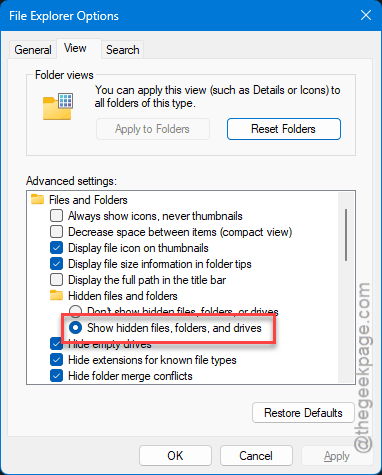
2 – Click the three dots (See more) at the top right. Pick Options.
3 – Go to the View tab in the dialog that opens.
4 – Under Hidden files and folders, choose Show hidden files, folders, and drives. Click Apply, then OK.
5 – In the address bar at the top of File Explorer, paste this and hit Enter: C:\Windows\System32\drivers
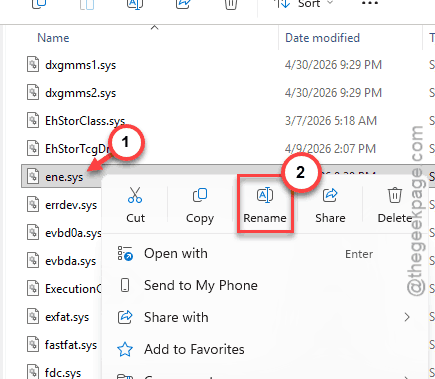
6 – Find ene.sys. Right-click. Choose Rename.
7 – Change it to ene1.sys (keep the .sys extension). Hit Enter.
8 – Click Yes if a confirmation pops up. Provide admin permission if asked.
9 – Restart your PC.
And if Windows still complains, the driver isn’t loading from that location. Move to the next fix.
Fix 3 – Turn Off Memory Integrity
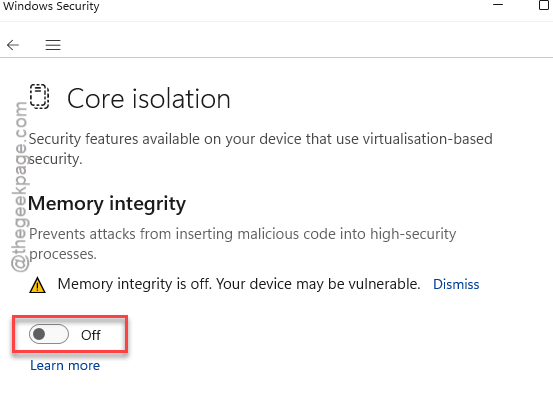
This is the one a lot of people land on first. It works because Memory Integrity is what’s actually blocking ene.sys. Turn it off and the warning stops.
Heads up — this is a security setting. You can flip it back on later once the vendor pushes a fix.
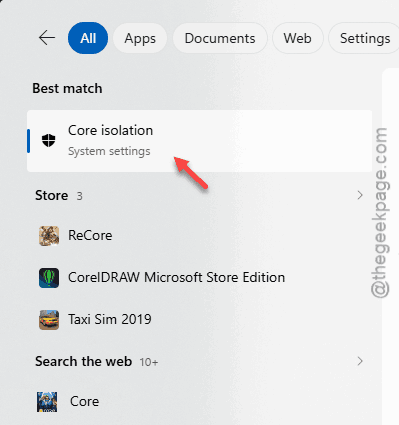
1 – Click the Start button. Type core isolation in the search bar.
2 – Open Core isolation from the results. It opens the Windows Security page.
3 – Find the Memory integrity toggle. Switch it to Off.
4 – Restart when prompted.
Worked? Great. Once your motherboard vendor releases a fixed driver, you can flip Memory Integrity back on for security.
Fix 4 – Disable Microsoft Vulnerable Driver Blocklist
Quick one. Same area as Memory Integrity, just a different toggle.
1 – Search for core isolation in the Start menu and open it.
2 – Scroll to the bottom of that page. You’ll see Microsoft Vulnerable Driver Blocklist.
3 – Toggle it Off.
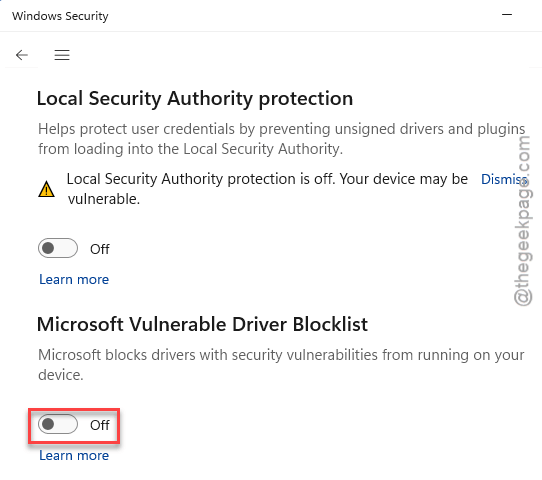
4 – Reboot.
Same caveat as Fix 3 — this lowers your security a bit. Use it as a temporary workaround. Re-enable it later.
Fix 5 – Use the ASUS Armoury Crate Uninstall Tool
If you are using the Asus Armoury Crate and getting this error, you should remove the Armoury Crate tool completely. ASUS has an official uninstaller for this.
1 – Go to the ASUS support site in your browser.
2 – Search for Armoury Crate Uninstall Tool.
3 – Download the latest version. It’s a zip — extract it.
4 – Right-click Armoury Crate Uninstall Tool.exe and pick Run as administrator. If you don’t see the option there, just open it up.
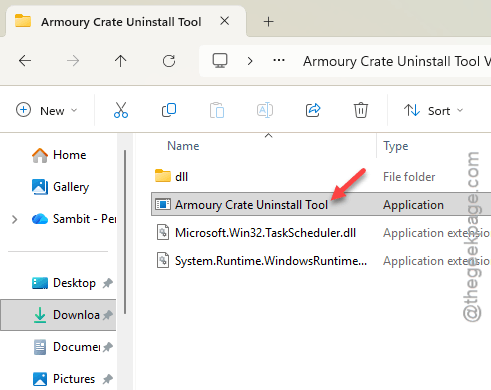
5 – Follow the prompts. It removes Armoury Crate, AURA, ROG Live Service, and the ene.sys driver.
6 – Restart.
And the error should be gone for good. If you still want RGB control or fan tuning, reinstall a fresh Armoury Crate from the ASUS support page after.
Fix 6 – Manually Delete the Driver
Last resort. Use this if renaming didn’t help and you don’t want the vendor app at all.
1 – At first, press Windows + E to load up the File Explorer instance.
2 – Then, copy-paste this location in the address bar. Hit Enter.
C:\Windows\System32\drivers
3 – Find ene.sys. Right-click and pick Delete.
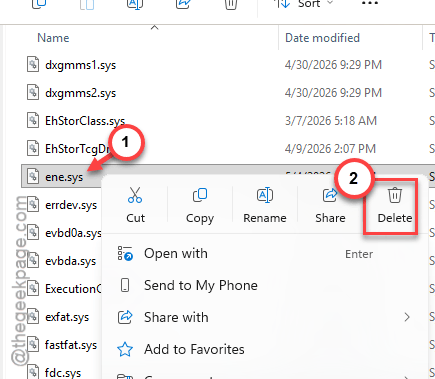
4 – Click Continue if Windows asks for admin permission.
5 – Restart.
How to Prevent This
- Keep your motherboard utility updated. ASUS Armoury Crate, MSI Center — whatever you use. Old versions are usually the culprit.
- If you don’t actively use RGB or fan control software, just uninstall it. Less bloat. Fewer drivers.
- Leave Memory Integrity on once the vendor patches the driver. It’s an actual security layer, not just a nuisance.
- Check Windows Update regularly. Microsoft updates the driver blocklist over time. Stay current.
People Also Ask
How to fix ene sys error in Windows 11?
Easiest path? Update the vendor software (ASUS Armoury Crate or MSI Center) first. That alone fixes it for most people. Still stuck? Turn off Memory Integrity in Core Isolation. Or rename ene.sys in C:\Windows\System32\drivers. One of those will do it.
What type of driver is ene.sys?
It’s a third-party driver. Comes from ENE Technology. Used by motherboard tools — ASUS Armoury Crate, MSI Mystic Light, that crowd. Handles RGB lighting and fan control. Not a Microsoft driver. Not part of Windows. So when something goes wrong with it, blame the motherboard utility.
Is it safe to delete ene.sys from System32\drivers?
Yep, safe. It’s not a core Windows file. Worst case? Your RGB lighting or motherboard fan control stops working until you reinstall the vendor app. Nothing system-critical breaks. A lot of users delete it and never miss it.
Will turning off Memory Integrity make my PC less secure?
A little, yeah. Memory Integrity blocks malicious drivers from loading into kernel memory. Turning it off opens that door slightly. Use it as a temporary fix. Once your motherboard vendor pushes an updated driver, flip it back on. Don’t leave it off forever.