You right-click a ZIP file. Hit Extract All. And then Windows throws this thing: “Cannot complete the archive extraction.” Files half-extracted. Some folders empty. A mess.
Why This Happens
Basically? Windows’ built-in extractor is not great. It chokes on any of three things.
One — the ZIP is sitting in a protected folder. Windows blocks writes during extraction. So nothing gets out. Two — the file is partially corrupted. The download finished but a chunk got mangled. Three — Windows Defender is scanning every file mid-extract and timing out.
And on top of that, files with special characters in their names just kill the built-in tool. No idea why Microsoft hasn’t fixed this.
Fix 1 – Move the ZIP to Your User Folder
This is the dumb-but-common fix. If the ZIP is in Program Files, the desktop, or any system folder? Move it.
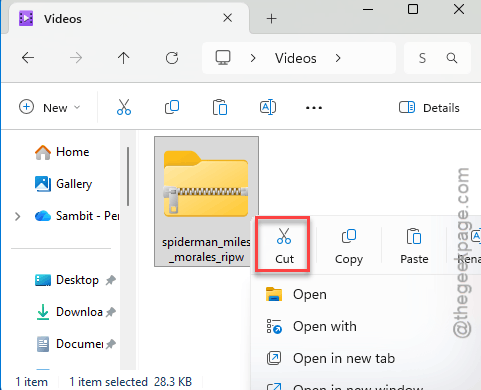
1 – Right-click the ZIP file and pick Cut.
2 – Open File Explorer (Windows + E).
3 – Go to your Downloads, Documents, or Desktop folder.
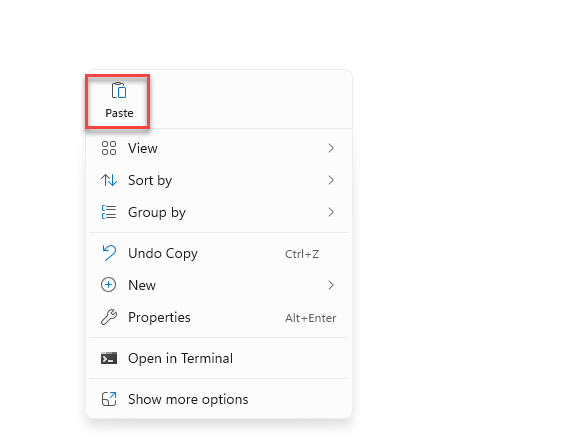
4 – Right-click in the empty space and hit Paste.
5 – Now try extracting from there.
And that’s usually it. The protected-area thing catches a lot of people.
Fix 2 – Use 7-Zip Instead
Windows’ built-in extractor is fragile. 7-Zip handles files that crash the default tool. Free, fast, and just works.
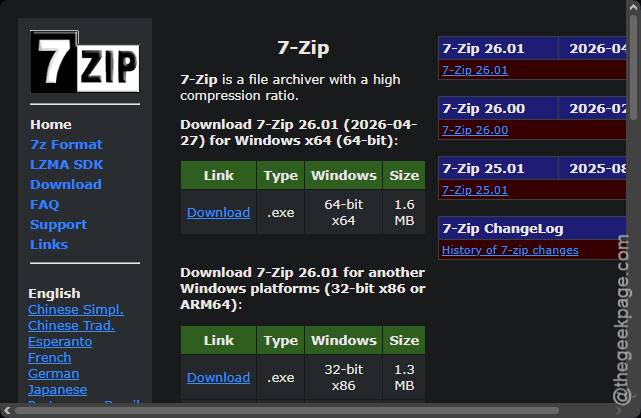
1 – Go to 7-zip.
2 – Once you are there, download the 64-bit or x64 version 7-zip installer for your machine.
3 – Run the installer. Click Install, then Close when it finishes.
4 – Find your ZIP file.
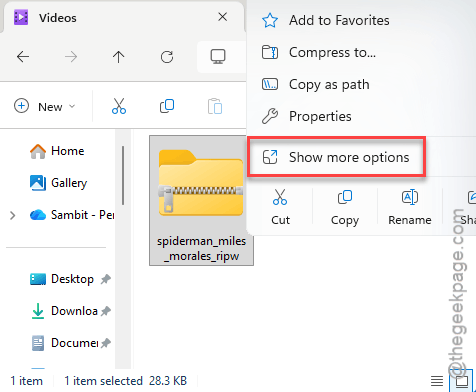
5 – Right-click it. On Windows 11, click Show more options first to see the full menu.
6 – Hover over 7-Zip. Pick Extract Here or Extract files….
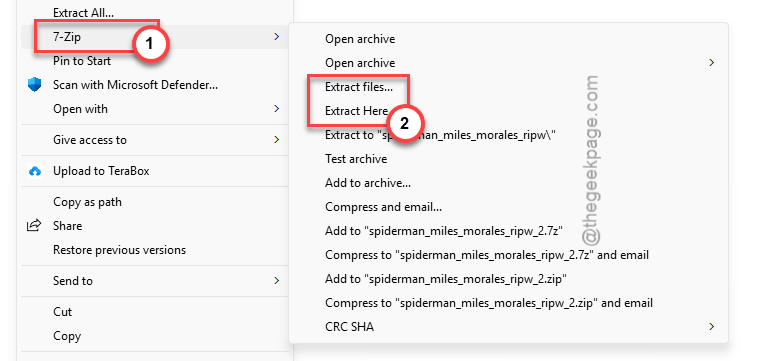
7 – If the compress file is password-protected, write down the password when it ask you do so.
Done. 7-Zip extracts where Windows fails.
Fix 3 – Temporarily Disable Real-time Protection
Windows Defender locks files mid-extract for scanning. If a file is even slightly suspicious, the lock holds and the extraction fails. Turn it off briefly.
1 – Hit the Windows + I keys to load up Settings.
2 – Proceed this way – Privacy & security > Windows Security.
3 – Click Virus & threat protection.
4 – Under Virus & threat protection settings, click Manage settings.
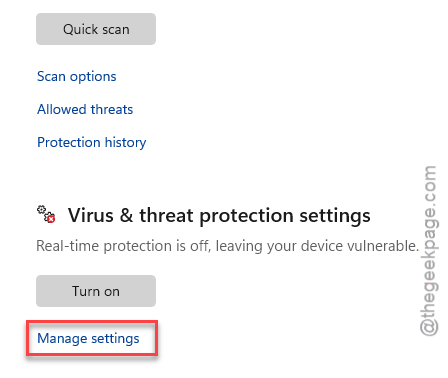
5 – Toggle off Real-time protection.
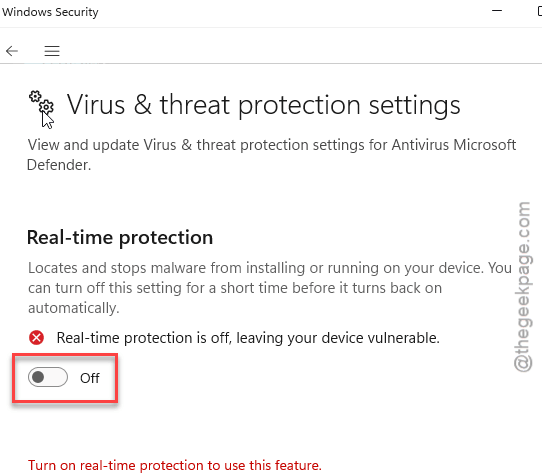
6 – Extract your file.
7 – Turn Real-time protection back on. Right after. Don’t leave it off.
Important. Re-enable security the second the extraction finishes. Don’t forget.
Fix 4 – Re-Download the File
If 7-Zip also fails? The ZIP itself is corrupted. Doesn’t matter what tool you use.
1 – Delete the broken ZIP.
2 – Go back to wherever you downloaded it from.
3 – Download it again. Use a stable connection — don’t do this on hotel WiFi.
4 – Try the extraction.
If the source itself has a corrupt file? You’re stuck. Find another mirror.
Fix 5 – Shorten the File Path
Windows has a 260-character path limit.. If your ZIP has deep folders or long filenames, extraction fails partway through.
1 – Move the ZIP to C:\ or somewhere with a short path.
2 – Rename it to something short. Like test.zip.
3 – Try extracting again.
Sometimes it’s the simplest thing. A path 280 characters deep just dies silently.
How to Prevent This
- Always extract from your Downloads or Documents folder. Never from Program Files.
- Verify big downloads with checksums when the source provides them.
- Keep folder paths short. Don’t nest archives 10 folders deep.
People Also Ask
How to solve cannot complete the archive extraction wizard?
The built-in Windows wizard is the actual problem most of the time. It chokes on long paths, special characters, and protected folders. You can use 7-Zip or WinRAR as alternative tools. Free, fast, and they don’t throw cryptic errors.
How to fix an extraction error?
Depends on the cause. Three things to check. Is the file in a protected folder? Move it. Is the archive corrupted? Re-download. Is the built-in extractor failing? Instead you should use the 7-Zip, which is an excellent alternative to its popular counterpart, WinZip.