You type your Wi-Fi password. Windows says no. You type it again, slower. Same result. “The network security key isn’t correct. Please try again.” But you know it’s right. Your phone is on the same network, same password.
And this started out of nowhere. Yesterday? Fine. Today? Blocked.
Why This Happens
Short version: Windows is lying. Most of the time, the key isn’t actually wrong. Windows just decided your cached network profile is corrupted and is throwing this error as a cover-all.
The way it usually happens — Windows caches a security type (WPA2, WPA3, mixed mode) along with the password. When your router auto-switches modes (common after firmware updates), the cached security type no longer matches. Windows tries the old mode with the right password. Router rejects it. Windows reports “wrong key.” Even though the password is fine.
Wireless drivers cause this too. A bad driver update makes the adapter incompatible with current Wi-Fi security. Again, wrong-key error. Because that’s the generic failure message.
And sometimes it really is the password. Special characters display differently on different keyboards. Non-English layouts. International characters in a password. Windows sends what you typed — but what it sends doesn’t match what the router stored.
Fixes below in order. Start with Fix 1 — fastest.
Fix 1 – Forget the Network and Reconnect
Easiest fix. Clears Windows’ cached profile. Forces a fresh connection with the current security type.
1 – Press Windows + I to open Settings.
2 – Click Network & internet in the left sidebar.
3 – Click Wi-Fi.
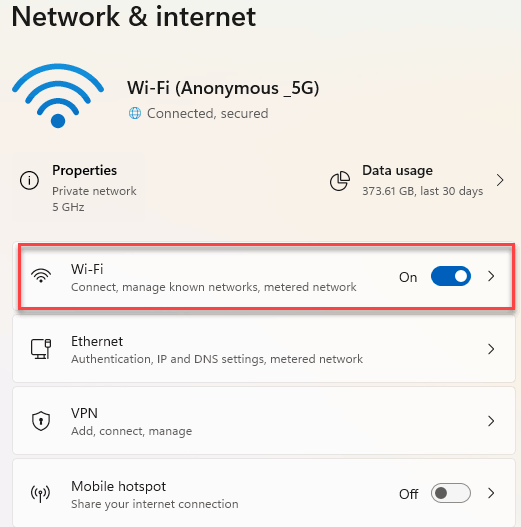
4 – Click Manage known networks.
5 – Find your network. Click Forget.
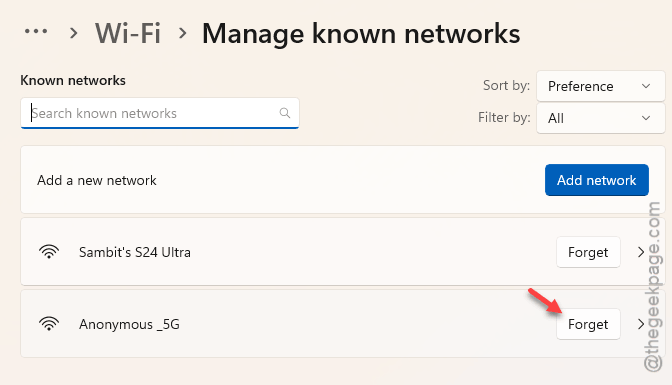
6 – Click the Wi-Fi icon in the system tray (bottom-right).
7 – Find your network in the list. Click Connect.
8 – Type the password carefully.
Fixed for most people right here. Didn’t work? Keep going.
Fix 2 – Refresh the Wi-Fi Adapter
Next quick one. You should restart the network adapter to fix this issue.
1 – Hit the Windows + R. Write down ncpa.cpl in the box. Press Enter.
2 – Look for your Wi-Fi adapter in the Network Connections panel.
3 – Right-click it. Click Disable.
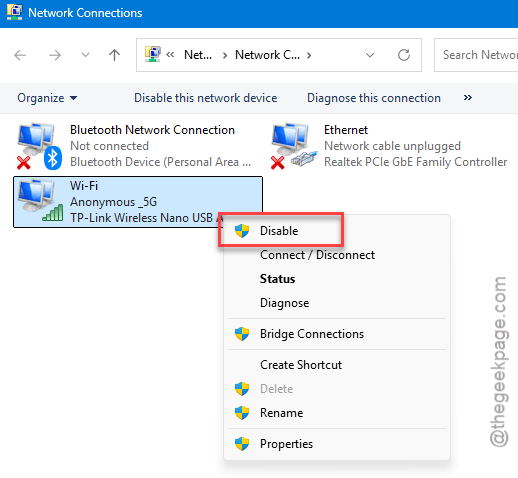
4 – Wait 10 seconds.
5 – Right-click the same adapter. Click Enable.
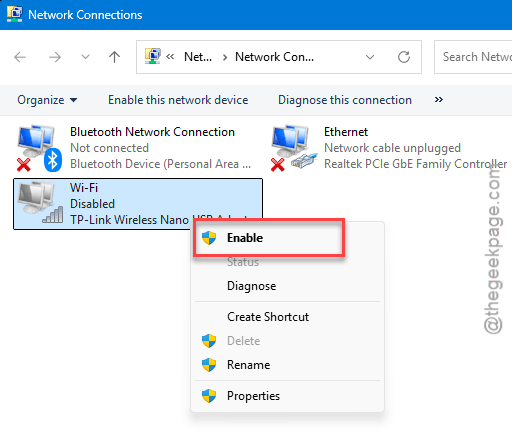
6 – Try connecting to your Wi-Fi again.
Sound familiar? This is a network refresh that is known as the most basic but efffective troubleshooting step for network-related problems.
Fix 3 – Roll Back or Update the Wi-Fi Driver
Did this start after a Windows update? Probably the new driver. Roll it back.
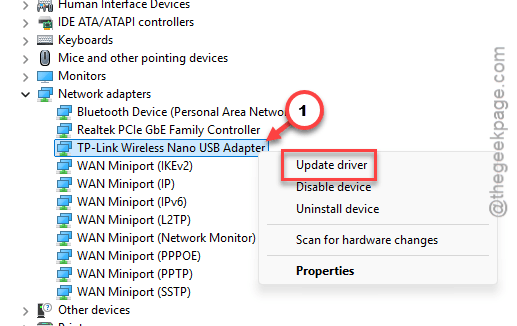
1 – Press Windows + X. Click Device Manager.
2 – Expand Network adapters.
3 – Right-click your Wi-Fi adapter (Intel, Realtek, Broadcom — whatever yours is).
4 – Click Update driver.
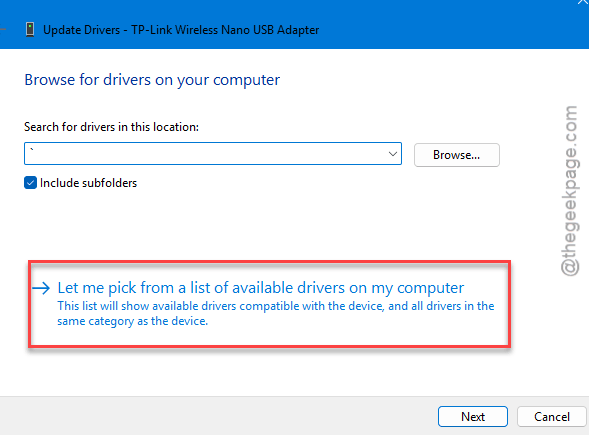
5 – Click Browse my computer for drivers.
6 – Choose the Let me pick from a list of available drivers on my computer option.
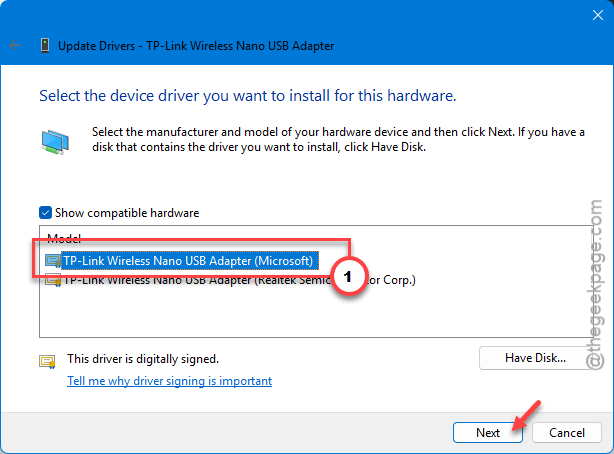
7 – You’ll see a list of driver versions. Pick an older one (the current one is marked with a small indicator).
8 – Click Next. Let it install.
9 – Restart your PC.
Try Wi-Fi. If you still have issues, get the latest driver directly from the chipset maker. Not Windows Update. Intel.com, Realtek.com, whoever made your adapter.
Fix 4 – Manually Add the Network With the Right Security Type
This one catches the security-type mismatch. You’re telling Windows exactly what type of encryption your network uses.
1 – Press Windows + I. Click Network & internet → Wi-Fi.
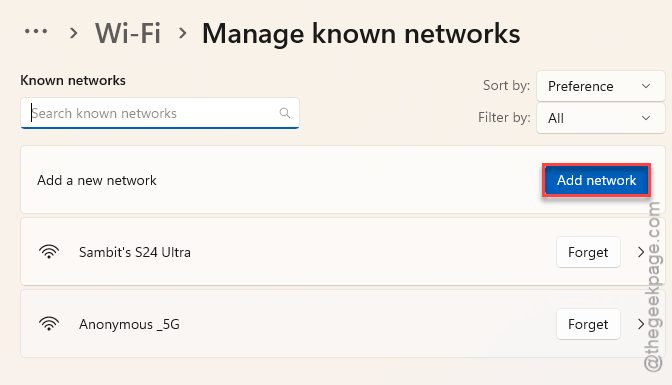
2 – Click Manage known networks.
3 – Click Add network.
4 – In the Network name box, write down the exact SSID of your Wi-Fi. Case-sensitive. Spaces matter.
5 – In the Security type panel, choose WPA2-Personal AES. You can use WPA3-Personal security type, as well.
6 – Type your password.
7 – Tick Connect automatically.
8 – Click Save.
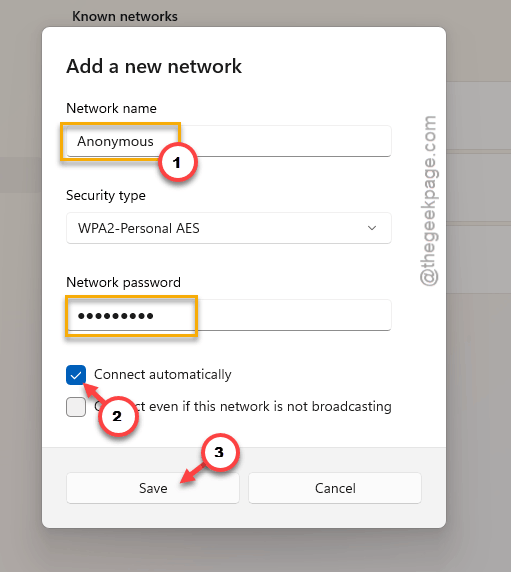
Windows now knows exactly how to authenticate. Should connect cleanly.
Fix 5 – Full Network Reset
Bigger hammer. This cleans up all the network-related information from your setup- providing you a fresh ground to start from.
⚠️Warning – If you have a VPN setup for your office work, backup any configuration details before your proceed further.
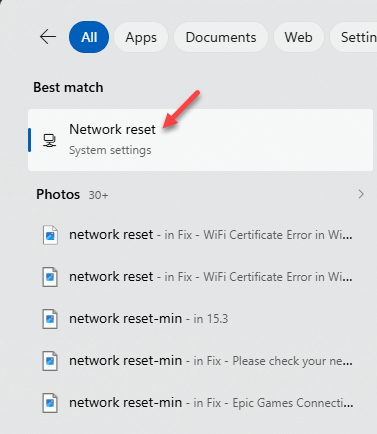
1 – Click Start. Type “Network reset“.
2 – Click Network reset in the results.
3 – Click Reset now.
4 – Click Yes to confirm.
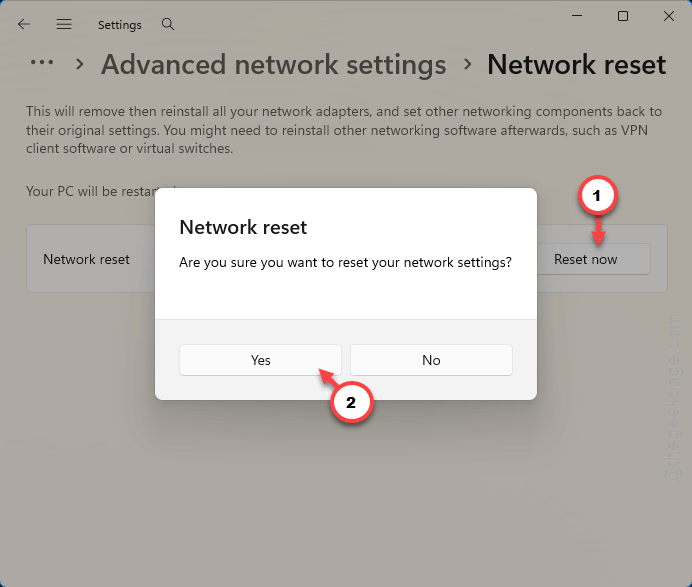
5 – Your PC will restart automatically after about 5 minutes. Save any work.
After restart, connect to Wi-Fi fresh. The wrong-key error should be gone.
Fix 6 – Check What You’re Actually Typing
You should check which letters you are typing as password. Before going deeper, rule it out properly.
- Caps Lock off? Turn it off, if needed.
- If your password contains any special characters like !, @, #, $, be extra cautious about which keyboard layout you are using. You can change it from the Keyboard switch on the taskbar.
- Sometimes the invisible trailing spaces in the password box or an invisible space at the end (trailing space) fails the password check.
You can further your search to your router’s admin page. Locate your Wi-Fi settings. Confirm the password from there and use it.
Fix 7 – Router-Side Checks
If you are still struggling with this problem, you can look into the router to fix this issue.
1 – We recommend you reboot the router. Unplug it from the power socket. Give it 30 seconds. Plug back in. Wait 2 minutes for full boot.
2 – If that does not work, log into the router admin page. See which WPA2/WPA3 security mode it is currently configured to. You should opt for the pure WPA2-Personal AES temporarily.
3 – Check for router firmware updates. Old firmware sometimes negotiates security wrong with newer Windows builds.
4 – Other devices also failing? The router password actually might have changed. Reset it from the admin page.
How to Prevent This
- Always keep your Wi-Fi drivers updated and you should get it from the chipset manufacturer. Intel and Realtek ship newer, more stable versions in their official driver page.
- After router firmware updates, run a Network reset on any PCs that show odd behavior. Security types can shift quietly after firmware changes.
- Use a simple Wi-Fi password. No exotic characters. Makes typing errors less likely across different keyboard layouts.
People Also Ask
How to fix the network security key isn’t correct?
You should forget the network first (delete the network security key), then reconnect to your Wi-Fi afresh. Once you have done it, then reconnect from the Wi-Fi icon in the system tray. Works for most people. If not, disable and re-enable your Wi-Fi adapter from ncpa.cpl. Together those fix the bulk of cases.
How to reset security key Windows 11?
Windows doesn’t really have a separate security key to reset — it’s just the Wi-Fi password. Run a full Network reset instead. Type “Network reset” in Start, click Reset now. Your PC restarts. Reconnect to Wi-Fi after. Clears every cached network profile and starts fresh.
How to reset the network security key?
To change the actual key — that’s done on the router. Log into the router’s admin page (usually 192.168.1.1 or 192.168.0.1). Find Wi-Fi settings. Change the password there. All your devices will then need the new one. If you just need Windows to reconnect cleanly, use Network reset instead.