Click on a Windows Security tile. Click a notification. And boom — a popup. You’ll need a new app to open this windowsdefender link.
Confusing. Because the app you need is already part of Windows.
Why This Happens
Here’s the deal. When you click anything that opens Windows Security, Windows uses a special URL scheme — windowsdefender:// — to launch the right page. Like Settings does with ms-settings://.
And the popup means Windows can’t find the app registered to that URL scheme. The Windows Security app handler is either disabled, corrupted, or missing entirely.
Why? A bunch of reasons. Some users disabled the Security Center service. Others had a Windows update break the app registration. Sometimes third-party antivirus tools (Norton, McAfee, the usual suspects) hijack and then mangle the handler when they uninstall.
And on top of that — debloat scripts and registry tweakers can wipe out the Windows Security app package. People run those scripts and forget. Months later? This error.
Fix 1 – Enable the Security Center Service
Most common cause. The Security Center service controls the windowsdefender URL handler. If it’s stopped, the link breaks.
1 – Right-click the Start menu. Pick Run. Or press Windows + R.
2 – Type services.msc and press Enter.
3 – In the Services list, scroll to Security Center.
4 – Double-click it.
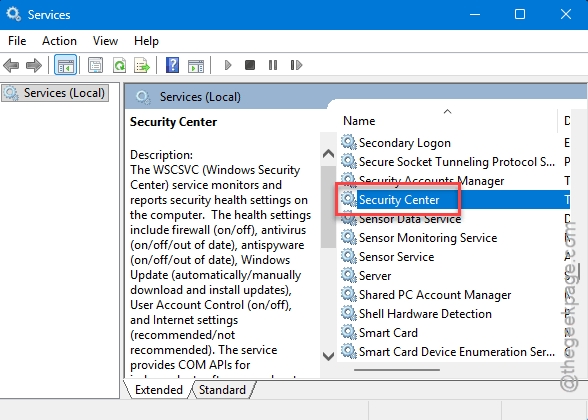
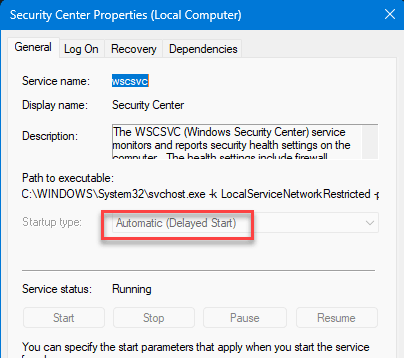
5 – Set Startup type to Automatic (Delayed Start).
6 – Under Service status, click Start if the service is stopped.
7 – Click Apply, then OK.
8 – While you’re there, also check Windows Defender Firewall and Windows Security Service in the same list. Both should be running.
Restart your PC. Test the link.
Fix 2 – Re-Register Windows Security via PowerShell
If the app package itself is broken, this re-registers it without a reinstall.
1 – Click Start. Type powershell.
2 – Right-click Windows PowerShell. Pick Run as administrator.
3 – Click Yes at the UAC prompt.
4 – Paste this command and press Enter:
Get-AppxPackage Microsoft.SecHealthUI -AllUsers | Reset-AppxPackage
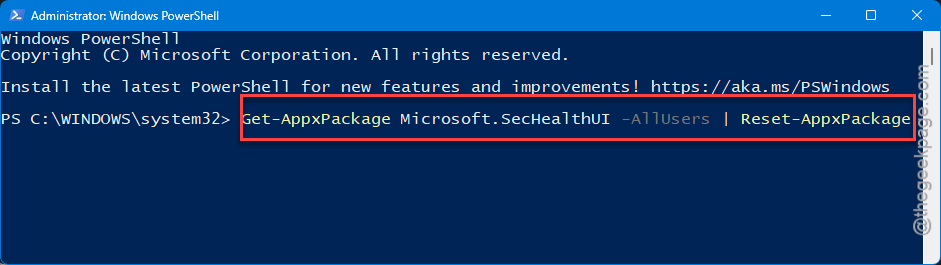
5 – Wait. It might look like nothing happened — that’s fine.
6 – Close PowerShell.
7 – Restart your PC.
And now try clicking the windowsdefender link again. Worked for most people I’ve seen hit this.
Fix 3 – Reinstall Windows Security via PowerShell
Use this if Reset-AppxPackage didn’t help. It does a full re-registration.
1 – Open PowerShell as administrator (same as Fix 2).
2 – Paste this:
Get-AppXPackage -AllUsers Microsoft.SecHealthUI | Foreach {Add-AppxPackage -DisableDevelopmentMode -Register "$($_.InstallLocation)\AppXManifest.xml"}
3 – Press Enter. Let it run.
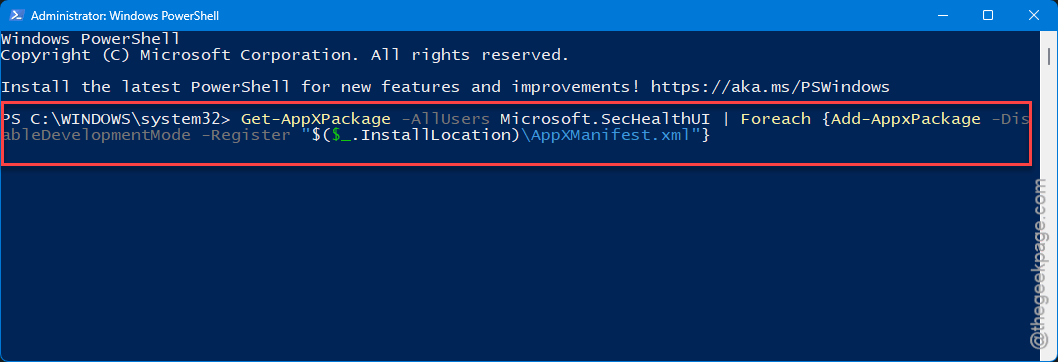
4 – If it errors with red text saying package can’t be found, you’ll need Fix 4 instead.
5 – Restart your PC.
Fix 4 – Run System File Checker and DISM
Sometimes the underlying Windows files are corrupted. SFC and DISM repair them.
1 – Click Start. Type cmd.
2 – Right-click Command Prompt. Pick Run as administrator.
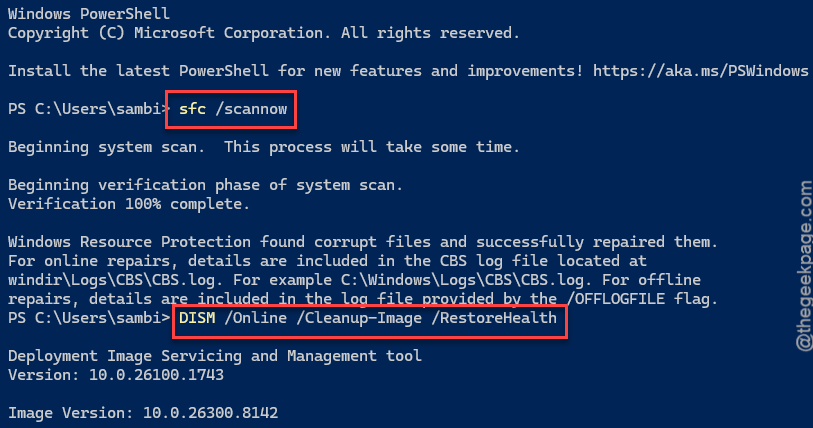
3 – Type this and press Enter: DISM /Online /Cleanup-Image /RestoreHealth
4 – Wait. This takes a while — could be 10-20 minutes. Don’t close the window.
5 – When it finishes, run: sfc /scannow
6 – Wait for that to hit 100%.
7 – Restart your PC.
And now try the link. SFC fixes a lot of weird missing-handler issues.
Fix 5 – Check Default Apps for the Protocol
Quick check. Make sure Windows knows what app handles windowsdefender:// links.
1 – Open Settings (Windows + I).
2 – Go to Apps > Default apps.
3 – Scroll down. Click Choose defaults by link type.
4 – In the search box, type windowsdefender.
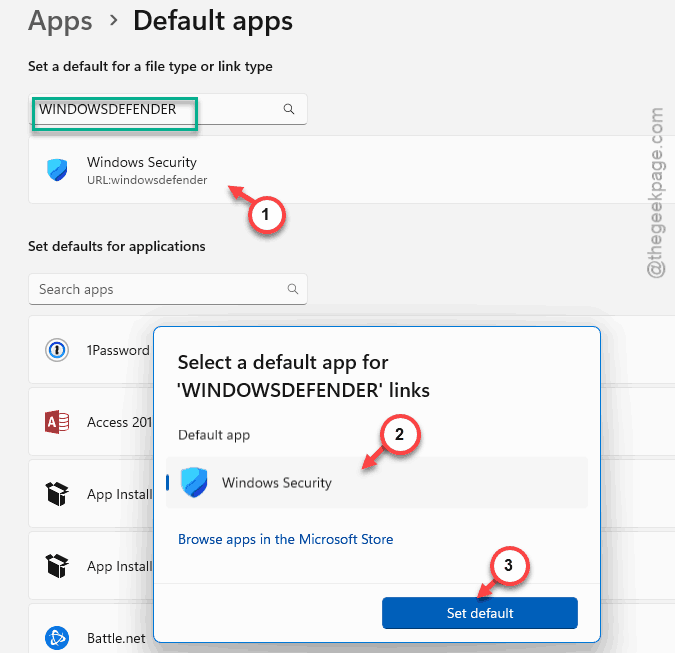
5 – If you see it, click and assign it to Windows Security.
6 – If it’s missing entirely, that confirms the app package is broken — go back to Fix 2 or Fix 3.
Fix 6 – Uninstall Conflicting Antivirus
Third-party antivirus often disables Windows Security on install — and forgets to clean up on uninstall. The leftover registry junk breaks the windowsdefender link.
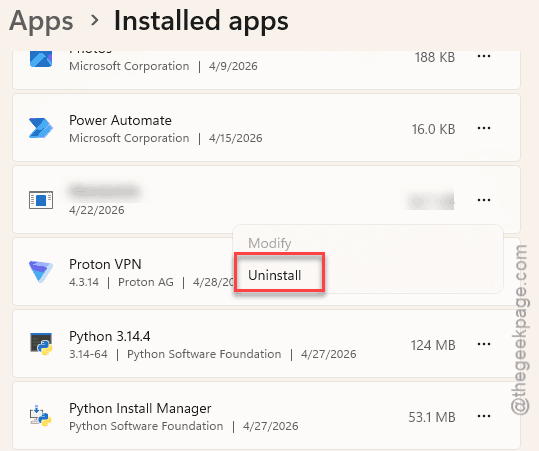
1 – Open Settings > Apps > Installed apps.
2 – Look for any third-party antivirus — Norton, McAfee, Avast, AVG, etc.
3 – If you’ve already uninstalled one but the issue started then, grab the vendor’s official removal tool. Search [antivirus name] removal tool on Google. Run it.
4 – Restart your PC.
5 – Run Fix 2 (Reset-AppxPackage) afterwards to re-register Windows Security.
Fix 7 – Use System Restore
If this started recently after an update or app install, just roll back.
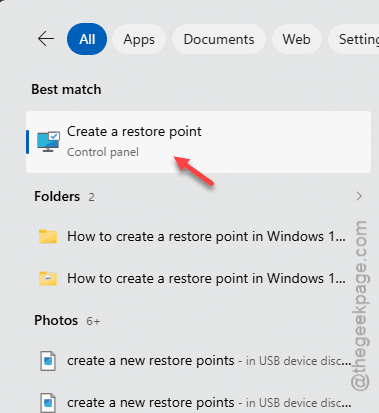
1 – Click Start. Type restore.
2 – Click Create a restore point.
3 – Click System Restore….
4 – Pick a restore point from before the issue started.
5 – Follow the prompts. Your PC will restart.
This should be helpful if none of the solutions have worked for you.
How to Prevent This
- You should not disable the Security Center service even if you have third-party antivirus running. Let it run. It controls more than just Defender.
- Skip aggressive debloat scripts. They wipe out app packages like Microsoft.SecHealthUI without warning.
- Keep Windows fully updated. SFC and DISM rely on Microsoft’s image catalog — outdated systems can fail to repair properly.
People Also Ask
How do I fix “You’ll need a new app to open this WindowsDefender link”?
Start by enabling the Security Center service in services.msc. Then, you just set it to Automatic mode and click Start. If that doesn’t work, run this Get-AppxPackage Microsoft.SecHealthUI -AllUsers | Reset-AppxPackage in PowerShell as admin. Then restart. One of those two fixes it for nearly everyone.
How do I get rid of fake Windows Defender alerts?
Different problem — those are scams from sketchy websites. Close the browser. You should run a full scan with the real Windows Security. If the site shows up again, you should block it. Don’t call any number on the alert. Ever.