Your AMD graphics card was working fine. Then a Windows update rolled through. Now the driver shows as disabled — and your screen looks off, or you’re stuck on a basic display.
Here’s the thing. Reinstalling the driver feels like the fix. But it usually just gets disabled again a day later. The real problem is Windows keeps overwriting your good driver with a broken one.
Why This Happens
Basically? Windows Update thinks it’s helping. It’s not.
Windows ships graphics drivers through its own update pipeline. And sometimes the version it pushes doesn’t play nice with your specific AMD card. So the driver crashes, and Windows flags it as bad and switches it off.
But then you reinstall the working driver from AMD. Great — until the next update check. Windows sees your card, decides its own copy is newer or safer, and shoves it right back in. The loop starts over.
So the fix isn’t really about the driver. It’s about telling Windows to stop touching it.
Fix 1 – Re-Enable the Card First
Before anything else, switch the card back on.
1 – Press Windows + X and click Device Manager.
2 – Expand Display adapters.
3 – Right-click your AMD Radeon card. If it has a little down-arrow on the icon, it’s disabled.
4 – Click Enable device.
If it stays enabled — great, but you’re not done. It’ll likely flip off again after the next update unless you do Fix 3. If it disables itself right away, go straight to Fix 2.
Fix 2 – Do a Clean Driver Wipe With DDU
When the driver keeps looping back to disabled, the install is corrupt. A normal reinstall won’t clear it.
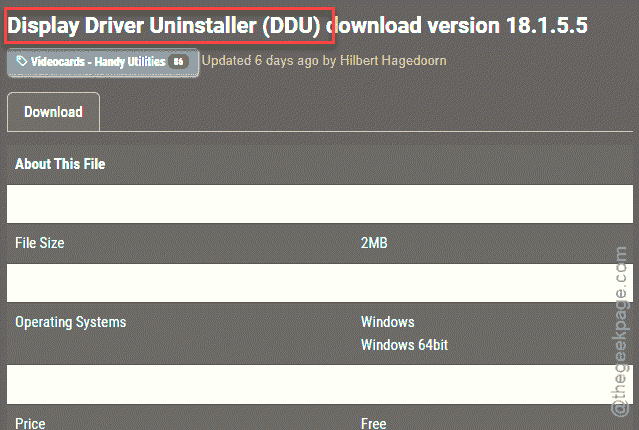
1 – Download Display Driver Uninstaller (DDU). Then, get the latest AMD Adrenalin driver for your card. Get both before you start.
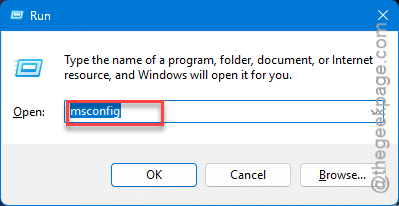
2 – Now, you have to restart your PC into Safe Mode. Fastest way: press Windows + R, type msconfig, hit Enter,.
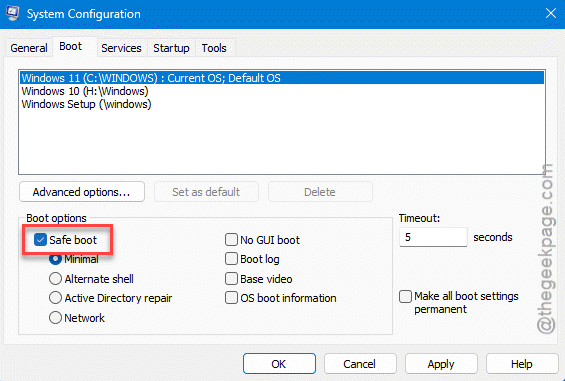
3 – Then, go to the Boot tab, tick Safe boot, and restart.
4 – Once you have booted into Safe Mode, launch DDU.
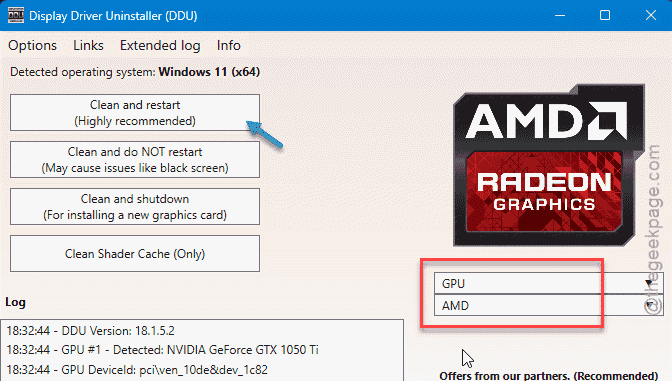
4 – Pick GPU and AMD, then click Clean and restart.
5 – Once it loads up normally, download and install the latest version of AMD driver.
Check if this works.
Fix 3 – Block Windows From Pushing GPU Drivers
Try to check whether any group policy is causing such issues.
1 – Start by pressing the Windows + R, type gpedit.msc, and press Enter.
2 – In the left pane, open this path:
Computer Configuration > Administrative Templates > Windows Components > Windows Update > Manage updates offered from Windows Update.
3 – Double-click Do not include drivers with Windows Updates.
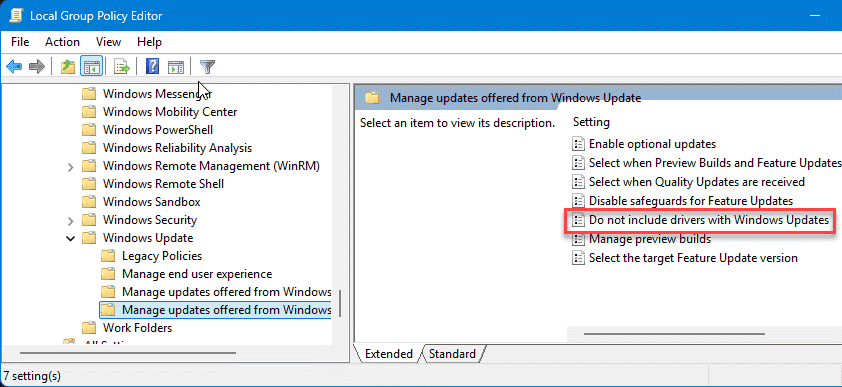
4 – Select Enabled.
5 – Click Apply, then OK.
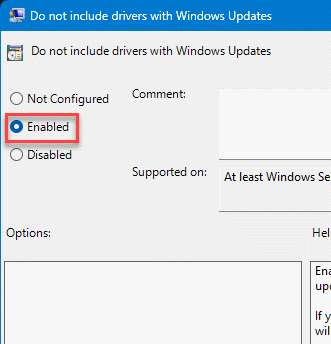
From now on, Windows still updates itself — it just leaves your graphics driver alone. That’s the whole point.
Fix 4 – Block the Exact Driver by Device ID
Want to be even more precise? You can block Windows from reinstalling the one broken driver, by its hardware ID. This also lives in Group Policy.
1 – Open gpedit.msc again, like in Fix 3.
2 – Follow this path –
Computer Configuration > Administrative Templates > System > Device Installation > Device Installation Restrictions.
3 – Double-click Prevent installation of devices that match any of these device IDs.
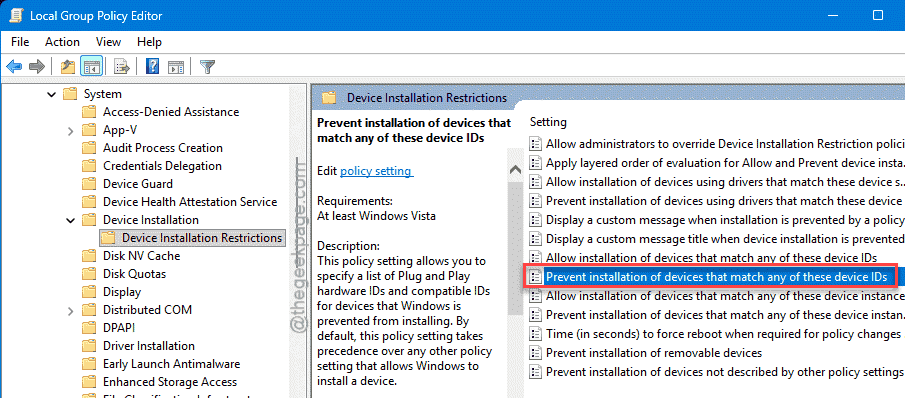
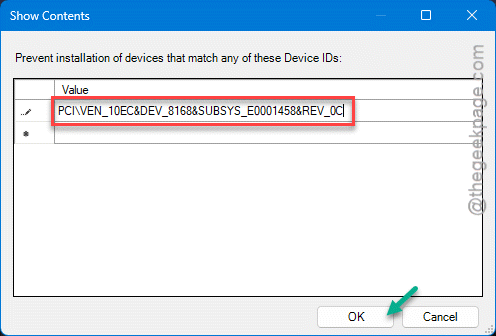
4 – Select Enabled, then click Show to add your card’s hardware ID.
5 – Now, you have to find that ID: back in Device Manager.
6 – Then, right-click your AMD card, choose Properties.
7 – Open the Details tab, and set the dropdown to Hardware Ids. Copy the top line from there.
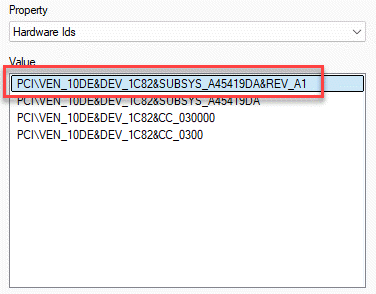
6 – Now, paste it into the Group Policy box, click OK, then Apply.
Check again.
Fix 5 – Turn Off Hardware-Accelerated GPU Scheduling
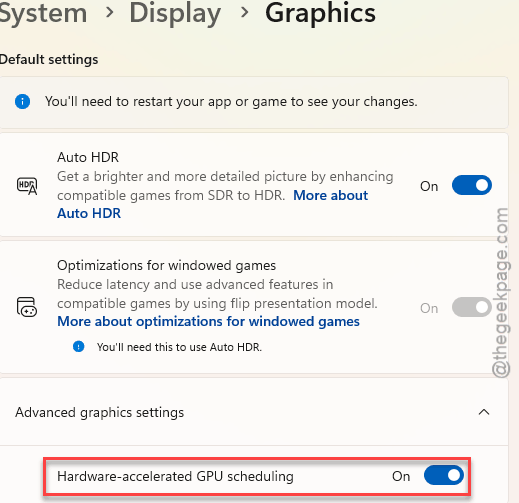
Quick one for lingering instability. This feature — HAGS for short — hands scheduling work to the GPU, and it trips up some AMD cards after an update.
1 –Open Settings, go to System, then Display, then Graphics.
2 –Click Change default graphics settings
3 – Then, switch off Hardware-accelerated GPU scheduling.
Restart and see if things steady out.
How to Prevent This
– Leave the Group Policy block from Fix 3 on. It’s the single thing that stops the disable-loop for good.
– Before a big feature update, jot down your current working driver version.
People Also Ask
Why did my GPU disable itself?
Windows disables a graphics card when its driver crashes or fails a stability check. After an update, this usually means Windows swapped in a driver version that doesn’t suit your exact card. It flags the driver as bad and switches the device off to protect the display. Re-enabling it in Device Manager brings it back.
How do I fix corrupted AMD GPU drivers?
The best way to tackle the GPU driver corruption on your own is to use the Display Driver Uninstaller (DDU). You can remove the current driver package in Safe Mode and get a fresh driver installed using this tool.