You close the lid or walk away. Come back, tap a key, and instead of your desktop — a blue screen. DRIVER_POWER_STATE_FAILURE. Then a reboot you didn’t ask for.
Every time it wakes? Brutal. You lose whatever was open. And it always hits on the wake-up, never while you’re actually using it.
Why This Happens
When your PC sleeps, it tells each device to power down. When it wakes, it tells them all to power back up. Quick handshake, normally.
But one device doesn’t answer in time. Windows waits, waits a little more, then gives up and crashes to protect itself. That’s the blue screen.
So which device? Almost always a driver that’s slow to wake. Wi-Fi cards are the classic offender. So are Bluetooth chips and fast NVMe storage drives. Modern standby — the always-on, phone-style sleep mode (Microsoft labels it S0) — makes it worse, because devices nap and wake constantly instead of fully powering off. More wake-ups, more chances for one to stall.
Fix 1 – Turn Off Fast Startup
Start here, because it’s quick and it clears the junk. Fast Startup parks Windows in a half-hibernated state, and that’s where corrupted power-state data gets stuck. Switching it off lets every reboot start truly clean.
1 – Press Windows + R, type control, and press Enter to open the classic Control Panel.
2 – Go to Power Options. (Toggle the View by to Large icons in the top-right corner, if needed).
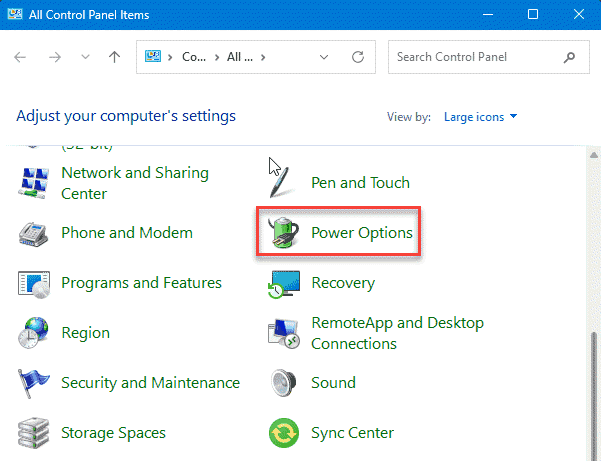
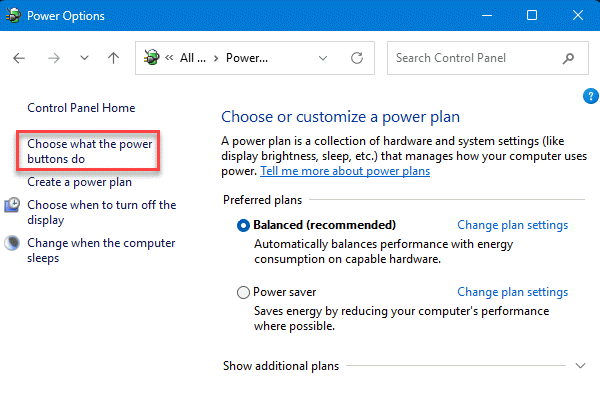
3 – On the left, click Choose what the power buttons do.
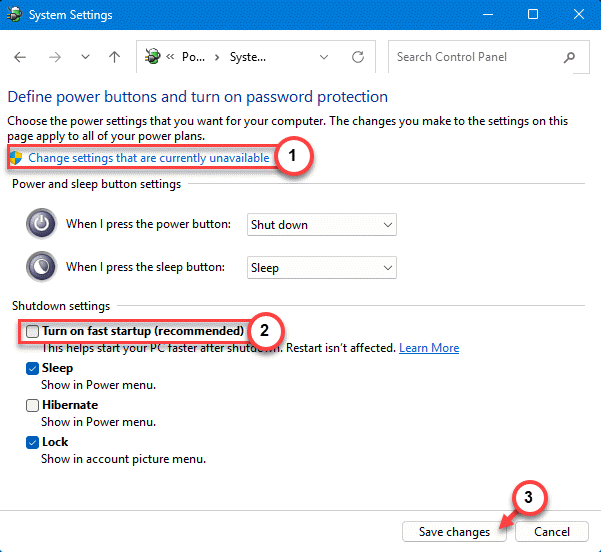
4 – Click Change settings that are currently unavailable near the top. This unlocks the grayed-out boxes below.
5 – Uncheck Turn on fast startup (recommended).
6 – Click Save changes.
Restart and let it sleep, then wake it. Sometimes this alone ends the crashes.
Fix 2 – Update the Drivers Most Likely to Blame
Outdated drivers are the number-one cause of wake crashes. Three matter most: graphics, Wi-Fi, and your motherboard’s chipset. Grab them from the maker, not just Windows Update — Windows often ships an older build.
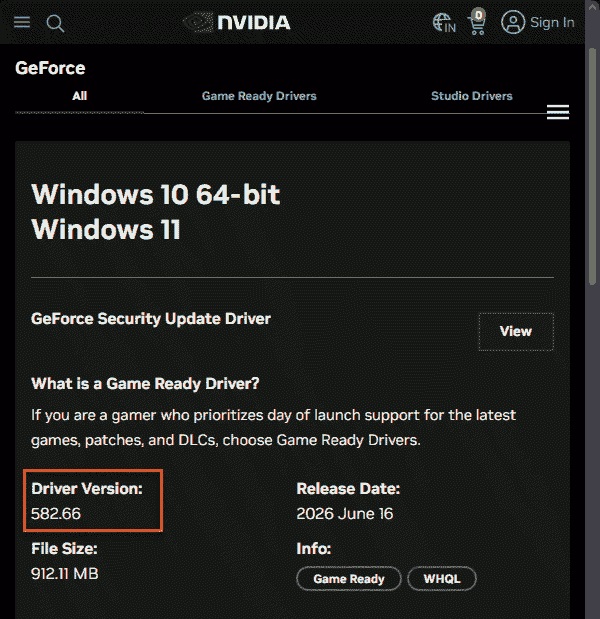
1 – For graphics, go straight to NVIDIA, AMD, or Intel and download the latest driver for your card.
2 – For Wi-Fi and chipset, open your PC maker’s support page — Dell, ASUS, Lenovo, whoever made it — and search your exact model.
3 – Download and install the newest chipset and wireless drivers listed there.
4 – Reboot after each install.
Modern standby leans hard on the GPU, so don’t skip the graphics one. It’s often the actual fix.
Fix 3 – Find the Exact Driver That’s Crashing
Don’t want to guess? Every blue screen leaves a crash report, and a free tool reads it for you. This tells you precisely which driver stalled.
1 – Download BlueScreenView (it’s free and tiny) and open it.
2 – It automatically loads your latest crash file from this folder:
C:\Windows\Minidump
3 – Look at the Caused By Driver column. It names the .sys file behind the crash.
4 – Match that file to a device. Names with “net” or “wifi” point to wireless; “nvlddmkm” is NVIDIA graphics; storage drivers often end in “stor” or “nvme”.
Now you know exactly what to update or tweak. Aim Fix 2’s update right at that device instead of doing all three.
Fix 4 – Stop Throttling Your PCIe Lanes
Your GPU and NVMe drive ride on high-speed lanes called PCIe. Windows tries to power those lanes down to save energy, and that’s what causes the wake timeout for a lot of people. Switch the throttling off.
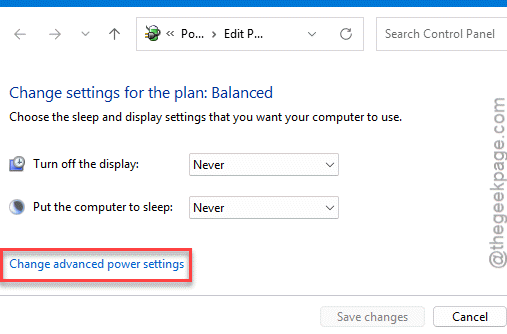
1 – Click Start, type Edit power plan, and open it.
2 – Click Change advanced power settings. A small window opens.
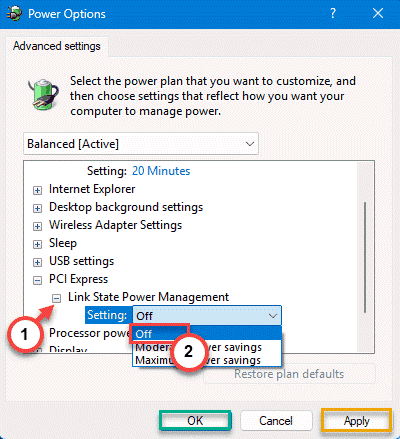
3 – Scroll down and expand PCI Express, then Link State Power Management.
4 – Set both On battery and Plugged in to Off.
5 – Click Apply, then OK.
See if this works.
Fix 5 – Tame Your Wi-Fi Adapter’s Power Settings
If the crash dump in Fix 3 pointed at your wireless card, this is the one.
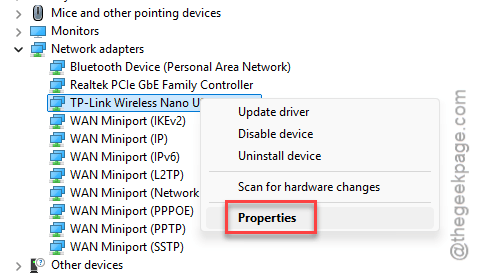
1 – Press Windows + X and click Device Manager.
2 – Expand Network adapters and right-click your Wi-Fi card. Choose Properties.
3 – Click the Advanced tab. You’ll see a long list of settings.
4 – Find Ultra Low Power Mode and set it to Disabled. Do the same for Energy-Efficient Ethernet and U-APSD Support if they’re listed.
5 – Click OK.
Not every card lists those exact names. If yours is missing one, skip it — no harm done.
How to Prevent This
– Keep graphics, Wi-Fi, and chipset drivers current straight from their makers. Stale drivers are what start this whole mess.
– Leave Fast Startup off. It saves a few seconds at boot but invites these stuck-state crashes back.
– After a major Windows update, re-check the PCIe and Wi-Fi power settings. Updates love to reset them.
– If wake crashes only hit on battery, build a separate power plan with the network and PCIe throttling turned off for unplugged use.
People Also Ask
What does DRIVER_POWER_STATE_FAILURE mean?
It means a device didn’t switch power states in time. When your PC sleeps or wakes, Windows tells each device to power down or up. If one — usually a Wi-Fi, Bluetooth, or storage driver — doesn’t respond fast enough, Windows crashes on purpose to avoid data damage.
Why do I get a blue screen when my PC wakes from sleep?
Because waking is the hard part. Devices have to power back up on cue, and a slow or buggy driver can miss the deadline. Modern standby makes it more common, since devices wake and sleep constantly. Updating drivers and turning off the aggressive power-saving modes usually clears it.