HP offers their proprietary HP Smart tool to help the users to get a one-stop solution for every printer-related needs. Some users have got this error “Scanning is currently unavailable” message while trying to scanning pages with their HP machines. So, we have taken up this opportunity to explain the perfect troubleshooting steps to quickly resolve the problem.
Fix 1 – Remove the printer and reconnect
You can remove the printer from your Windows Settings and reconnect the printer afresh.
Step 1 – Just press the Win+I buttons together.
Step 2 – After this takes you to the Settings utility, reach the “Bluetooth & Devices” tab.
Step 3 – Next, go to the “Printers & Scanners” menu.
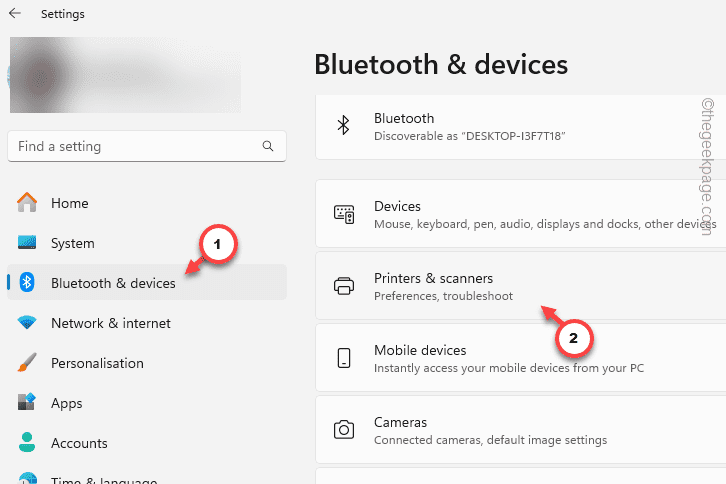
This is the place where you can find the list of printers connected to your computer.
Step 4 – Then, tap the particular printer where you can’t scan your document.
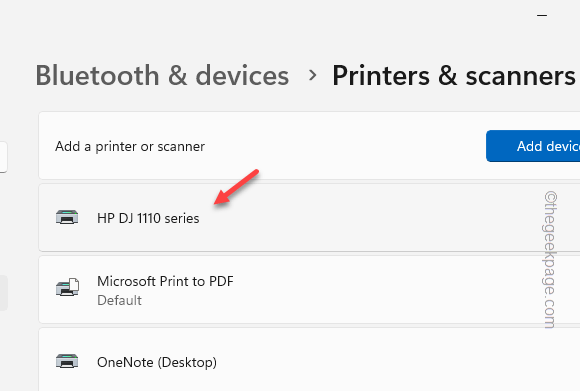
Step 5 – Inside you will find the “Remove” option at the top. Tap the option to remove printer from your device.

After removing the printer, the HP printer entity will disappear from the list of printers.
Step 6 – Now, just detach the USB cable that is connected to your computer. Then, wait for a few seconds and reconnect the same printer using the same cable.
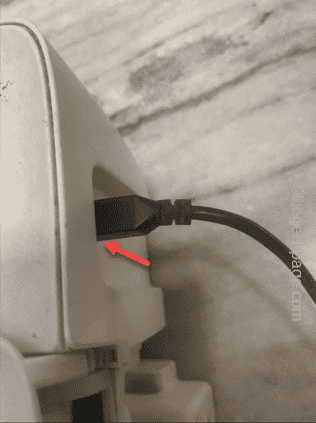
NOTE – If you are using a network connected printer, restarting the printer should do the trick.
Once you have reconnected the printer, try using the same scanning functions.
Fix 2 – Remove and add the printer
If you are still having trouble with the scanning operation on the HP Smart app, you should uninstall the HP Smart app and reinstall the same.
Step 1 – Remove the printer, following the same steps of the Fix~1.
Step 1 – Then, go search for “HP Smart” from the search box.
Step 2 – Later, right-click the “HP Smart” app and click “Uninstall” to uninstall it.
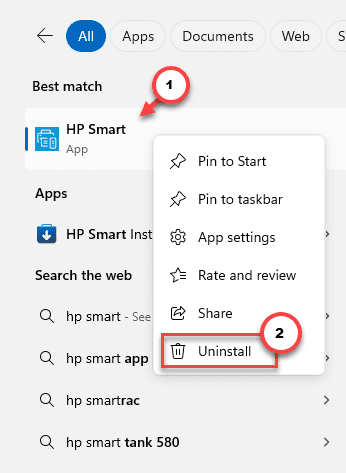
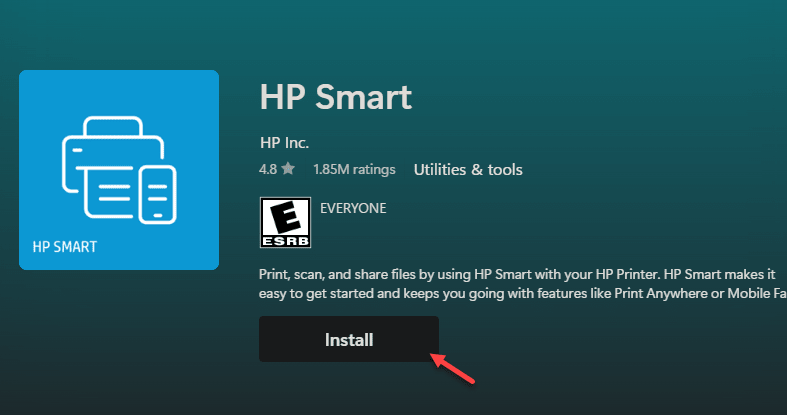
Step 3 – After uninstalling the HP Smart app, load up the HP Smart app page on MS Store.
Step 4 – Tap “Install” to download the installer file.
Step 5 – Go to the download location and run the “HP Smart Installer” file.
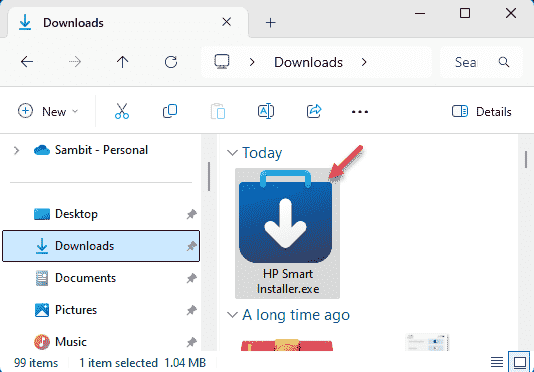
It will automatically download the HP Smart app on your Windows machine.
In the meantime, make sure the printer is turned on and connected to your computer. If the printer driver is already uninstalled from your device, you may have to reinstall the driver printer driver.
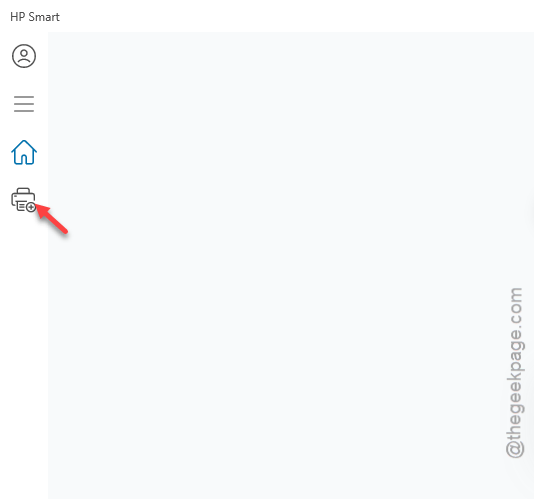
Step 6 – After it loads up the HP Smart app, tap the “Add printer” option from the left pane.
Step 7 – Next, select the printer from the following step to set up the printer on your device.
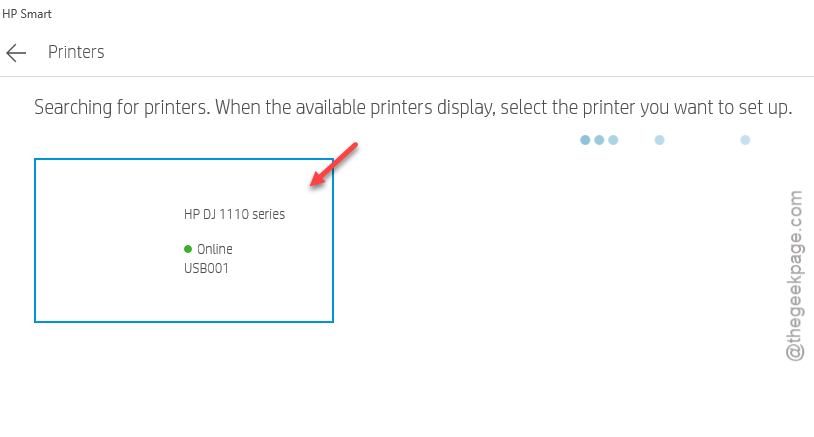
After doing this, you can use the printer to scan documents again. See if this works.
Fix 3 – Power cycle the printer
You should power cycle your HP printer.
Step 1 – Turn off your printer. Press the power button to turn it off.
Step 2 – Disconnect the power cable from the printer and the system.
Step 3 – Now, wait for 60 seconds or so.
Step 4 – Then, use the power cord to connect the printer and Windows system.
Step 5 – Finally, press the power button on the printer to turn it on.
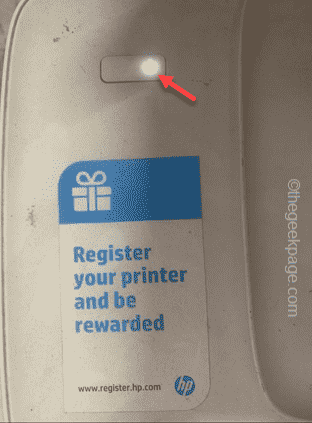
Once you have turned it on, give the scanning operation another try. Check if this works out for you!