Installed KB5083769? And now BitLocker is asking for your recovery key. Out of nowhere. Just a 48-digit prompt staring at you on a black screen.
Why This Happens
Short version: Microsoft’s October 2025 update changed how BitLocker reads TPM platform validation. The PCR profile bindings get re-evaluated after the patch. And if your Group Policy is locked to a specific TPM platform validation profile? BitLocker thinks something has changed.
So it locks you out. Demands the recovery key. No warning before the update, by the way. Microsoft just… pushed it.
Annoying. Especially because the affected machines were working fine the day before.
Fix 1 – Enter Your Recovery Key (If You’re Locked Out Right Now)
You will need that 48-digit key, if the BitLocker recovery screen is stuck on your machine.
1 – You have to use another device. Load up a browser and go to Microsoft Account Recovery.
2 – Now, just sign in with your Microsoft account which you are using on the locked out device.
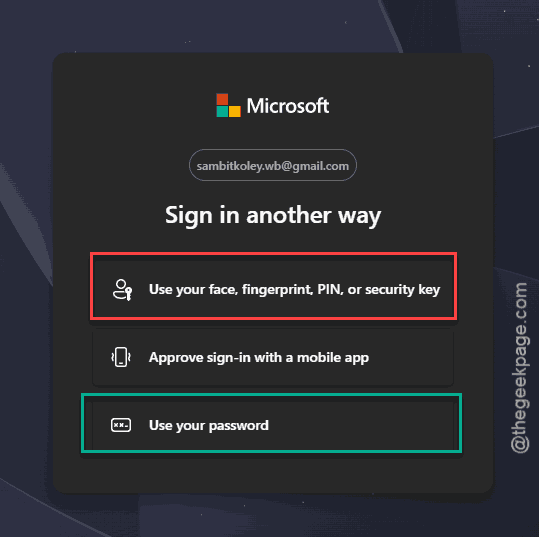
3 – Find the device in the list. Copy the 48-digit recovery key.
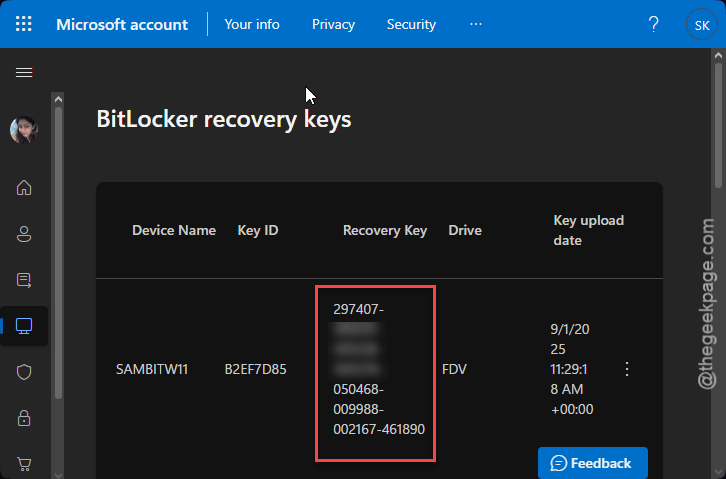
4 – Type it into the BitLocker prompt on the locked machine. Carefully. One wrong digit and you start over.
5 – Press Enter to boot.
Once you’re back in Windows, do Fix 2 to stop this from happening on every reboot.
Fix 2 – Remove the Group Policy Causing It
Some users have denoted that the TPM platform validation policy as the culprit for this problem.
1 – Use the Windows + R shorcut key to float up a Run dialog.
2 – Write down this gpedit.msc code and hit Enter.
3 – Next, go this way –
Computer Configuration > Administrative Templates > Windows Components > BitLocker Drive Encryption > Operating System Drives.
4 – Now, locate the Configure TPM platform validation profile for native UEFI firmware configurations policy on the right-hand side. It’s buried near the bottom for some reason.
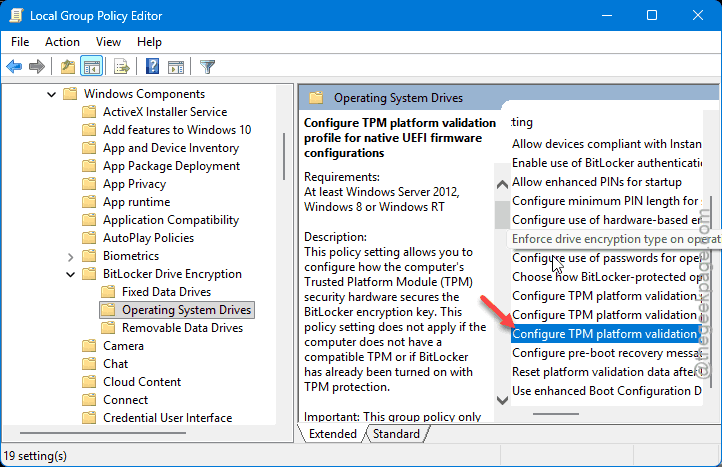
5 – Double-click it. Set it to Not Configured. Click OK.
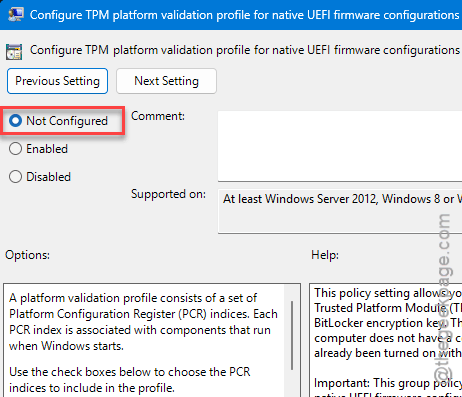
And now push the change to apply.
6 – At the next step of the solution, right-click Start and choose Terminal (Admin) or Command Prompt (Admin).
7 – Write this down and press Enter.
gpupdate /force
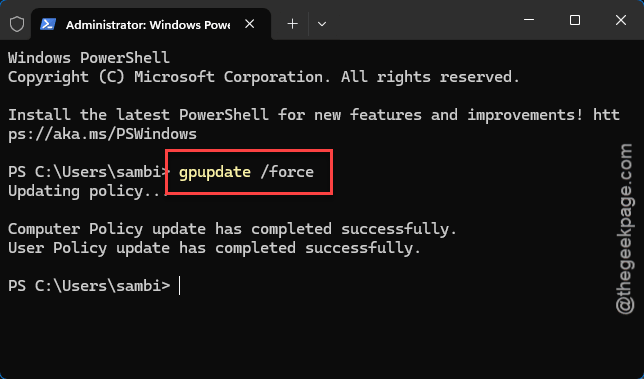
Wait for it to finish.
Fix 3 – Refresh BitLocker Bindings
After Fix 2, you need to tell BitLocker to use the default profile. Otherwise the recovery key prompt might still come back.
1 – Open Command Prompt as admin again. Windows + X is the shortcut.
2 – Type manage-bde -protectors -disable C: and press Enter. This suspends BitLocker temporarily.
3 – Then type manage-bde -protectors -enable C: and press Enter. This resumes it.
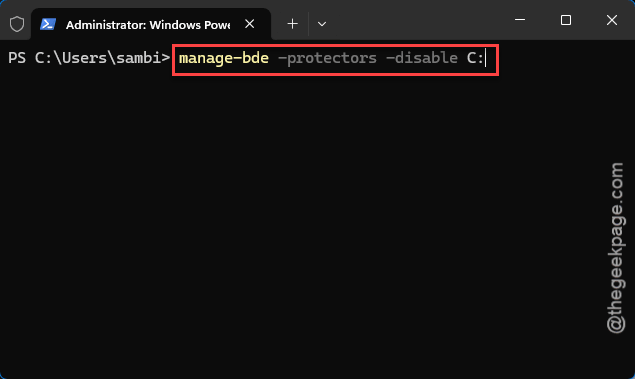
That second command updates the bindings to use Windows’ default PCR profile. No more recovery key prompts every reboot.
If your BitLocker drive isn’t C:, swap the letter. Easy enough.
Fix 4 – Pause the Update (If You Haven’t Installed It Yet)
Still on the build right before KB5083769? Skip the update entirely. At least until Microsoft pushes a fix.
1 – Open Settings with Windows + I.
2 – Click Windows Update in the left sidebar.
3 – Click Pause updates near the top right.
4 – Pick a duration. Up to 5 weeks.
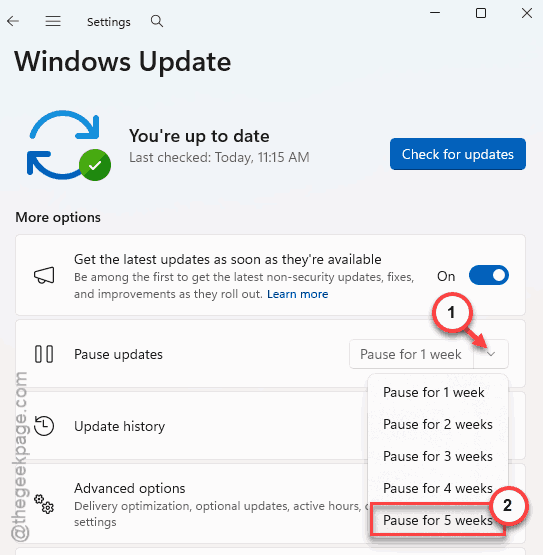
Microsoft will likely fix this in a future cumulative. Hopefully.
Fix 5 – Use Known Issue Rollback (Enterprise Only)
Got a managed device? Your IT admin can use Microsoft’s Known Issue Rollback (KIR). It’s a Group Policy that reverts the broken behavior without uninstalling the whole update.
Ask IT to:
- Download the KIR Group Policy MSI from Microsoft’s release health page.
- Apply it to affected devices through GPO.
- Restart the machines.
Home users can’t do this. But on a corporate network? It’s the cleanest fix.
How to Prevent This
- Don’t install optional preview updates if BitLocker is on. They break things first.
- Keep your TPM firmware updated through your manufacturer’s tool.
- On Pro or Enterprise, enable automatic recovery key backup to Active Directory or Entra ID.
People Also Ask
How to solve BitLocker recovery key issue Windows 11?
Grab your 48-digit recovery key from your Microsoft account at account.microsoft.com/devices/recoverykey. Type it in to unlock. Then once you’re back in Windows, run gpupdate to clear the bad policy. Use manage-bde to refresh BitLocker bindings. That stops it from happening on every boot.
Why does my laptop prompt for BitLocker recovery key after Windows 11 update?
Usually a TPM platform validation policy mismatch. The update changes how the PCR profile is read. And if a Group Policy locked it to a specific profile? BitLocker freaks out. It assumes hardware tampering and demands the key. Removing the policy and refreshing bindings fixes it.