Does the Hollow Knight: SilkSong crashing or not even launching on your Windows computer? Hollow Knight: SilkSong, the Metroidvania gameplay with excellent hand-drawn art style, has gripped the gaming world. But, these sudden crashes during your gameplay or even at the startup can dissuade from diving into this Metroidvania. The outdated driver or corruption in the Hollow Knight SilkSong game files can cause this issue.
Fix 1 – Verify the Hollow Knight: SilkSong Game Files
If some of the Hollow Knight: SilkSong is corrupt, that can lead to such crash at the game startup.
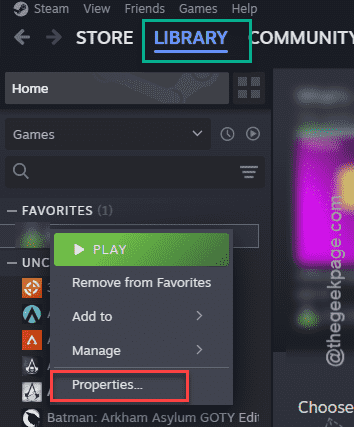
Step 1 – Open the Steam client. Go to the Library page.
Step 2 – Locate the Hollow Knight: SilkSong on the left tab. Next, right-click the game and tap Properties.
Step 3 – On the game properties page, load up the Installed Files tab. Use the Verify integrity of game files option.
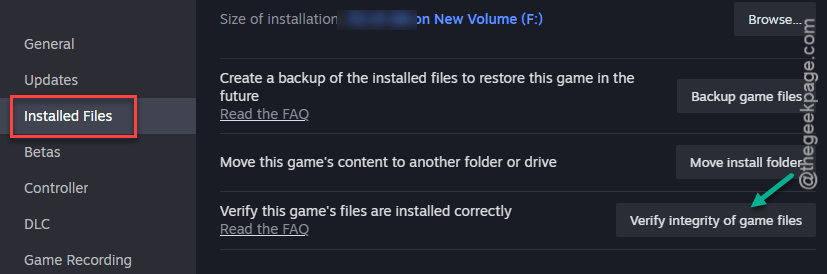
The small game file size of the Hollow Knight: SilkSong should not take more than 3–4 minutes for Steam to verify the game files and fix the corruption.
Try to play game again.
Fix 2 – Reduce the Hollow Knight: SilkSong Resolution
Playing the Hollow Knight: SilkSong in low resolution or in windowed format can solve sudden crashes during the gameplay.
Step 1 – Launch the Hollow Knight: SilkSong on your system.
Step 2 – Do not start to play the game just yet. Instead, go to the Options tab.
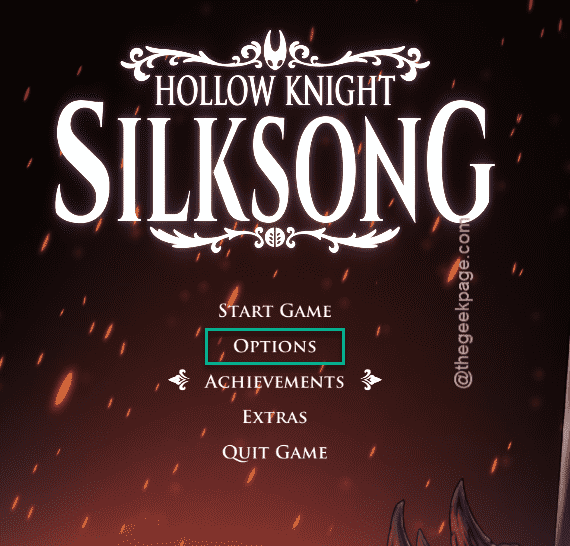
Step 3 – Go to the Video settings in there.
Step 4 – Now, set the Full Screen mode to Off. Next, set the Resolution to a lower value, like, 600*800.
Step 5 – Tap Apply to apply the changes on both the settings.
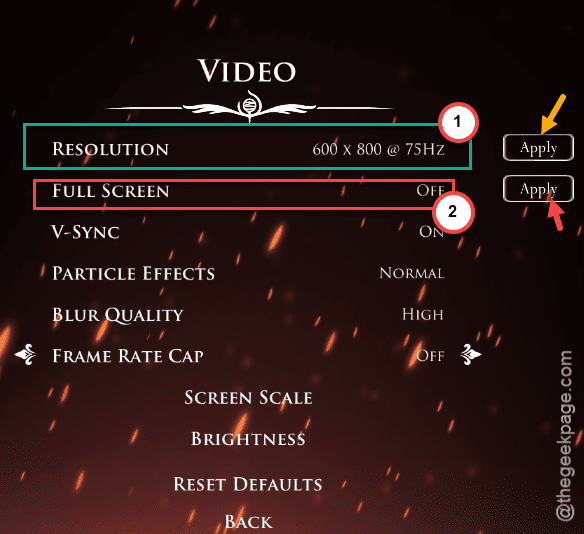
After applying the changes, the game will run on a lower resolution.
Fix 3 – Run the game on dedicated graphics card
Make sure the Hollow Knight: SilkSong uses the dedicated GPU to run, instead of the integrated one.
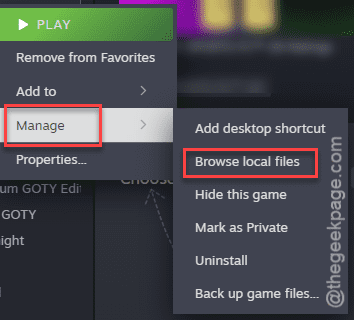
NOTE – Make sure to grab the installation location of the Hollow Knight: SilkSong from Steam –
Steam > Library > Hollow Knight: SilkSong > Manage > Browse Local files
Step 1 – Open the Settings and proceed this way –
System > Display > Graphics

Step 2 – Then, tap the Add desktop app option.
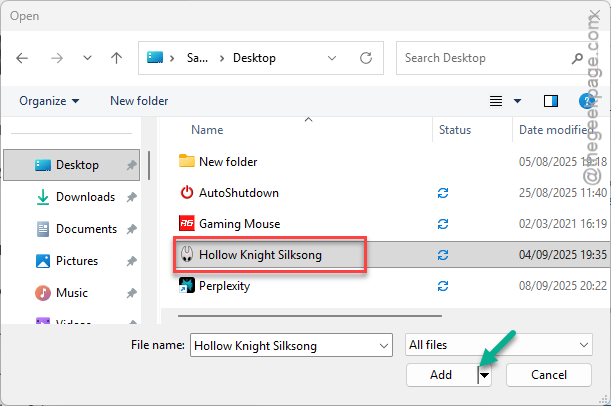
Step 3 – Now, navigate to the location of Hollow Knight: SilkSong and select the executable file and tap Add to add it to the list of apps.
Step 4 – Expand the Hollow Knight: SilkSong game there.
Step 5 – Next, choose the dedicated GPU from the drop-down in the GPU Preference.
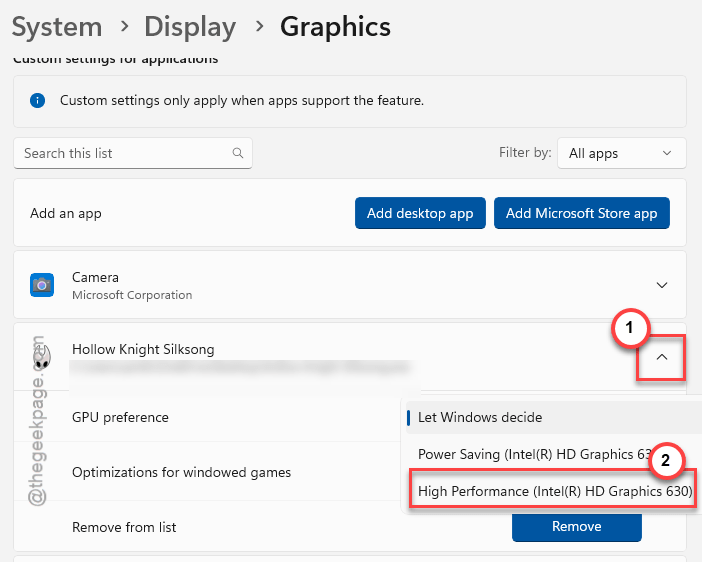
This way, the Hollow Knight: SilkSong will be using the dedicated GPU. You can enjoy the game without any further crashes.
Fix 4 – Update the GPU Driver
AMD users have blamed the outdated driver for this particular crash. Irrespective of which GPU card you are using, updating it to the latest version should help.
AMD users –
Download and use the AMD Adrernalin app to update the GPU to the latest version. Otherwise, you may download the latest driver package for your AMD Radeon card and install it directly from the AMD Drivers page.
NVIDIA users –
NVIDIA users can use the NVIDIA app to download and install the latest version of the graphics driver on your system.
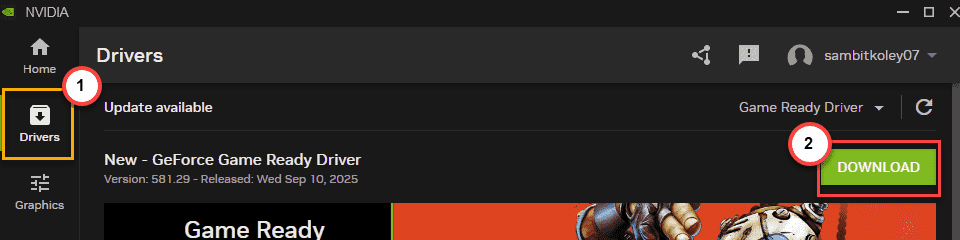
You can get the latest driver package for your NVIDIA card directly from the NVIDIA Driver Support page.
Intel Arc users –
The users with the Intel Iris, Xe or another series of integrated graphics card can download and install the latest driver package from the Intel Arc Graphics driver page.
You can follow the steps of this guide to download the latest Intel GPU driver.
Fix 5 – Disable or Turn Off Conflicting Software like Citrix
The original Hollow Knight had reports of clashing with third-party applications like Citrix Workspace, Rivatuner.
Step 1 – Disable or quit of the applications listed below –
Citrix Workspace
RivaTuner
MSI AfterBurner
OverWolf
Open BroadCasting Software (OBS)
Razer Synapse
MSI Dragon Centre
Corsair Software
Step 2 – Turn off any external overlays from these applications –
Disable Steam Overlay
Discord Overlay
NVIDIA App Overlay
Amd Overlay
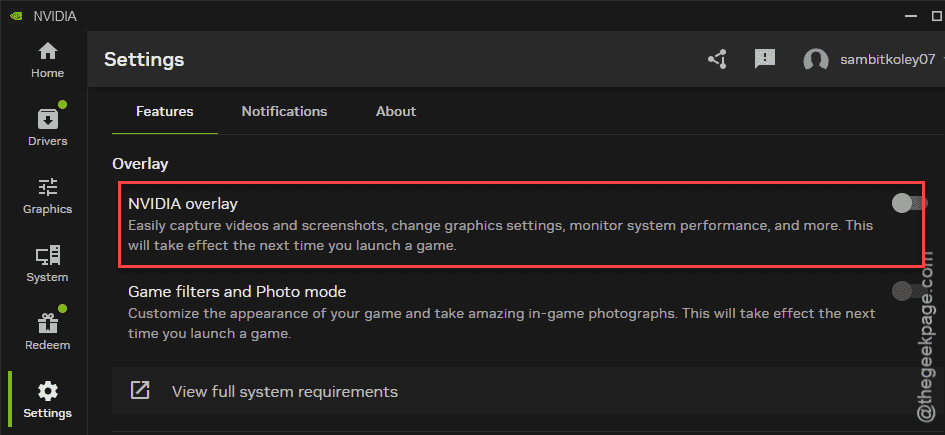
Once you have disabled the overlays and terminated the conflicting applications on your device, launch the Hollow Knight: SilkSong. Test if this works.
Fix 6 – Unplug any Old Controllers from your system
Users have reported that extra peripherals like old PS2/PS3, Xbox controllers plugged into the system has caused the Hollow Knight: SilkSong to crash.
Step 1 – Unplug any external peripherals you are using. Here is the list of external attachments that you want to detach –
Any old gaming controllers such as Xbox, PS2/PS3 controllers, adapters
Joysticks, Hotas, Pedals, Simulation equipments like Racing wheel, Flying SIM components
Other USB attachments that you no longer use
Step 2 – Try to play game now.
There won’t be any crashing issues anymore.
FAQs –
Here are some of the frequently asked questions that users may ask –
1. Does Hollow Knight: SilkSong has a high system requirement?
No. Hollow Knight: SilkSong is a platform, adventure type game that can run even on an entry level system. You can enjoy the game even on older PCs without any major performance drawbacks.
2. Why Hollow Knight: SilkSong is not launching or crashing?
Windows users may experience crashing while playing Hollow Knight: SilkSong due to outdated GPU drivers, unnecessary peripherals, corrupted game data, etc. You can play the game after updating the GPU driver and fixing the game data files.