Getting Game crashed message along with the Exit Code: -1 while launching Minecraft from the Minecraft Launcher? This is a well known issue in the Minecraft community, where the game crashes before it even launches. Normally, a particular mod cause this issue in Minecraft, but, there are other possible reasons, like, obsolete GPU driver, corruption in the main Minecraft game files.
Fix 1 – Update the Graphics Card Driver
Using old GPU driver for too long can cause such problems while launching Minecraft from the Minecraft Launcher.
NVIDIA users –
NVIDIA users can use the NVIDIA app to download and install the latest version of the graphics driver on your system.
Step 1 – Launch the NVIDIA App.
Step 2 – Next, go to the Drivers tab. Check whether you can find any pending driver updates for your GPU. Tap Download to download the driver package.
Step 3 – Use the Express Installation option next so that the GPU driver gets updated automatically.
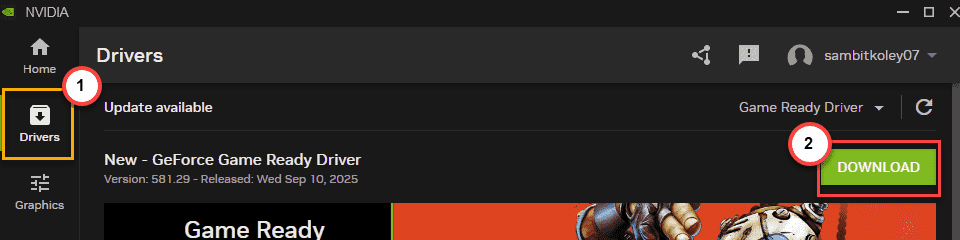
NOTE – You can directly download and install the latest driver package for your NVIDIA card from the NVIDIA Driver Support page.
AMD users –
Download and use the AMD Adrernalin app to update the GPU to the latest version. Otherwise, you may download the latest driver package for your AMD Radeon card and install it directly from the AMD Drivers page.
Intel Arc users –
The users with the Intel Iris, Xe or another series of integrated graphics card can download and install the latest driver package from the Intel Arc Graphics driver page.
After updating the graphics card driver, check whether you can play Minecraft.
Fix 2 – Remove Mods from Minecraft
User reports suggest some of the mods of the Minecraft has caused the launcher to crash, along with the Exit Code -1 error.
Step 1 – Close any Minecraft game you are currently playing.
Step 2 – Next, launch the Minecraft Launcher.
Step 3 – After that, select the Minecraft edition where you are having the Exit Code:-1. Go to the Installations section.
Step 4 – Locate any mods that you have and tap three-dot button, and tap Delete to remove the mod.
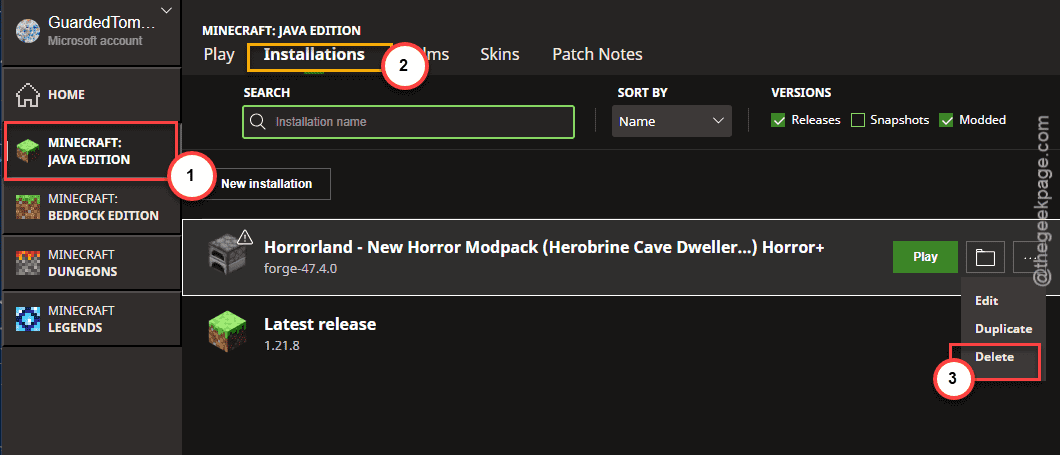
Step 5 – Here, is the list of mods that have reports of causing the Exit Code-1 on Minecraft –
OptiFine
Create
Compressed
MagicMirror
Infinite Trading
SuperMartijn642CoreLib
Any other Unattended Mods
This way, after deleting such mods from the Minecraft game, the issue will be fixed.
NOTE – Best way to remove all the mods at once is to uninstall the Minecraft game, and reinstalling it afresh.
Fix 3 – Delete the WebCache2 folder to avoid cache corruption
The possible corruption in your Minecraft local folder can be held responsible for this issue.
Step 1 – Quit any current instance of Minecraft game that you are playing. Close the Minecraft Launcher as well.
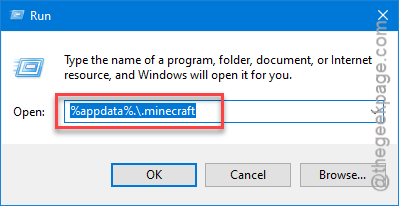
Step 2 – Next, load up a Run box using the Win+R keys at once.
Step 3 – Later, paste this and, click OK.
%appdata%.\.minecraft
Step 4 – Once you reach the .minecraft folder, you locate the webcache2 folder in there and delete that.
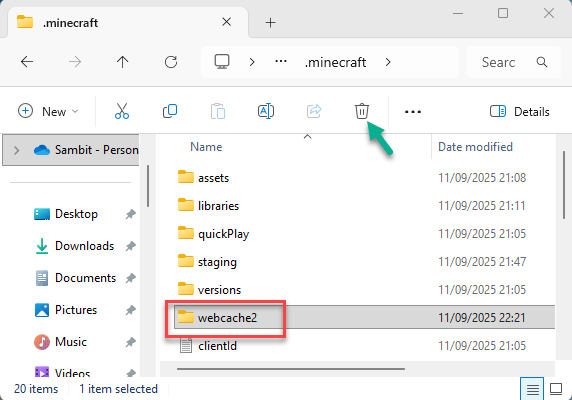
After deleting that particular folder, close everything else and relaunch Minecraft from the Minecraft Launcher.
Go for the next one, if this one fails.
Fix 4 – Uninstall Minecraft and Reinstall Minecraft
You can uninstall the Minecraft from the local folder, and reinstall the same.
Step 1 – Quickly open up a Run box. Use this code to reach the Minecraft folder on your local drive.
%appdata%\.minecraft
Step 2 – Now, before you delete everything from this folder, look for a folder called Saves folder. This folder contains all the worlds you have created.
So, backup the Saves folder in a location of your choice.
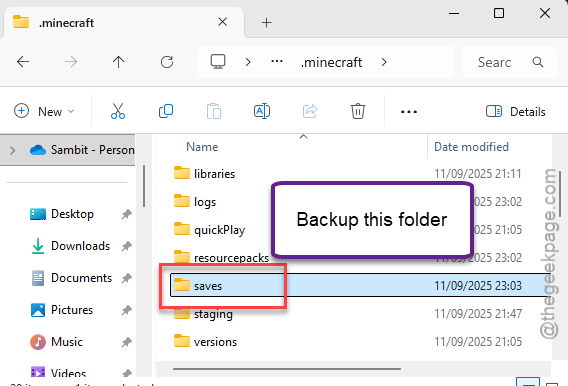
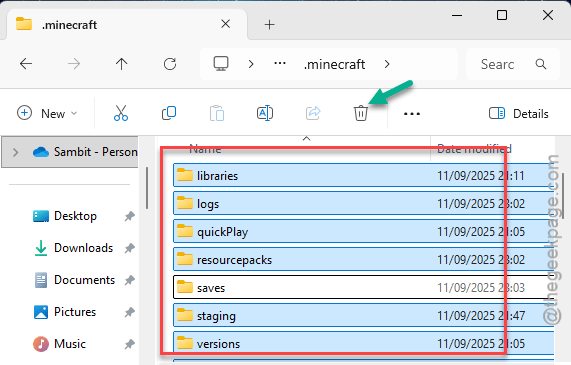
Step 3 – After this, delete everything from the same folder except the ‘Saves‘ folder.
Step 4 – Now, relaunch the Minecraft Launcher utility.
Step 5 – Tap Sign in to sign in using your Microsoft account.
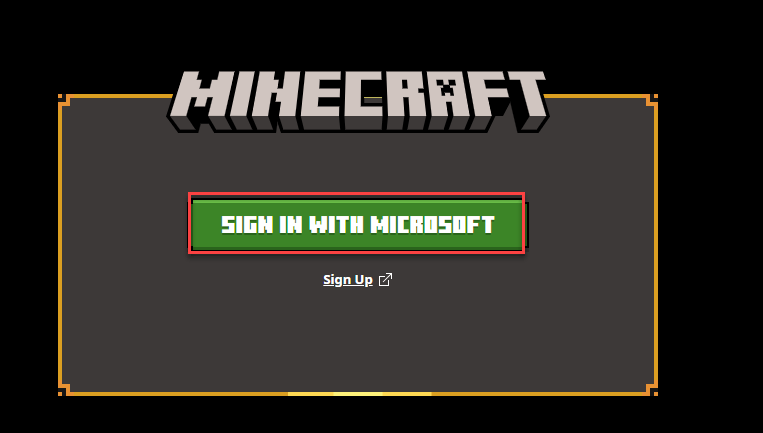
Step 5 – You can now reinstall Minecraft version that you have just removed. Just select the iteration that you have deleted, tap Play to install the Minecraft version.
Wait for the installation to finish, you can play the game without any crashes with Exit Code: -1 or such.
Final Suggestions
It seems that the several Minecraft mods are responsible for this particular crash. We suggest you play the main game without installing any additional untrusted mods from elsewhere. Using the latest version of the graphics card driver should help in resolution for this particular issues, such as Exit Code -1 or 0.