Does all your documents are opening up in a table format? Some of the users have met with this problem while working. In this case, the whole page is appearing in a table, grid format over the actual document. Not only this is extremely annoying, it can have negative impact on working mentality. Usually, this is just a View modification on MS Word, like, the Text Boundary or Grid lines settings that is showing this table like format on the Word document. Here are some helpful tips that can solve this issue.
Fix 1 – Turn off the Text Boundary from Word Preferences
The main reason why you are seeing the table format on your Microsoft Word, the Text boundary feature is turned on.
Step 1 – Proceed to the File menu on the Microsoft Word app.
Step 2 – Next, tap the Options tab.
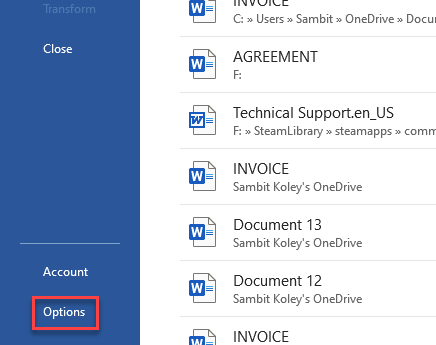
[ On newer version of Word, you may follow this path – Word -> Preferences ]
Step 3 – Now, go to the Advanced section. Reach the Show Document content section, and uncheck the Show text boundaries feature.
Step 4 – Tap OK to save the changes.
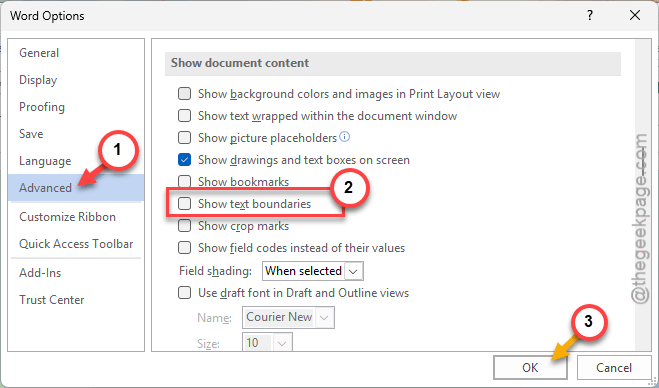
After disabling the text boundaries feature, there won’t be any more issues with the table format appearing on the document in Microsoft Word.
Fix 2 – Modify the Normal Style in MS Word
There is a chance that document is using the modified version of Normal Style that apply borders in certain areas.
Step 1 – Open a new blank document in MS Word.
Step 2 – Go to the Home button there. Find the Normal style there. Right-click the Normal style, and tap the Modify button.
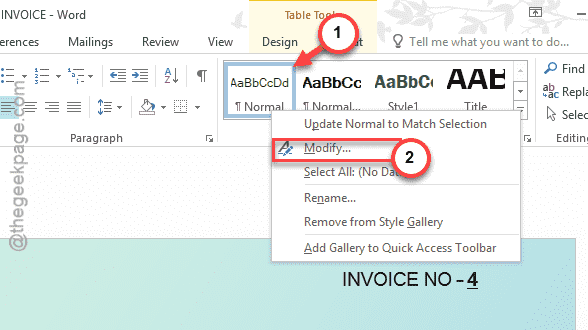
Step 3 – Now, tap the Format drop-down box and select the Border from the drop-down menu.
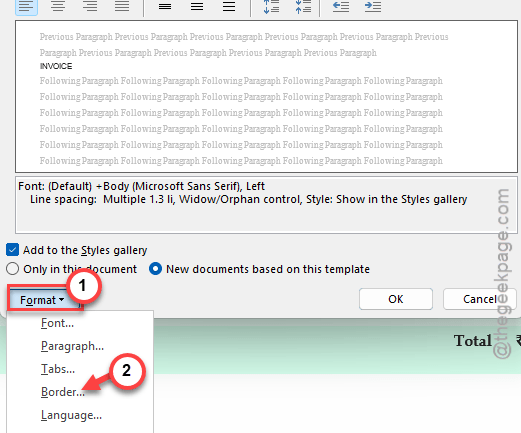
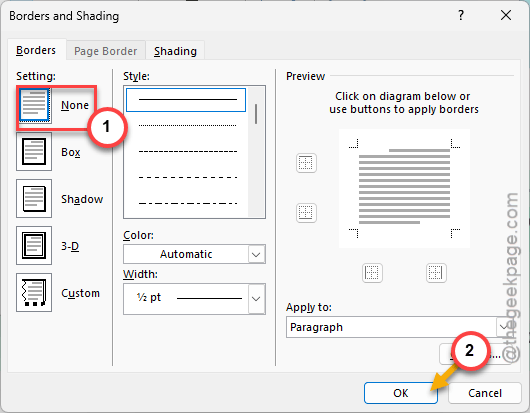
Step 4 – Set the Border style to None. Click OK to save the changes.
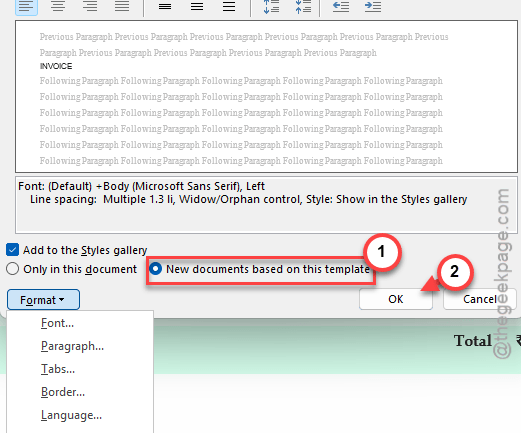
Step 5 – Coming back to the Modify Style page, make sure to select the New documents based on this template option. Tap OK to save changes.
After applying this change, return to your original document, and you can access it without any lay over issue.
Fix 3 – Disable the Gridlines View in Microsoft Word
The Gridlines view, when activated in Microsoft Word, shows up grid all over the documents. Even all the new documents that you create will show up with grid lines all over them. You can easily deactivate this feature in MS Word.
Step 1 – Fixing this is quite easy. All you have to do is to go to the View tab.
Step 2 – Then, uncheck the Gridlines option.
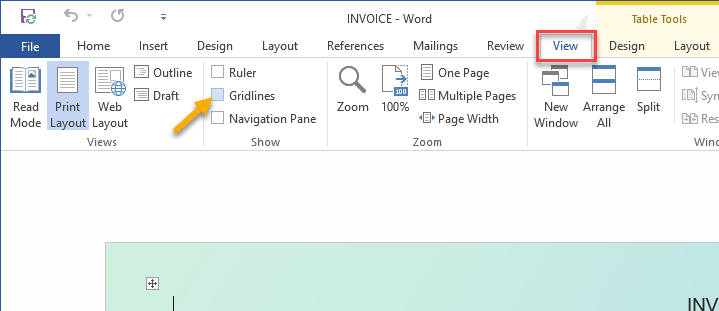
The grid lines will now disappear from the document, retrieving the normal view in the application.
Fix 4 – Copy the contents to a fresh new document
There is a chance that the file has got corrupted somehow. So, we recommend you create a duplicate of this file.
Step 1 – To do this, you must go to the File menu and create a new Blank Document.
Step 2 – Now, select the contents from the original document where you are having this problem.
Step 3 – Paste the content there and create the document.
There won’t be any more issues with the new document. Check if this works or not.
NOTE – You can also save the file under a new name to get rid of possible contradictions with the existing version of the document.