Getting the Connection timed out: getsockopt error while trying to log in to Minecraft launcher? This is a networking problem that is prevalent in the Java version of the Minecraft, and the faulty network configurations may lead to this issue. These solutions will help you fix the issue in the Minecraft in no time.
Fix 1 – Add a firewall rule
For the majority of the users with the getsockopt error have originated from the firewall. Just put an exclusion for Javaw.exe and Minecraft programs and that should fix the issue.
Step 1 – At first, press the Win+R buttons together. Then, input this and click OK.
firewall.cpl
Step 2 – When the Firewall panel opens up, tap the Allow an app or feature through Windows Defender Firewall option.
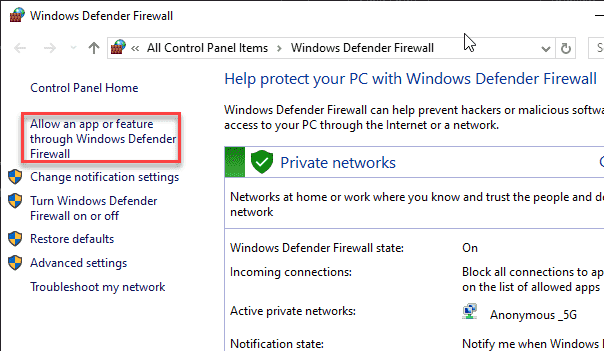
Step 3 – Tap the Change settings option in there.
Step 4 – Now, find the javaw.exe application in there. Check both the public and private boxes along that application to allow it through your system firewall.
Step 5 – Next, following the same method, go through the entire list of applications and allow any Minecraft related application (like – Minecraft Java Edition, Minecraft Launcher) through the firewall.
Step 6 – Tap the OK button to save the changes there.
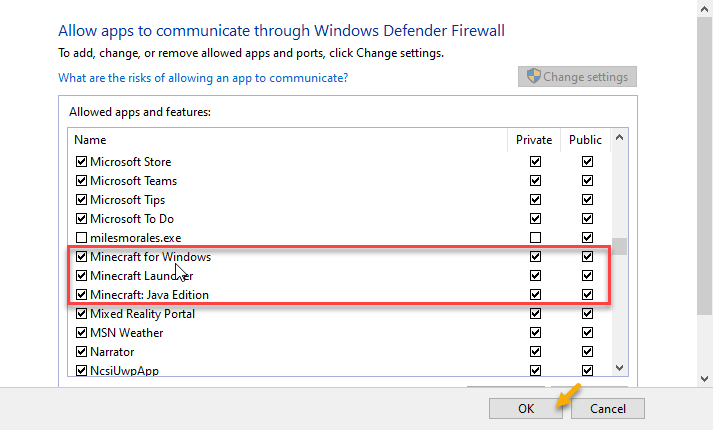
Finally, go back to the Minecraft game and try to join that particular server once again.
Fix 2 – Check the server’s viability
Check whether the Minecraft server that you are trying to join is down or not. Minecraft Server Status page is the easiest way of tracking server outages for a particular Minecraft server.
Step 1 – Copy the server address that you were having the gtsockopt error.
Step 2 – Then, load up the Minecraft Server Status page.
Step 3 – Paste the server address in the box and tap Get Server Status option.
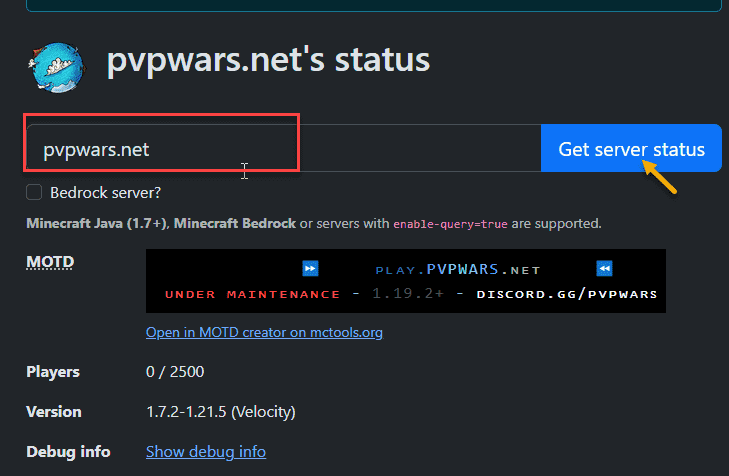
Wait for a few seconds, and you will get to see the current status of the particular server. This will help you understand whether the problem has generated from your end or the server end.
If the server shows up with a tag of ‘Under Maintenance’, it will be resolved in due time. Wait for some time and you can join the server sometime later.
Fix 3 – Flush the network DNS and reset it
The network DNS configurations can be refreshed using a few codes from the CMD terminal.
Step 1 – To do that, write cmd in the search box. When you see the Command Prompt and tap Run as administrator.
Step 2 – Then, paste these commands and hit Enter to flush the network configuration.
ipconfig /flushdns
netsh winsock reset
netsh int ip reset
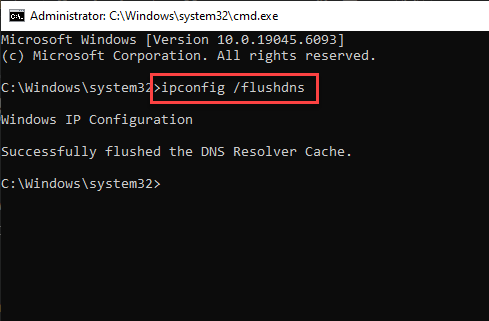
After executing these three commands, it will reset the networking components for your system. You can later give the game another try.
Fix 4 – Modify the DNS settings
Altering the DNS settings should help you solve the issue.
Step 1 – Hit the Win+R buttons together.
Step 2 – Then, type this there and hit Enter.
ncpa.cpl
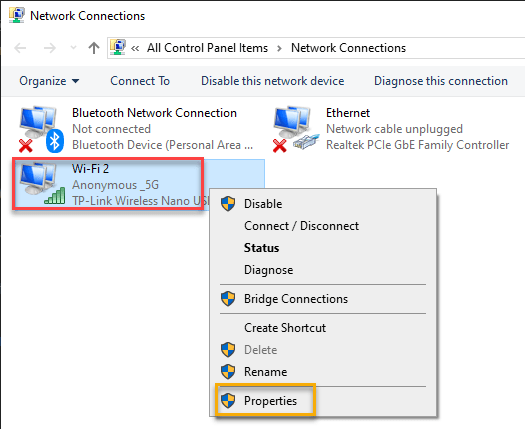
Step 3 – Next, find the network adapter that you are using in the following screen. Right-click that same adapter and tap Properties.
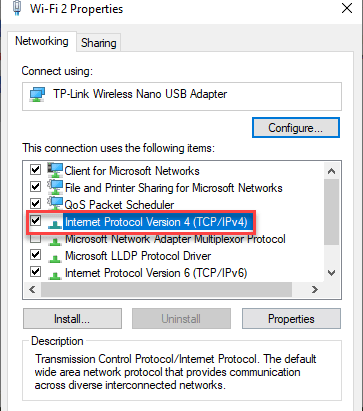
Step 4 – Later, double-tap the Internet Protocol Version 4 (TCP/IPv4) option.
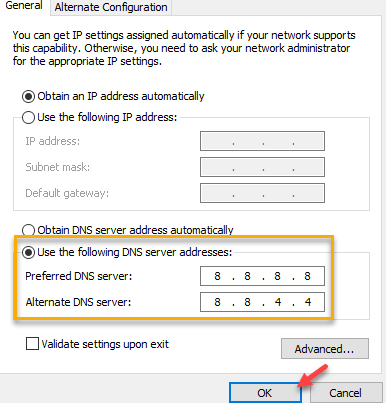
Step 5 – Now, choose the ‘Use the following DNS Server addresses’ option there and set them exactly as the same we have shown here –
Preferred DNS Server: 8.8.8.8
Alternate DNS Server: 8.8.4.4
Step 6 – Tap OK to save the change.
After making the following changes in the network adapter settings, go back to Minecraft and check whether you can join the server or not.