Error messages while launching Minecraft is nothing new. While some users may face the Error 0x80070003 during the log-in process, there are multiple reports of facing the similar problem even while installing the game on the Windows 11/10 machines. This “The system cannot find the path specified” error message is tightly connected to certain reasons, like the incoherent file path, improper system updates. However, there are other scenarios where the corrupted Microsoft Store cache may cause the same problem.
Fix 1 – Clear the Microsoft Store Cache
Empty the Microsoft Store cache on your system, if the Minecraft installer is prompting 0x80070003 error code.
Step 1 – At first, open up the Run box using Win+R shortcut keys together.
Step 2 – Then, paste the code there. Press the Enter key once to run it.
wsreset.exe
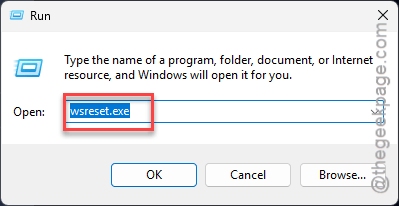
This is a small Microsoft Store resetting command that will clean up the Microsoft Store cache from your system. It just clears up the MS Store cache, but it won’t uninstall or remove any of the apps or associated app data.
Retry installing the Minecraft Launcher once again.
Fix 2 – ReLink the Microsoft Store
Some users have fixed the problem by re-registering the Microsoft Store app on the system.
Step 1 – At first, write down powershell in the search box.
Step 2 – Next, right-click the Windows PowerShell, and tap the Run as administrator option.
Step 3 – Then, paste this line of code in the terminal and hit Enter to relink the MS Store program.
Get-AppxPackage -allusers Microsoft.WindowsStore | Foreach {Add-AppxPackage -DisableDevelopmentMode -Register “$($_.InstallLocation)\ AppXManifest.xml"}
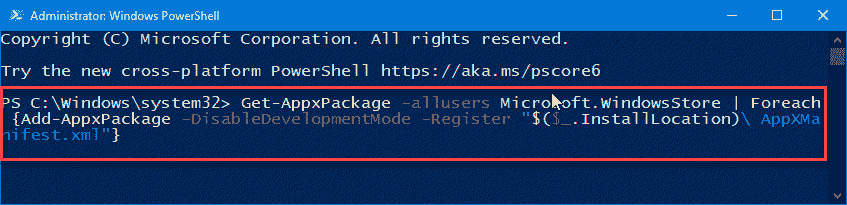
After running this line of code from terminal, you can quit the terminal. Restart the PC once. After this, you are free to download and install Minecraft again.
Fix 3 – Check the Default Installation Path
This error code can appear during installation, if the default is not to set to a correct path.
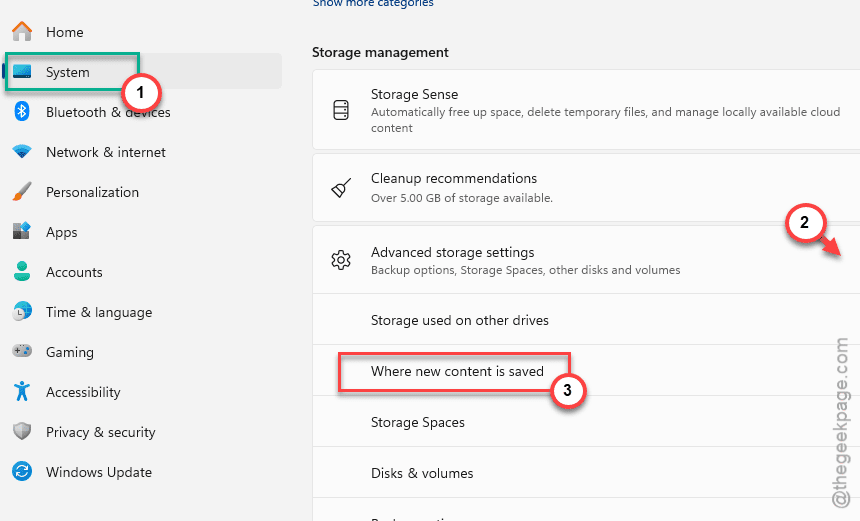
Step 1 – Go to the Settings page, using the Win+I button together.
Step 2 – Next, go to the System settings. Later, proceed to the Storage module.
Step 3 – Now, on the right-hand pane, expand the Advanced storage settings module.
Step 4 – Tap the Change where new content is saved option and load it up there.
Step 5 – See whether the ‘New apps will save to:‘ is set to a correct drive where enough free space is available. You may change it if you want.
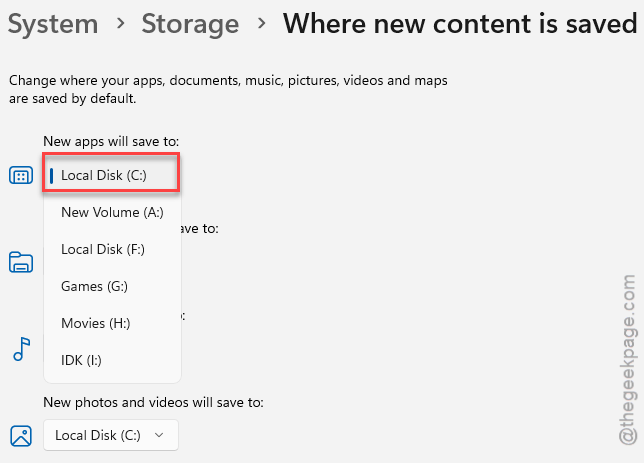
After changing the new app installation location, retry installing the Minecraft Launcher.
Fix 4 – Download Minecraft Launcher Manually
If you are still getting the 0x80070003 error while installing Minecraft Launcher, you can download it from the Minecraft official webpage.
Step 1 – Go to the Minecraft Launcher.
Step 2 – Tap the Download for Windows option to download the Minecraft Launcher setup file.
Step 3 – Then, run the MinecraftInstaller setup file.
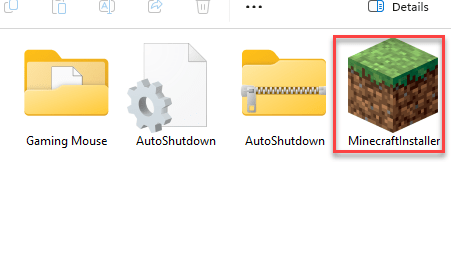
It will download the latest version of Minecraft Launcher and install the same on your system.
Fix 5 – Do Not Install Minecraft on Work PC/Laptop
Workplace policies do block any unwarranted applications or games such as Minecraft to be installed on a work PC/laptop. So, if you are facing the 0x80070003 error code while installing Minecraft on your workplace device, you should refrain from it. Install and enjoy Minecraft on your personal PC, using your own Microsoft account to do that.
FAQs on Error 0x80070003 for Minecraft Launcher –
1. May I get Minecraft Launcher from anywhere, except the official source?
No. You should not download the Minecraft Launcher from anywhere except the original Minecraft (Mojang) website or Microsoft Store due to security purposes. Minecraft Launcher can accommodate to managing all the iterations of Minecraft Java, Bedrock editions and their specific mods. Do not download Minecraft Launcher from unverified sources because those may contain malware.
2. What causes the Error 0x80070003 in Minecraft Launcher?
The Error 0x80070003 ‘The system cannot find the path specified’ error occurs in Minecraft Launcher due to corrupted Microsoft Store cache, incoherent storage path, or Windows Update errors. In the most of the cases, clearing the Microsoft Store cache should fix the problem.