Your smart card worked for years. Then one day? Rejected. On the local network, of all places.
And nothing about the card changed. Same reader, same PIN. So what flipped? A security feature called Credential Guard quietly got in the way. Here’s why, and how to get your login back.
Why This Happens
That’s great for security. But older smart card setups weren’t built for it. Their drivers — the middleware that talks to the card — try to reach into that vault and get blocked at the wall. The login just fails.
There’s a Kerberos angle too. On a network, a server called the KDC checks your card’s certificate before letting you in. Credential Guard demands strict, modern certificates. Got older certificate templates on your local domain controllers? The sealed login process drops the request cold.
One heads-up before you start. If a work IT team manages this PC, loop them in. Some of these changes weaken a security feature on purpose, and they may have a cleaner fix on their end.
Fix 1 – Turn Off Credential Guard Itself
This is the most confirmed fix, so start here. You switch off the virtualization-based security that powers Credential Guard. Needs Windows Pro, Enterprise, or Education — Home doesn’t have the policy tool.
1 – Press Windows + R, type gpedit.msc, and press Enter.
2 – In the left pane, open this path: Computer Configuration, then Administrative Templates, then System, then Device Guard.
3 – On the right, double-click Turn On Virtualization Based Security.
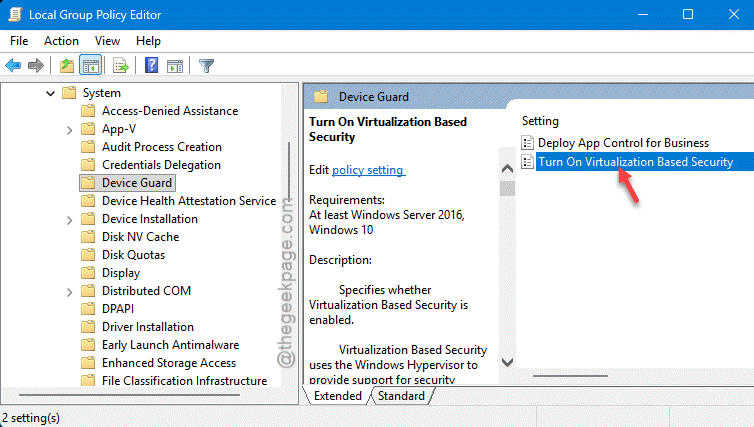
4 – Set it to Disabled and click OK.
5 – Reboot your PC.
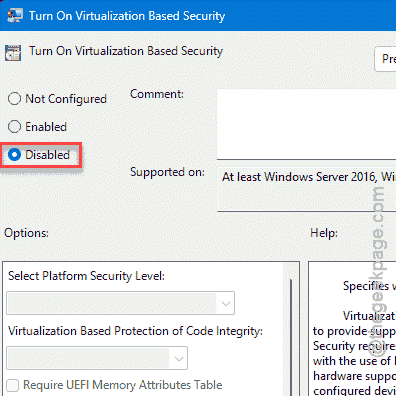
Then reboot it a second time — Credential Guard hangs on through the first restart, so the second one is what actually clears it.
Now test the smart card. For most people, that’s the fix right there.
Fix 2 – Loosen the Strict Certificate Check
Want to keep Credential Guard on but still log in? If your domain uses older certificates, this is the setting to relax. It tells Windows to stop demanding strict KDC validation for smart card logon.
1 – Press Windows + R, type gpedit.msc, and press Enter.
2 – Open this path: Computer Configuration, then Administrative Templates, then System, then Kerberos.
3 – Double-click Require strict KDC validation for smart card logon.
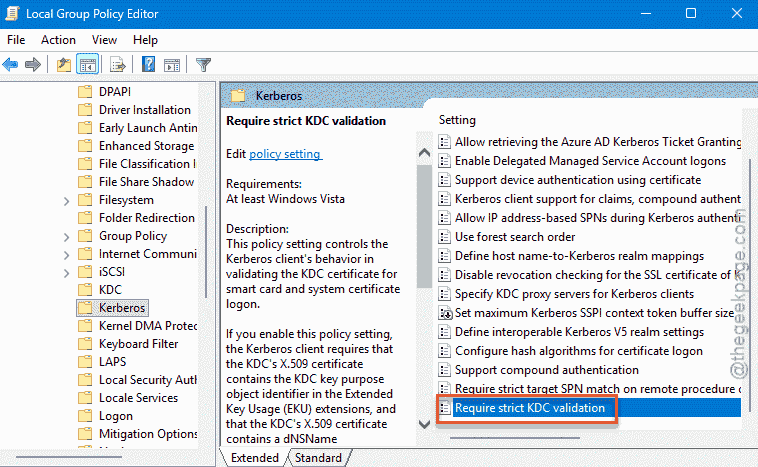
4 – Set it to Disabled and click OK.
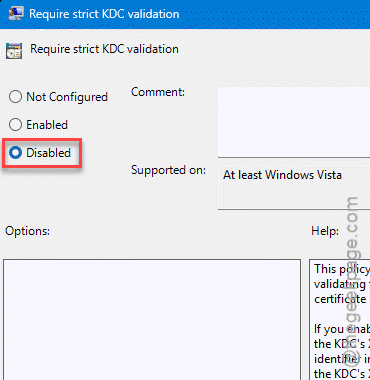
This is the gentler route — your secrets stay in the vault, the card just stops getting bounced over an old certificate.
Fix 3 – Clear the Firmware Lock With BCDedit
Tried Fix 1 and Credential Guard came right back? Then it’s locked at the firmware level — the UEFI, your motherboard’s startup software — and a policy change alone won’t budge it. This command clears the lock.
1 – Right-click the Start menu and open Command Prompt (Admin).
2 – Type this and press Enter:
bcdedit /set vsmlaunchtype Off
3 – Restart your PC.
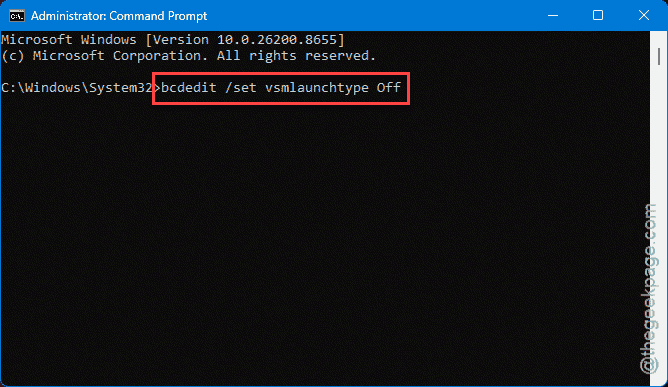
During boot, you may see a blue confirmation screen asking you to approve the change. Read it, then accept — usually by pressing a key it names on screen.
That firmware prompt is normal and expected. It’s there so malware can’t silently switch security off. Confirm it, and the change sticks.
Fix 4 – Loosen LSA Protection in the Registry
Older smart card drivers sometimes need to hook into the Local Security Authority — the LSA, the part of Windows that handles logins. Credential Guard wraps the LSA in extra protection that blocks those hooks. Easing it can let the driver through.
1 – Press Windows + R, type regedit, and press Enter.
2 – Paste this path into the top bar and press Enter:
HKEY_LOCAL_MACHINE\SYSTEM\CurrentControlSet\Control\Lsa
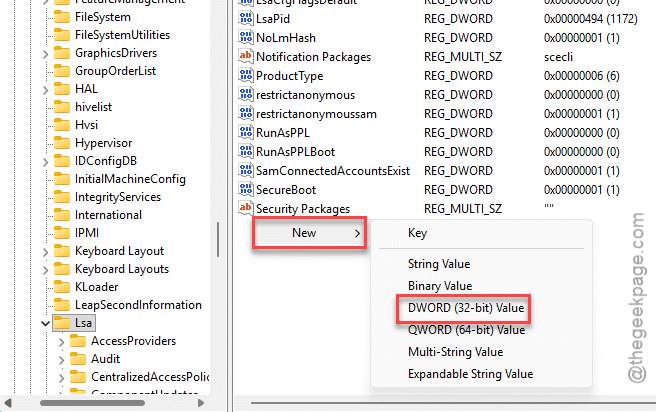
3 – Look for a value called ProtectedProcessLight. Not there? Right-click the empty space, pick New, then DWORD (32-bit) Value, and name it exactly that.
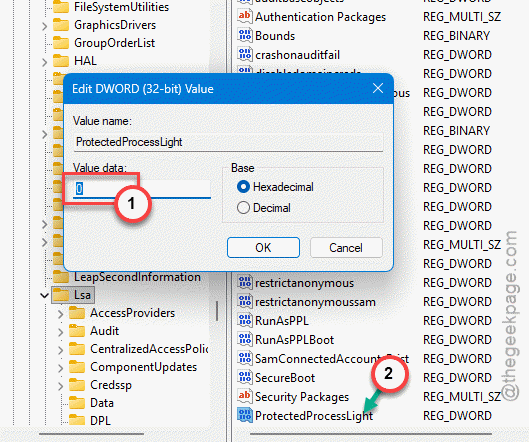
4 – Double-click it and set the Value data to 0.
5 – Click OK and restart your PC.
Fair warning: this lowers a real security guard. Only do it if the modern fixes above didn’t work, and switch it back if you can.
Fix 5 – Swap Old Middleware for a Modern Driver
This is the proper long-term fix. The real problem is often ancient card software that simply can’t work inside Credential Guard’s design. Replace it with a current version and the conflict disappears.
1 – Uninstall your old smart card middleware completely — older ActivClient or SafeNet packages are the usual suspects.
2 – Download the current package from your card vendor.
3 – During setup, choose the option that installs it as a Smart Card Minidriver or a CNG Key Storage Provider (KSP) rather than the old-style provider.
The newer drivers are built to work alongside Windows isolation, so they comply with Credential Guard instead of fighting it. No security trade-off, no registry hacks.
How to Prevent This
– Keep your smart card middleware current. The modern CNG-based versions play nicely with Credential Guard, so you avoid this entirely.
– Push your domain to use up-to-date certificate templates. Old ones are what trip the strict KDC check.
– Before flipping security features off, ask whether a newer driver solves it instead. Keeping Credential Guard on is the safer end state.
– On a managed work PC, let IT make these changes. They can apply them across the network the right way.
People Also Ask
What is the difference between Credential Guard and LSA protection?
Both guard your login secrets, just differently. LSA protection stops untrusted code from poking at the login process. Credential Guard goes further — it moves those secrets into a sealed, virtualized space the rest of Windows can’t touch at all. Credential Guard is the stronger of the two, which is also why older drivers struggle with it.
Why does Credential Guard block saved credentials?
By design. Credential Guard isolates credentials so malware can’t scrape them, but that same isolation blocks certain older protocols and saved logins from reaching them. If a legacy app or smart card setup relies on that access, it breaks. The fix is either a modern driver or, if you must, turning Credential Guard off.