Many users have reported jarring playback issues with the Music app and Podcasts app since the iOS 26 has rolled out for all the eligible devices. According to the user reports, they are facing this playback jumps during the song transitions, which can cause annoying disruption to the listening experience. Here are some tips that will be helpful in fixing this music playback issue for the Music and Podcasts app.
Fix 1 – Disable CrossFade or Song Transitions
The Automatic Crossfade mode in the iOS 26 seems to be the root cause of this problem for a wide range of iPhone users.
Step 1 – Open the iPhone Settings. Then, proceed to the Apps tab in there.
Step 2 – Then, go to the Music app.
Step 3 – Scroll down and turn off the Crossfade toggle.
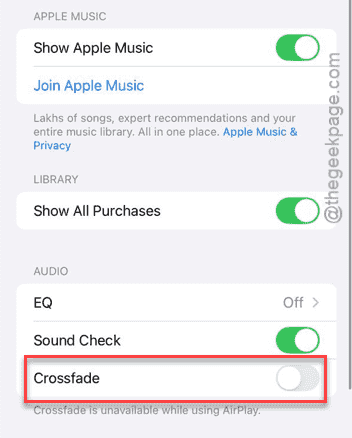
This will stop the song transitions in effect on the Music app. Check whether this solves the issue.
Fix 2 – Turn Off Attention-Aware Interrupts
The Face ID sensor can misinterpret your attention and pause or skip the song. Disabling the attention aware feature.
Step 1 – On the iPhone Settings, load up the Face ID & Passcode settings.
Step 2 – Then, input your passcode to proceed.
Step 3 – Find the Attention-Aware Feature there and turn it Off.
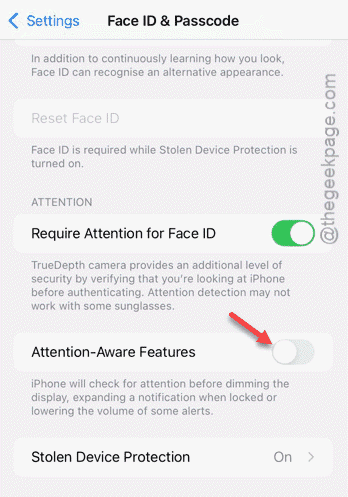
After turning off the attention-aware features, there won’t be any further issues with the Music or Podcast playback.
Fix 3 – Downgrade the Audio Quality
The higher quality of audio (320 High or Hi-res Lossless mode) requires a constant, high bandwidth network. Otherwise, you will get buffering or sudden pause effect during playback.
Step 1 – Go to the Apps tab on the iPhone. Then, open up the Music app.
Step 2 – Go to the Audio Quality toggle.
Step 3 – Set the Lossless Audio to Off mode. Switch the Streaming to High Quality mode.
Step 4 – Turn off the Dolby Atmos effect from the Music settings page, as well.
Play some music now, and check again.
Fix 4 – Do a Clean Reinstall (Podcasts app)
Sometimes the older cache files of the Podcasts app from the iOS 18 has conflicted with iOS 26.
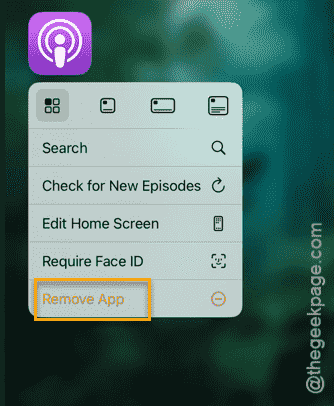
Step 1 – Locate the Podcasts app on the iPhone. Next, long-press the Podcasts app and tap Remove App. Choose the Delete App button to delete the app from the device.
Step 2 – Restart the iPhone once.
Step 3 – Then, proceed to the App Store. Search for Apple Podcasts and reinstall the app.
After reinstalling the Podcasts app, check again.
Fix 5 – Reset the Podcast Download Settings
While listening to a Podcast episode, if you are downloading other episodes, the current playback can stutter or even jump.
Step 1 – Load up the Podcasts app on the iPhone.
Step 2 – Next, go to the Library panel.
Step 3 – Then, tap a show where you are facing this issue.
Step 4 – Next, tap the Three dots button (…) and tap Settings.
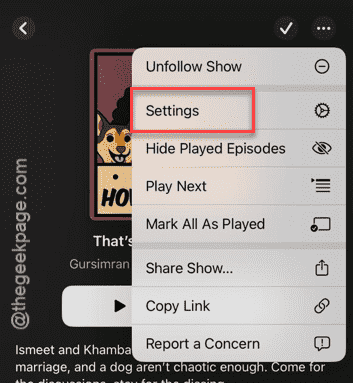
Step 5 – Tweak the Automatic Downloads to Off mode.
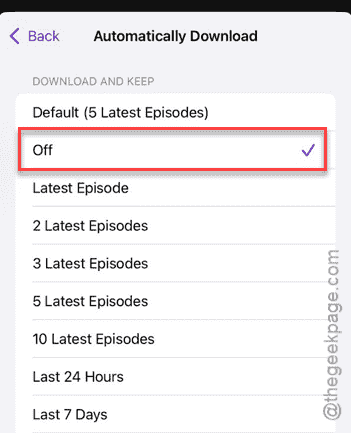
After stopping the automatic downloads feature in the Podcasts app, there won’t be any more issues with the music playback.