Why would WoW load to a black screen right after a pre-patch? Usually it’s old files. Sometimes the old addons from the previous versions cause this conflict. Now and then it is a graphics setting the patch no longer gets along with. The music plays and the screen stays black. Or you reach the realm list and the game kicks you out. But none of it needs a reinstall.
The Short Version
A pre-patch rewrites a lot of the game at once. Your install still carries leftovers from before.
Cached interface data is the big one. The game tries to load old character and realm info, chokes on it, and never draws the character screen.
Bag addons are next. Bagnon and ArkInventory, if they have not been updated, ask the Warband bank for things in a way it no longer accepts. Result? Instant disconnect.
And then there’s graphics. The pre-patch lighting changes can hang the DirectX 12 renderer on older graphics cards (DirectX is the Windows layer games use to draw the picture). AMD cards have a couple of quirks of their own. Not great.
So work down the list in order. Fix 1 is the one to start with.
Fix 1 – Delete the Cache and WTF Folders
Old interface and realm data. Gone in a minute. The game downloads fresh character data from the server the next time it starts.
1 – Close the game.
2 – Open the Battle.net app.
3 – Click the gear icon next to the Play button.
4 – Select Show in Explorer.
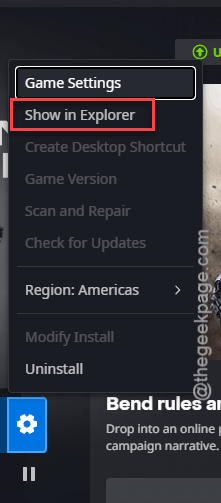
5 – Open the _retail_ folder.
6 – Delete the Cache folder and the WTF folder.
7 – Relaunch the game.
WTF holds your interface settings, so expect to redo a few of them. (If that makes you nervous, drag both folders to your desktop instead of deleting them.)
Fix 2 – Force DirectX 11 in Battle.net
1 – Open Battle.net.
2 – Click the Battle.net logo in the top left corner.
3 – Select Settings.
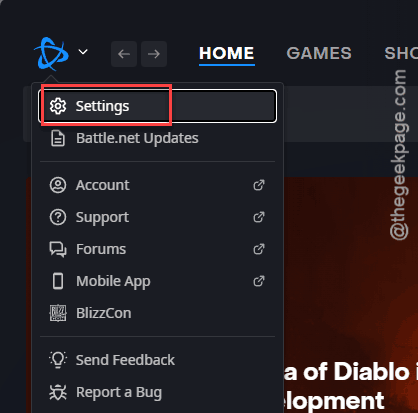
4 – Go to Game Settings.
5 – Find World of Warcraft in the list.
6 – Check the box for Additional command line arguments.
7 – Type -d3d11 in the box that appears.
8 – Click Done.
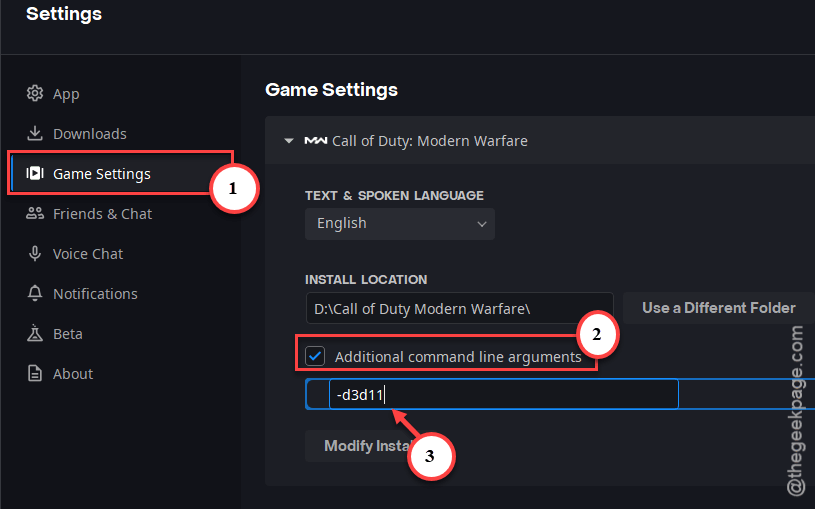
Launch the game and see if the character screen draws this time. And if it does, leave the argument where it is.
Fix 3 – Switch Off Your Addons
Disconnected the second you log in? Blame an addon. Outdated bag addons are the usual culprits.
1 – Stop at the character select screen.
2 – Click the AddOns button in the bottom left corner.
3 – Click Disable All.
4 – Log in to a character.
If the black screen is gone, turn your addons back on one at a time until the game breaks again. That last one needs an update. Slow, but it finds the troublemaker.
Fix 4 – Flush the DNS Cache
If you time out at realm selection, your PC may be holding an old route to the game’s servers. Flushing DNS (the address book Windows keeps for servers and websites) clears it out.
1 – Press the Windows key.
2 – Type cmd.
3 – Right-click Command Prompt and select Run as administrator.
4 – Type this code, and press Enter.
ipconfig /flushdns
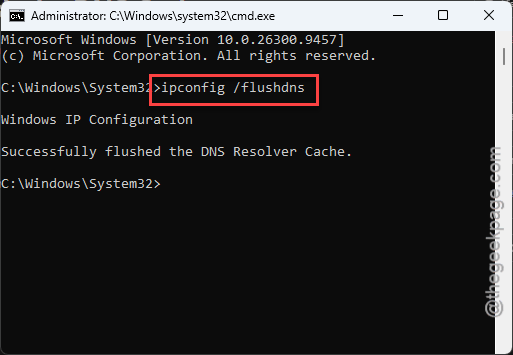
5 – Restart your computer.
You’ll see a line saying the DNS Resolver Cache was flushed. It won’t hurt anything if it doesn’t help.
Fix 5 – Turn Off Game Adjustment Tracking on AMD Cards
This one is for AMD graphics cards only. One player called it their main fix.
1 – Open AMD Software: Adrenalin Edition.
2 – Click the Settings cogwheel.
3 – Go to the Preferences tab.
4 – Find Game adjustment tracking and notifications and change it to Disabled.
It is enabled by default, for some reason.
Fix 6 – Disable Max Background FPS
Black screen, but the sound keeps going? Press Alt + Tab to leave the game, then come back. If the picture returns for a while, this is your bug. A player with a Radeon RX 6950 XT got rid of it for good by turning one setting off.
1 – Press Esc in the game and open Options.
2 – Go to the Graphics section.
3 – Find Max Background FPS.
4 – Uncheck it.
5 – Click Apply.
So It Doesn’t Happen Again
- Update your addons before patch day, not after. Bag addons first.
- Clear the Cache folder after every big patch. Takes a minute. Costs you nothing.
- Leave -d3d11 in place if it got you in, because the DirectX 12 hang will not fix itself until Blizzard patches it.
- On an AMD card, keep that Adrenalin tracking setting off.
Quick Answers
Why does my WoW keep crashing to a black screen?
Right after a patch, it’s usually leftover files. The Cache and WTF folders hold old interface data that the updated game can’t read properly. Graphics are the other suspect. DirectX 12 hangs on some older cards, so forcing DirectX 11 with the -d3d11 argument in Battle.net often gets you in.
How to fix a black screen glitch?
Press Alt + Tab to leave the game, then come back. Picture returns? Turn off Max Background FPS in the graphics options. If it stays black, close the game, delete the Cache folder inside _retail_, and launch again. Forcing DirectX 11 from Battle.net’s game settings is the next step.
Why am I constantly disconnecting from World of Warcraft?
Outdated addons, most of the time. Bag addons like Bagnon and ArkInventory can drop your connection the moment you log in if they haven’t been updated. Disable every addon from the character select screen and test. And if you time out at the realm list, flush your DNS cache.
Will deleting the WTF folder delete my characters?
No. Characters live on Blizzard’s servers, not in that folder. WTF only stores local things, like interface settings and addon options. You will have to set a few of those up again. But your characters and everything they own stay exactly where you left them.