Getting a blank, black screen on the Netflix app on your iPhone? With the increase in the Netflix users, the reports of various bugs and errors have gone up as well. Along with the reasons of this error, we have presented the perfect solution to counter it. In this case, offloading the app and reinstalling the same should fix the problem.
Why the Netflix is showing black screen on the iPhone?
There are many possible reasons behind this black screen problem on the Netflix app. Even if this can be just a bug in the Application codebase, there are other possible reasons present that you can’t overlook. If it is just an application bug, closing and relaunching the Netflix should take care of it. Close the app and everything will be fine when you launch the app next time. But, what if the Netflix app still shows black screen even after relaunch?
In that case, offloading the existing version of the Netflix app will be helpful. When you offload an application, it does not get uninstalled right away. Offloading just removes the application from your device, while the onboard app data remains intact. Once you reinstall the Netflix app, the black screen issue should get fixed.
NOTE – Offloading the app may delete all the downloaded movies from the Netflix app.
Fix – Offload the Netflix app
Go through the first set of steps to offload the Netflix app and the later ones to reinstall it.
Steps for offloading Netflix
Step 1 – At first, load up the Settings pane.
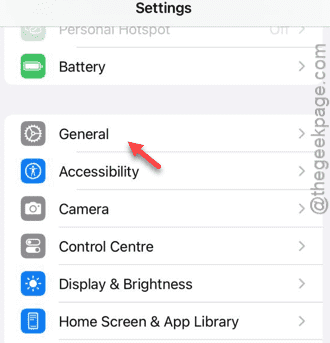
Step 2 – Now, find and open up the “General” tab.
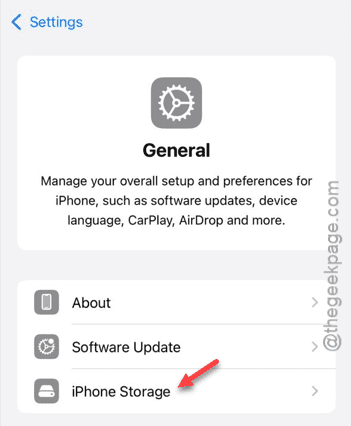
Step 3 – Choose to open up the “iPhone Storage” panel.
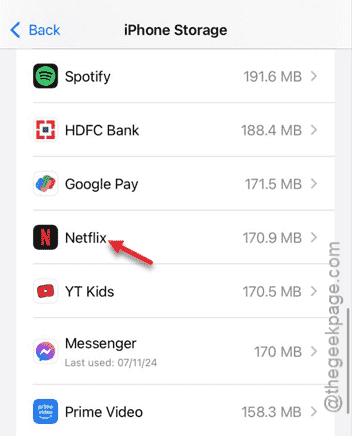
Step 4 – Try to find the “Netflix” app in there. If you can’t find it on the short list, tap “Show All” option once. Open the app settings.
Step 5 – Tap the “Offload App” option to offload the Netflix app. Ignore any warning message and offload the app.
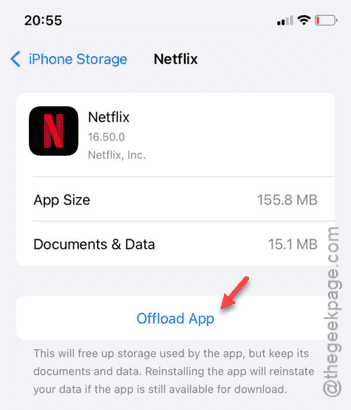
After offloading the app, follow the next set of steps to reinstall the app.
Steps for reinstalling Netflix
These are the steps to reinstall Netflix on your iPhone.
Step 1 – Open the Settings and go this way –
General > iPhone storage
Step 2 – After loading the iPhone storage details, re-open the “Netflix” app.
Step 3 – Tap “Reinstall App” option to reinstall the offloaded Netflix app.
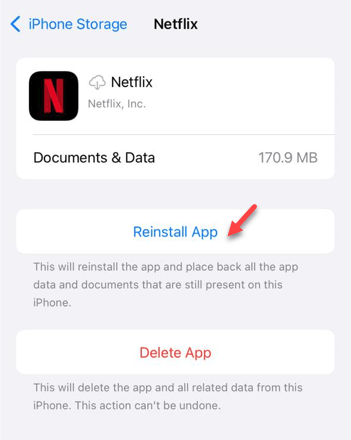
After reinstalling the Netflix app, it will behave normally once again. You can enjoy movies and series just like before.
NOTE – If the reinstallation process is taking too much time, you can directly re-install the same from the App Store. This will save you a lot of time.