Getting a black and white screen on your Apple Watch? Apple Watch looks better, not in a century old black and white attire. So, if you have found your Apple Watch showing up without any colors except a black and white screen, and you want to troubleshoot that, you have appeared at the correct place. There is a detailed explanation behind this behavior, along with that we have mentioned some quick resolutions that will be helpful in troubleshooting the problem.
Why am I getting the black and white screen issue in Apple Watch?
The black and white screen that you are getting on your Apple Watch is not a hardware or software fault. This is the ‘Color Filters’ feature on the watchOS, which in turn is part of the Accessibility suite. The color filters are helpful in certain conditions and for a specified group of people. These filters help the color deficiency issue on your watch.
The particular color filter that is responsible for your situation is known as the ‘Grayscale’ filter or, widely named, as the black and white filter. When this exact filter is enabled on the watch, it does present everything on the screen only in the shades of black and white. This can reduce the eye strains when you are using your watch in darker environment.
Fix – Disable the Color Filter
The easiest solution in this case is to disable the Color Filter completely on your Apple Watch.
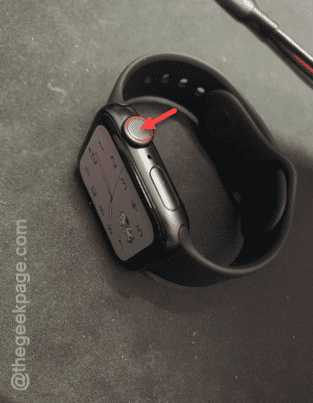
Step 1 – Tap the crown on your watch once.
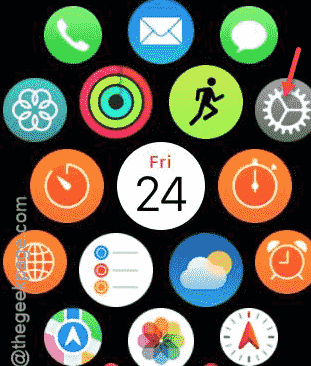
Step 2 – When it loads up the app list on the watch, tap the “⚙” button to load up the Watch settings.
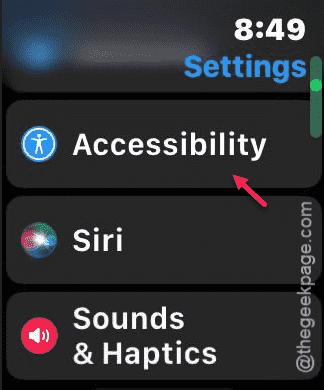
Step 3 – Once it opens up, go to the “Accessibility” feature.
Step 4 – Scroll down and open up the “Color Filters” option.

Step 5 – Simply, disable the “Color Filters” module.

NOTE – If you don’t want to turn off the color filter, you don’t have to do that. You can choose to use a different color filter.