A missing speech file — that’s almost always why Voice Access sits on “Listening…” and never types a word. Your mic is fine. And the app is fine too, mostly. It just can’t find the recognition data for your flavor of English. The fix? Usually a two-minute download.
The Short Version
Voice Access turns speech into text using an acoustic model (the data file that teaches Windows what your dialect sounds like). US English ships preinstalled. But English (India), English (UK), and the other regional flavors download separately — and a Windows update can quietly corrupt or remove that download.
So the app hears you just fine. It streams your voice to a recognition engine that isn’t there, waits politely, and shows “Listening” forever. No error message, of course. That would be too helpful.
There’s a mismatch problem too. When your Windows display language and the Voice Access language disagree, audio can get routed toward the wrong model entirely.
Fix 1 – Re-Download Your Regional Speech Pack
This replaces the missing or corrupted speech files. Start here.
1 – Press Windows + I to open Settings.
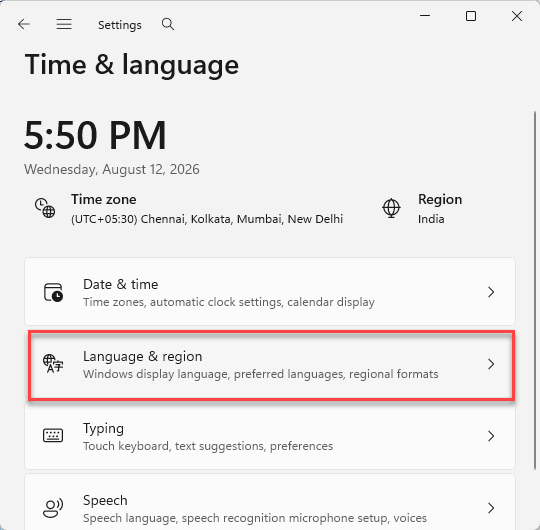
2 – Go to Time & language, then Language & region.
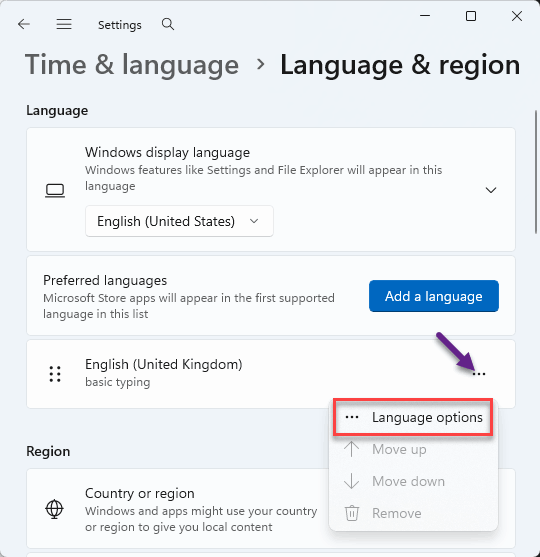
3 – Find your English variant in the language list — English (India) or English (United Kingdom), for example.
4 – Click the three dots (⋯) next to it and select Language options.
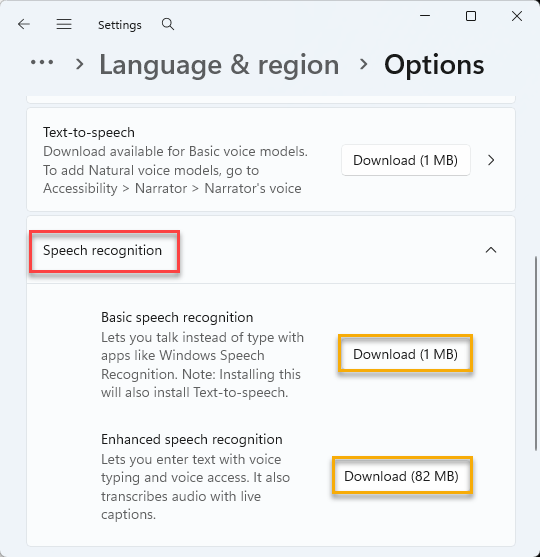
5 – Scroll down to the Speech section.
6 – Click Download and wait for the progress bar to finish (a few minutes on slower connections).
7 – Restart Voice Access and test the mic.
Talking to it feels a bit silly after all that silence, I know. But it should actually type now.
Fix 2 – Match the Display Language to the Voice Access Language
Windows and Voice Access need to agree on which English you speak. Wondering why that matters? Mismatched settings can send your audio to the wrong recognition model.
1 – Open Settings and go to Time & language, then Language & region — the same page as Fix 1.
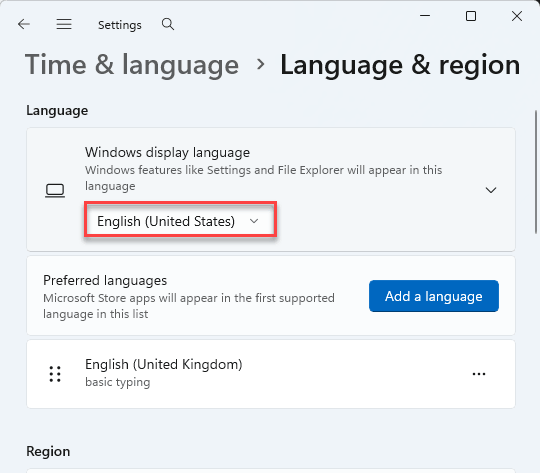
2 – Check the Windows display language dropdown near the top. Set it to your exact regional English.
3 – Click the settings gear on the Voice Access bar (it sits along the top edge of your screen).
4 – Go to Select language.
5 – Pick the exact same regional English there.
6 – Restart Voice Access and test the microphone again.
Fix 3 – Switch to US English for Now
Need dictation working today, not next week? US English makes a solid stopgap, because its model comes preinstalled with Windows. Nothing to download, nothing to corrupt.
1 – Click the settings gear on the Voice Access bar.
2 – Go to Languages.
3 – Choose English (United States).
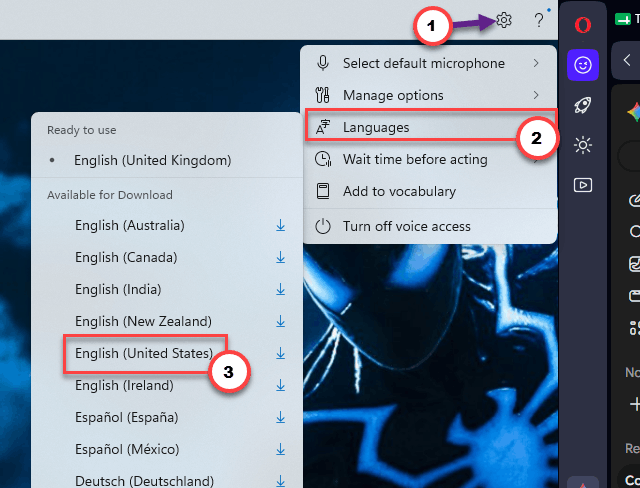
Recognition may fumble a few of your words (accents and local spellings, mostly). Not perfect. But it beats a bar stuck on “Listening” while you sort out the real fix.
Fix 4 – Clear the Speech Registry Cache
Still stuck after all three? Last stop. This wipes the speech system’s routing data, and Windows rebuilds it clean at the next boot.
A quick caution first: you’ll be deleting a registry key. Follow the path exactly and touch nothing else in there.
1 – Press Windows + R, type regedit, and press Enter.
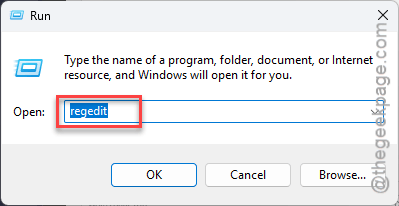
2 – Paste this into the address bar at the top:
HKEY_CURRENT_USER\Software\Microsoft\Speech_OneCore
3 – Right-click the Speech_OneCore folder in the left pane.
4 – Select Delete and confirm.
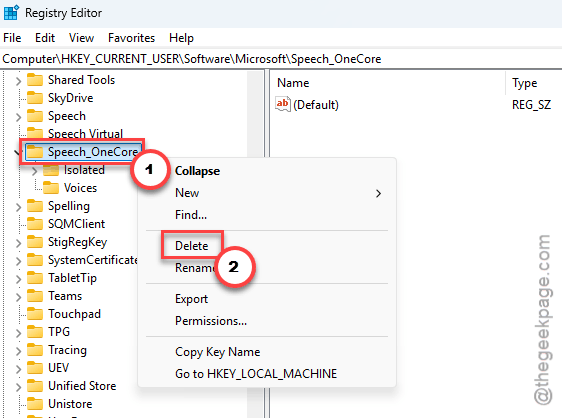
5 – Restart your PC.
After the reboot, run Voice Access setup again — it re-creates everything it needs (your other Windows settings stay put).
Avoiding This Next Time
- After every big Windows update, peek at the Speech section under your language options. Download button back? The update ate your pack. Again.
- Keep the display language and Voice Access language matched. One English, everywhere.
- If dictation matters for your work, keep US English configured as a spare. So updates can’t take both away — the US model ships inside Windows itself.
Quick Answers
How do I fix voice control that’s no longer listening?
Restart the app first. Then re-download your language’s speech pack under Settings > Time & language > Language & region > Language options — a missing acoustic model is the usual cause on non-US English. Matching your Windows display language to the dictation language handles most of the rest.
How do I turn off Voice Access?
Click the microphone button on the Voice Access bar to stop it listening, or close the bar to quit entirely. Want it gone for good? Head to Settings > Accessibility > Speech and switch off the option that starts Voice Access when you sign in.
Why does Voice Access say “listening” but type nothing?
The app is capturing your voice but has no working recognition model to send it to. That happens when a regional English speech pack is corrupted or missing — common after updates. Re-download the pack from your language options and restart Voice Access.
Does Voice Access work with Indian or UK English?
Yes. Both work once the matching regional speech pack is downloaded under your language options. Early versions of Voice Access were US-only, which still confuses people. If your dialect stops working after an update, re-download its pack — takes a couple of minutes.