Why would a brand-new Wi-Fi 7 card refuse the one band it was built for? You click your 6 GHz network, type the password you’ve typed a hundred times, and Windows says “Can’t connect to this network.” The 5 GHz version of the same network works fine. So the router isn’t dead. The card isn’t dead either. It’s Windows. Specifically, it’s Windows remembering the wrong kind of password handshake. And the fix is mostly deleting things, not buying things.
The Short Version
The 6 GHz band has one hard rule: WPA3 only. WPA3 is the newer Wi-Fi security standard, and 6 GHz won’t accept anything older. No exceptions, no fallback to WPA2.
But your PC probably joined this network on 5 GHz first, back when the router was in mixed WPA2/WPA3 mode. So Windows saved the network profile as WPA2. Every time you try 6 GHz now, it sends a WPA2 handshake. The router rejects it on the spot. And Windows, helpfully, tells you nothing useful.
A few other things pile on. Windows randomizes your hardware address and sometimes scrambles it mid-handshake, which Wi-Fi 7’s multi-link feature hates. Drivers reset themselves to timid defaults after a cumulative update. And if Location Services are off, Windows won’t even unlock the 6 GHz channels. Of course it won’t.
Start at Fix 1. For most people it ends there.
Fix 1 – Forget the Network and Purge the Old Profile
The saved profile is the whole problem, so throw it away. Windows builds a new one, correctly set to WPA3, the next time you connect.
1 – Right-click the Start button and pick Terminal (Admin).
2 – Type this and press Enter to see every saved network:
netsh wlan show profiles
3 – Find your 6 GHz network name in the list.
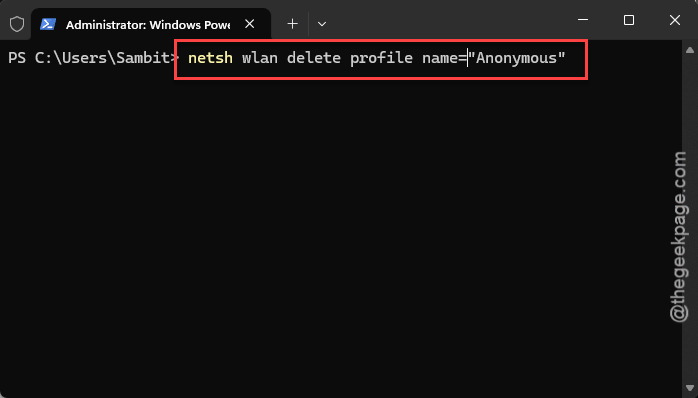
4 – Type this, swapping in your network name, and press Enter:
netsh wlan delete profile name="Your_6GHz_Network"
5 – Press Windows + I.
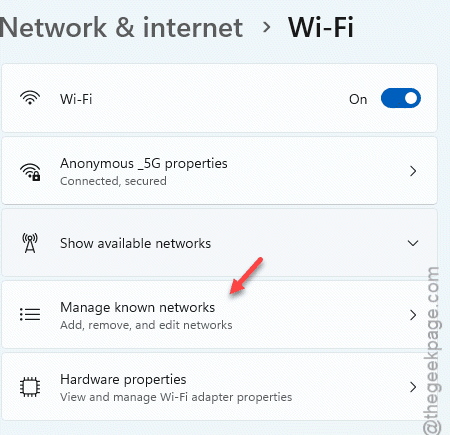
6 – Click Network & internet.
7 – Then open the Wi-Fi, then Manage known networks.
6 – Click Forget next to any sister network that shares the same password, like the 2.4 GHz or 5 GHz version of your network.
7 – Back in the Terminal window, type this and press Enter:
net stop wlansvc && net start wlansvc
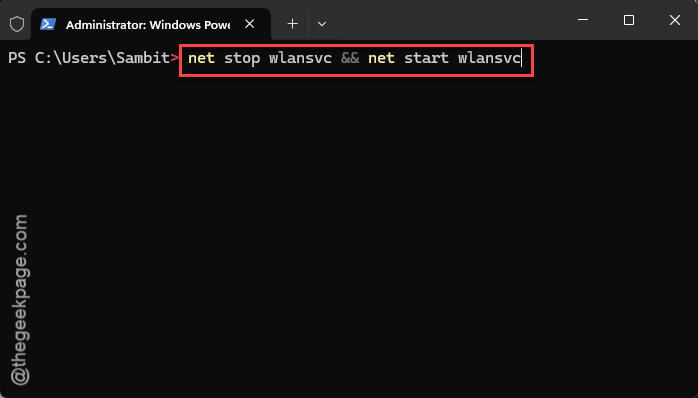
Your Wi-Fi icon blinks off and on. Normal.
Now click the Wi-Fi icon in the tray and connect to the 6 GHz network fresh. And here’s the habit that keeps this from coming back: whenever you change the router’s security mode, forget the network on every PC. Stale profiles are how this starts.
Fix 2 – Turn Off Random Hardware Addresses
Wi-Fi 7 can work with the 5 GHz and 6 GHz radios at the same time. It needs one steady hardware address to do it. Windows’ randomization feature swaps that address around, sometimes in the middle of connecting. Instant disconnect.
1 – Press Windows + I to open Settings.
2 – Click Network & internet, then Wi-Fi.
3 – Switch Random hardware addresses to Off.
4 – Click Manage known networks and click your 6 GHz network, if it’s listed.
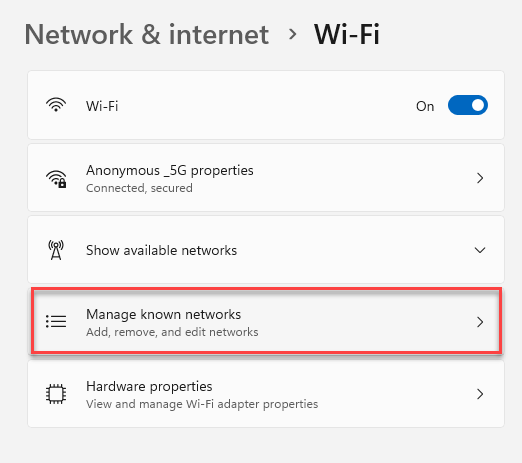
5 – Set Random hardware addresses to Off for that network too.
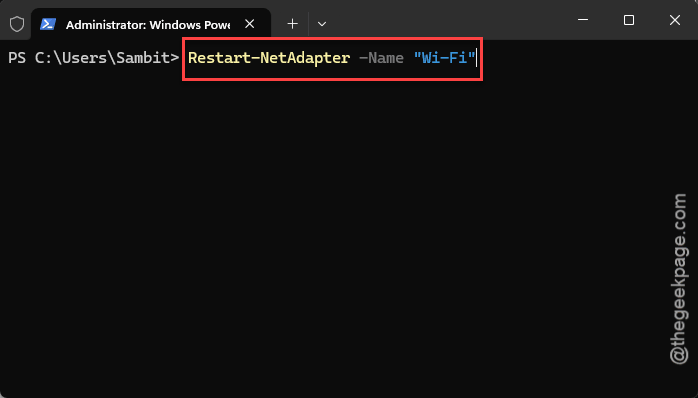
6 – Open Terminal (Admin) like in Fix 1, type the following, and press Enter:
Restart-NetAdapter -Name "Wi-Fi"
Try connecting again. Privacy-wise, you lose a little anonymity on public hotspots with this off. On your home network it changes nothing.
Fix 3 – Check the Adapter’s Advanced Settings
Here’s the part that annoys me most. A Windows update can quietly reset your Wi-Fi card to conservative defaults, and suddenly a Wi-Fi 7 card is pretending to be a Wi-Fi 6 card. Intel BE200, Qualcomm FastConnect 7800, MediaTek MT7927, all of them do it.
1 – Press Windows + X and click Device Manager.
2 – Expand Network adapters.
3 – Right-click your Wi-Fi 7 adapter and pick Properties.
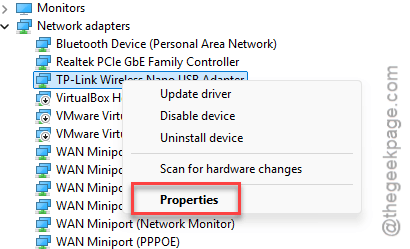
4 – Click the Advanced tab.
5 – Click Wireless Mode (or 802.11n/ac/ax/be Wireless Mode) and set it to 802.11be.
6 – Click Ultra High Band (6GHz) or 6GHz Band and set it to Enabled.
7 – Click Channel Width for 6GHz and set it to Auto.
8 – Click MIMO Power Save Mode and set it to No SMPS.
9 – Click OK.
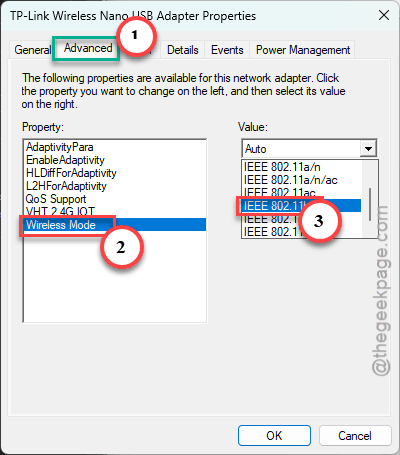
The adapter restarts itself (your connection drops for a few seconds). The exact names vary by brand, so look for the closest match. If you don’t see a 6 GHz option at all, your driver is too old for the card. Fix 6 covers that from the other direction.
After any big Windows update, come back and glance at this tab. Two minutes, and you catch the reset before it bites.
Fix 4 – Turn On Location Services
Sounds unrelated. It isn’t. Windows uses your location to decide which 6 GHz channels are legal where you live. Location off? Windows plays it safe and blocks the band.
1 – Press Windows + I.
2 – Go to the Privacy & security.
3 – Then Location.
4 – Switch on Location services and also Let desktop apps access your location.
Then reconnect.
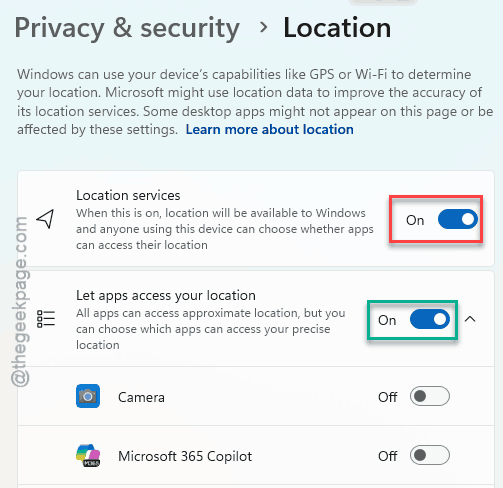
Yes, it’s a privacy trade-off. But without it, 6 GHz on Windows 11 does not work. Microsoft’s choice, not yours.
Fix 5 – Relax the Router’s WPA3 Mode
Some routers use a strict WPA3 variant called H2E (Hash-to-Element). Windows 11 has a known bug validating it. Switching the router to transitional mode lets the older WPA3 method through.
1 – Open a browser and go to your router’s admin page (usually 192.168.1.1 or 192.168.0.1, printed on the router’s label).
2 – Sign in.
3 – Find the Wireless Security settings for the 6 GHz band.
4 – Change the mode to WPA2/WPA3 Transitional or turn off H2E, whichever your router offers.
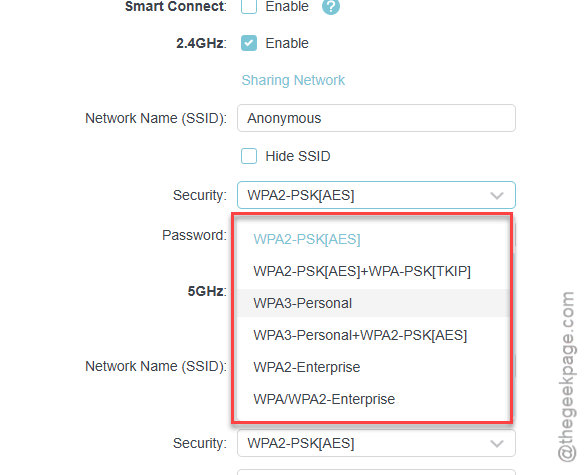
5 – Save and let the router restart.
Then forget and reconnect the network like in Fix 1, because the saved profile is now wrong again.
Fix 6 – Roll Back the Wi-Fi Driver
The driver updates from late summer 2026 tightened the WPA3 requirements. Tightened them a bit too far, apparently. Going back to the July 2026 driver fixes it for a lot of people.
1 – Open Device Manager like in Fix 3 and right-click your Wi-Fi adapter.
2 – Click Properties, then the Driver tab.
3 – Click Roll Back Driver.
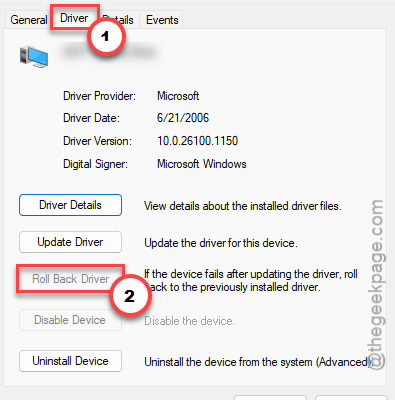
4 – Pick any reason and click Yes.
5 – Restart the PC.
If the button is grayed out, Windows has no older driver stored. Grab the July version from Intel’s or Qualcomm’s download page and install it by hand. And once it works, pause driver updates for a few weeks so Windows doesn’t push the broken one straight back.
Fix 7 – Prefer 5 GHz for Now
Nothing worked? Make the card favor 5 GHz until a driver or Windows patch sorts it out. Not a fix, more like a truce. But 5 GHz on Wi-Fi 7 is still very fast.
1 – In Device Manager, open your adapter’s Properties.
2 – Click the Advanced tab, select Preferred Band.
3 – Set it to Prefer 5GHz. Click OK.
Check back after the next cumulative update. Flip it to no preference, try 6 GHz, and see if the handshake finally goes through.
People Also Ask
Is Wi-Fi 7 compatible with Windows 11?
It is, as long as you’re on a recent build with a Wi-Fi 7 adapter like the Intel BE200 or Qualcomm FastConnect 7800. Windows 10 doesn’t support it. The catch? Driver updates occasionally break the WPA3 handshake on 6 GHz, so rolling back sometimes beats updating.