Windows hands the Snipping Tool its text-reading powers through a language pack. And if that pack isn’t downloaded, the text actions button doesn’t gray out. Sometimes, it may just go out. No error, no hint. Some users have reported that this has been happening since the last version. It must be annoying for you. But both are fixable in about ten minutes.
Where This Comes From
Short one. Text Actions arrived in Snipping Tool version 11.2308.33.0. Older builds don’t have the button at all. But the Store doesn’t always update apps in the background like it promises.
The second cause is sneakier. The app doesn’t read text itself. It borrows the Windows OCR engine (OCR is the part that turns a picture of letters into real text you can copy). That engine ships as a download inside your language pack, and it’s tied closely to US English. No download? No button. Why not show a message instead? Ask Microsoft.
And then there’s plain corruption. A botched Store update can break the app’s manifest, so it loads without the Text Actions module. Looks normal. Isn’t.
Fix 1 – Update Snipping Tool From the Store
You should check the version first.
1 – At first, open Microsoft Store.
2 – Go to the Downloads instead.
3 – Click Check for updates at the top right.
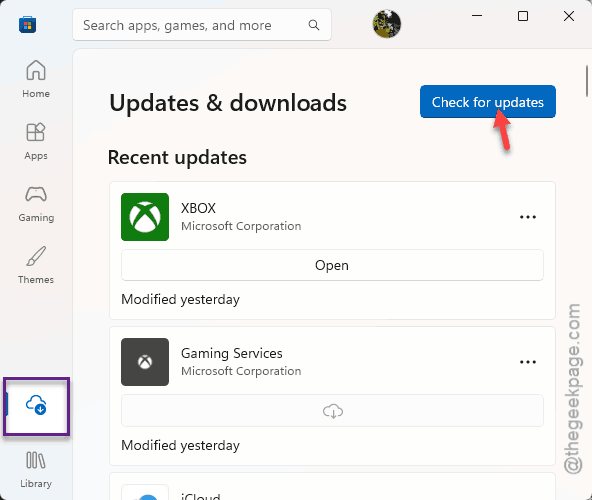
4 – Wait for the list to finish. Look for Snipping Tool and let it install.
5 – Restart the PC, even if Snipping Tool didn’t show up in the list.
Then take a fresh snip and look at the toolbar. Button there? Done.
Fix 2 – Download the OCR Part of Your Language
This is the big one. And the button lives or dies on this download.
1 – Quickly, press the Windows + I to load up the Settings.
2 – Then, go to the Time & language in the left sidebar.
3 – Later, proceed to the Language & region.
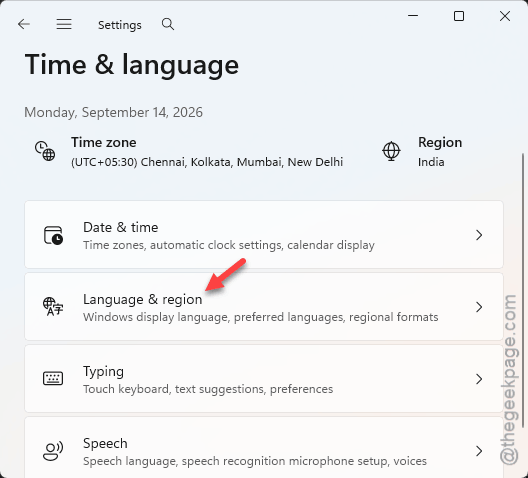
4 – Now, try to find your display language at the top of the list.
4 – Then, click the three dots (…) next to it, and tap Language options.
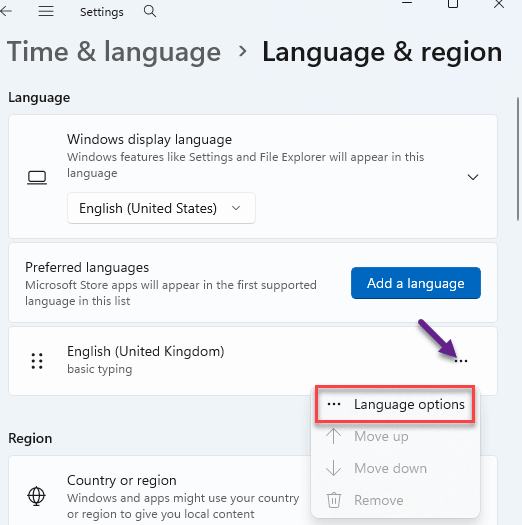
5 – Look at Basic typing and Optical character recognition in the list of features.
6 – Click Download next to any feature that has one.
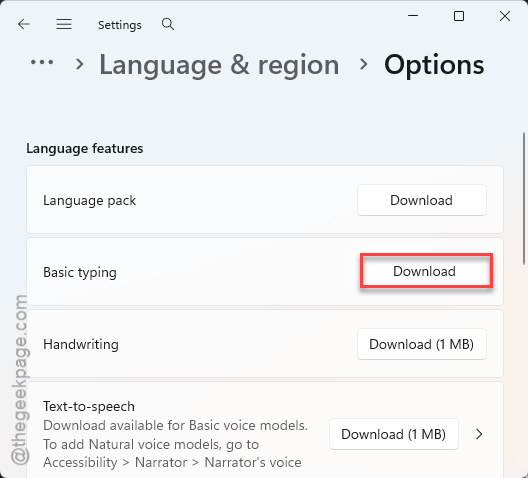
7 – Restart your PC when the downloads finish.
No download button? The pack is already there. Move on to Fix 3.
Fix 3 – Add English (United States)
If your display language is anything other than US English, the OCR models may not exist for it yet.
1 – Go back to Language & region like in Fix 2.
2 – Click Add a language.
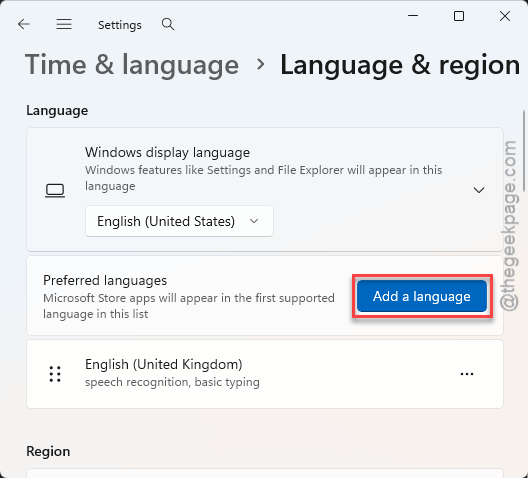
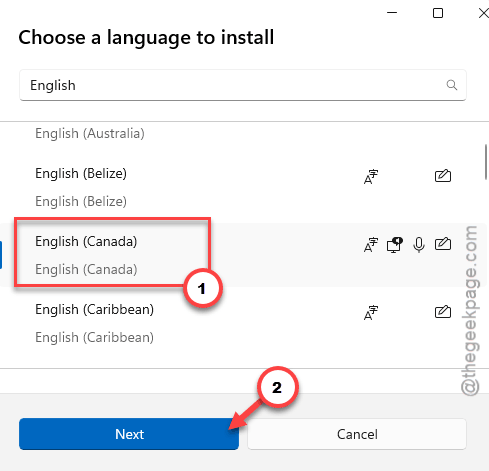
3 – Type English and pick English (United States).
4 – Click Next, then Install.
5 – Restart your PC.
You do not have to switch your display language. Having the pack installed is enough. (Handy, because nobody wants their whole PC changing languages over a screenshot button.)
Fix 4 – Repair, Then Reset, the App
Corrupted app cache does this too. Repair first. But only Reset if Repair fails.
1 – Right-click the Start button and click Installed apps.
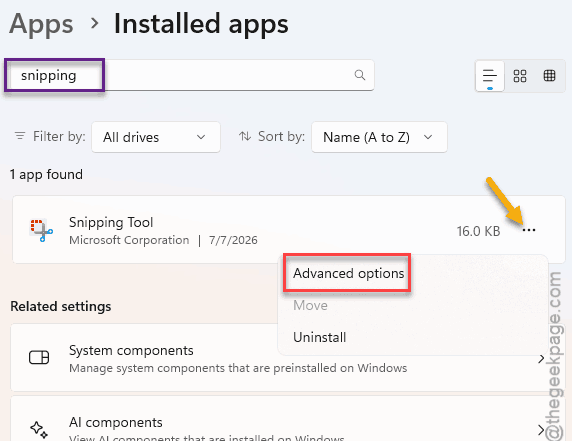
2 – Type Snipping in the search box at the top.
3 – Click the three dots (…) next to Snipping Tool, next tap the Advanced options.
4 – Then, go down to the Reset section, and click Repair. Wait for the checkmark.
5 – Open Snipping Tool and take a snip. Still no button? Come back here and click Reset.
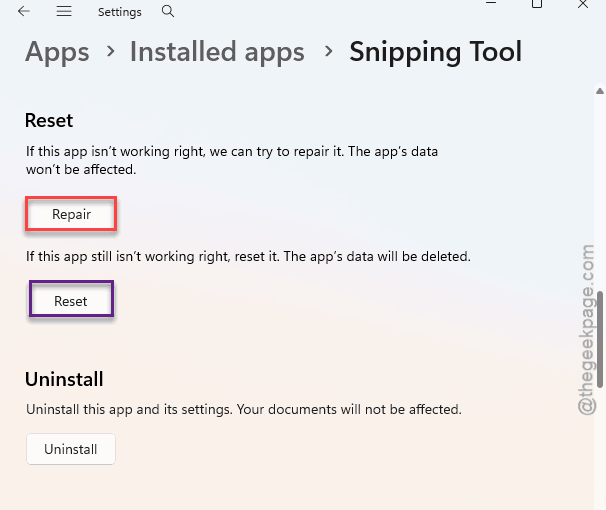
Reset wipes the app’s settings back to defaults. Small price.
Fix 5 – Let It Run in the Background
Quick one. Snipping Tool scans each snip for text quietly in the background. And Windows can block that.
1 – While you’re still on the Advanced options page from Fix 4.
2 – Then, find Background apps permissions near the top and set it to Always.
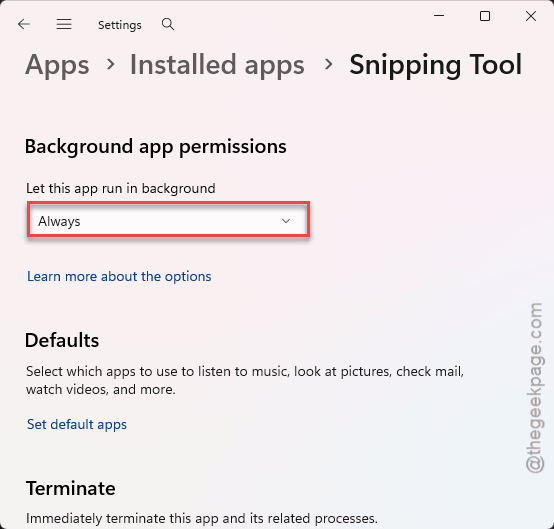
No restart needed.
Fix 6 – Rebuild or Reinstall the Package With PowerShell
Last resort. Two commands, in order of severity.
1 – Right-click Start and click Terminal (Admin).
2 – Paste this and press Enter:
Get-AppxPackage *Microsoft.ScreenSketch* | Reset-AppxPackage
3 – Wait for the prompt to come back, then test the app.
Still missing? Rip it out and start clean.
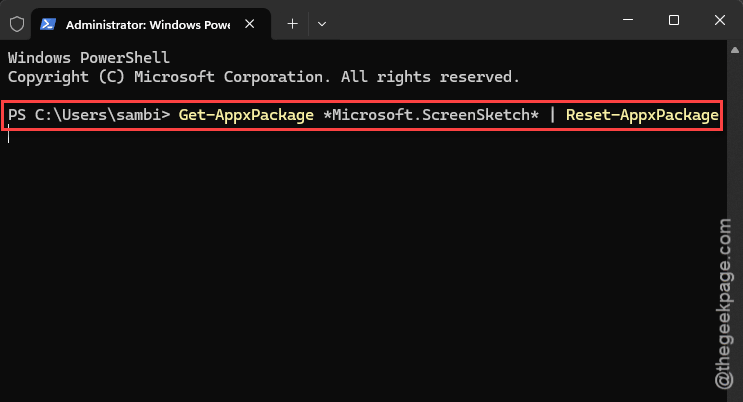
4 – In the same window, paste this and press Enter:
Get-AppxPackage *Microsoft.ScreenSketch* -AllUsers | Remove-AppxPackage
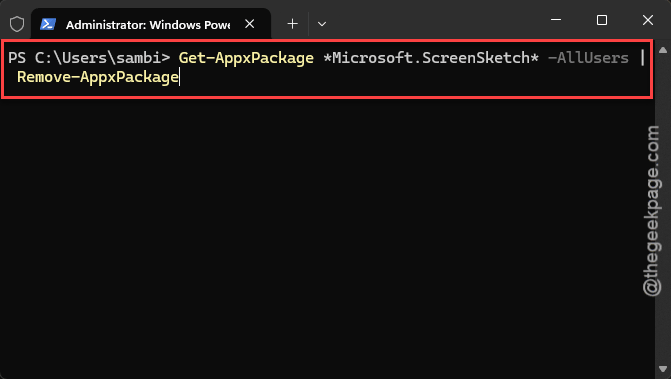
5 – Open the Microsoft Store, search for Snipping Tool, and click Install.
6 – Launch it and take a screenshot.
The fresh install pulls the newest version. So it covers Fix 1 in one go.
So It Doesn’t Happen Again
- Let the Store update apps on its own. Turning off automatic app updates is how the button vanishes in the first place.
- After a Windows feature update, peek at Language options. OCR downloads sometimes drop off. Quietly.
- Keep US English installed even if you never use it. Cheap insurance.
- Don’t run app cleaners that clear Store caches. They break more than they fix.