You switched accounts. Maybe a new job, maybe your school email changed. Now OneDrive won’t sync, and every sign-in ends with a page that says AADSTS50020. This is not exactly a friendly error. But it’s fixable, and you won’t lose any files along the way.
Why This Happens
AADSTS50020 is Microsoft’s way of saying “this account doesn’t belong here.” Your PC is offering the old account to a new organization (the company or school that owns the account). Or the other way around.
Why would it do that? Because Windows remembers. It keeps sign-in tokens (little saved passes that skip the password prompt) in a few hidden places. And when you change accounts, those old tokens don’t get cleaned up. So OneDrive keeps grabbing the wrong one.
It gets messier if you have a personal Microsoft account and a work account on the same email address. The login page can’t tell which one you mean. Honestly, that one trips up a lot of people.
Fix 1 – Remove the Identity Value from Registry
Microsoft’s official fix for the AADSTS50020 error affecting the OneDrive users, you have to remove the Identity value from the affected system registry.
Warning – Follow the mentioned steps carefully. Do not modify the system registry beyond the steps mentioned here. You should back up your system registry before you proceed.
1 – At first, search for regedit, and open up the Registry Editor.
2 – Thereafter, locate the following entry –
HKEY_CURRENT_USER\SOFTWARE\Microsoft\Office\16.0\Common\Identity
3 – Then, right-click the Identity key, and tap Delete.
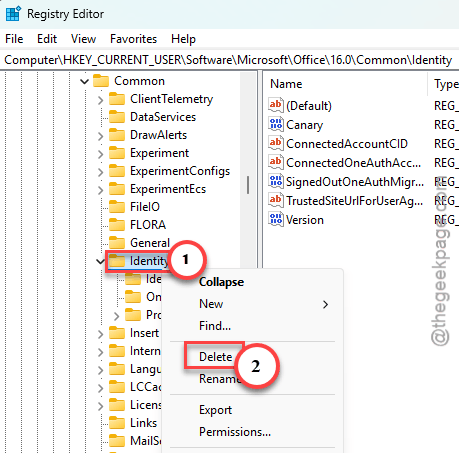
4 – Close the Registry Editor.
Then,
NOTE – If you have the Shared Computer Activation system at place, you should remove the Identity from this address as well –
HKEY_USERS\<The user SID>\SOFTWARE\Microsoft\Office\16.0\Common
[Get the signed in user’s SID using whoami /user command from a terminal.]
Fix 2 – Unlink OneDrive and Clear Its Sign-In Cache
If tweaking the registry value did not work, try clearing OneAuth and IdentityCache folders.
NOTE – Though all your data is saved on cloud, and is therefore safe, clearing these folders may sign out of other Microsoft 365 apps. Save your work and verify your files are synced before you proceed.
1 – Click the OneDrive cloud icon at the bottom right of the taskbar.
2 – Click the gear icon and choose Settings.
3 – Open the Account tab and click Unlink this PC.
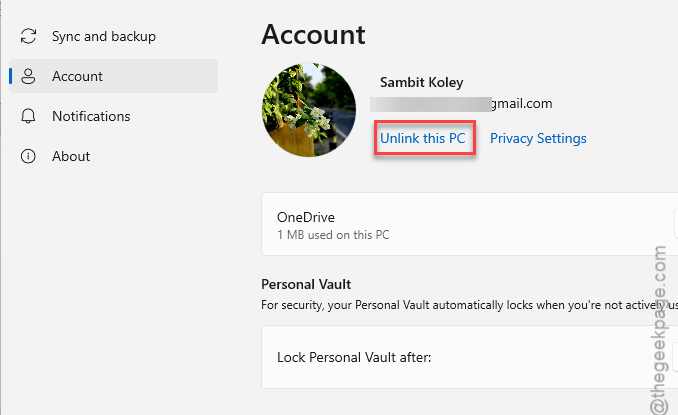
4 – Click Unlink account to confirm.
5 – Close Word, Excel, Outlook, Teams and any other Office apps.
6 – Press Windows + R, type this, and press Enter.
%localappdata%\Microsoft
7 – Delete the OneAuth folder.
8 – Delete the IdentityCache folder.
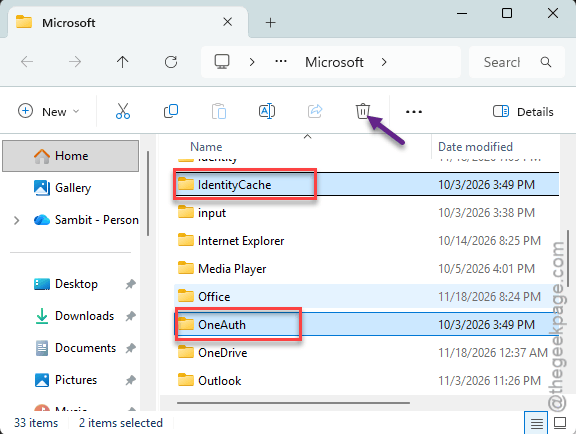
Don’t sign back in yet. Do Fix 5 first, then relink.
Fix 3 – Test in a Private Browser Window
Start with the easy check. It tells you whether the problem is your browser or the OneDrive app.
1 – Open a private window. In Edge, press Ctrl + Shift + N. Chrome uses the same shortcut (Firefox uses Ctrl + Shift + P).
2 – Go to OneDrive and sign in.
3 – If your files show up, your main browser is holding onto old sign-in data.
4 – In your normal browser, press Ctrl + Shift + Delete, check Cookies and Cached images and files, and clear them.
Still getting the error even in the private window? Then it’s an account mix-up, not your browser. That’s Fix 2.
Fix 4 – Pick the Right Account Type
When you type your email, Microsoft sometimes asks which kind of account it is.
Pick Work or school account if your organization gave it to you.
Pick Personal account if you made it yourself. And choosing the wrong one is the classic cause of this error.
Opening a shared link from another company? Sign in with the exact email address the invite was sent to. A different address on the same account won’t work, even if it’s yours.
Fix 5 – Remove Old Sign-Ins From Credential Manager
Credential Manager is where Windows stores saved passwords for apps. It’s probably still holding the old account.
1 – Click Start, type Credential Manager, and open it.
2 – Click Windows Credentials at the top.
3 – Scroll down to Generic Credentials.
4 – Find any entry that starts with MicrosoftOffice16, or OneDrive.
5 – Click the entry to open it, then click Remove.

6 – Repeat for each matching entry.
7 – Restart your PC and sign in to OneDrive again.
Remove only the credentials that is associated with the Microsoft 365 account. You may have to re-log in later.
Fix 6 – Delete PreSignInSettingsConfig.json
One more leftover. OneDrive keeps a small settings file that remembers which organization you belonged to before you signed in. So even after Fix 4, it can steer you right back to the old one.
1 – Press Windows + R,
2 – type this line, and press Enter.
%localappdata%\Microsoft\OneDrive\settings
3 – Type PreSignInSettingsConfig into the search box at the top right of File Explorer.
4 – Delete the file it finds. It’s tiny (a few KB).
5 – Then start OneDrive from the Start menu and sign in with your new account.
OneDrive asks where to keep your folder. If it says the folder already exists, choose Use this folder so it picks up the files that are already there instead of downloading them all over again.
Fix 7 – Contact the IT Team
If you are still facing the heat, you should contact the IT team. They can check whether your Entra ID configuration is correct. They can restore your access to OneDrive, if it is failing due to permission issues.
How to Prevent This
- Unlink OneDrive before you change accounts, not after. Two minutes now saves an hour of this later.
- Use separate browser profiles for work and personal. Edge makes this easy, and your sign-ins stop bleeding into each other.
- Avoid using the same email for a personal and a work Microsoft account. If you already have both, rename the personal one. It’s the root of a lot of confusion.
- Check Credential Manager after leaving a job. But old entries just sit there forever if you don’t.
People Also Ask
What does AADSTS50020 mean in OneDrive?
It means the account you’re signing in with doesn’t exist in the organization you’re trying to reach. Usually Windows is offering an old saved account after you changed jobs or emails. It also shows up when you pick personal instead of work account, or use the wrong email.
Will unlinking OneDrive delete my files?
No. Unlinking only disconnects your PC from your OneDrive account. Everything stays in the cloud, and files already downloaded stay in your OneDrive folder too. When you sign in again, pick the same folder location. OneDrive matches what’s already there instead of downloading everything again.
Why does OneDrive keep signing in with my old account?
Windows saves sign-in tokens in Credential Manager and in the OneAuth and IdentityCache folders. Changing accounts doesn’t clear them. Remove the old OneDrive and MicrosoftOffice16 entries from Credential Manager, delete both folders, and then delete PreSignInSettingsConfig.json before you sign in again.