You open Edge. And it’s just… white. Empty. No tab. No address bar. No menu. Just a blank white window staring back at you.
The browser is technically running. Task Manager confirms it. But you can’t do anything with it. And yes — it’s as annoying as it sounds.
Why This Happens
Basically? Edge’s rendering engine is crashing silently on startup.
The browser window launches. But the stuff inside the window — the tabs, the controls, the page — never loads. So you’re left with a ghost of a browser. Pretty useless.
Why does it happen? A bunch of reasons, honestly. A buggy Edge update (version 143.0.3650.139 actually fixed a big one, so updating helps a lot). Corrupted user data. A bad GPU driver interaction with hardware acceleration. Extensions that load too early. Or a broken cache.
And on managed or kiosk PCs? Sometimes the user data folder gets corrupted and Edge can’t even recover. Just sits there. Blank.
Good news — most of these have quick fixes. Let’s go.
Fix 1 – Update Edge to the Latest Version
Start here. Microsoft patched a major blank-screen bug in version 143.0.3650.139. If you’re on anything older, you’re probably hitting it.
But here’s the catch — you can’t update Edge if Edge itself won’t open. So we do it a different way.
1 – Close Edge completely. Press Ctrl + Shift + Esc to open Task Manager.
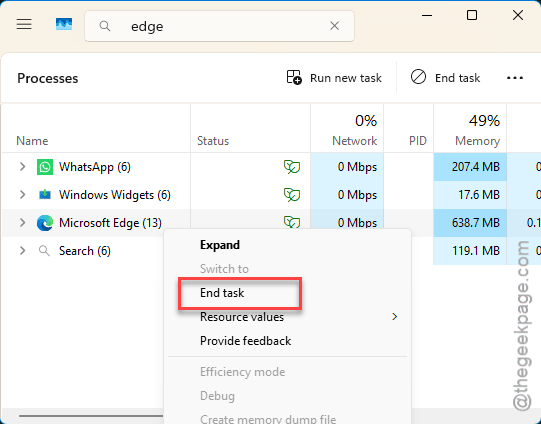
2 – Find every Microsoft Edge process. Click each one. Click End task. Do it for all of them. Even the background ones.
3 – Press Windows + I to open Settings.
4 – Click Windows Update in the left sidebar.
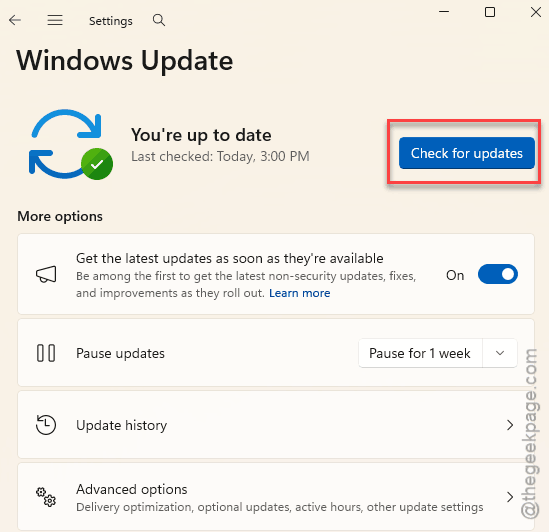
5 – Click Check for updates. Edge often updates through Windows Update too. Let it install anything it finds.
6 – Restart your PC.
7 – Open Edge. If it loads, go to edge://settings/help in the address bar. That page forces Edge to check for its own updates.
And if you’re on 143.0.3650.139 or newer? You should be fine. Microsoft finally nailed it.
Fix 2 – Reset Edge Settings
Fastest fix in the playbook. Edge has a built-in reset that fixes most weirdness.
1 – Open Edge. If the window is blank, try clicking in the address bar area anyway — sometimes it’s just invisible, not dead.
2 – Type this in the address bar:
edge://settings/reset
3 – Press Enter.
4 – Click Restore settings to their default values.
5 – A warning pops up. Click Reset to confirm.
This clears your startup page, pinned tabs, extensions, and temporary data. But it keeps your favorites, history, and passwords. So don’t panic.
Close Edge. Reopen it. Blank screen gone? Done.
Fix 3 – Disable Hardware Acceleration
This one catches a lot of people. Hardware acceleration uses your GPU to render the browser. But if your GPU driver has a bug? Edge renders nothing. White screen.
And Windows 11’s recent driver updates have been… rough. Just saying.
1 – Open Edge.
2 – Click the three dots (⋯) at the top right. Or press Alt + F — quick shortcut.
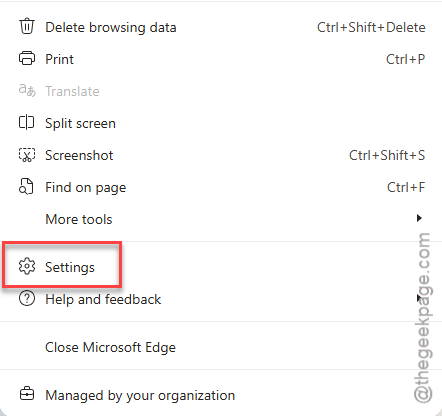
3 – Click Settings.
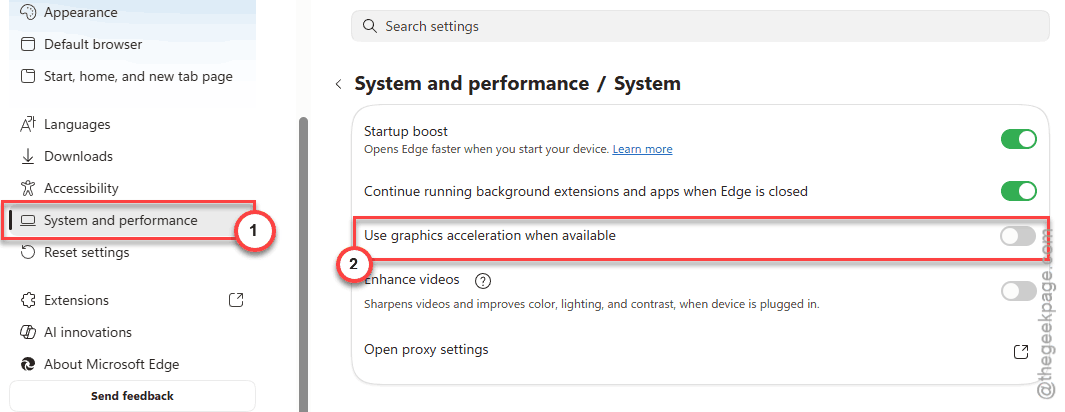
4 – Click System and performance from the left sidebar.
5 – Find Use graphics acceleration when available. Toggle it off.
6 – Edge asks you to restart. Click Restart.
If hardware acceleration was the problem, the blank screen stops immediately. Downside? Slightly slower scrolling and video playback. Worth it for a working browser.
Fix 4 – Launch Edge in InPrivate Mode
Worth trying. Because InPrivate mode skips extensions and cached data. If Edge works here, you know the culprit is one of your extensions or your cache.
Right-click the Microsoft Edge icon on your taskbar. Click New InPrivate window. That’s it.
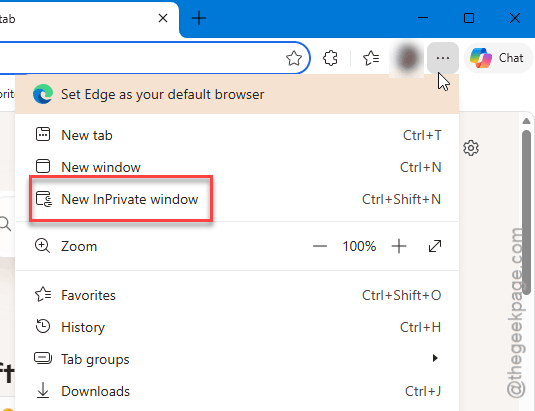
Does InPrivate load normally? Great. Now go back to regular Edge. Disable extensions one by one at edge://extensions. Find the one that breaks things.
Still blank in InPrivate? Move on.
Fix 5 – Clear Edge Browsing Data
Corrupted cache is a big offender here. Edge pulls broken data from cache on startup and just… hangs. Clearing it forces a fresh fetch.
1 – Open Edge. Type this in the address bar:
edge://settings/clearBrowserData
2 – Press Enter.
3 – Set Time range to All time.
4 – Check every box. Browsing history, Cookies, Cached images, Passwords, all of it. If you want to keep passwords, uncheck that one.
5 – Click Clear now.
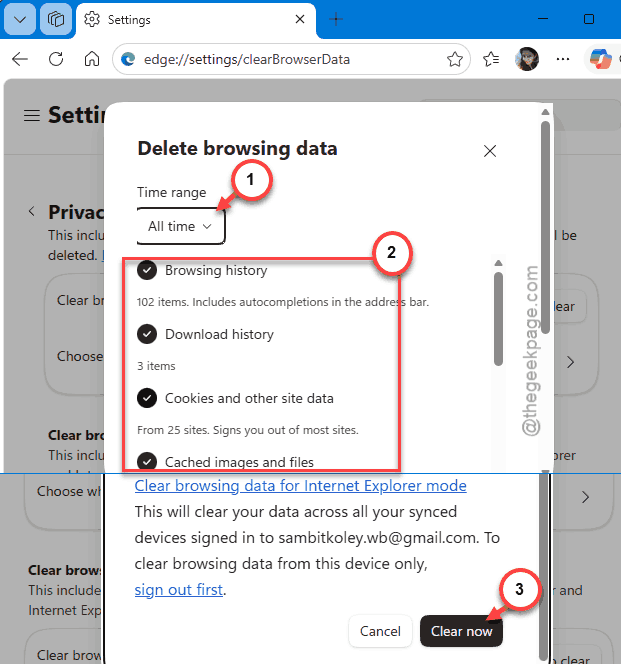
Close Edge. Reopen. You’ll be signed out of a lot of sites. But the blank screen is usually gone.
Fix 6 – Change the Edge User Data Folder (Registry Fix)
For kiosk PCs, shared computers, or anything with a seriously corrupted user profile, this is the real fix. You move Edge to a fresh data folder. Old corrupted one stays ignored.
Heads up — this is a registry edit. Back up your registry first if you’re nervous.
1 – Press Windows + R to open Run.
2 – Type regedit and press Enter. Click Yes on the UAC prompt.
3 – In the left pane, navigate to this path:
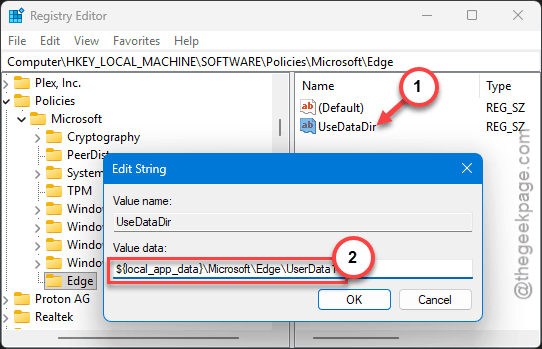
HKEY_LOCAL_MACHINE\SOFTWARE\Policies\Microsoft\Edge
4 – If the Edge key doesn’t exist, right-click Microsoft. Click New > Key. Name it Edge.
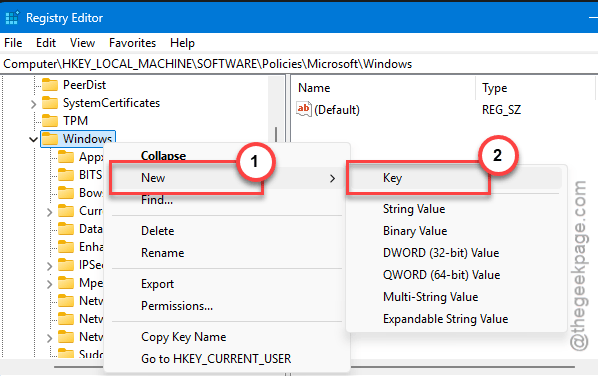
5 – Right-click in the right pane. Click New > String Value.
6 – Name the new value UserDataDir.
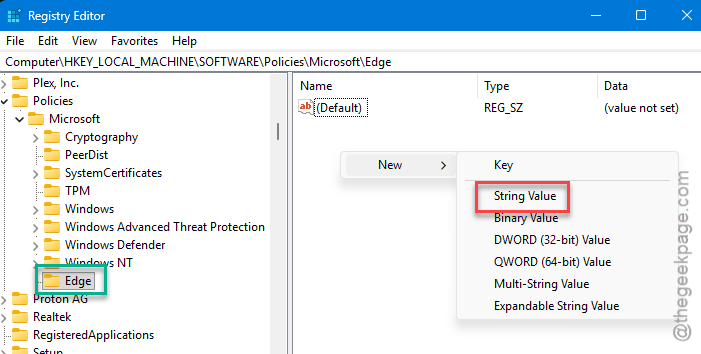
7 – Double-click UserDataDir.
Enter this as the value data:
${local_app_data}\Microsoft\Edge\UserData1
8 – Click OK.
Close Registry Editor.
9 – Restart your PC.
When Edge launches, it builds a brand new profile folder. No old corruption. Works well on managed machines where a standard reset doesn’t cut it.
Fix 7 – Repair or Reinstall Edge
Last one on the list. If nothing else worked, something inside Edge itself is broken. Time to repair the install.
1 – Press Windows + I to open Settings.
2 – Click Apps, then Installed apps.
3 – Type Edge in the search box at the top.
4 – Click the three dots (⋯) next to Microsoft Edge. Click Modify.
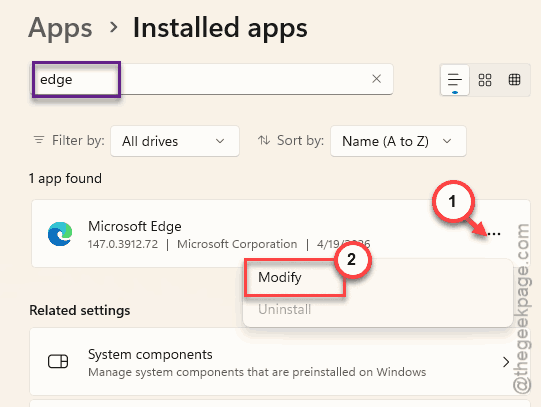
5 – A repair window opens. Click Repair. Windows redownloads and reinstalls Edge without deleting your data.
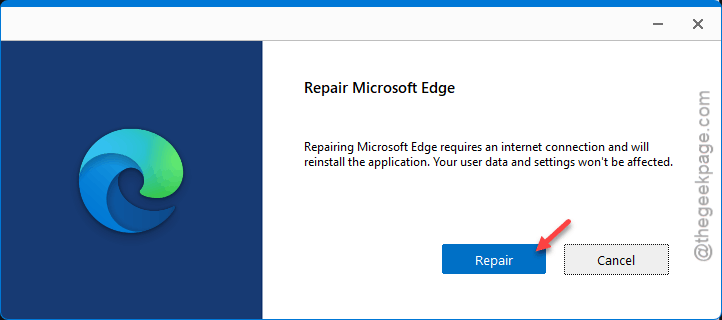
6 – Wait. Takes 5-10 minutes depending on your connection.
7 – Restart your PC when it’s done.
And Edge should be fully functional now. Repair keeps your favorites, history, and passwords. Cleanest fix that exists for a blank-screen problem.
How to Prevent This
- Keep Edge updated. The bad build that caused most of these white screens was finally fixed in 143.0.3650.139. Stay current.
- Keep GPU drivers current. Get them from Nvidia or AMD directly, not Windows Update. Windows drivers lag behind.
- Don’t install random Edge extensions. If a weird extension glitches out, it can take the whole browser down.
- Clear Edge cache every few months. Keeps things snappy and prevents corruption buildup.
People Also Ask
Why is my Edge opening to a white blank screen?
Usually a bad Edge update or a hardware acceleration glitch. Microsoft fixed a big blank-screen bug in version 143.0.3650.139, so update Edge first. If that doesn’t help, toggle off hardware acceleration at edge://settings/system. Or just reset Edge from edge://settings/reset. One of those fixes it most of the time.
Why is my Microsoft Edge black and white?
Different problem. That’s usually a Windows accessibility setting called Color filters. Press Windows + Ctrl + C to toggle it off. Or go to Settings > Accessibility > Color filters and switch it off. Edge itself is fine — Windows is just rendering everything in grayscale.
How to fix black and white screen in Windows 11?
Same deal. Color filters are on. Press Windows + Ctrl + C to toggle them off. If that shortcut doesn’t do anything, go to Settings > Accessibility > Color filters and turn off Color filters. Your screen goes back to full color instantly. Not a virus or a broken display. Just a setting that got flipped.