Why won’t new Teams open when you sign in on to your work PC? It’s ticked to auto-start, even if you don’t touch MS Teams settings. When you try to investigate the matter, Windows says it’s enabled. But, you have to open it by hand every morning. Don’t worry here are some fixes that should resovle the issue.
Fix 1 – Force the Startup Toggle in Windows Settings
Try to force the startup toggle.
1 – Open up the Windows Settings.
2 – Proceed to the Apps in the left sidebar, then Startup tab.
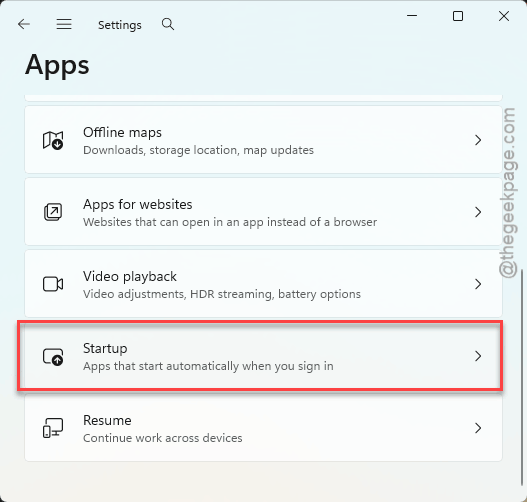
3 – Later, scroll down to Microsoft Teams (work or school).
4 – If the switch is off, turn it on.
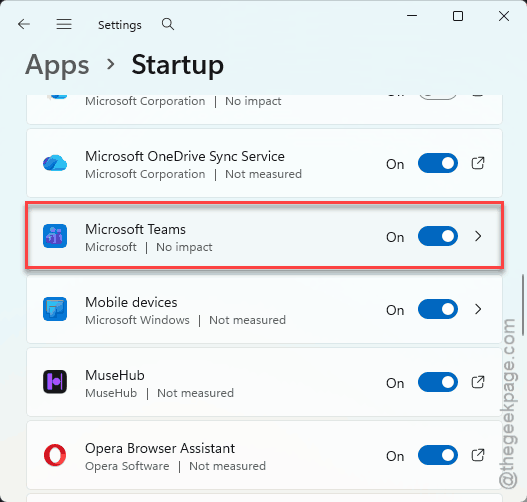
5 – If it’s already on, disable it.
Restart your PC and then come back, and turn it on.
6 – Open Teams, click the three dots (⋯) next to your profile picture at the top right, and choose Settings.
7 – On the General page, make sure Auto-start Teams is checked.
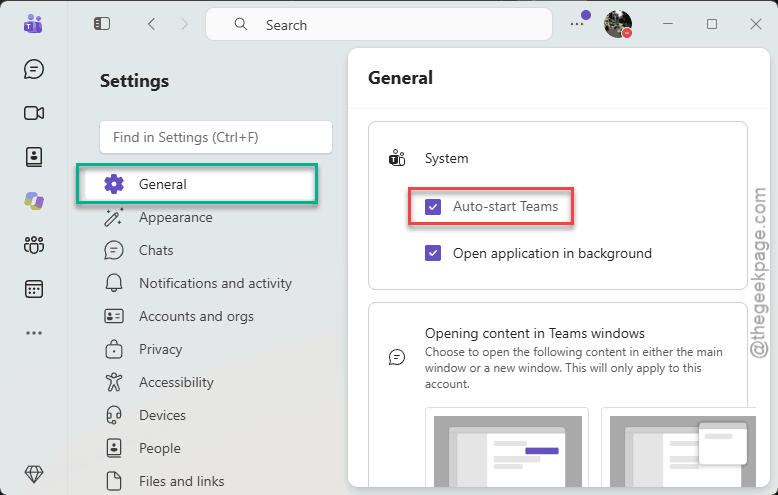
See if this works or not.
Fix 2 – Reset the Checkbox Inside Teams
Teams only rewrites its startup setting when the checkbox changes.
1 – In Teams, go to Settings > General.
2 – Uncheck Auto-start Teams, and restart the PC.
3 – Then go back and check it again.

Silly, but it works.
That forces Teams to write a fresh startup entry instead of trusting the broken one.
Fix 3 – Stop Teams From Opening Hidden
Run this code to stop MS Teams from hiding in the background.
1 – At first, right-tap the Start button and choose Terminal.
2 – Later, paste the whole block below and press Enter:
Get-Process -Name "*teams*" -ErrorAction SilentlyContinue | Stop-Process -Force

$Folder = "$env:LOCALAPPDATA\Packages\MSTeams_8wekyb3d8bbwe\LocalCache\Microsoft\MSTeams"
$App = "$Folder\app_settings.json"
$Cloud = "$Folder\tfw\cloud_settings.json"

if (Test-Path $App) {
$jsonApp = Get-Content $App -Raw | ConvertFrom-Json
$jsonApp.open_app_in_background = $false
$jsonApp.user_modified_auto_start = $true
$jsonApp | ConvertTo-Json -Depth 10 | Set-Content $App -Encoding utf8 -Force
}

if (Test-Path $Cloud) {
$jsonCloud = Get-Content $Cloud -Raw | ConvertFrom-Json
$jsonCloud.OpenAppInBackground = $false
$jsonCloud | ConvertTo-Json -Depth 10 | Set-Content $Cloud -Encoding utf8 -Force
}

Start-Process "ms-teams"
3 – Teams closes and opens again on its own. That’s normal.
4 – Restart your PC to test it.
See if this works.
Fix 4 – Repair the Teams App
Try to repair the MS Teams app.
1 – Open Settings and go to Apps > Installed apps.
2 – Type Teams in the search box at the top.
3 – Click the three dots (⋯) next to Microsoft Teams and choose Advanced options.
4 – Scroll down to the Reset section and click Repair.
Check if this resolves it.