A broken handoff between Linux and your graphics card is why the window is white. WSLg (the piece of WSL that lets Linux apps draw on your Windows desktop) asks the GPU to render, the GPU driver says nothing back, and you get an empty frame. The app is running but it just can’t paint. Fresh Ubuntu installs stall on a blank setup window or, older installs break after a graphics driver update. Either way, the fix is usually a few lines, not a reinstall.
Where This Comes From
A GUI app crashed earlier and left a dead socket file behind (a socket is how Linux programs talk to the display). Every new window tries to use it and gets nothing.
Wondering which one you have? There’s a two-second test in Fix 1. Start there.
Fix 1 – Test With Software Rendering
This tells you whether the GPU is the problem.
1 – Open your Linux terminal (search for Ubuntu in the Start menu, or open Terminal and pick the Ubuntu tab).
2 – Type this and press Enter:
sudo LIBGL_ALWAYS_SOFTWARE=1 /usr/libexec/wsl-setup
3 – Enter your password if it asks.
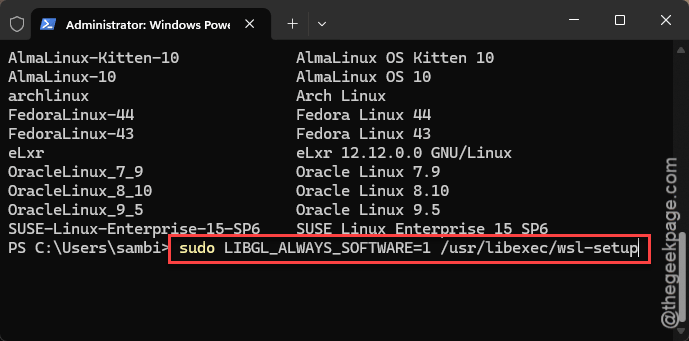
Window shows up with actual content? Then the GPU path is broken, and Fixes 3 and 4 are yours. Still blank? Skip to Fix 2 and Fix 5.
And if you were stuck on the first-run setup screen, this same command lets you finish creating your user. Close the blank window, run the command, and the setup continues.
Fix 2 – Clear the Stale Display Socket
Quick one. Inside your Linux terminal, type this and press Enter:
sudo rm -rf /tmp/.X11-unix/*
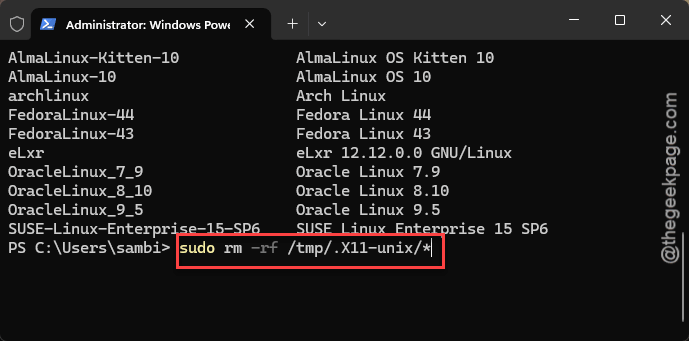
Then launch your GUI app again.
So what did that do? That folder holds the connection files for the display, and a leftover from a crashed session blocks every new window. Deleting them is safe (WSLg makes fresh ones on the next launch).
Fix 3 – Point the Renderer at the Right GPU
Laptops with two GPUs are the usual victims here.
1 – In your Linux terminal, open your shell settings file. Type nano ~/.bashrc and press Enter.
2 – Press Ctrl + End to jump to the bottom of the file.
3 – Add this line, swapping NVIDIA for AMD or Intel depending on your card:
export MESA_D3D12_DEFAULT_ADAPTER_NAME=NVIDIA
4 – Press Ctrl + O, then Enter to save. Press Ctrl + X to leave the editor.
5 – Type this code in the shell and press Enter so the change takes effect now.
source ~/.bashrc
6 – Launch your GUI app.
Not sure what your GPU is called? Do this:
1 – Press Ctrl + Shift + Esc on the Windows side.
2 – Then, click Performance, and look at the GPU entries in the left column.
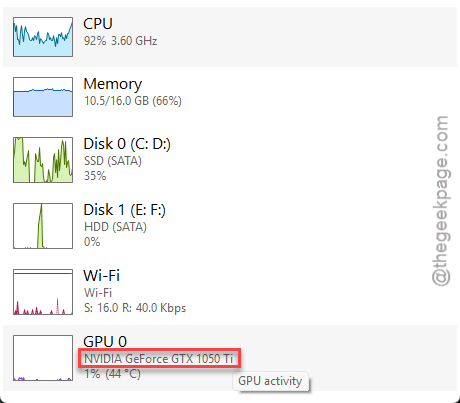
The brand name is what you need, not the full model.
Fix 4 – Restart the WSL Graphics Service on the Windows Side
The display pipeline runs through a Windows service. And when that service gets stuck, every Linux window goes white until it’s bounced. Takes about ten seconds.
1 – Press Windows + R, type services.msc, and press Enter.
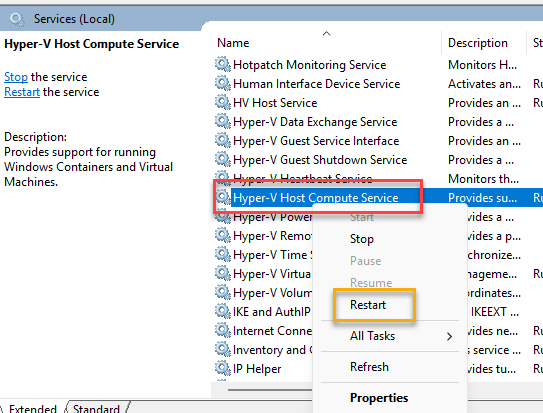
2 – Scroll down to Hyper-V Host Compute Service. The list is alphabetical.
3 – Right-click it and choose Restart.
4 – Open PowerShell.
5 – Execute this code there, and Wait about eight seconds.
wsl --shutdown
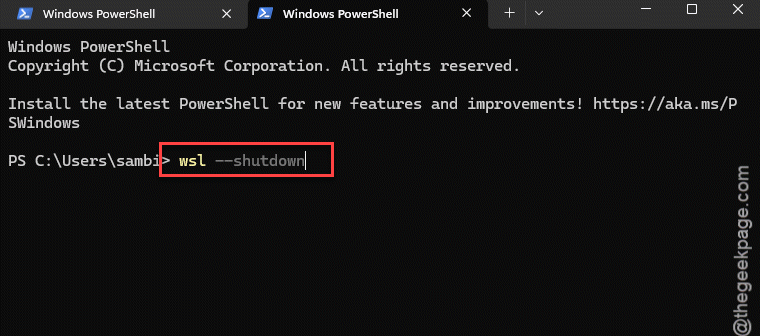
6 – Open your Linux terminal again and launch the app.
Any Linux apps you had open will close when WSL shuts down, so save your work first.
Fix 5 – Turn Off GUI Hardware Acceleration
Nothing else worked? Fall back to software rendering permanently.
1 – Press Windows + E, click the address bar at the top,
2 – Then, type %UserProfile%, and press Enter.
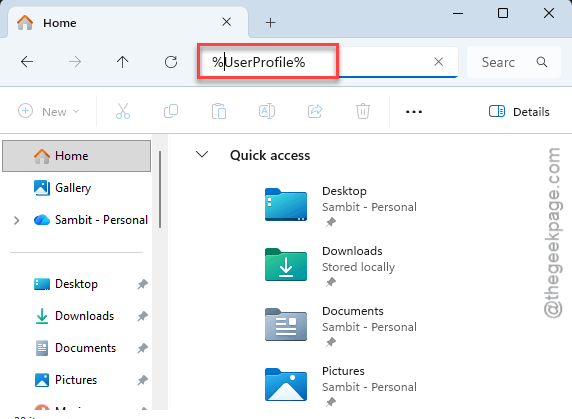
This opens your user folder.
3 – Look for a file named .wslconfig.
4 – If it isn’t there, right-click an empty spot, and choose New, then Text Document.
5 – Then, name it .wslconfig (with the dot, no .txt on the end).
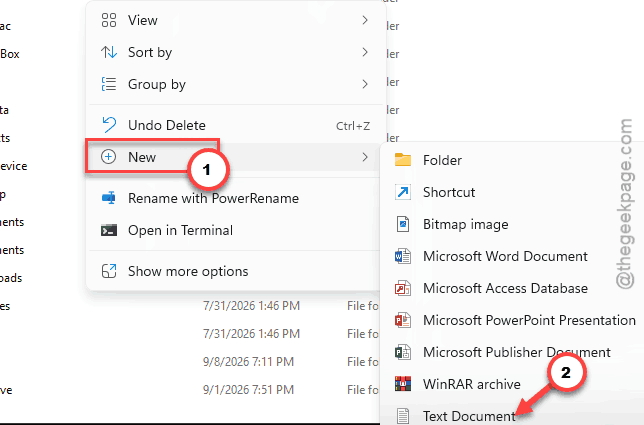
6 – Open the file in Notepad.
7 – Add these two lines (if a [wsl2] line already exists, put the second line under it):
[wsl2]
guiApplications=false
8 – Save the file and close Notepad.
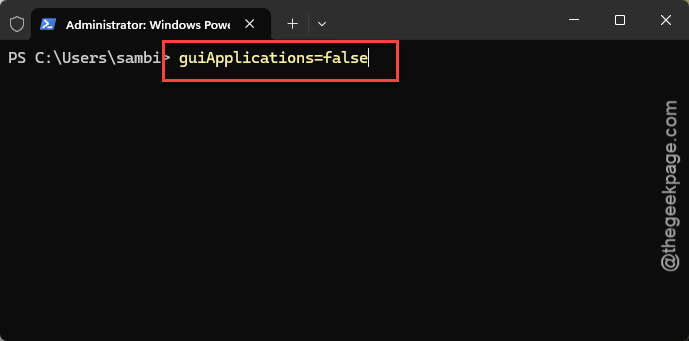
9 – Open PowerShell, type wsl –shutdown, and press Enter.
10 – Reopen your Linux terminal and launch the app.
Windows may warn that changing the extension makes the file unusable. But it won’t. Click Yes.
Fix 6 – Redo the Ubuntu First-Run Setup in Text Mode
Brand-new Ubuntu install that won’t get past the blank setup window? Skip the graphical setup entirely. And the text version does the same job without needing a display.
1 – Close the blank Ubuntu WSL window. A console window opens logged in as root. Close that too.
2 – Open PowerShell.
3 – Type wsl --shutdown and press Enter.
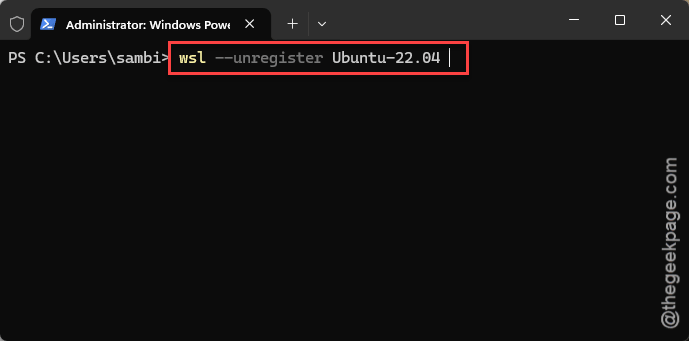
4 – Type wsl --unregister Ubuntu-22.04 and press Enter. This wipes the half-finished install (nothing of yours is in it yet).
NOTE – Do not forget to swap in your version number if it’s different.
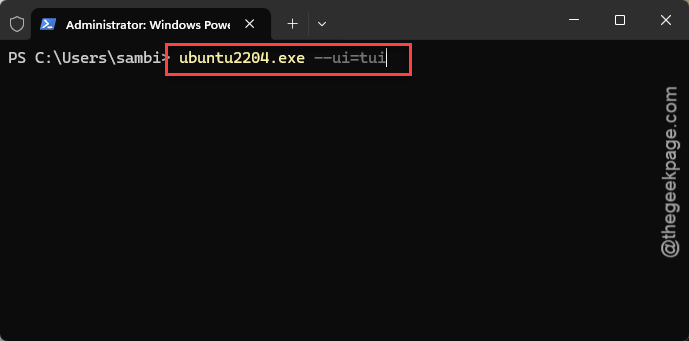
5 – Type ubuntu2204.exe --ui=tui and press Enter.
6 – Follow the text prompts to pick a username and password.
Already finished setup but ended up logged in as root? Run ubuntu2204 config –default-user yourname in PowerShell to switch the default account.
Avoiding This Next Time
- Update your GPU driver from Nvidia, AMD, or Intel before updating WSL, not after. Order matters here more than you’d think.
- Keep the adapter-name line in your .bashrc on dual-GPU laptops. One line, zero downside.
- After any GUI app crash, clear the socket folder. Two seconds, and it saves the next launch.
- Run wsl –update now and then. Microsoft fixes WSLg quietly. Period.
Quick Answers
Why do WSL2 GUI apps open as a blank white window?
The app is running, but the graphics handoff between Linux and Windows failed. Usually the translation layer picked the wrong GPU, the Windows-side display service stalled, or a crashed session left a dead socket file behind. Test with software rendering first.
Is it safe to delete files in /tmp/.X11-unix?
Yes. That folder only holds connection files for the display server, and WSLg creates fresh ones each time a GUI app starts. Deleting old ones fixes windows that open blank after a crash. Nothing personal is stored there, and no apps need to be reinstalled afterward.
How do I fix the blank Ubuntu setup window on a new install?
Close the blank window, open PowerShell, and run the text-mode setup instead. Shut WSL down, unregister the half-installed Ubuntu, then launch it with the –ui=tui switch. You’ll get a text prompt for your username and password. It finishes in under a minute and skips the broken graphical screen completely.