Does the Color Profile Converter crashing on your After Effects projects relentlessly? This is probably happening because AE is crashing the moment it touches your project and you can’t even get in to fix it. Don’t worry. Your project isn’t ruined or any thing. With the right trick, you can open it, deal with the effect, and get back to work in a few minutes.
Where This Comes From
Color Profile Converter is an old effect that translates colors from one color profile to another. A color profile (also called an ICC profile) is a small file that tells your computer how a screen or camera shows color.
The effect wasn’t built for modern graphics cards. When After Effects hands it to your GPU, it can grab memory it isn’t allowed to touch, and the whole app crashes. Extra monitor profiles installed on your PC can make it worse, since the effect reads them every time it runs.
Fix 1 – Open the Project With Caps Lock On
Some of the users have fixed this problem with a quirky solution.
1 – Just press Caps Lock so the light on your keyboard turns on.
2 – Then, open After Effects and open your project. A red bar shows up in the viewer to tell you rendering is turned off. That’s what you want.
3 – Next, click the layer that has Color Profile Converter on it in the timeline.
4 – Later, hit the F3 to open the Effect Controls panel.
5 – Then, tap the Color Profile Converter in that panel and press Delete.
6 – Later, just press Ctrl + S to save, then turn Caps Lock off.
Check if this resolves the issue.
Fix 2 – Switch to Software Only Rendering
Try moving the rendering work to software only mode.
1 – Open your project.
2 – Afterwards, go to the File in the menu bar, then Project Settings.
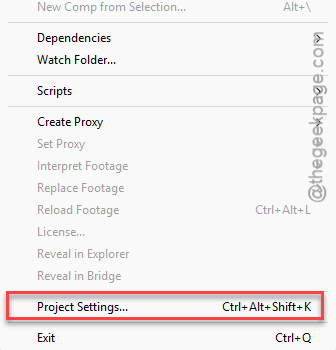
3 – Then, tap the Video Rendering and Effects tab.
4 – Next, tap the Use dropdown and set it to Mercury Playback Engine Software Only.
5 – Finally, click OK.
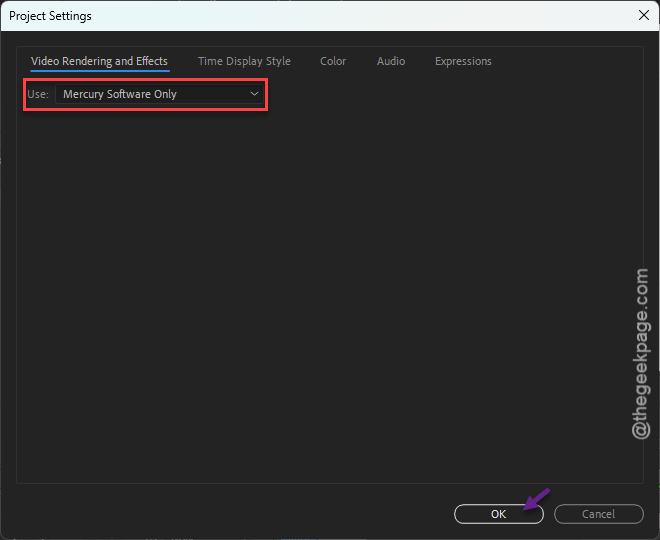
Now go check whether this resolve the issue at your end.
Fix 3 – Change Display Color Management
If switching the rendering mode did not work, you should alter the display color management.
1 – Click Edit in the menu bar, then Preferences > Previews.
2 – Find Enable Color Management for Displays.
3 – If it’s checked, uncheck it. If it’s unchecked, check it.
4 – Click OK and test your composition.
Colors in the viewer may look slightly different after this. Your final render doesn’t change.
Fix 4 – Import the Project Into a Blank One
Can’t get in even with Caps Lock? Then bring the project in through the side door.
1 – Open After Effects, start a new blank project.
2 – Go to File > Import > File. Pick your crashing .aep file and import it.
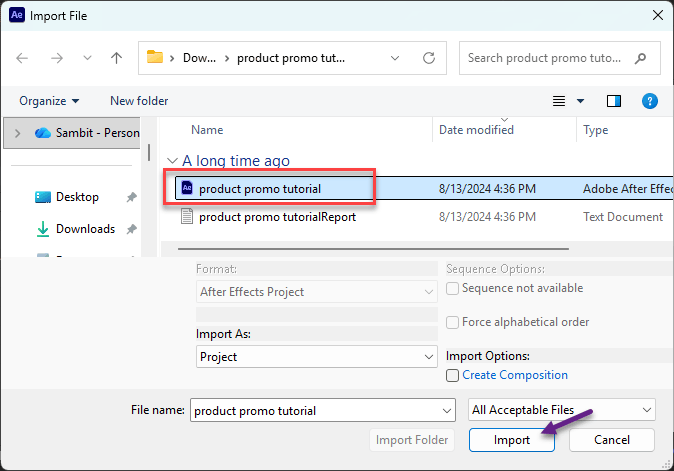
3 – It comes in as a folder in the Project panel, without opening the main composition first.
From there, open the composition with Caps Lock on and remove the effect like in Fix 1. Then save it as a new project, so you’re not stuck with the old one.
Fix 5 – Move Extra Monitor Profiles Out of the Color Folder
Sometimes the external monitor profiles or the third-party profiles cause such issues.
1 – At first, right-click your desktop, choose New > Folder. You can name it ICC backup.
2 – Then, hit the Windows + R.
3 – Later, paste the following address manually, and press Enter.
C:\Windows\System32\spool\drivers\color

4 – Sort by Date modified by clicking that column header at the top.
5 – Then, go ahead and select the newest third-party profiles (the ones from your monitor brand or calibration app).
5 – Later, drag them into the ICC backup folder.
6 – Restart After Effects and test it.
Leave the files named sRGB Color Space Profile and other Windows ones alone. And if your monitor colors look off afterward, move its profile back.
People Also Ask
Is 32GB of RAM enough for After Effects?
You should have 32GB of RAM on your machine to cope up with the heavy 4K editing, or if you are working with many 1080p videos on the go.
Is it safe to remove color profiles from Windows?
You can remove the third-party color profiles from Windows without any worries. But, do not try to touch the official color profiles that comes with the software.