Someone sends you a PDF. You double-click it in Outlook. And nothing. Maybe a “Failed to open” error, maybe no Open button at all. Just a file you can see but can’t touch. So annoying. Here’s what’s going on. New Outlook has a bug where downloads fail if one cache folder is missing. Classic Outlook has its own problem, a hidden temp folder that fills up and quietly stops working. And sometimes Word or Excel blocks the file on the grounds of security.
Latest Update – November 2026
A recent Microsoft Edge version 156 update caused attachment-opening issues in New Outlook (Microsoft 365 incident EX1528992). Affected users encountered file-opening errors or found that the Open option was missing entirely.
According to a Microsoft Q&A update, Microsoft deployed a fix on October 30, 2026. Restart New Outlook to apply the changes.
If you are still unable to open attachments, follow the solutions described below.
Fix 1 – Create the Missing Attachments Folder (New Outlook)
This is the big one for New Outlook. This should fix this problem for you.
1 – Close New Outlook completely.
2 – Press Windows + R to open the Run box.
3 – Paste %userprofile%\AppData\Local\Microsoft\Olk and press Enter.
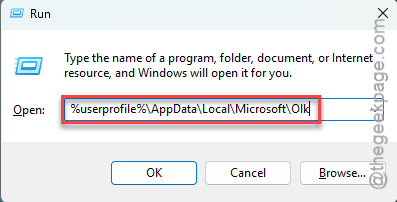
4 – Look for a folder called Attachments.
5 – If it’s missing, right-click an empty spot in the window and pick New > Folder.
6 – Name it Attachments exactly.
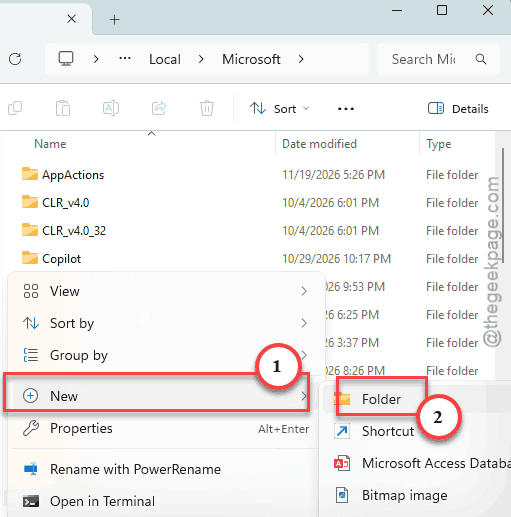
7 – Open New Outlook and double-click the attachment again.
NOTE – If you have already have the attachments folder, do this –
1 – Close New Outlook completely.
2 – Rename the Attachments folder to Attachments.old.
3 – Create a new folder named Attachments.
4 – Relaunch Outlook and test the attachment.
Yes, an empty folder is the whole fix. Ridiculous. But it works.
Fix 2 – Empty Outlook’s Hidden Temp Folder (Classic Outlook)
Classic Outlook saves a copy of every attachment you open in a hidden folder. Try to empty the Temp cache of the Outlook.
1 – Press Windows + R, type regedit, and press Enter.
2 – Then, click the address bar at the top of Registry Editor and paste this, then press Enter.
HKEY_CURRENT_USER\Software\Microsoft\Office\16.0\Outlook\Security
3 – In the right pane, double-click OutlookSecureTempFolder registry value.
4 – Copy the folder path in the Value data box. Then click Cancel so you don’t change anything.
5 – Press Windows + R, paste that path, and press Enter.
6 – Select everything in the folder with Ctrl + A and delete it.
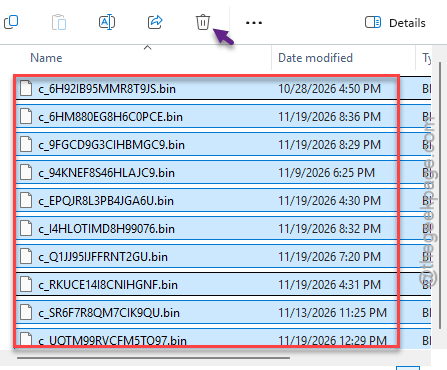
7 – Restart Outlook.
These are only copies (the real attachments stay in your emails). So deleting them is safe.
Fix 3 – Repair the Office Files stuck in Protected View Mode
Sometimes a file fails its check and gets blocked outright in the net of Protected View mode. Some users have
1 – You can save the attachment locally and test the substance independtly.
2 – If that didn’t work, open the Windows Settings.
3 – Go this way –
Apps > Installed Apps
4 – Search for Office. Tap the three-dot menu next to that, and tap Modify.

5 – Choose the Online Repair function and Repair it.
After repairing the app, try to access it again.
Fix 4 – Reset New Outlook’s Cache
Still stuck on New Outlook? Wipe its cache. This won’t touch your email, because everything lives on the server and downloads again.
NOTE – Just keep in mind that Olk folder keeps track of your local prefernce, cached data and authentication state. You can re-configure the settings after the reset under a minute.
1 – Close New Outlook.
2 – Open the Run box and go this way –
%LOCALAPPDATA%\Microsoft
3 – Right-click the Olk folder and rename it to Olk.old.
4 – Open New Outlook. It builds a fresh cache, so the first start might be a tad bit slow.
And if Fix 1 helped earlier, check that the Attachments folder exists in the new Olk folder too.
Fix 5 – Bring Back the Missing Attachment Icons
Can’t even see attachments in your inbox list? That’s a setting, not a bug. But Microsoft hid it well.
1 – In New Outlook, open Settings (the gear at the top right),
2 – Go to Mail > Message List.
3 – Turn on Show attachments previews.
On Classic Outlook, the fix is clearing its file cache instead.
1 – Close Outlook,
2 – Then, open:
C:\Users\%username%\AppData\Local\Microsoft\Office\16.0\OfficeFileCache
3 – Delete the folders inside it.
Check if this offers any help.
Keep It From Coming Back
- Save attachments before you open them. Right-click, Save As, then open the saved copy. And it sidesteps the temp folder entirely.
- Clear the Outlook temp folder from Fix 2 every few months if you open the same report every week. That’s exactly how people hit the 99-copy limit.
- Let WebView2 update. It is part of Edge, so keep Edge updated too.
People Also Ask
Why can I download an Outlook attachment but not open it directly?
If you can download an Outlook attachment, but can’t access it directly on Outlook, it must be linked to the Outlook’s local attachment folder, or cached application data.
Why is my attachment button missing in Outlook?
Usually a display setting. In New Outlook, open Settings, then Mail, Layout and Inline previews, and turn on Show attachments in message list. If the button is still gone, repair Microsoft Edge WebView2 Runtime from Settings, Apps. Then reset the Olk cache folder.