Does the copy paste function has ceased to work on your Excel sheets? The function has not gone anywhere. Suppose, you press Ctrl + C, then Ctrl + V. But, nothing pastes in the Excel sheet. Some users have found the Excel freezes up completely and says it’s not responding. Sound familiar to the same problem you are having at your end? So here’s how to get it working again, plus a few workarounds.
Where This Comes From
The recent Office updates KB5002914 and KB5002934 are at the root of this problem.
Microsoft even fixed it once. Then broke it again. Build 16.0.5574.1005 brought the bug back.
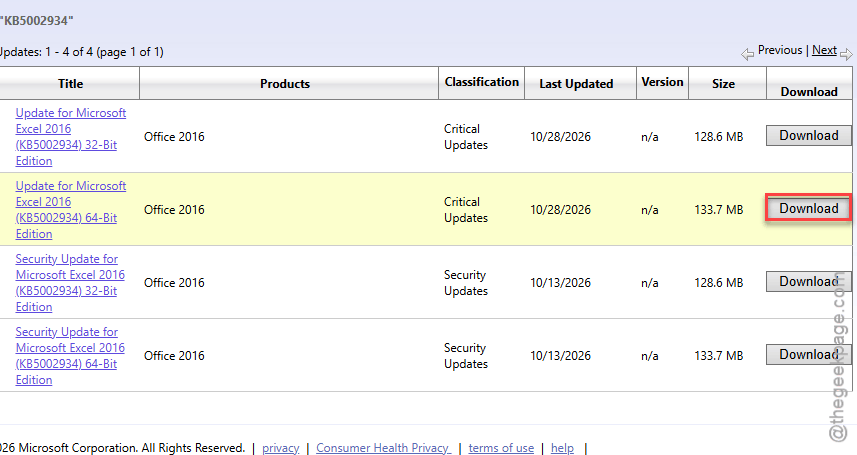
Fix 1 – Install the Corrected KB5002934
If you are using Microsoft Excel 2016 and have ran into this issue, you should just offload the update.
1 – Start by closing the Excel and any other Office apps.
2 – Then, go Microsoft Update Catalog.
3 – Find the download that matches your Office version, either 32-bit or 64-bit.
4 – Now, all that is left is to download it and double-click the file to install.
5 – Restart your PC.
And once it’s installed, check your build number in that same About window. You want 16.0.5574.1006 or newer.
Fix 2 – Paste With Ctrl + Alt + V
Without unistalling, you should avail the Paste Special kit as a temporary solution.
1 – At first, copy your cells the usual way with Ctrl + C.
2 – Then, click the cell where you want to paste.
3 – Finally, tap Ctrl + Alt + V. The Paste Special box opens.
4 – Thereafter, pick Values or Formulas. If you see Unicode Text instead (it shows up when you copy from another app), pick that.
5 – Click OK.
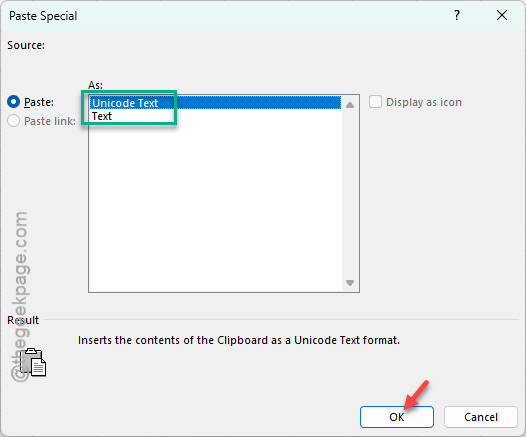
Your data should paste without an error. And it’s handy to remember even after the bug is gone. Not a permanent fix, but it gets you through the day.
Fix 3 – Copy Through Notepad or Word
Paste Special loses your cell formatting. If you want to keep the cell formatting while copying, follow this approach –
Paste the cells into Word first, copy them again from Word, and then paste them back into Excel.
This way, you don’t have to get into hassle of manual editing.
Fix 4 – Turn Off Live Preview
Some users have recommended switching off the Live Preview system to resolve the problem.
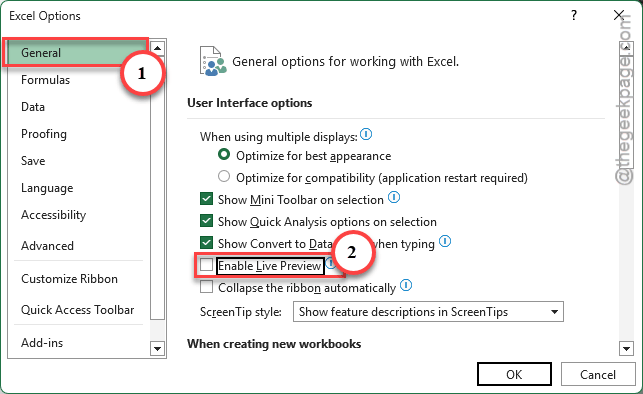
1 – In Excel, click File at the top left.
2 – Click Options at the bottom of the left menu.
3 – Stay on the General tab, which opens first.
4 – Uncheck Enable Live Preview.
5 – Click OK.
But turn it back on after the corrected update is in. You’ll miss it.
Fix 5 – Uninstall the Update (Older Office Versions)
If you have an older, non-subscription Office (the kind installed from an MSI file, like Office 2016), and Fix 1 isn’t an option, remove the update.
1 – Click Start, type cmd, right-click Command Prompt, and pick Run as administrator.
2 – Type wusa.exe /uninstall /kb:5002914 /promptrestart and press Enter.
3 – Do the same with 5002934 in place of 5002914, if you have that one installed too.

4 – Restart when Windows asks.
Uninstalling a security update leaves a hole, though. Pause Office updates for a week or two afterward, then install the corrected KB5002934 from Fix 1 once you can.
Fix 6 – Roll Back Microsoft 365
Microsoft 365 (and Office 2024 LTSC) updates itself through a tool called Click-to-Run. So there’s no KB to uninstall. You roll back the whole build instead.
1 – Close every Office app.
2 – Open Command Prompt as administrator, like in Fix 5.
3 – Now, you must enter the ClickToRun folder. Execute this:
cd "C:\Program Files\Common Files\microsoft shared\ClickToRun"
4 – Once you are there, run this to roll back the update:
officec2rclient.exe /update user updatetoversion=16.0.19822.20182
5 – Wait. An Office update window appears and downloads the older build. That takes a few minutes.
6 – Restart your PC and open Excel.
Office will try to update itself again later.
1 – Turn that off for now in Excel:
2 – Go under File > Account > Update Options
3 – Select the Disable Updates option for now.
Check if this helps.
Fix 7 – Use Excel on the Web for Now
Can’t install or roll back anything on a work PC?
1 – Open your file in Excel on the web at Microsoft Office.
2 – The browser version does not have this bug, so copy and paste work as normal there.
Check if this helps.