You’ve got OBS running. Then you open Teams, or Zoom, and — “Camera in use by another application.” One app hogs the webcam, the other locks out.
So annoying when you’re trying to stream and video-call at the same time. But Windows 11 can actually share one camera across apps. You just have to switch it on.
Why This Happens
Whichever app grabs the webcam first gets exclusive control of it. Every other app that asks for it gets the door slammed. That’s your “camera in use” message.
But Windows has a mode that fixes this — Frame Server. Instead of giving the raw camera to one app, Windows itself reads the camera and hands out copies of the video to everyone who wants it. Kind of like a splitter.
Problem is, that mode isn’t always fully on after an update. Or a service that runs it gets stopped. So the sharing quietly breaks, and you’re back to one-app-at-a-time.
Fix 1 – Turn On Camera Frame Server Mode
This is the core fix. It tells Windows to split one camera stream across multiple apps at once. Two registry entries, done carefully.
1 – At first, hit the Windows + R, write down regedit, and press Enter.
2 – Reach this path:
HKEY_LOCAL_MACHINE\SOFTWARE\Microsoft\Windows Media Foundation\Platform
3 – Right-click an empty spot in the right pane and choose New > DWORD (32-bit) Value.
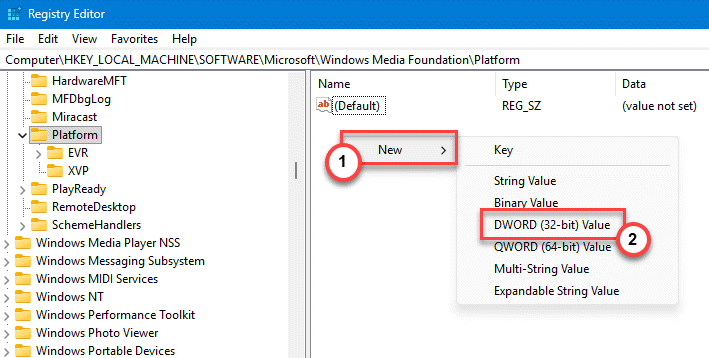
4 – Then, Name it EnableFrameServerMode.
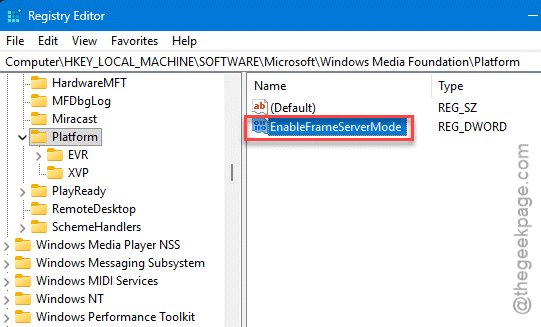
Leave its value at 0 for now. If that doesn’t work you’ll switch it to 1 in a moment.
5 – Now follow this second path:
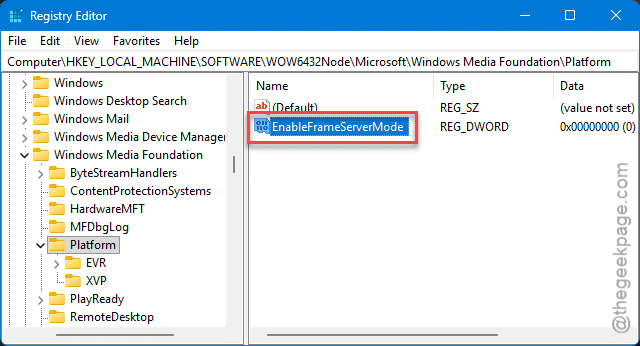
HKEY_LOCAL_MACHINE\SOFTWARE\WOW6432Node\Microsoft\Windows Media Foundation\Platform
6 – Create the same EnableFrameServerMode DWORD here as well. This one covers 32-bit apps like some versions of OBS.
7 – Restart your PC.
Test both apps after the reboot. If the camera still won’t share, go back and change both values to 1, then restart again. One of the two settings will match your build.
Fix 2 – Restart the Camera Frame Server Service
If the service that runs frame sharing is stopped, none of it works.
1 – You should start by pressing the Windows + R, type services.msc, and press Enter.
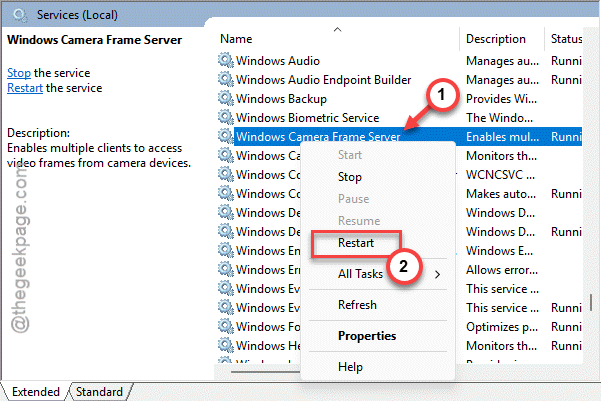
2 – Scroll down to Windows Camera Frame Server.
3 – Right-click it and choose Restart.
4 – Right-click it again and choose Properties.
5 – Set Startup type to Automatic and click OK.
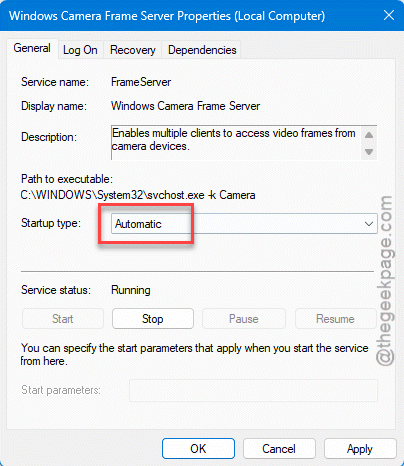
Now the sharing service starts on its own every time you boot.
Fix 3 – Check Camera Access Settings
If desktop apps like OBS can’t grab the camera at all, a privacy setting might be blocking them.
1 – Open Settings, then go to Privacy & security.
2 – Click Camera.
3 – Make sure Let desktop apps access your camera is turned on.
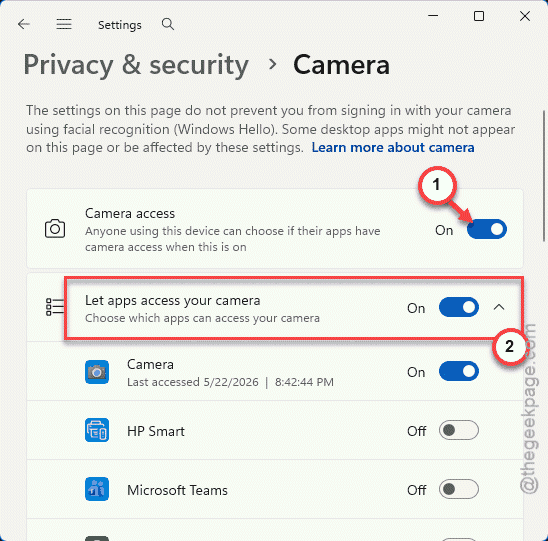
4 – Look for a Camera virtualization or multi-app sharing toggle. Newer Windows 11 builds have one — switch it on if it’s there.
5 – Close Settings and try both apps again.
Fix 4 – Reload the Camera Framework
Quick reset if the camera acts stuck after the changes above.
1 – Open Command Prompt (Admin).
2 – Then, run these two codes –
net stop FrameServer
net start FrameServer
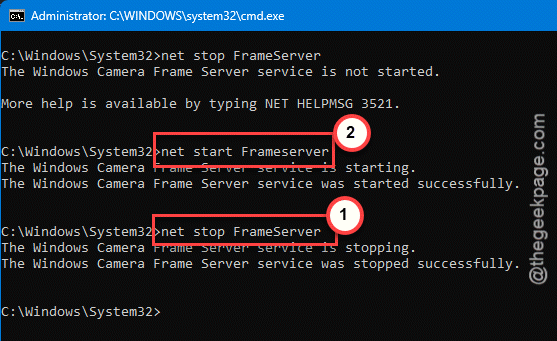
That reloads the whole camera-sharing framework without a reboot. Handy when you don’t want to restart mid-stream.
Fix 5 – Switch OBS to a Compatible Renderer
Sometimes it’s OBS specifically clashing with the camera stack. Changing how OBS renders video can clear the conflict.
1 – Open OBS Studio.
2 – Click Settings, then open the Advanced tab.
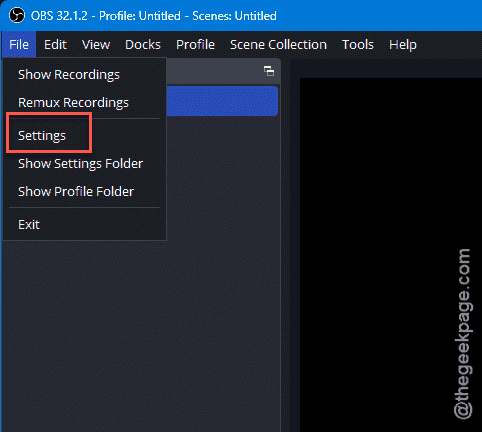
3 – Find the Video Renderer option.
4 – If it’s set to Direct3D 11, switch it to the compatibility option and click Apply.
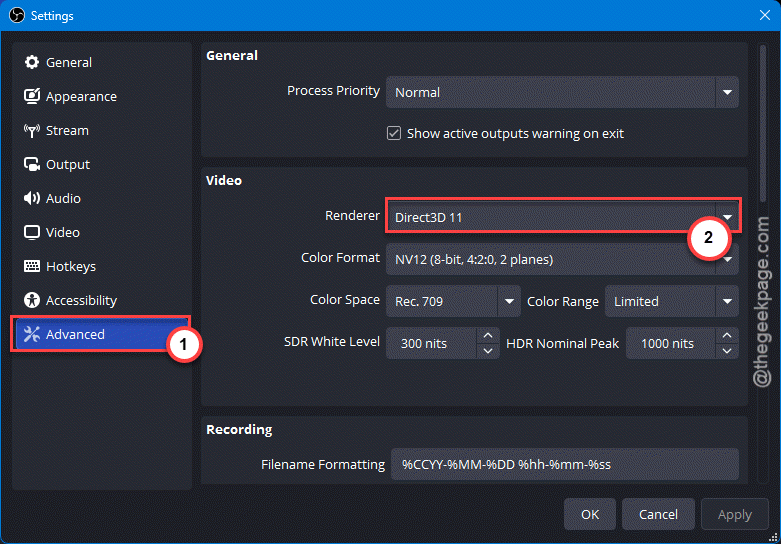
5 – Restart OBS and reopen your other camera app.
This keeps OBS from fighting the main camera stack, so both apps can pull the stream.
How to Prevent This
– Once Frame Server Mode works, leave those registry values alone. They survive most updates and keep sharing on.
– Keep the Windows Camera Frame Server service set to Automatic. If it drops back to manual after an update, sharing quietly breaks again.
– Open your streaming app before your meeting app when you can. Even with sharing on, a clean start order avoids the occasional grab conflict.
– After a big Windows update, do a quick two-app camera test before an important stream. Better to find a broken toggle early than mid-broadcast.
People Also Ask
How do I fix ‘camera in use by another application’?
This means one app has exclusive control of the webcam. Enable Frame Server Mode in the registry so Windows shares the stream instead. Then restart the Windows Camera Frame Server service in services.msc and set it to Automatic.
Can OBS and Zoom use the same camera at the same time?
Yes, with Frame Server Mode on. Once Windows is set to share the camera stream, OBS and Zoom can both read it together. If OBS still blocks it, open OBS Settings > Advanced and switch the Video Renderer to the compatibility option. Starting OBS first also helps avoid conflicts.