You click Play. The Blood of Dawnwalker shows its splash screen, the “compiling shaders” bar crawls to somewhere around a third, and then the whole thing vanishes. Maybe an Unreal crash reporter pops up. Maybe nothing. Either way, you never get to see the actual game menu. Sometimes, if the UE5 cache got half-written, the engine chokes on it every single launch. Forever. It never thinks to just throw the bad one away. And on top of that, the game ships with a broken frame limiter and a DirectX startup bug, because of course it does. Seven fixes, easiest first. Most people are done after the first two.
Fix 1 – Delete the PSO Cache
Start here. This forces a clean rebuild, and nine times out of ten that’s the whole problem.
1 – Close the game and the crash reporter if it’s still open.
2 – Then, press Windows + R.
3 – Paste this, and press Enter.
%LOCALAPPDATA%\Dawnwalker\Saved\Config\Shaders
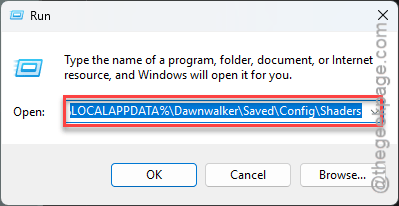
4 – Press Ctrl + A to select everything in the folder, then press Delete.
5 – Launch the game and wait.
The shader compile takes about five minutes this time. Do not click anything until the bar finishes.
Fix 2 – Verify the Game Files
Did the crash start right after a patch? Then some of the game’s own files may be broken, not just the cache.
1 – Open Steam and click Library.
2 – Right-click The Blood of Dawnwalker and pick Properties.
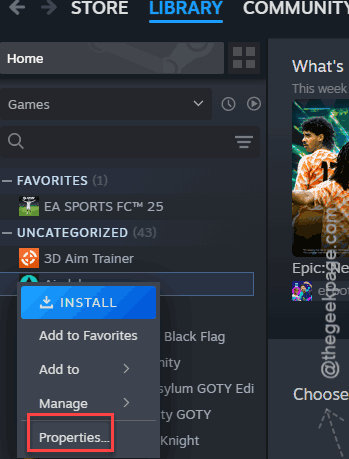
3 – Click Installed Files in the left sidebar.
4 – Click Verify integrity of game files and wait for it to finish.
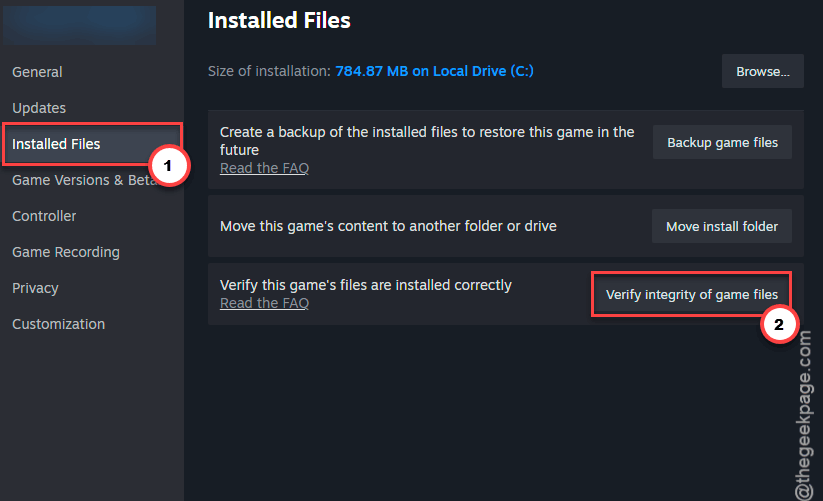
If Steam says it replaced files, launch again. But if it says everything checked out, keep going. Nothing lost but five minutes.
Fix 3 – Force DirectX 12 in Launch Options
Some installs fail before the shader bar even shows.
1 – In the Steam console, right-click The Blood of Dawnwalker and pick Properties.
2 – Now, go to the General tab, if you are not there already.
3 – Find the Launch Options box near the bottom.
4 – Type -dx12 into the box.
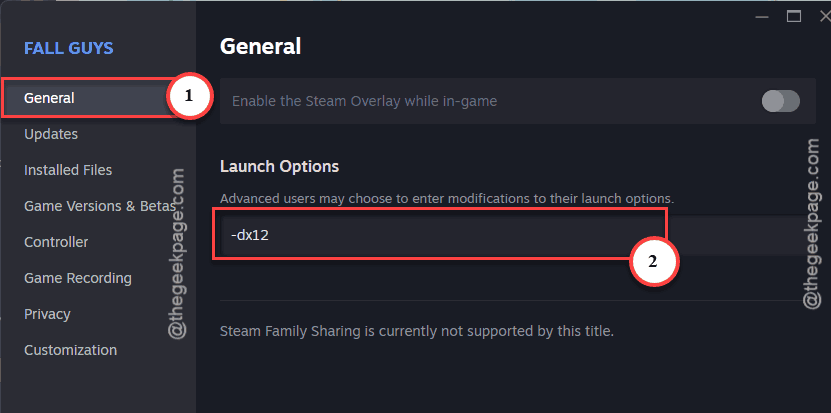
5 – Close the window and launch the game.
Still dying at the same spot? Take -dx12 back out so it doesn’t muddy the next tests.
Fix 4 – Turn Off Control Flow Guard
Try disabling the CFG briefly and check whether this works.
1 – Click Start, type Exploit protection, and open it.
2 – Stay on the System settings tab.
3 – Find Control flow guard (CFG) in the list. It’s the first entry.
4 – Change the dropdown to Off by default.
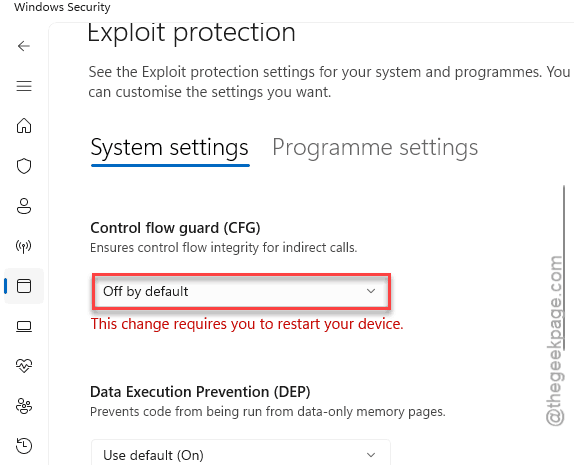
5 – Restart your PC. The change doesn’t take until you do.
Launch the game and let it compile.
Fix 5 – Kill Overlays and Overclocks
Try ending any app overlays or overclocking tools from your system.
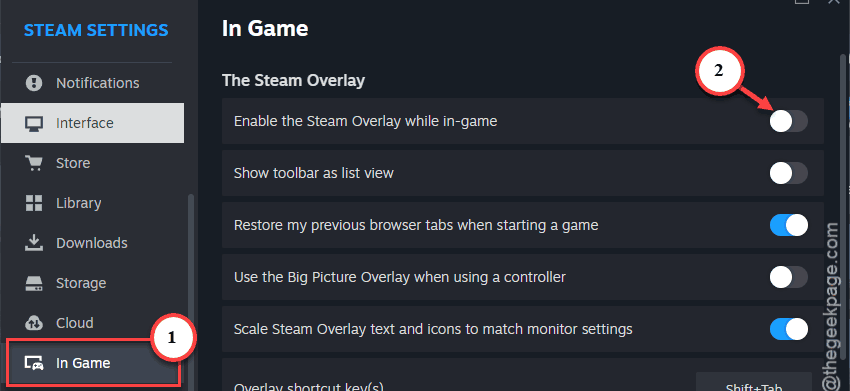
Overlays first. Turn off the Steam overlay (Steam, then Settings, then In Game, switch off Enable the Steam Overlay).
Then do the same in Discord (Settings, then Game Overlay) and in the NVIDIA App or AMD Software. Every single one. They stack.
Then the overclock. If your CPU, GPU, or RAM runs above stock (or you’ve undervolted anything), put it all back to default. And XMP or EXPO memory profiles count too, annoying as that is. Restart and test. If the game launches clean, you can creep the settings back up later, one at a time.
Fix 6 – Check What Your Antivirus Quarantined
Antivirus tools get twitchy about shader compilers. They see a program writing thousands of files at once.
1 – Click Start, type Windows Security, and open it.
2 – Click Virus & threat protection.
3 – Click Protection history, right below the scan options.
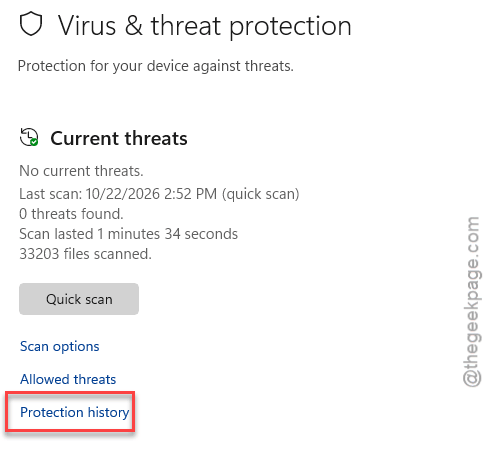
4 – Look for anything from the Dawnwalker folder. If you find it, click it, then click Actions. Tap the Restore button next to restore it.
5 – Finally, run Fix 2 again.
You should use Look for a quarantine or history page and restore the game files from there.
Fix 7 – Cap the Frame Rate From the Driver
The in-game FPS limiter is broken. Flat out. So leave it off and cap from outside, or you’ll trade the startup crash for a lockup the first time you cross a bridge.
NVIDIA:
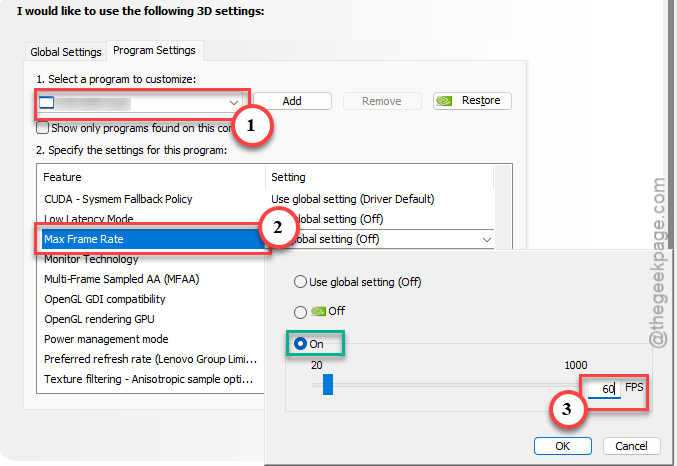
1 – Open NVIDIA Control Panel.
2 – Click Manage 3D Settings.
3 – Go to the Program Settings tab.
4 – Add the Dawnwalker.exe, and set Max Frame Rate to 60.
5 – Click Apply.
AMD
1 – open AMD Software.
2 – click Gaming,
3 – pick the game, and set Frame Rate Target Control to 60.
Want more than 60? Try it later, once everything else is stable. Right now, 60 is the number the game actually behaves at.
Keep It From Coming Back
- After every game patch, delete the Shaders folder before your first launch. Thirty seconds, and it skips this whole mess.
- Don’t Alt-Tab or close the game during the compile bar. That half-written cache is how you got here.
- Keep the driver-level 60 FPS cap on until the developer fixes the in-game one. If they ever do.
- Add the game folder to your antivirus exclusions so the next compile doesn’t get eaten.