Another big Capcom AAA title launch, another game that won’t even open for half the people who bought it. This time it’s Onimusha: Way of the Sword. After installing game on Steam/ Epic Launcher, you hit Play, the Capcom logo flashes, and then returns you to the desktop. No error message or error code. Absolutelt nothing shows up on the scree. Before you prompt for a quick refund, here are some steps that should resolve the issue on the go.
What’s Actually Going On
Blame the first boot. The RE Engine (Capcom’s in-house game engine) builds a huge pile of shaders the first time it starts, and that hammers your CPU. And if it takes too long, the game gives up and kills itself. Right at the Capcom logo. Classic.
A shader file that got mangled during the launch-day download rush does the same thing. Why does a brand-new game fall over this easily? Ask Capcom.
Fix 1 – Make the Game Pre-Compile Its Shaders
Try this first. It targets the exact crash at the Capcom logo, and it’s one number in a text file.
1 – At first, press Windows + R to open the Run box.
2 – Then, write down this, and press Enter.
%localappdata%\CAPCOM\OnimushaWOTS
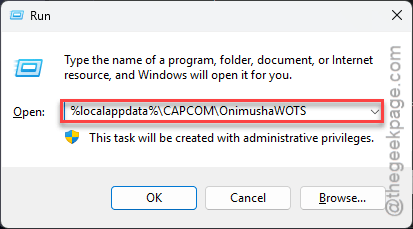
Folder not there? Try this address:
%appdata%\CAPCOM\OnimushaWOTS
3 – Then, right-click config.ini and choose Open with > Notepad.
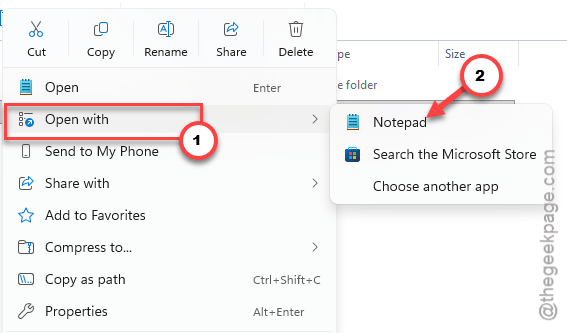
4 – Press Ctrl + F and search for PreCompileShaders.
5 – Change PreCompileShaders=0 to PreCompileShaders=1.
6 – Press Ctrl + S to save, then close Notepad.
7 – Launch the game.
The first loading screen will sit there a lot longer now (a few minutes isn’t unusual). Don’t close it. That’s the game building shaders up front instead of choking on them halfway.
Fix 2 – Turn Off Discord and NVIDIA Overlays
Quick one.
1 – Open Discord, click the gear icon at the bottom left,
2 – Go to Game Overlay, and turn it off.
3 – Then open the NVIDIA App (or GeForce Experience on older setups),
4 – Go to Settings, and switch In-Game Overlay off.
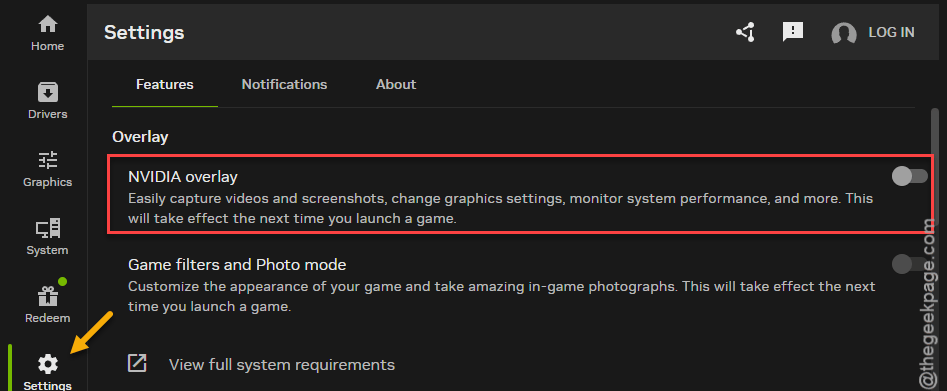
5 – Relaunch the game.
You lose an FPS counter and some Discord pop-ups. Fine by me (you can turn them back on once the game runs).
Fix 3 – Verify the Game Files
Launch-day downloads are rough. One broken file and the engine stops cold.
1 – Restart your PC.
Capcom’s support page lists the restart as the first step (it clears out anything still holding the game files open).
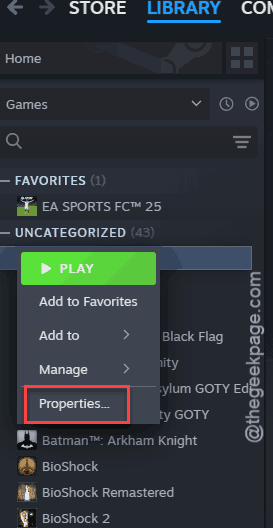
2 – Open Steam and right-click Onimusha: Way of the Sword in your Library.
3 – Select Properties.
4 – Click Installed Files on the left.
5 – Click Verify integrity of game files.
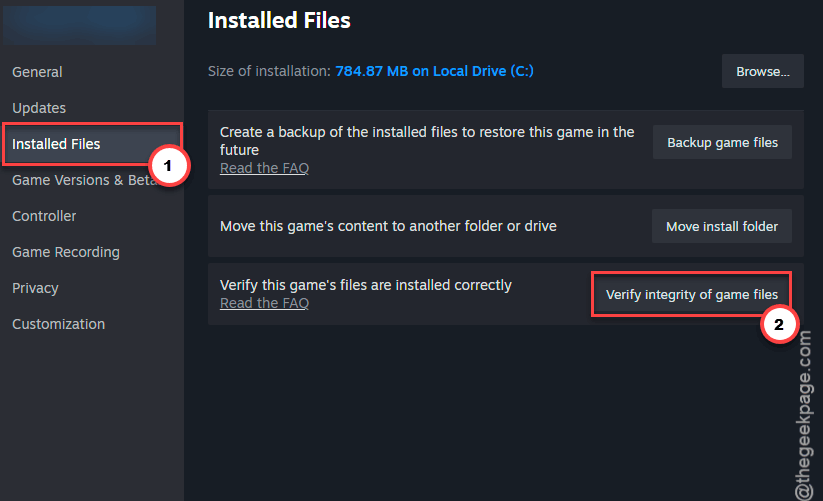
It’s a 50 GB game, so the scan takes several minutes. Steam re-downloads anything broken by itself.
That same Capcom page also suggests turning off your antivirus for a moment while you verify and launch. Some security apps flag game files by mistake. So give it a shot. Just remember to turn it back on after.
Fix 4 – Force DirectX 12 With a Launch Option
IMake sure to force the game via DirectX 12 option.
1 – Open the game’s Properties in Steam, like in Fix 3.
2 – On the General tab, scroll down to Launch Options.
3 – Type -d3d12 in the text box.
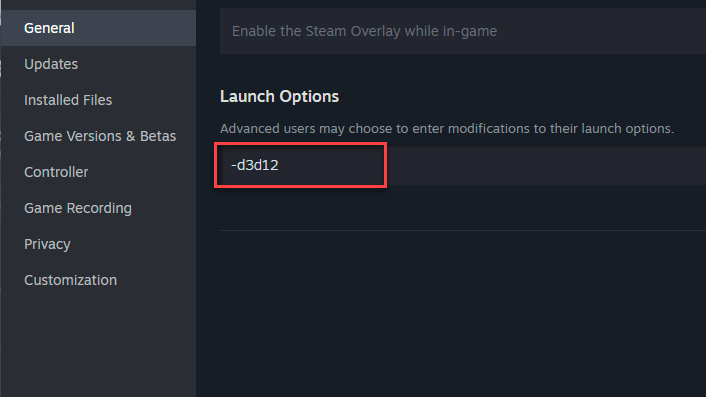
4 – Close the window and launch the game.
Fix 5 – Run the Game as Administrator
Sometimes Windows blocks the game from writing its settings file to AppData on the first boot. And then it crashes. Admin rights get around that.
1 – In our Steam client, right-click the game and choose Manage > Browse local files.
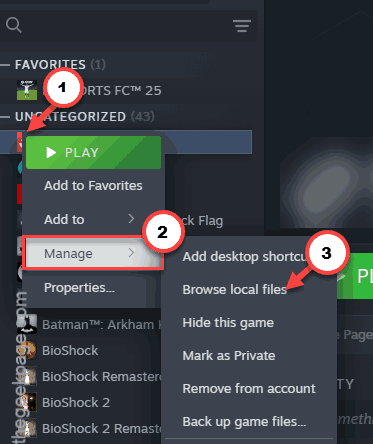
2 – Right-click the game’s main .exe file and choose Properties.
3 – Then, go to the Compatibility tab.
4 – Check Run this program as an administrator.
5 – Click Apply, then OK.
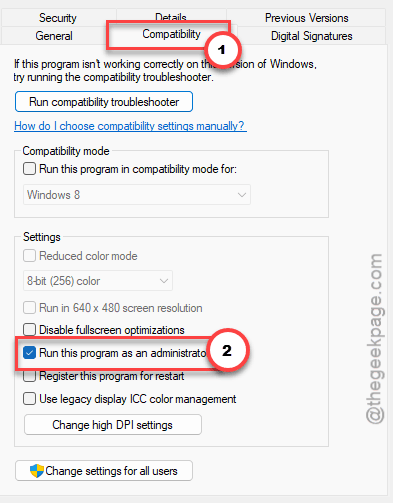
Once it boots, set Display Mode to Borderless Windowed in the game’s settings.
Fix 6 – Cap Your Frame Rate at 60
Weird one. But a few players found an uncapped frame rate was the whole problem. Since you can’t reach the in-game menu yet, use your graphics driver’s limiter.
NVIDIA Control Panel calls it Max Frame Rate. AMD Software calls it Frame Rate Target Control.
Set it to 60, launch, and once you’re in, you can move the cap to the game’s own settings instead.
Avoiding This Next Time
- Check config.ini after big patches. Updates can flip PreCompileShaders back to 0 without telling you.
- Turn overlays off before you launch any new Capcom game. They’re touchy.
- If a patch download fails partway, verify files before you try anything else. Five minutes. Saves an hour of guessing.
Quick Answers
Why does my game crash on startup?
Usually something gets in the way during the first load. Overlays from Discord or NVIDIA are common culprits. Broken game files are another.
Does verifying game files delete my Onimusha saves?
No. Verifying only checks the game’s install folder and replaces broken files there. And your saves are stored somewhere else, so they stay safe. It can undo mods inside the install folder, though. The config.ini file lives in AppData, so your shader edit survives too.