Why does Adobe Premiere freeze the second an After Effects comp hits the timeline? Mostly, it is just a stuck background process. Otherwise, it is just a version mismatch. The entire playhead stops because of this nuance. The panels go grey and Premiere just sits there, not responding, waiting for After Effects to answer. Here are some fixes that should resolve your issue.
Why This Happens
Dynamic Link isn’t some clever file sharing trick. It works like a tiny web server on your own PC. After Effects renders a frame, then sends it to Premiere through localhost (network traffic that never leaves your machine).
So a lot can jam it. The server process can hang after a crash and stay stuck in memory. A zombie, basically. Or Windows Firewall blocks that local traffic without saying a word.
Versions matter too. Premiere on 26.2 and After Effects on 26.1? The bridge between them fails. No error. Just a frozen timeline.
And the cache both apps share can get corrupted mid-render. Then Premiere loops forever, rereading a broken temp file instead of asking for a fresh frame. Not great.
Fix 1 – End the Stuck Dynamic Link Processes
Most common cause. Also the fastest fix, and you do not need to reboot (Windows or anything else).
1 – Press Ctrl + S in Premiere to save your project.
Leave both Premiere and After Effects open. You don’t have to close them for this.
2 – Press Ctrl + Shift + Esc to open Task Manager.
3 – Click Details in the left sidebar. It’s the list where every name ends in .exe.
4 – Find dynamiclinkmanager.exe in the list. Clicking the Name header at the top sorts it alphabetically, which helps.
5 – Right-click it and choose End process tree. Confirm if Windows asks.
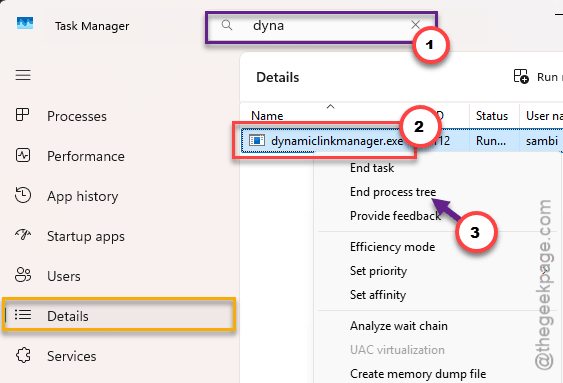
6 – Do the same for dynamiclinkmediaserver.exe.
7 – Do the same for Adobe IPC Broker.exe.
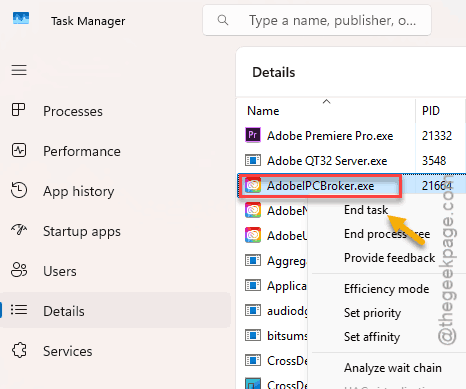
8 – Click back into Premiere.
The timeline should unfreeze within a few seconds and reconnect to After Effects.
Still stuck? Switch to the Processes tab and look for Creative Cloud Content Manager. End that task too. It hangs Dynamic Link more often than you’d think.
Fix 2 – Put Both Apps on the Exact Same Version
Dynamic Link is picky. Same year isn’t enough. Premiere and After Effects need the same point release, like both on 26.2.
1 – Open the Creative Cloud desktop app.
2 – Click the Apps tab and look at your Installed list.
3 – Hover over the version numbers next to Premiere Pro and After Effects. Check that they match down to the decimal.
4 – If they don’t, click the three dots (⋯) next to the older app.
5 – Click Update.
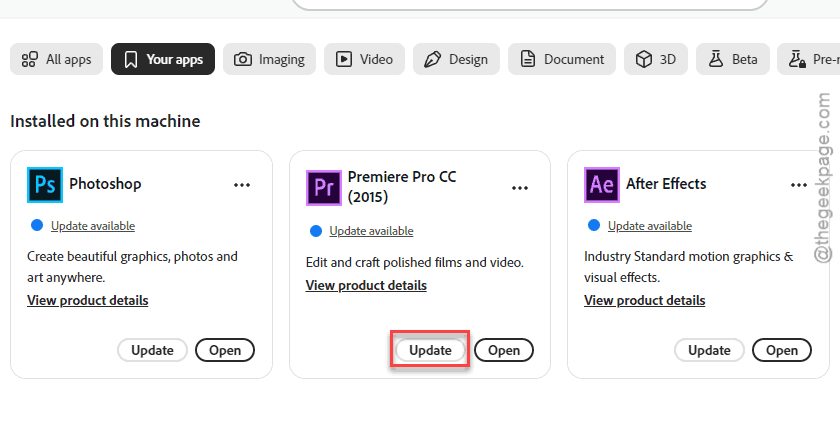
Rather not update? Pick Other versions from that same three-dot menu and roll the newer app back instead. Either direction works. But they have to match.
Fix 3 – Purge the After Effects Cache
Clearing Premiere’s cache does nothing for this one.
1 – After Effects keeps its own cache, and that’s the one feeding the link.
2 – So open After Effects, click Edit at the top.
3 – Then go to Purge > All Memory & Disk Cache.
4 – Click OK on the prompt.
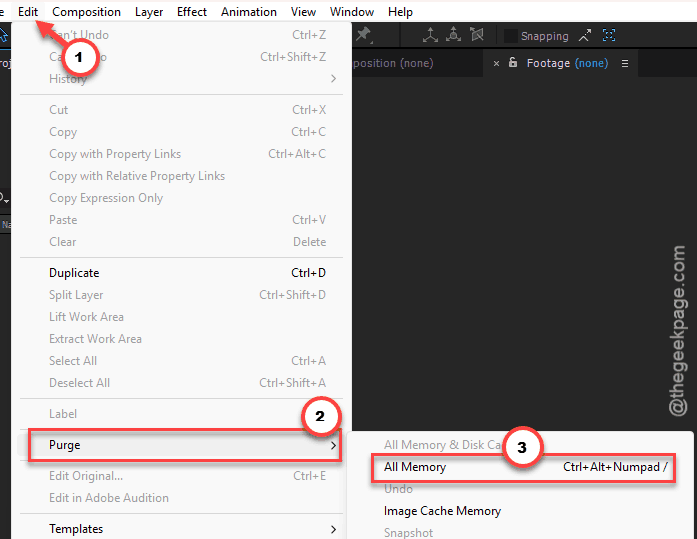
Takes a few seconds.
Fix 4 – Delete the Dynamic Link Server Cache
A corrupted cache index is what causes that endless loop. Deleting it forces both apps to build a clean one. These are only temp files (your projects and footage are not touched).
1 – Close Premiere Pro.
2 – Close After Effects.
3 – Close the Creative Cloud app completely. Its icon sits in the system tray at the bottom right of your screen.
4 – Press Windows + R to open the Run box.
5 – Type this and press Enter.
%appdata%\Adobe\dynamiclinkmediaserver
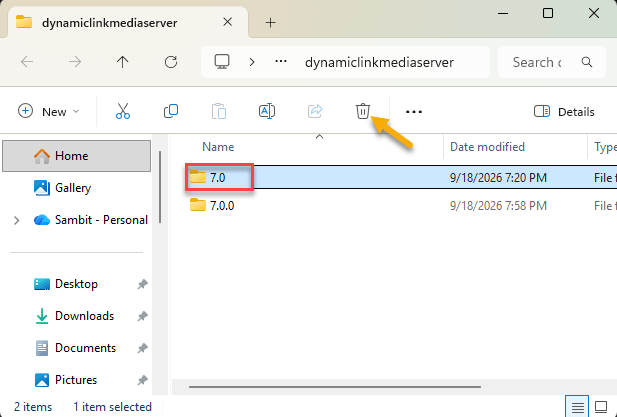
6 – Delete the folder named after your version number, for example 26.0 (yours may show a slightly different number).
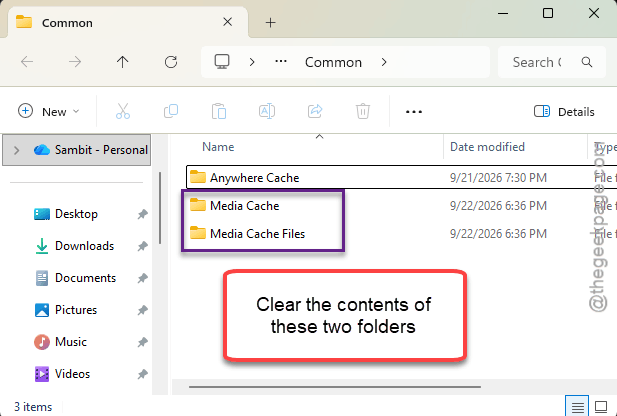
7 – Open the Run box again, type %appdata%\Adobe\Common, and press Enter.
8 – Open the Media Cache folder and delete everything inside it.
9 – Do the same inside the Media Cache Files folder.
10 – Open After Effects first. Wait until it has fully loaded.
11 – Then open Premiere Pro.
The order matters. After Effects has to be running first so the link database rebuilds clean.
Fix 5 – Let Dynamic Link Through Windows Firewall
Remember the tiny web server? If the firewall blocks it, Premiere waits forever. No pop-up. And no hint anywhere that the firewall is the problem.
1 – Click Start, type Windows Defender Firewall, and press Enter.
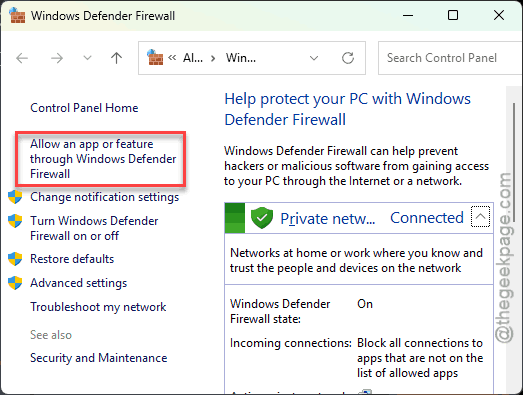
2 – Click Allow an app or feature through Windows Defender Firewall in the left sidebar.
3 – Click Change settings near the top right. This needs admin rights.
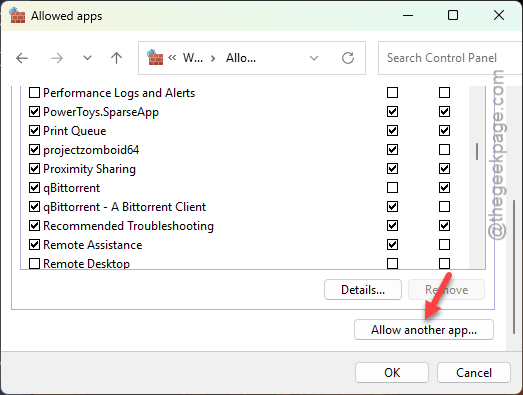
4 – Click Allow another app… at the bottom of the window.
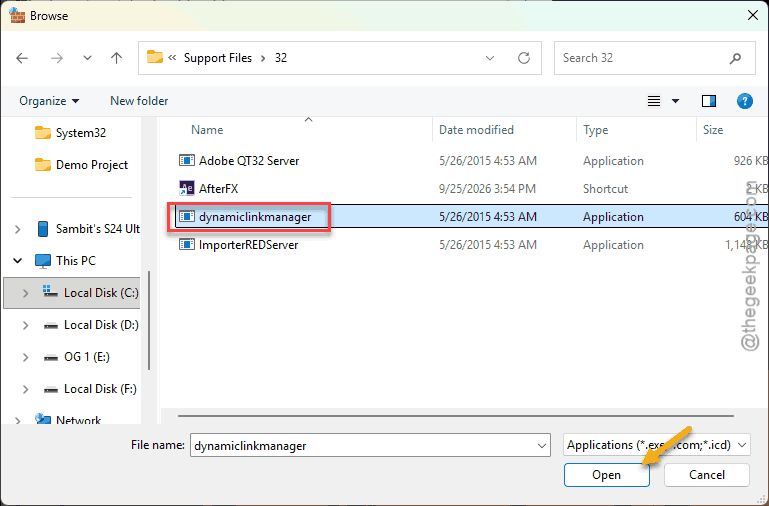
5 – Click Browse….
6 – Go to C:\Program Files\Adobe\Adobe After Effects 2026\Support Files.
7 – Select dynamiclinkmanager.exe and click Open.
8 – Click Add.
9 – In the list, tick both the Private and Public boxes next to the new entry.
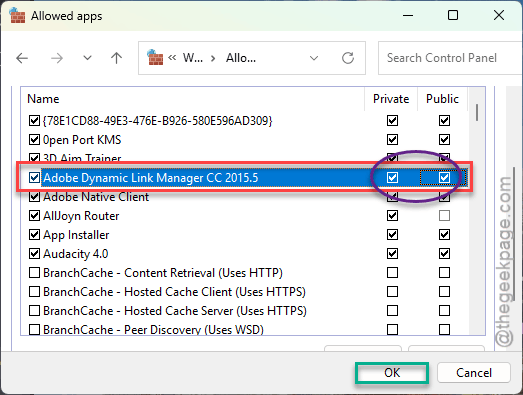
10 – Repeat steps 4 to 9 for the same file inside your Premiere Pro folder under C:\Program Files\Adobe.
11 – Click OK and restart both apps.
Fix 6 – Turn Off Hardware Accelerated Panels in After Effects
1 – Open After Effects.
2 – Click Edit at the top, then Preferences > Display.
3 – Uncheck Hardware Accelerate Composition, Layer, and Footage Panels.
4 – Click OK.
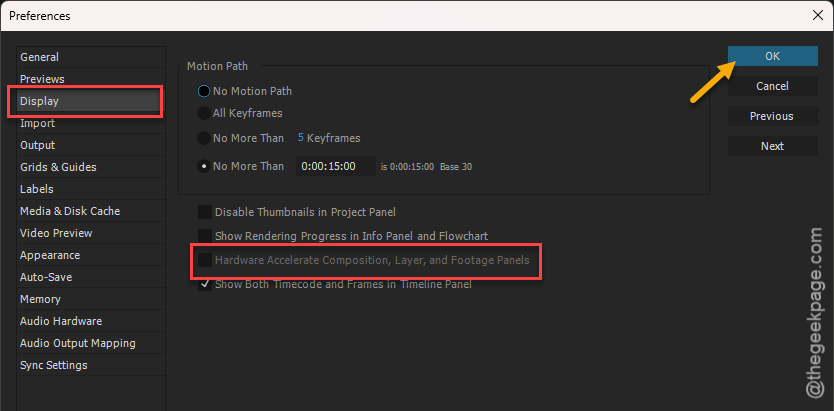
After Effects panels might feel a hair less snappy. Fair trade if Premiere stops freezing. And if nothing changes, turn it back on (no point losing smoothness for nothing).
Fix 7 – Relink When “Replace With After Effects Composition” Is Greyed Out
Different symptom, same broken link. If right-clicking a clip shows Replace With After Effects Composition greyed out, rebuild the link from the After Effects side.
1 – Press Ctrl + S in Premiere to save your project.
2 – Write down where the project file is saved and the exact name of the sequence you’re working on.
3 – Open After Effects.
4 – Click File > Adobe Dynamic Link > Import Premiere Pro Sequence
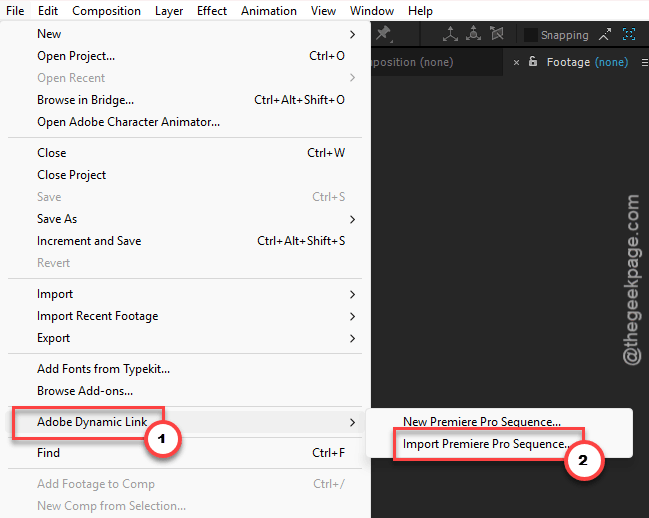
5 – Browse to your saved Premiere project and select it.
6 – Pick the sequence name you wrote down and click OK.
7 – Drag the imported sequence into your After Effects composition timeline.
8 – Save the After Effects project with File > Save.
9 – Close After Effects and go back to Premiere.
Right-click a clip on the timeline to test. The option should be clickable now.
Fix 8 – Render and Replace Heavy Comps
A bit of a cheat. If one comp is just too heavy to play live, right-click it on
Premiere’s timeline and choose Render and Replace.
Premiere turns it into a flat video file, so there’s no live link left to freeze.
The catch? Change that comp later and you’ll have to render it again. But for a comp that’s finished, it’s the smart move (your playback gets smoother too).
How to Prevent This
- Update Premiere and After Effects on the same day. Always together. A half-updated pair is the number one way to land here.
- Render and Replace any comp you’re done tweaking. Live links are for comps still in progress.
- Crashed mid-edit? Check Task Manager for a leftover dynamiclinkmanager.exe before you relaunch. Ten seconds.
- Purge the After Effects cache after long render sessions, because Premiere will not do it for you.
People Also Ask
Why is Adobe Premiere Pro constantly freezing?
A stuck background process is the usual suspect, mainly dynamiclinkmanager.exe after a crash. Ending it in Task Manager often unfreezes the timeline instantly. A corrupted cache can do it too. So can Windows Firewall blocking local traffic. Mismatched Premiere and After Effects versions are another common trigger.
How do you use Dynamic Link between Premiere and After Effects?
Select clips on your Premiere timeline, right-click, and choose Replace With After Effects Composition. After Effects opens with those clips inside a new comp. Changes you make there show up in Premiere automatically, with no rendering. Both apps need the exact same version for it to work.
Why does my After Effects keep freezing?
Start with the cache. Go to Edit > Purge > All Memory & Disk Cache. If the freezes began with Dynamic Link, turn off Hardware Accelerate Composition, Layer, and Footage Panels under Preferences > Display. And end any stuck dynamiclinkmanager.exe processes in Task Manager.