Why is a tiny speed test widget chewing through gigabytes of your system memory? The widget fires a connection test, hangs waiting for the reply, then fires another one anyway. And every stuck test stays in memory (4GB and climbing, in the worst reports that we have researched). Third-party meters like TrafficMonitor have their own version of the problem — bundled CPU and GPU sensors that poll nonstop. Your mouse still moves, but taskbar clicks just die. But the fix path is short and you can easily enact it.
Fix 1 – Turn Off the Speed Test Widget
This halts the broken ping loop on the spot. Quick win.
1 – Right-click an empty spot on the taskbar.
2 – Select Taskbar settings.
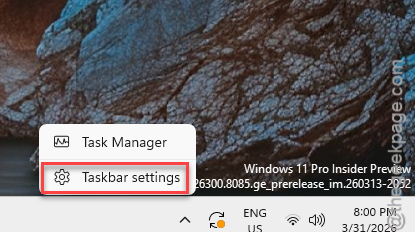
3 – Find the Speed Test widget toggle and switch it Off.
But RAM will not drop yet. The leaked memory is still sitting inside Explorer — Fix 2 flushes it.
Fix 2 – Restart Windows Explorer
1 – Press Ctrl + Shift + Esc to open Task Manager.
2 – Find Windows Explorer in the Processes list. Typing “explorer” in the search box at the top beats scrolling.
3 – Right-click it and select Restart.
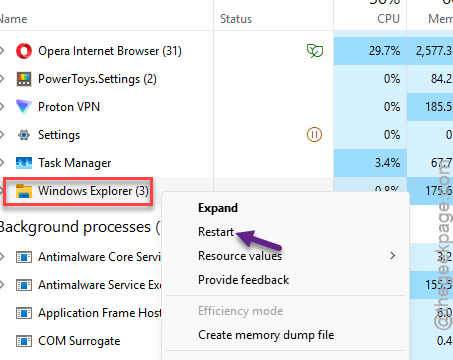
Explorer restarts on its own within a couple of seconds — nothing to relaunch. The screen goes black for a moment and the taskbar rebuilds itself. Normal. Check the memory column afterward — the bloat should be gone. If not, next fix.
Fix 3 – Disable the Background Polling Task
The widget also pings servers from a scheduled task. And that task keeps running quietly on its own timer. The silent freezes come from here.
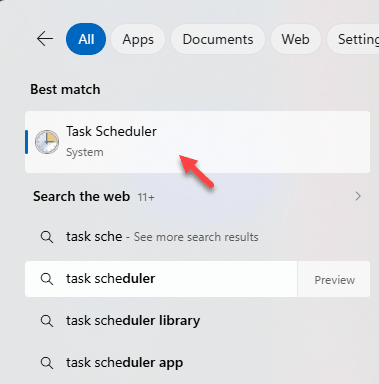
1 – Press the Windows key, type “Task Scheduler“, and open it.
2 – In the left pane, expand Task Scheduler Library, then Microsoft, then Windows, then Taskbar (it’s the last folder in that chain).
3 – Right-click NetworkSpeedTest and select Disable.
Done.
The widget still works as a manual tool if you left it enabled. Disabling the task only stops the background pinging that piles up while you’re not looking.
Fix 4 – Flush DNS and Reset the Network Stack
A corrupted local routing table makes the widget hang forever on its connection phase. So it takes two commands and a reboot to clear.
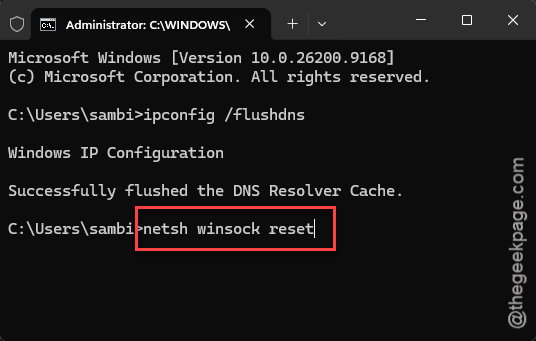
1 – Press the Windows key, type “cmd”, and click Run as administrator on the right side.
2 – Type this code and press Enter.
ipconfig /flushdns
netsh winsock reset
4 – Reboot your PC.
You may need to sign back in to a few network apps after the reset. Minor.
Fix 5 – Rip the Widget Out With PowerShell
Toggle frozen? Some installs get so wedged that the switch in Settings stops responding at all. PowerShell removes the whole component instead.
1 – Press the Windows key, type “powershell“, and click Run as administrator.
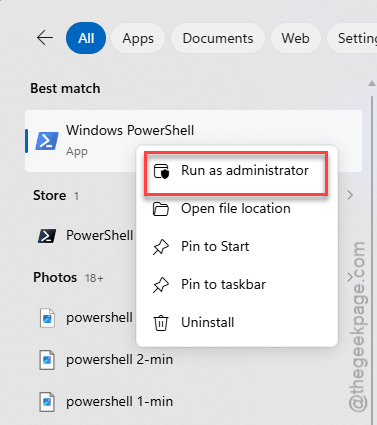
2 – Paste this line and press Enter:
Get-AppxPackage *Microsoft.NetworkSpeedTest* | Remove-AppxPackage
3 – Wait for the prompt line to come back, then restart Explorer like in Fix 2.
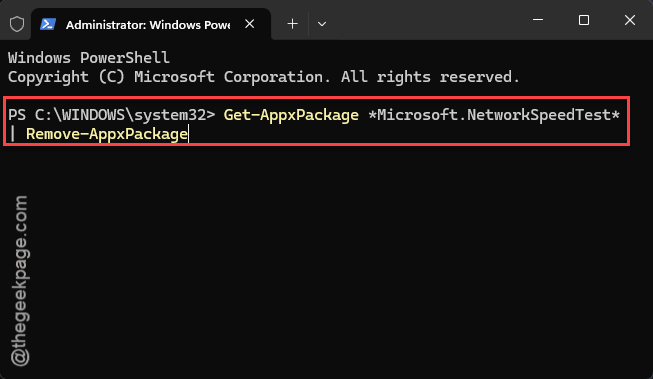
This removes only the speed test component. Your other widgets stay put.
Nuclear option. But it works when nothing else responds.
Fix 6 – Using TrafficMonitor? Turn Off Its Hardware Sensors
If your speed meter is a third-party one, the leak usually is not the network part at all. And the real culprit is the extra CPU and GPU monitoring bolted on next to it.
1 – Right-click the speed widget on your taskbar and select Options or Settings.
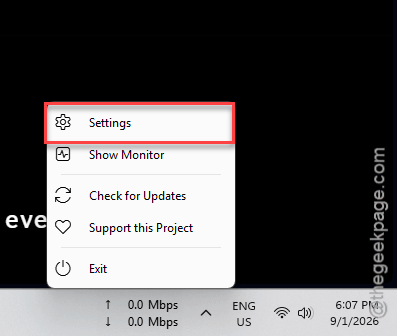
2 – Open the General Settings tab (TrafficMonitor also hides some of this under Main Window Settings).
3 – Uncheck Display CPU and memory usage and any GPU monitoring options.
4 – Click Apply.
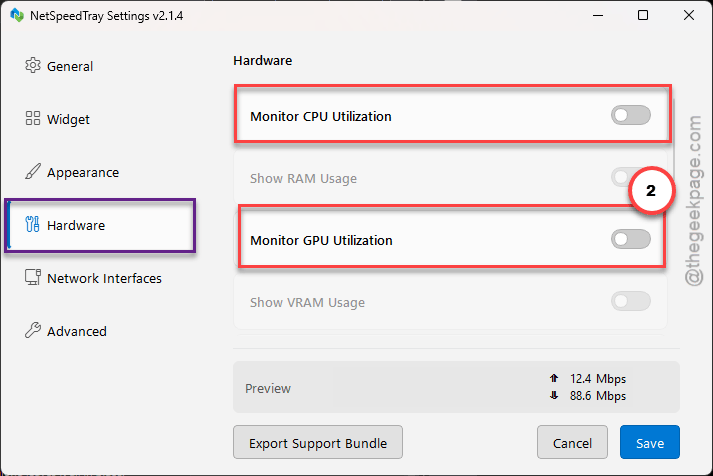
5 – Right-click the widget and select Exit, then relaunch it.
Do not skip the exit step. Leaked memory only releases when the widget process fully closes — clicking Apply alone leaves it all in place.
Fix 7 – Turn Off the Taskbar on Second Monitors
Multi-monitor setups double the pain. Windows 11 renders the widget overlay once per taskbar. And every copy leaks in parallel.
1 – Right-click an empty spot on the desktop and select Personalize.
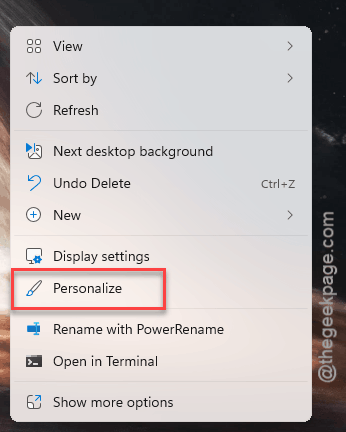
2 – Scroll down and click Taskbar.
3 – Expand the Taskbar behaviors section near the bottom.
4 – Uncheck Show my taskbar on all displays.
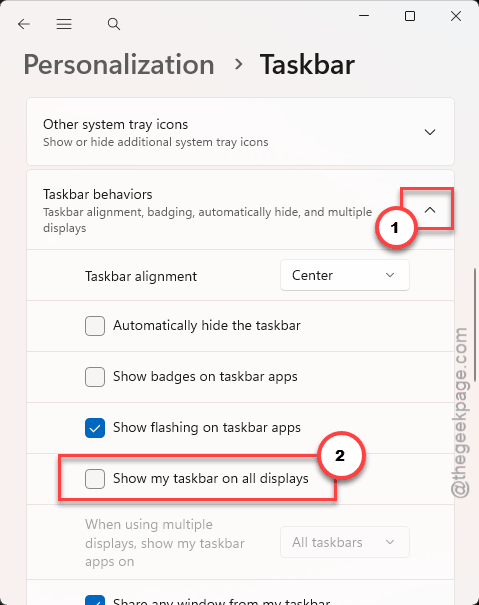
5 – Restart your PC to flush what already leaked.
This alone cuts the widget’s memory use roughly in half. Not subtle.
Keep It From Coming Back
- Leave the Speed Test widget off. A browser speed test takes ten seconds when you actually need one.
- Running Start11 or StartAllBack next to a speed meter? Keep them updated. Old versions leak memory through their taskbar hooks, and the widget takes the blame.
- Glance at Task Manager now and then. Explorer sitting above a gigabyte is your early warning.
- After a big Windows update, check the widget toggle again. Feature updates have a habit of switching things back on.
People Also Ask
Why are Windows widgets taking up so much RAM?
Widgets run inside the Explorer shell, so a leaky one bloats the whole taskbar process instead of its own. The Speed Test widget’s stuck ping loop is the current offender. Disable widgets you don’t use, then restart Windows Explorer to release the trapped memory.
How do I fix Windows 11 taskbar freezing?
Restart Windows Explorer first — press Ctrl + Shift + Esc, find Windows Explorer, right-click, Restart. If the freezing returns, disable the Speed Test widget and its NetworkSpeedTest scheduled task, and update any third-party taskbar tools. A stuck widget causes most of these lately.