A corrupted config file. That’s what kills Dragon’s Dogma 2 at startup for most people right now. And the character creator crash? Separate bug, same title update. Capcom broke a few things at once with this patch. Not ideal. The fixes below run from fastest to most drastic, so start at the top and work down.
The Short Version
The newest title update pushes a broken DX12 shader cache. Older systems hit it during character creation and crash on the spot. And that’s only bug number one.
The same update can corrupt config.ini — the small settings file the game reads at boot. Bad file, dead game. It never even reaches the title menu.
Then there’s Crashreport.exe. It’s supposed to log crashes. But it gets stuck in a boot loop, flags the game as broken, and shuts the whole thing down by itself. The crash reporter causing the crash. Ironic, right?
Mod leftovers pile on top. A file called dinput8.dll from REFramework or an old DLC unlocker sits in the game folder and hooks into the engine every launch. It worked fine before the update. Now it takes the game down with it.
Fix 1 – Swap In the Default Config File
The game ships a clean settings template right next to the corrupted one. So you replace the bad file with the default copy and let the game rebuild from scratch.
1 – Open your Steam library.
2 – Right-click Dragon’s Dogma 2 and select Manage, then Browse local files.
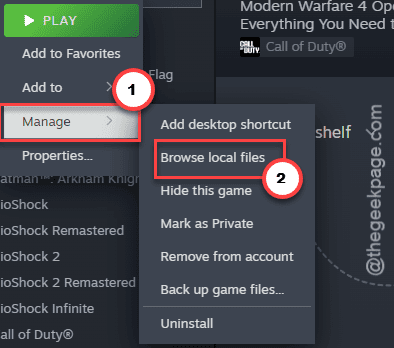
The install folder opens in File Explorer.
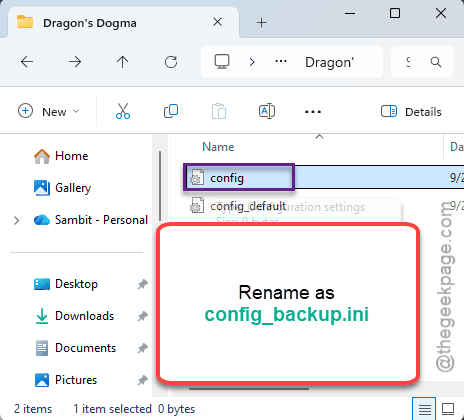
3 – Find the file named config.ini.
4 – Rename it to config_backup.ini.
5 – Copy config_default.ini and paste the copy in the same folder.
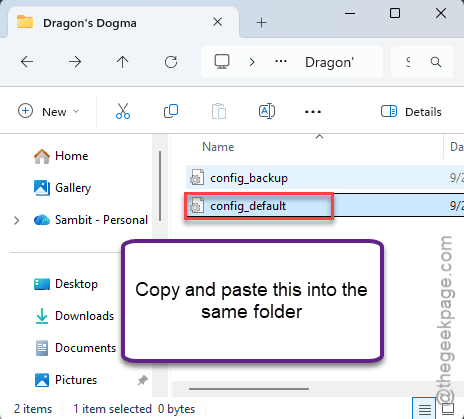
6 – Rename that copy to config.ini.
Launch the game. It reads the clean template and boots fresh. Your old file is still sitting there as a backup, just in case you want it later.
Fix 2 – Delete Crashreport.exe
1 – Open the game’s install folder again, same route as Fix 1.
2 – Find Crashreport.exe in the main folder.
3 – Right-click it and select Delete.
4 – Launch the game through Steam.
And yes, the game runs fine without its crash reporter. Better, apparently.
Fix 3 – Force DirectX 11 With a Launch Option
This one targets the character creator crash. The broken DX12 shader cache chokes older systems right in that menu. So the fix is telling the game to use DirectX 11 instead (the older graphics mode — it skips the bad cache completely).
1 – Right-click Dragon’s Dogma 2 in your Steam library and select Properties.
2 – Stay on the General tab and scroll down to Launch Options. It’s the text box at the bottom.
3 – Type -dx11 in the box.
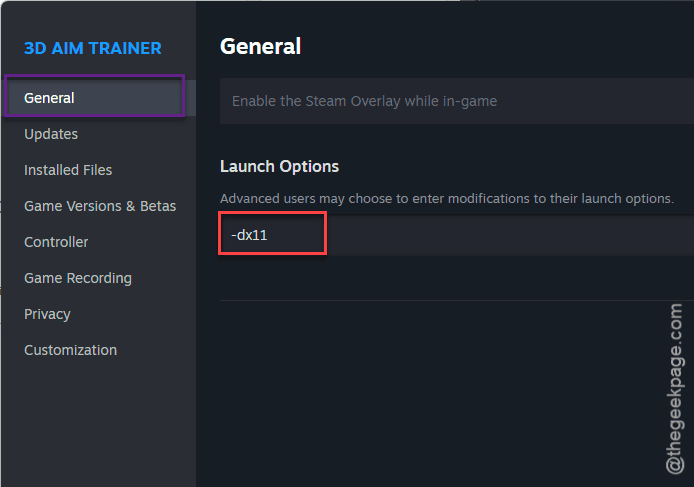
4 – Close the window. There’s no save button — Steam keeps it automatically.
Load times might shift a little in DX11 mode. Small price.
Fix 4 – Delete dinput8.dll (Mod Users, This One’s Yours)
Ever installed REFramework, a DLC unlocker, or any mod at all? Check this before anything else.
Those tools drop a file named dinput8.dll (a hook file that loads mod code into the game) into the main game folder. After an update, the hook breaks and crashes the game at launch.
1 – Open the install folder, same route as Fix 1.
2 – Look for dinput8.dll in the main directory.
3 – Delete the file completely.
4 – Start the game normally.
No file there? Skip ahead — this cause isn’t yours.
Fix 5 – Restart Steam as Administrator
Permission blocks can kill the game the moment it launches. Running Steam with admin rights gets past them.
1 – Right-click the Steam icon in your system tray, down in the bottom right corner of the screen.
2 – Select Exit Steam. Give it a few seconds to close fully.
3 – Open the Start menu and type Steam in the search box.
4 – Right-click the Steam shortcut and select Run as administrator.
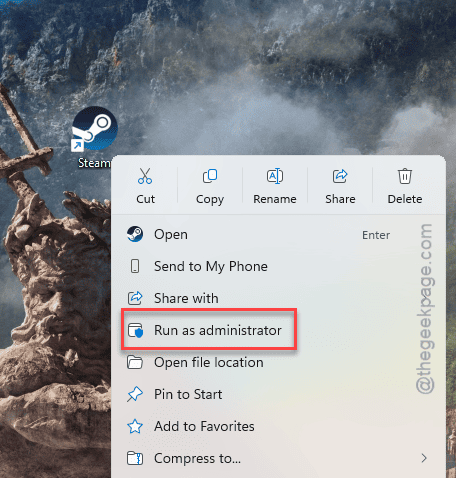
5 – Launch Dragon’s Dogma 2.
Did it boot? Then a permission block was your problem, and you’ll want to launch Steam this way until Capcom patches things properly.
Fix 6 – Turn Off the Steam Overlay
Quick one.
1 – At first, right-click Dragon’s Dogma 2 in your library, select Properties.
2 – Then, under the General tab, toggle off Enable the Steam Overlay while in-game.
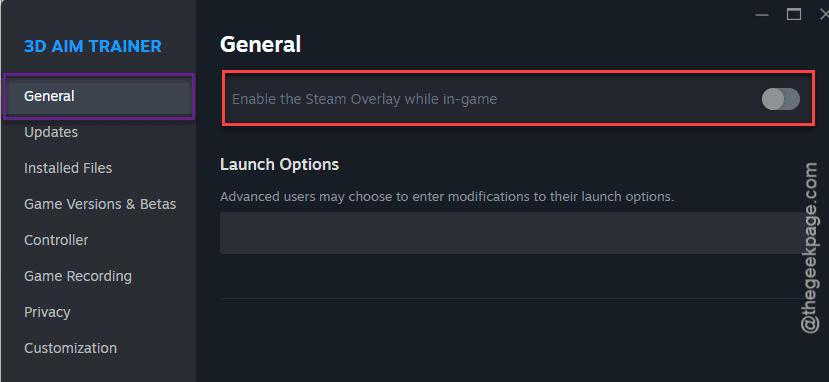
The overlay hooks into the game window as it opens, and for some setups that hook alone crashes the engine before you ever see a menu.
Fix 7 – Reset Your Local Save Data (Last Resort)
Bad news first: this erases local progress. So do it only if nothing above worked.
Corrupted saves from an older game version crash the game while it syncs on the title screen. Wiping them lets it boot clean.
1 – Close Steam completely.
2 – Open File Explorer and go to this address –
C:\Program Files (x86)\Steam\userdata\[YourSteamID]\2054970\remote
The number in the middle is your own Steam ID, so it will look different on your PC.
3 – Delete the win64_save folder.
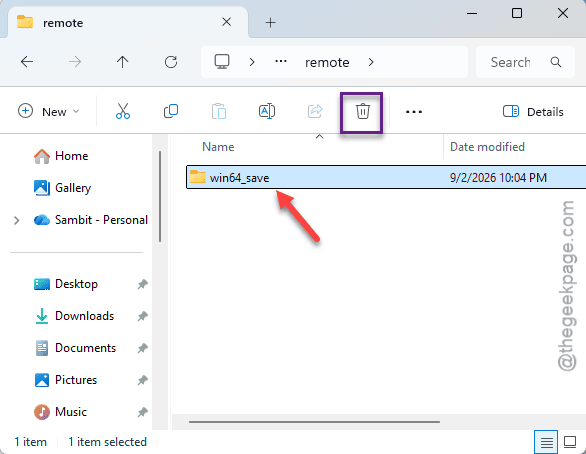
4 – Restart Steam and launch the game.
The game builds a fresh profile on boot. Painful, but it works when everything else fails.
So It Doesn’t Happen Again
– Back up config.ini before every big title update. Takes ten seconds.
– Remove mod files like dinput8.dll before you patch. Update first, re-mod after.
– Keep one save backup outside the Steam folder. Corrupted saves are brutal in this game.
– And if a patch just dropped? Wait a day. Let Capcom hotfix whatever broke.
Quick Answers
Why does Dragon’s Dogma 2 keep crashing during character creation?
The latest update ships a broken DX12 shader cache, and older systems crash on it right in that menu. Force DirectX 11 instead — add -dx11 to the game’s launch options in Steam. That skips the bad cache entirely, and the menu loads fine.
Why is Dragon’s Dogma 2 crashing on startup?
Most startup crashes come down to a corrupted config.ini or a leftover mod hook called dinput8.dll. Replace the config with the game’s default template, delete the dll, and boot again. A stuck Crashreport.exe can also shut the game down on its own.
Will deleting my save files make the game boot again?
Sometimes, yes — corrupted saves from an older version crash the game while it syncs on the title screen. But it wipes local progress, so treat it as the last option. Try the config swap and the -dx11 launch option first. Those cover most cases.
Why does Dragon’s Dogma 2 keep crashing on my PC?
It’s rarely your hardware. The recent title update broke the config file, the shader cache, and old mod hooks all at once. Steam-side problems matter too — permission blocks and the overlay both crash some setups. Run Steam as admin and toggle the overlay off.