Why is Windows treating your games like malware? Smart App Control (the Windows 11 security layer that only runs apps with a solid reputation). Indie games, mods, and small launchers often don’t have one. Blocked. And half the time, the off switch is greyed out too.
Why This Happens
Smart App Control checks every program against Microsoft’s cloud reputation service. Big-name apps pass instantly. But a niche game patch, a mod loader, a small developer’s installer? No reputation yet. So Windows just blocks it.
The greyed-out toggle is its own bit of nonsense. The switch only works while the feature sits in Evaluation mode — once that window closes, the toggle locks. Turning it off is also permanent until you reinstall Windows. Microsoft calls that a security feature. Sure.
Downloaded files carry a hidden “Mark of the Web” tag too (a marker that says “this came from the internet”). But that tag alone can be enough to trigger the block.
Fix 1 – Turn Smart App Control Off (If the Toggle Works)
Warning first: off is forever. It stays off until you reinstall or reset Windows. No going back. So decide accordingly.
1 – Press Windows + I to open Settings.
2 – Go to Privacy & security, then Windows Security.
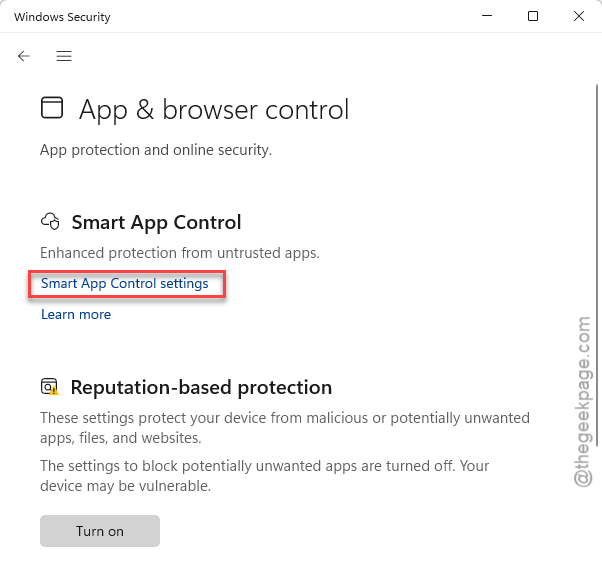
3 – Click App & browser control.
4 – Click Smart App Control settings.
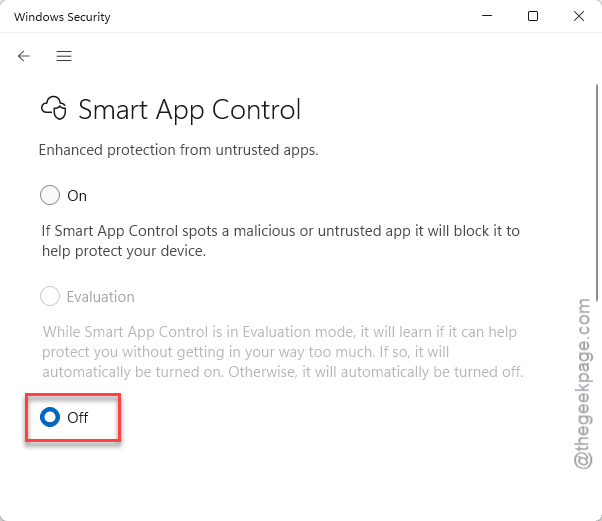
5 – Select Off.
6 – Click Yes, I’m sure when it asks.
And your game runs immediately after.
Fix 2 – Exclude the Game’s Folder
This whitelists one folder while the rest of the system stays protected. Better than nuking the whole feature for a single game.
1 – Open Windows Security, like in Fix 2.
2 – Click Virus & threat protection.
3 – Click Manage settings under the protection settings heading.
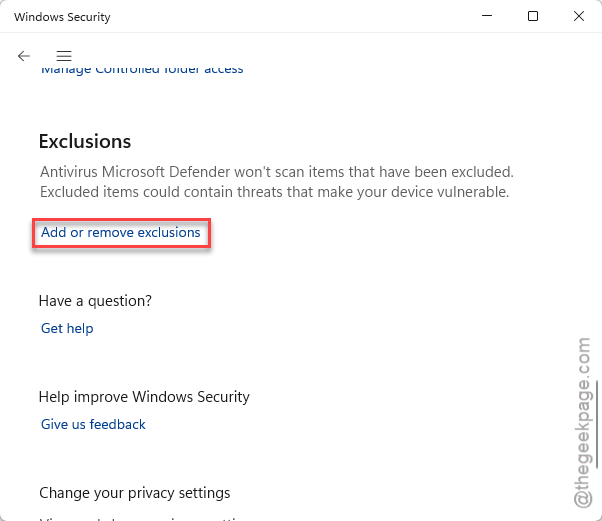
4 – Scroll way down to Exclusions and click Add or remove exclusions.
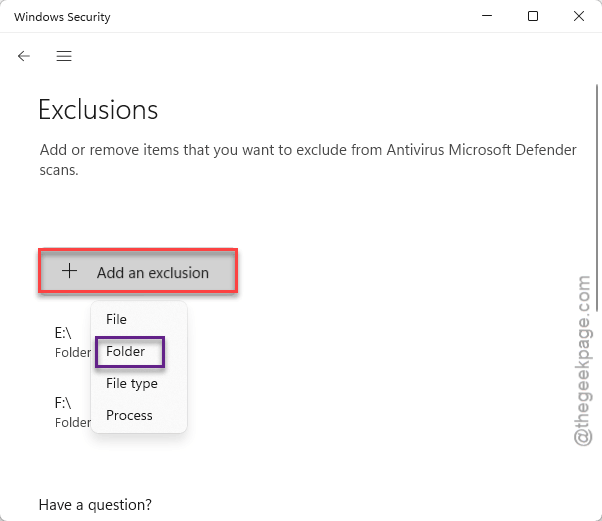
5 – Click Add an exclusion, pick Folder, and select your game’s install folder.
See if this works.
Fix 3 – Unblock the Game’s Executable
Fastest first. Removing the internet-origin tag clears the flag for that one file.
1 – Right-click the blocked game’s .exe file or installer and select Properties.
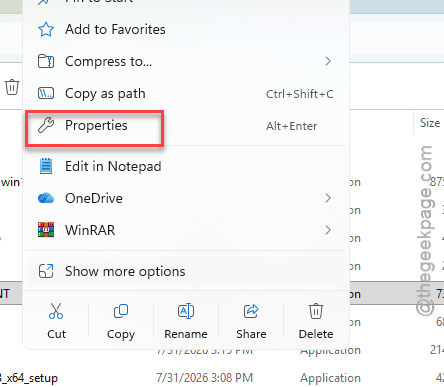
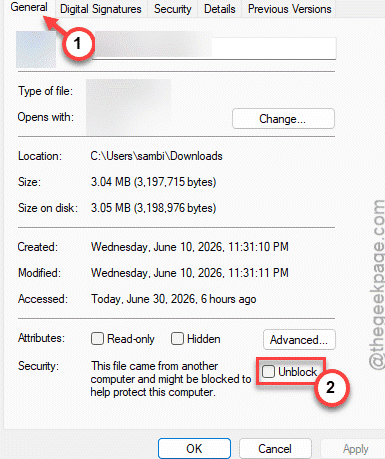
2 – Stay on the General tab.
3 – Look at the bottom of the window for the Security section.
4 – Check the box next to Unblock.
5 – Click Apply, then OK.
6 – Run the game again.
Fix 4 – Update Windows Security Intelligence
Microsoft pushes rapid micro-updates that revoke false-positive flags on popular game engines. Grabbing the latest one can clear your block without touching anything else.
1 – Click Start, type “Windows Security”, and open it.
2 – Click Virus & threat protection.
3 – Scroll down to Virus & threat protection updates and click Protection updates.
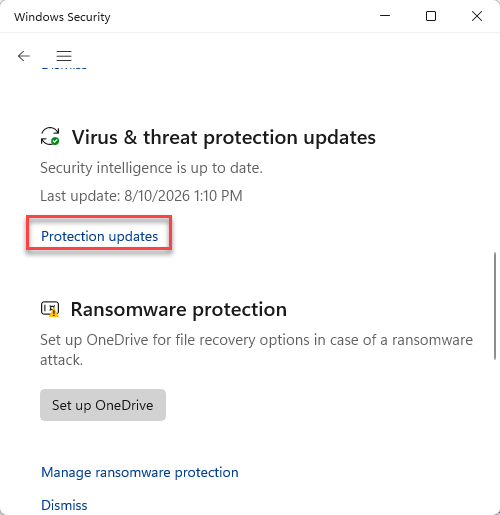
4 – Click Check for updates.
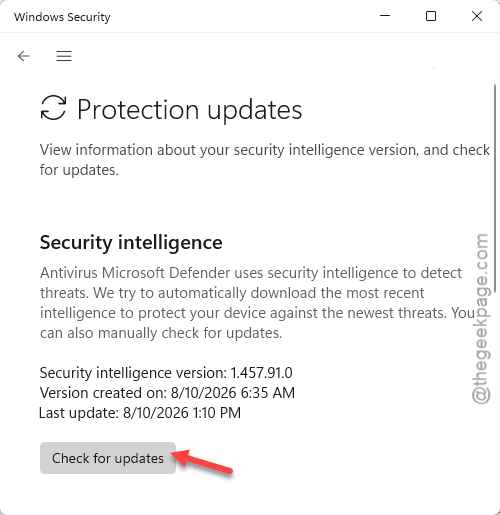
Takes under a minute. Then try the game.
Fix 5 – Toggle Greyed Out? Force It Off in the Registry
Stuck with a locked toggle? The registry route kills the feature from the backend.
1 – Press Windows + R, type regedit, and press Ctrl + Shift + Enter to run it as administrator.
2 – Paste this path into the address bar at the top (way faster than clicking through folders):
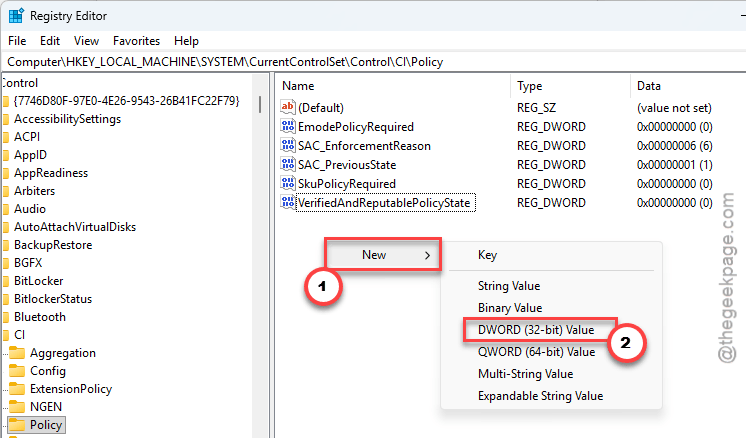
HKEY_LOCAL_MACHINE\SYSTEM\CurrentControlSet\Control\CI\Policy
3 – Look for VerifiedAndReputablePolicyState in the right pane.
4 – Not there? Right-click empty space in the right pane, choose New, then DWORD (32-bit) Value, and name it exactly VerifiedAndReputablePolicyState.
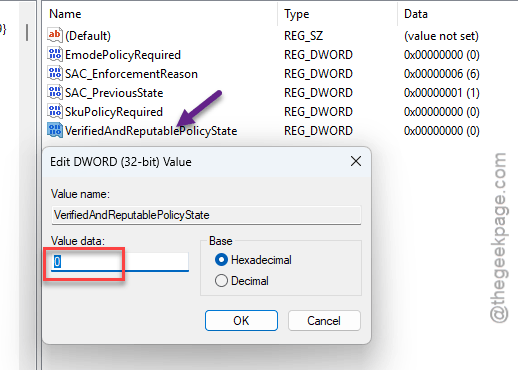
5 – Double-click the new value and set the value data to 0.
6 – Click OK and restart your PC.
On Windows 11 Pro there’s a Group Policy version too:
1 – At first, run gpedit.msc from a Run panel.
2 – Then, go here –
Computer Configuration > Administrative Templates > Windows Components > Smart App Control
3 – Then, set it to Disabled.
Same result either way.
How to Prevent This
- Decide on Smart App Control right after installing Windows. That’s the only time the toggle is guaranteed to work.
- Grab games from known storefronts when you can. Reputation is the whole game here. Literally.
- Keep security intelligence updated — false positives on game engines get revoked fast.
- Mod a lot? Use folder exclusions instead of switching everything off.
People Also Ask
How do I stop Smart App Control from blocking my game?
Try the gentle stuff first: right-click the game’s .exe, open Properties, and check Unblock. Then update your protection definitions in Windows Security. If it keeps blocking, add the game’s folder as an exclusion — or turn Smart App Control off entirely, which is permanent.
Why is Smart App Control greyed out?
The toggle only works during Evaluation mode. Once Windows commits to On, or the evaluation period ends, the Settings switch locks itself. You can still force it off through the registry by setting VerifiedAndReputablePolicyState to 0, or through Group Policy on Windows 11 Pro.
How do I fix “Smart App Control has blocked part of this app”?
That means one component of the app failed the reputation check — usually a helper file or updater. Unblock the file in its Properties, update security intelligence, and exclude the app’s folder in Windows Security. One of those three clears it for nearly everyone.