No one like ads or annoying pop-ups while surfing webpages on your Safari browser? Unlike other third-party browsers on the iPhone, you can activate pop-up blockers in the Safari to block unnecessary ads or scripts. If pop-up blocker is unable to block ads/pop-ups on the Safari browser, you must try these solutions.
Fix 1 – Enable the Block Pop-ups feature
You have to manually enable the Block Pop-Ups option from the Safari browser settings on your iPhone.
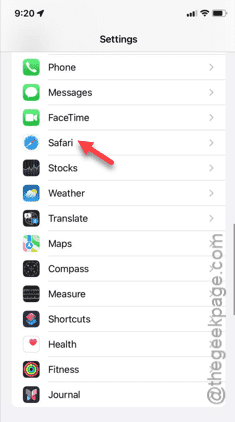
Step 1 – To do this, first, open your iPhone’s Settings.
Step 2 – If you start to scroll, you will see the list of apps installed on your iPhone.
Step 3 – Stop scrolling when you see “Safari“. Touch to open its settings.
Step 4 – Look for the “Block Pop-ups” settings. Enable it when you have found it.
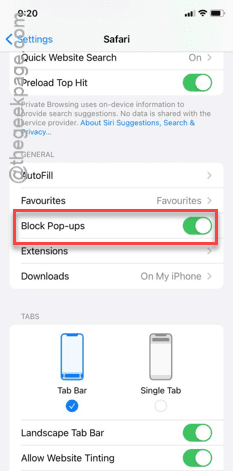
After enabling the blocker settings, you can now test thin on the Safari browser.
So, open any website (where the pop-ups are prevalent) and check whether the pop-up blocker is working or not.
If you are still seeing ads or getting unrelated pop-ups on Safari, jump on to the next solution.
Fix 2 – Install an ad blocker for Safari
If there are still ads appearing in the webpage, you must place a good third-party ad blocker to do the job.
Step 1 – Open the App Store on your iPhone.
Step 2 – Do a search for the “ad blocker” using the search box.
Step 3 – There will be a lot of ad blockers in the search list. You may install the ad-blocker of your preference and based on the overall rating.
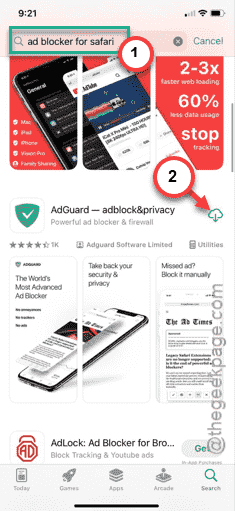
Step 4 – Once you have installed the ad-blocker, quit the App Store and load the Settings tab.
Step 5 – Open the “Safari” settings once again.
Step 6 – In that Safari settings, you will find the “Extensions” tab. Open it up.
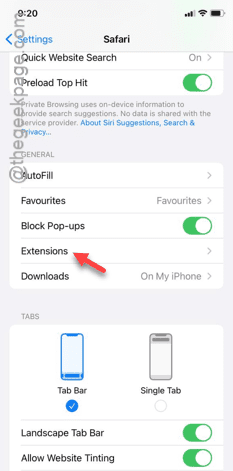
Step 7 – There you will find the ad-blocker extension that you have just installed.
Step 8 – Enable all the components of that specific ad-blocker.
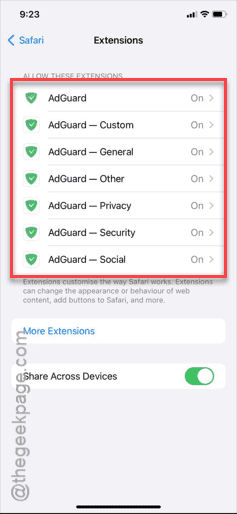
Once you have done that, return to the Safari browser and try to access the same website once more. This time, all the pop-ups and ads will get blocked/filtered.
Fix 3 – Use an alternative browser
Instead of using Safari, you can look into an alternative browser that has an in-built pop-up blocker system. We have given some examples –
Brave
Opera
Firefox
Just install any one of them from the App Store and test the ad-blocking/pop-up blocking functionality in that browser.
Hope these have helped you fix the issue.