When you block someone’s number on your iPhone, any call from their end gets blocked automatically. But, if there are any problems with the call blocking or identification, these calls may not get blocked. If you are in this predicament and looking for a solution to troubleshoot this problem, these fixes will be helpful.
Why Call blocking or identification is missing from the iPhone?
The Call Blocking function on the iPhone is a native function on the iOS. When you block a contact, it registers the number in the block list on the device. Whenever anyone from the block list dials up your number, it gets rejected and greeted with the standard busy-tone. This is the standard operating procedure of the blocked contacts on your device.
But, if you are using any third-party calling solutions (such as TrueCaller), this otherwise simple blocking function can get restricted. In simpler words, this app could be the reason why the device can’t restrict any calls from the blocked contacts. However, the tracking feature needs to be enabled for the feature to function properly.
Fix 1 – Turn on Apps tracking process
Enable the Apps Tracking feature from the iPhone Settings page.
Step 1 – At first, load up the Settings.
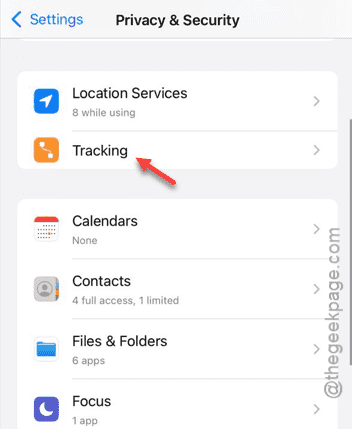
Step 2 – Next, open up the “Privacy & Security” feature.

Step 3 – Next, open the “Tracking” feature.
Step 4 – In the Tracking page, turn on the “Allow Apps to Request to Track” feature.
[NOTE – If you are using any third-party tools, you have to turn that from the Apps list.]
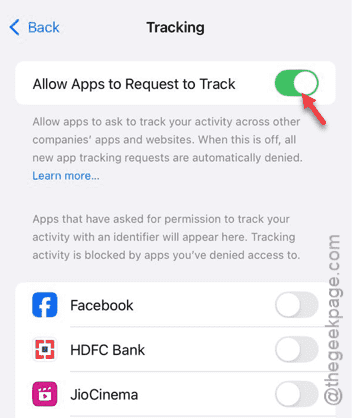
Once you have enabled it, this call blocking and identification issue will disappear from your device.
You may have to reboot the device for once.
Fix 2 – Delete any call blocking app
We have already discussed this point that if you are using any call management software on the device, it can cause this issue.
Step 1 – Just search for the app from the search box or find it from the App Library.
Step 2 – Now, you can uninstall the app directly from there. Hold the app and tap “Remove app” to do it.
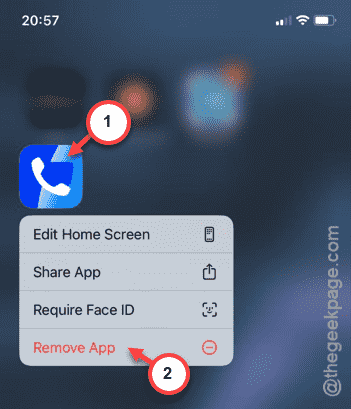
Step 3 – Tap the “Delete App” to delete the call management app from the device.

After uninstalling the application, you must restart the iPhone. Once it restarts, this problem will go away.