You set AppLocker to audit-only. The whole point was to watch, not block. Your scripts are properly signed by a trusted publisher. And they’re still getting stopped.
Makes no sense, right? Audit mode shouldn’t block anything.
Why This Happens
AppLocker checks a script’s publisher signature using the system account — not your user account. And the system account can’t see certificates you installed in your personal store.
So even a perfectly signed script looks unsigned to AppLocker. It can’t read the cert. It blocks.
There’s an encoding trap too. If the script file isn’t saved in the right format, AppLocker’s parser can’t read the signature block tacked onto the end. Same result — treated as untrusted.
And here’s the one that fools everyone. You set audit-only locally. But a higher-priority group policy somewhere up the chain is enforcing for real. That one wins. Annoying.
Fix 1 – Move the Signing Certificate to the Machine Store
This is the big one. AppLocker verifies signatures as the system account, which only reads machine-level certificates. So the cert has to live there, not in your user store.
1 – Press Windows + R, type this in the box, and press Enter.
certlm.msc
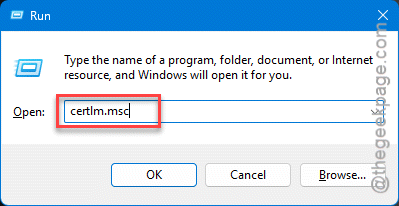
This opens the Local Computer certificate store.
2 – Expand the Trusted Publishers folder.
3 – Right-click Certificates, then choose All Tasks > Import.
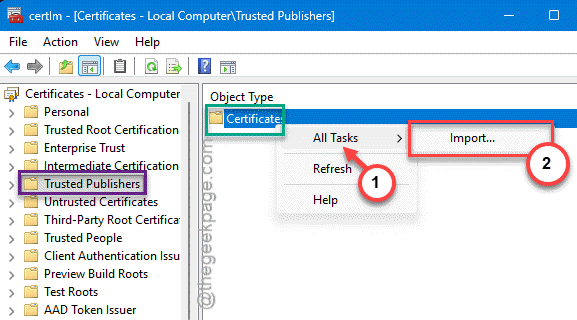
4 – Follow the wizard and import your code-signing .cer or .pfx file.
5 – Now go to the Trusted Root Certification Authorities folder.
6 – Right-click Certificates, choose All Tasks > Import, and import the same file again here.
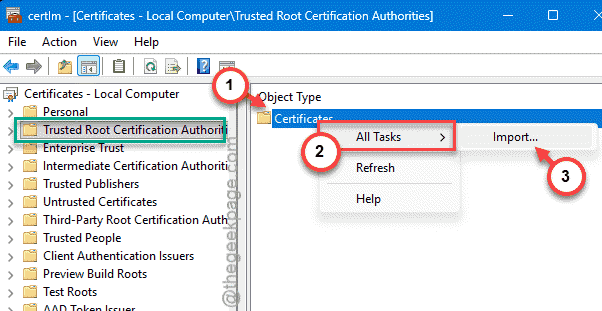
Importing into both spots completes the trust chain — publisher and root. With the cert at the machine level, the system account can finally verify your signature.
Fix 2 – Confirm Audit-Only Is Actually Set
Worth a double-check. Sometimes the script rules were never switched to audit, or default rules are missing entirely.
1 – Press Windows + R, type secpol.msc, and press Enter.
2 – Go to:
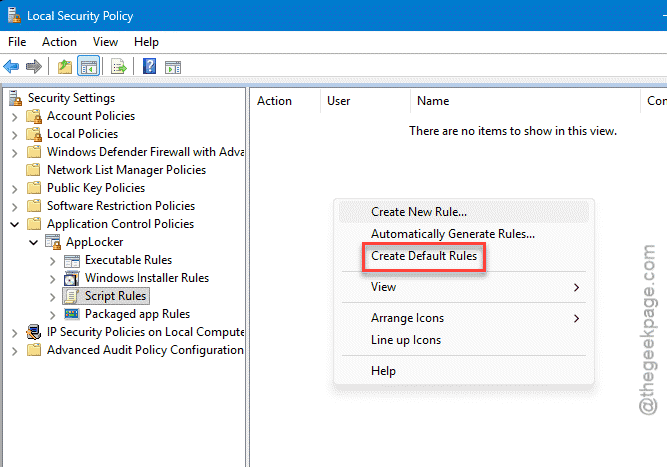
Application Control Policies > AppLocker > Script Rules
3 – If the pane is empty, right-click the blank space and choose Create Default Rules.
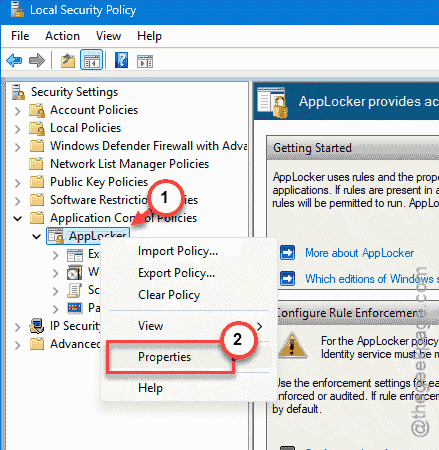
4 – Right-click the top AppLocker folder in the left tree and choose Properties.
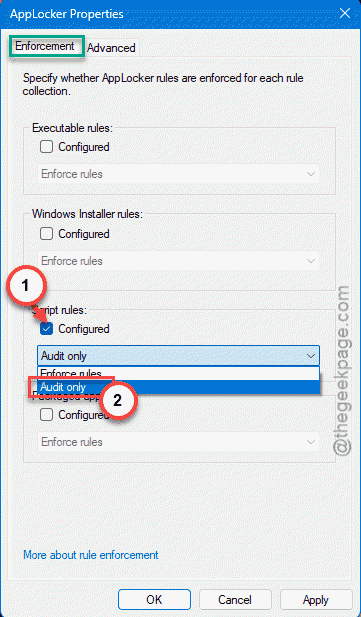
5 – On the Enforcement tab, make sure Script rules is checked and set to Audit only.
6 – Click Apply, then OK.
See if that works.
Fix 3 – Hunt Down an Overriding Group Policy
Here’s the sneaky cause. Your local setting says audit, but a domain group policy higher up is enforcing for real — and it overrules you. This is the fix people miss.
1 – Open Command Prompt (no admin needed for this part).
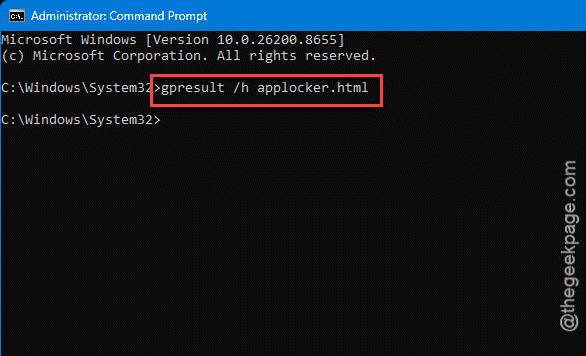
2 – Run
gpresult /h applocker.html
3 – Open the applocker.html file it creates.
4 – Search the report for AppLocker. Find every group policy touching this machine.
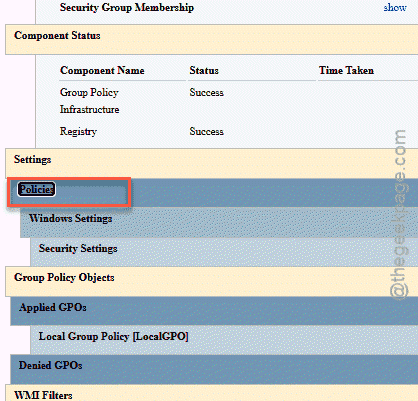
5 – Check whether another policy is enforcing Script Rules instead of auditing.
6 – Set that policy to Audit Only, or have your domain admin remove it.
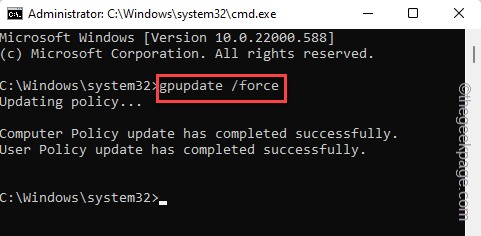
7 – Back in Command Prompt, run gpupdate /force to apply the change, then test your script again.
If you’re on a managed work machine, you may need IT to make this change. The policy lives on the domain controller, not your PC.
Fix 4 – Save the Script as UTF-8 With BOM
Try saving the UTF-8.
In VS Code:
1 – Open the script file.
2 – Click the encoding label (like UTF-8) in the bottom-right status bar.
3 – Choose Save with Encoding.
4 – Pick UTF-8 with BOM from the list.
In Notepad++:
1 – Open the file, click the Encoding menu at the top,
2 – Then, choose Convert to UTF-8 with BOM and then save.
One catch — changing the encoding alters the file, which breaks the old signature. So re-sign the script afterward with Set-AuthenticodeSignature or your deployment pipeline. Skip that and you’re back where you started.
How to Prevent This
– Save signed scripts as UTF-8 with BOM, then sign them. Wrong encoding hides the signature.
– Check for overriding group policies before you trust a local audit setting. A domain GPO quietly wins every time.
– Re-sign any script after you edit or re-encode it. Even a tiny change voids the old signature.
People Also Ask
Why is AppLocker blocking my signed script?
Most often the signing certificate is in your user store, but AppLocker checks signatures as the system account, which only reads machine-level certs. Import the cert into the Local Machine Trusted Publishers and Trusted Root stores. Wrong file encoding and an overriding group policy can cause it too.
Does AppLocker block scripts by default?
Once you enable AppLocker script rules in enforce mode, yes — anything not explicitly allowed gets blocked. That’s why default rules matter. In audit-only mode it should just log, not block, so if scripts are still being stopped, something else is enforcing, usually a domain policy higher up the chain.